
ORGBRO Z3
ORGBRO Z3 Label Maker Machine User Manual
Ụdị: Z3
Okwu mmalite
Thank you for choosing the ORGBRO Z3 Label Maker Machine. This portable thermal label printer is designed for versatile use in home organization, small businesses, offices, and schools. It offers high-quality, ink-free printing and is compatible with various devices. This manual provides detailed instructions to help you set up, operate, and maintain your device for optimal performance.
Kedu ihe dị na Igbe ahụ
- 1x ORGBRO Z3 Label Maker Machine
- 1x Ụdị-C eriri USB
- 1x Roll of 50x30mm White Labels (230 Pcs)
- 1x Akwụkwọ ntuziaka onye ọrụ
- 1x Drive USB
Ntuziaka nhazi
1. Ịchaji ngwaọrụ
Before first use, fully charge the ORGBRO Z3 Label Maker. Connect the provided Type-C charging cable to the device's charging port and a suitable USB power adapter. The LED screen will indicate charging status. A full charge provides approximately 4 weeks of runtime.
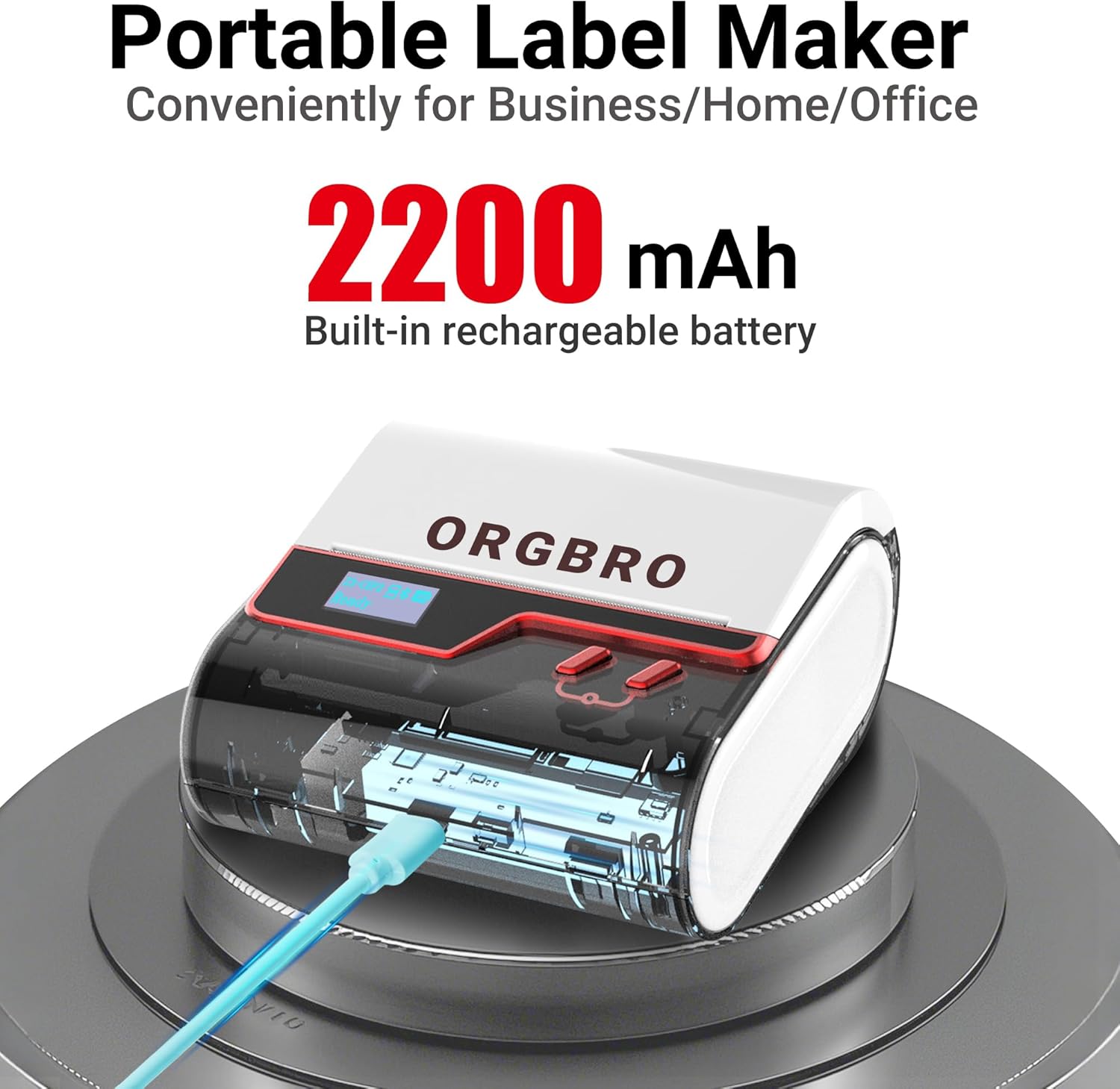
Image: The ORGBRO Z3 Label Maker showing its charging port and indicating a 2200mAh built-in rechargeable battery, emphasizing its portability.
2. Na-ebunye Label Akwụkwọ
- Mepee mkpuchi nke ngalaba akara ahụ.
- Insert the label roll with the printing surface facing up, ensuring it aligns correctly with the paper guides.
- Close the cover firmly. The printer supports label widths from 0.8 to 3.15 inches.

Image: A visual guide demonstrating the correct method for loading label paper into the ORGBRO Z3, highlighting its compatibility with 0.78-3.15 inch wide labels.
3. Ijikọ ngwaọrụ
The ORGBRO Z3 supports connection via Bluetooth for mobile devices (Android/iOS) and USB for computers (Windows/Mac/Chrome OS/Linux).
Bluetooth Connection (Mobile Devices)
- Download the free "4BarCode" app from your device's app store (Google Play for Android, App Store for iOS).
- Gbaa mbọ hụ na agbanyere Bluetooth na ngwaọrụ mkpanaka gị.
- Open the "4BarCode" app. Do not connect directly via phone's Bluetooth settings. Connect through the app.
- Within the app, search for and select your ORGBRO Z3 device to pair. The LED screen will show Bluetooth status.
USB Connection (Computers)
- Connect the ORGBRO Z3 to your computer using the provided USB cable.
- Install the necessary drivers from the included Drive USB or download them from the official ORGBRO websaịtị.
- Once drivers are installed, the printer will be recognized by your computer's operating system.

Image: The ORGBRO Z3 Label Maker demonstrating its connectivity options, supporting both Bluetooth for phones (iOS, Android) and USB for computers (Apple, Windows, Chrome OS, Linux).
Ntuziaka ọrụ
1. Using the "4BarCode" App
The "4BarCode" app is your primary interface for creating and printing labels. It offers extensive customization options:
- Ndebiri: Access over 150 pre-designed templates for various uses.
- Fonts & Frames: Choose from 80+ fonts and 150+ frames to personalize your labels.
- Icons & Images: Utilize 670+ built-in icons or import images directly from your mobile device.
- Content Types: Easily add text, barcodes, QR codes, shapes, and lines.

Image: The "4BarCode" app interface, showcasing its rich features including over 150 templates, 80+ fonts, and 670+ icons for comprehensive label design.
2. Creating and Printing Labels
- Open the "4BarCode" app and ensure your ORGBRO Z3 is connected.
- Select "New Label" or choose an existing template.
- Customize your label by adding text, barcodes, QR codes, images, and other elements. Adjust size, font, and position as needed.
- Tupuview your label to ensure it appears as desired.
- Tap the "Print" button. The printer will begin printing at speeds up to 50mm/s with a crisp 203dpi resolution.

Image: The ORGBRO Z3 in action, demonstrating its capability for fast and clear printing, producing up to 52 labels per minute at a resolution of 203 DPI.
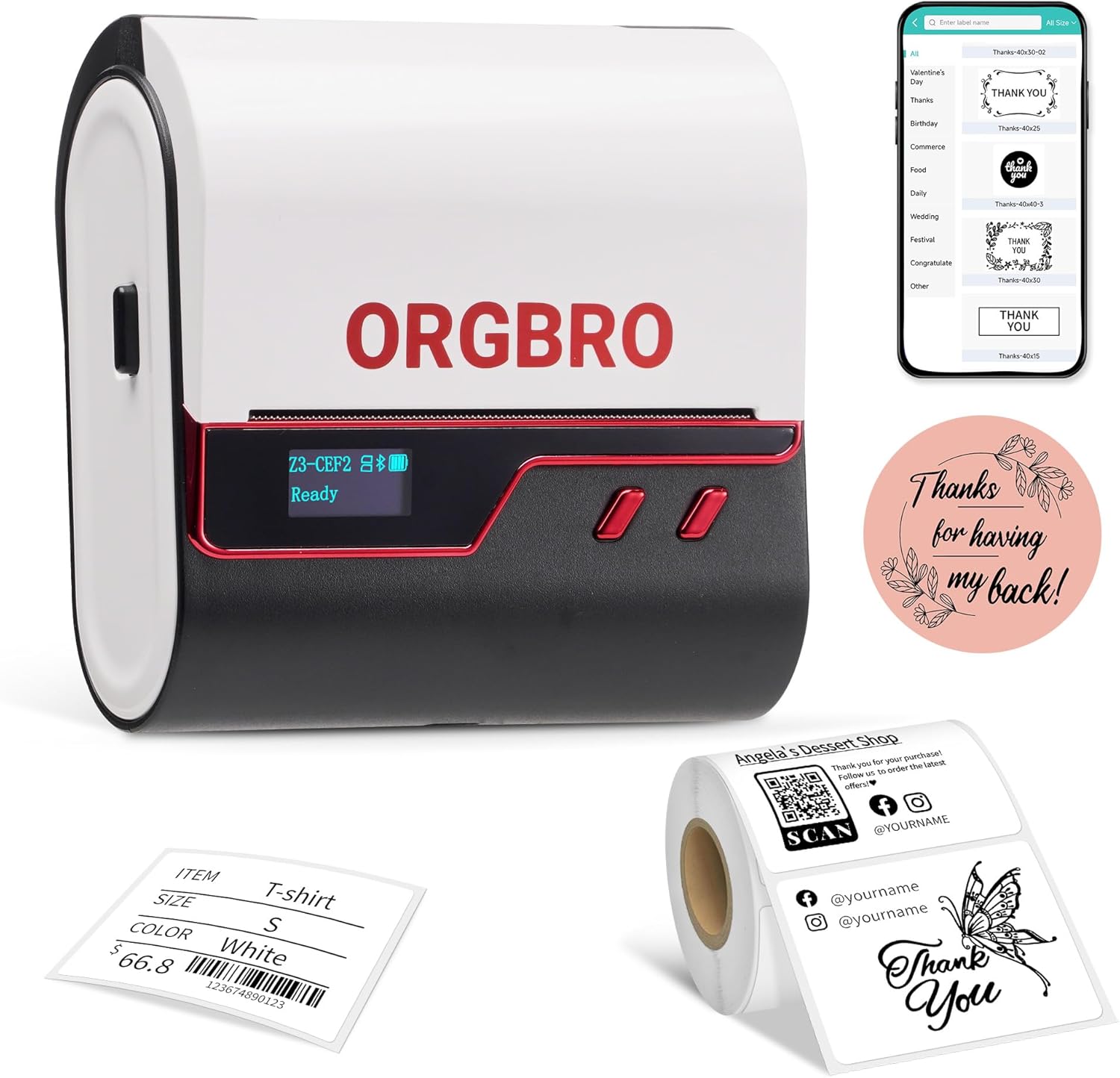
Image: The ORGBRO Z3 Label Maker showcasing its versatility with examples of different label types it can produce, such as product labels, thank you stickers, and clothing tags.
Ngwa
Eji ụlọ
The ORGBRO Z3 is ideal for organizing your home. Create labels for storage bins, kitchen containers, spice jars, files, and more to maintain a tidy and efficient living space.

Foto: Examples of the ORGBRO Z3 Label Maker's utility in home organization, including labels for coffee beans, vanilla extract, stockings, scarves, and office files.
Eji azụmahịa
For small businesses, the Z3 can print price barcodes, QR codes, product logos, address labels, and inventory tags. It helps streamline operations and enhance professionalism.

Image: Demonstrations of the ORGBRO Z3 Label Maker's application in business, such as shipping labels for packages, labels for baked goods, and jewelry tags.
Nlekọta
Na-ehicha Isi Mbipụta
To ensure clear and consistent print quality, regularly clean the print head. Use a cotton swab lightly dampened with isopropyl alcohol. Gently wipe the print head surface. Allow it to dry completely before closing the cover and resuming use.
Nlekọta batrị
To prolong battery life, avoid fully discharging the device frequently. Charge the device when the battery indicator is low. If storing the device for an extended period, ensure it is charged to at least 50% and recharge every few months.
Nchọpụta nsogbu
Ihe nbipute anaghị aza
- Gbaa mbọ hụ na agbanyere ngwaọrụ ahụ yana chajịkwa ya nke ọma.
- Check Bluetooth connection in the "4BarCode" app or USB cable connection for PC.
- Malitegharịa ngwa nbipute ahụ na ngwaọrụ ejikọrọ gị.
Ọdịmma Mbipụta adịghị mma
- Verify that the label paper is loaded correctly and is thermal paper.
- Hichaa isi mbipụta dịka akọwara na ngalaba mmezi.
- Ensure the label design in the app is not too complex or has very fine lines that might be difficult to print at 203 DPI.
Labels Not Feeding Correctly
- Check for any obstructions in the paper path.
- Ensure the label roll is properly seated and aligned within the guides.
- Make sure the label compartment cover is securely closed.
Nkọwapụta
| Aha Nlereanya | Z3 Label Maker |
| Ụdị | ORGBRO |
| Teknụzụ obibi akwụkwọ | Thermal |
| Mkpebi | 203 DPI (ntụpọ kwa inch) |
| Ọsọ mbipụta kacha | Up to 50mm/s (approx. 52 labels/min for 50x30mm labels) |
| Ogo mgbasa ozi kacha | 3.14 inches (0.8-3.15 inch wide labels) |
| Njikọta | Bluetooth, USB Type-C |
| Ngwa dakọtara | iOS, Android, Windows 7+, Chrome OS, Mac OS 10+, Linux |
| Batrị | 2200mAh batrị enwere ike ịchaji |
| Akụkụ ngwaahịa | 4.2 x 4.4 x 2.4 sentimita asatọ |
| Ibu Ibu | 1.21 pound |
Ozi akwụkwọ ikike
The ORGBRO Z3 Label Maker Machine comes with a Akwụkwọ ikike nwere oke. Please refer to the warranty card included in your product packaging for specific terms, conditions, and duration. Retain your proof of purchase for warranty claims.
Nkwado
For further assistance, technical support, or inquiries regarding your ORGBRO Z3 Label Maker Machine, please contact our customer service team. Refer to the contact information provided on the ORGBRO official website or the support section of the "4BarCode" app.
Ask a question about this manual
Ask about setup, troubleshooting, compatibility, parts, safety, or missing instructions. Manuals+ will review the question and use this page’s manual context to help answer it.