
1. Okwu mmalite
This manual provides detailed instructions for the Loutoc SRC4526 Universal Remote Control, designed for seamless compatibility with Philips Ambilight Smart TVs. Please read this guide thoroughly to ensure optimal use and longevity of your remote control.
1.1 Ngwaahịa gafereview
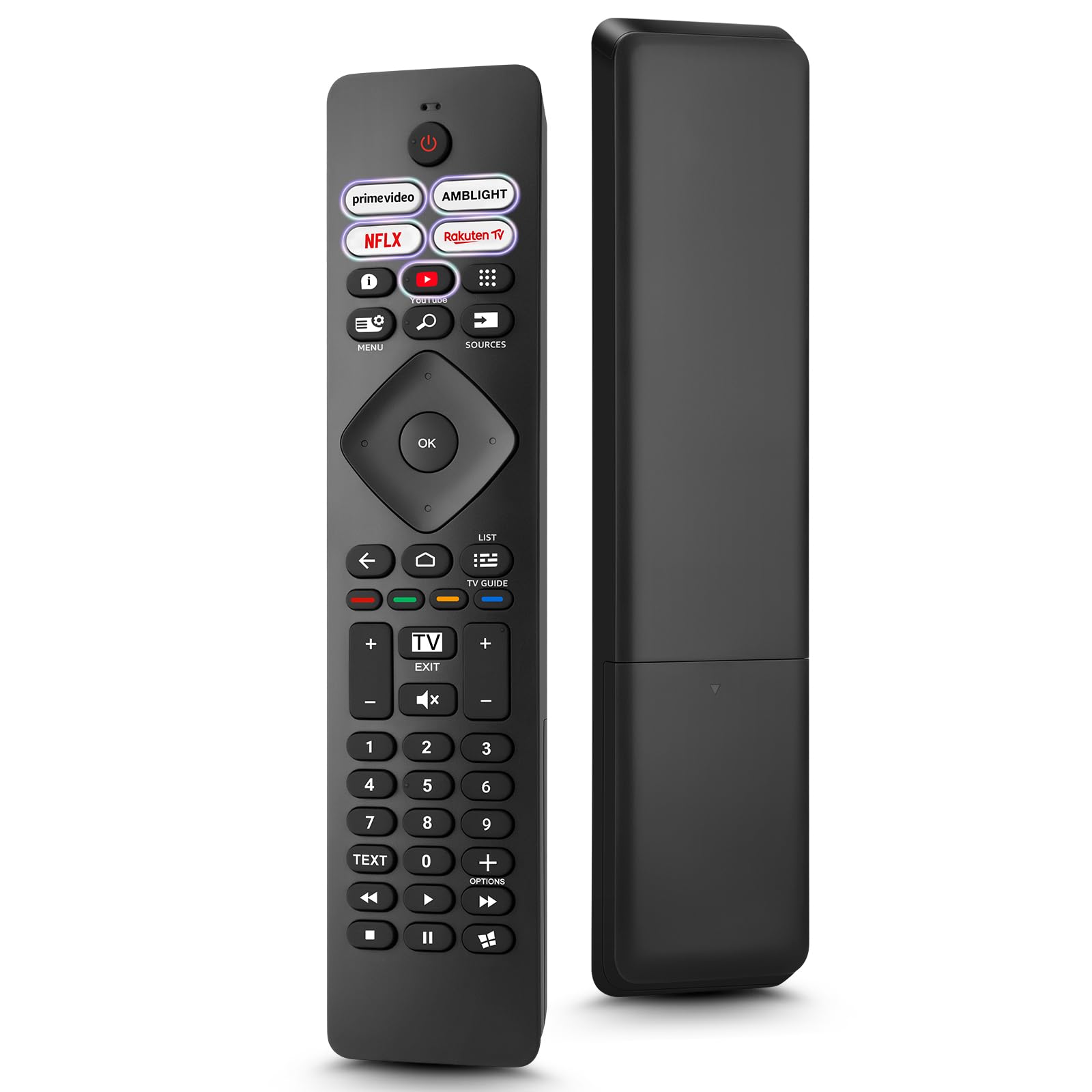
Image: The Loutoc SRC4526 Universal Remote Control, showcasing ya ergonomic imewe na nhazi bọtịnụ.
1.2 Atụmatụ
- Convenient Plug-and-Play: No complex setup or programming required. Simply insert batteries and the remote is ready for use.
- Ndakọrịta TV sara mbara: Fully compatible with Philips Ambilight TVs, including 4K Ambilight LED, OLED, FHD, and Full Ultra HD models.
- Bọtịnụ Ụzọ Mkpirisi Ezubere Iche: Features 5 direct access buttons for popular streaming platforms: Ambilight, Video, NFLX (Netflix), Rakuten TV, and YouTube.
- Arụmọrụ ntụkwasị obi: Offers an effective operating range of 8 meters (26 feet) and an ultra-fast response time of 0.2 seconds.
2. Nhazi
2.1 Ntinye batrị
The Loutoc SRC4526 remote control requires two AAA batteries (not included) for operation.
- Chọta ebe batrị dị n'azụ nke njikwa anya.
- Slide mepee mkpuchi batrị batrị.
- Fanye batrị AAA abụọ, na-eme ka njedebe dị mma (+) na nke na-adịghị mma (-) kwekọọ n'ụzọ ziri ezi na ndị na-egosi n'ime ụlọ.
- Mechie mkpuchi nke batrị batrị nke ọma.
2.2 Ojiji mbụ
This remote control is designed for immediate use with compatible Philips Ambilight TVs. No programming or pairing is required. Once batteries are installed, point the remote at your TV and begin operation.
3. Ntuziaka ọrụ
3.1 Ọrụ bọtịnụ karịrịview
Refer to the image below for a visual guide to the remote control's buttons and their corresponding functions.

Image: Detailed diagram of the Loutoc SRC4526 remote control, illustrating each button and its primary function.
| Bọtịnụ | Ọrụ |
|---|---|
| Ike | Switches the TV on or off (Standby mode). |
| Prime Video, Ambilight, Netflix, Rakuten TV | Quickly launches the corresponding application. |
| NchNhr | Opens the Quick Menu with typical TV functions. Hold to show Gaming control bar. |
| ọchụchọ | Opens the Search tab on the Home screen. |
| Isi mmalite | Opens or closes the TV's input sources menu. |
| OK | Confirms a selection or setting. |
| Arrow/Navigation Keys | Navigates up, down, left, or right through menus and options. |
| Azu | Na-alaghachi na ihuenyo ma ọ bụ ọwa gara aga. |
| Ụlọ | Opens the TV's Home menu. |
| Nduzi TV | Opens or closes the TV Guide. Long press to open the channel list. |
| Color Keys (Red, Green, Yellow, Blue) | Provides direct selection of on-screen options. The blue key typically opens Help. |
| Olu (+/-) | Na-agbanwe ọkwa olu TV. |
| Ọwa (+/-) | Switches to the next or previous channel. |
| Ụzọ ọpụpụ | Exits current menu/application or returns to live TV. From standby, goes to last viewed isi iyi. |
| Ogbi | Mebie ma ọ bụ mebie ụda TV. |
| Igodo ọnụọgụ (0-9) | Directly selects TV channels. |
| AKWỤKWỌ | Opens or closes Text/Teletext. |
| Njikwa playback | Controls media playback: Play, Pause, Stop, Rewind, Fast Forward. |
| Ngwa | Opens the Apps tab on the Home screen. |
3.2 Ambilight Functionality
For Philips TVs equipped with Ambilight functionality, the dedicated Ambilight button on your remote allows you to control the lighting effects.
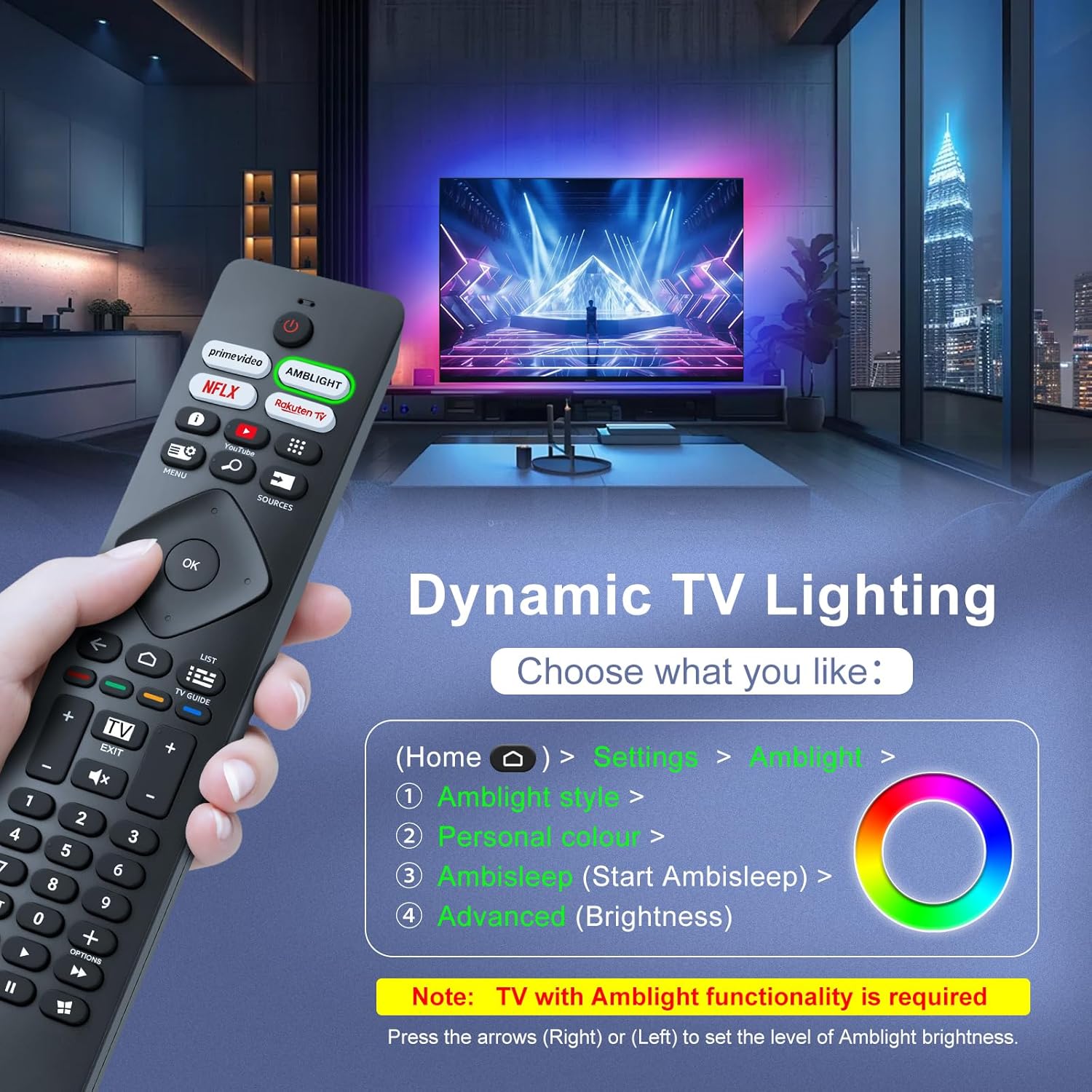
Image: A hand holding the remote control, with an overlay showing Ambilight settings on a TV screen.
After pressing the Ambilight button, you can navigate through the TV's menu to:
- Select different Ambilight display styles.
- Adjust personal color preferences.
- Initiate AmbiSleep mode.
- Adjust Ambilight brightness levels (using the right or left arrow keys).
Note: This feature requires a Philips TV with built-in Ambilight functionality.
4. Nlekọta
4.1 Nhicha
To clean your remote control, gently wipe it with a soft, dry cloth. Avoid using liquid cleaners, aerosols, or harsh chemicals, as these can damage the remote's surface or internal components.
4.2 Nchekwa
Debe ihe njikwa remote n'ebe dị jụụ ma kpọọ nkụ, ebe anwụ na-anaghị apụta kpọmkwem, ebe okpomọkụ dị oke elu. Ọ bụrụ na a gaghị eji remote ahụ ruo ogologo oge, a na-atụ aro ka ị wepụ batrị ndị ahụ iji gbochie mmiri ịpụpụta.
4.3 Nlekọta batrị
- Dochie batrị niile n'otu oge; agwakọtala batrị ochie na nke ọhụrụ.
- Agwakọtakwala ụdị batrị dị iche iche (dịka ọmụmaatụ, alkaline na enwere ike ịchaji).
- Tụfuo batrị eji arụ ọrụ dịka iwu obodo siri dị.
5. Nchọpụta nsogbu
5.1 Okwu nkịtị na Ngwọta
- Remote anaghị aza:
- Lelee ma etinyere batrị ndị ahụ nke ọma site na polarity ziri ezi.
- Dochie batrị ndị ahụ na batrị AAA ọhụrụ.
- Ensure there are no obstructions between the remote control and the TV's infrared receiver.
- Jide n'aka na ị nọ n'ime oke ọrụ dị irè (ruo mita 8).
- Bọtịnụ ndị akọwapụtara anaghị arụ ọrụ:
- Clean the remote control, especially around the non-functioning buttons, to remove any dirt or debris.
- If only Ambilight functions are not working, ensure your Philips TV model supports Ambilight.
5.2 Nkwado kọntaktị
If you encounter persistent issues that cannot be resolved with the troubleshooting steps above, please contact Loutoc customer support directly. We aim to respond to all inquiries within 12 working hours.
6. Nkọwapụta
| Njirimara | Nkọwa |
|---|---|
| Ụdị | Loutoc |
| Aha Nlereanya | SRC4526-FBA |
| Nọmba Nlereanya ihe | SRC4526 |
| Agba | Nwa |
| Teknụzụ Njikọta | Infrared |
| Atụmatụ pụrụ iche | No programming required, Ergonomic, Lightweight |
| Ngwa dakọtara | Television (Philips Ambilight TVs) |
| Ọnụọgụ ngwaọrụ akwadoro kacha | 1 |
| Ụdị njikwa | Njikwa bọtịnụ |
| Oke kacha | Mita 8 (ụkwụ 26) |
| Nkọwa batrị | AAA (2 required, not included) |
| Onye nrụpụta | Loutoc |
| Mba onye si | China |
| Ụbọchị mbụ dị na Amazon.com.be | Ọgọst 31, 2025 |
7. Akwụkwọ ikike na nkwado
7.1 Ozi akwụkwọ ikike
This Loutoc remote control comes with a manufacturer's warranty of 30 days from the date of purchase. Please retain your proof of purchase for any warranty claims.
7.2 Nkwado ndị ahịa
For any questions, technical assistance, or warranty inquiries, please contact Loutoc customer support. We are committed to providing timely assistance and will respond to your queries within 12 working hours.