
Okwu mmalite
This manual provides detailed instructions for the setup, operation, and maintenance of your NiTHO NEXUS Wireless Controller. Please read this manual thoroughly before using the product to ensure proper functionality and to prevent damage.
Ngwaahịa gafereview
The NiTHO NEXUS Wireless Controller is designed for multi-platform gaming, offering compatibility with PC (Windows), Switch 2, Switch / Lite / OLED, Android, and iOS devices. It features Hall Effect triggers, a 6-axis gyro, adjustable vibration, and customizable RGB lighting.
Nhazi njikwa
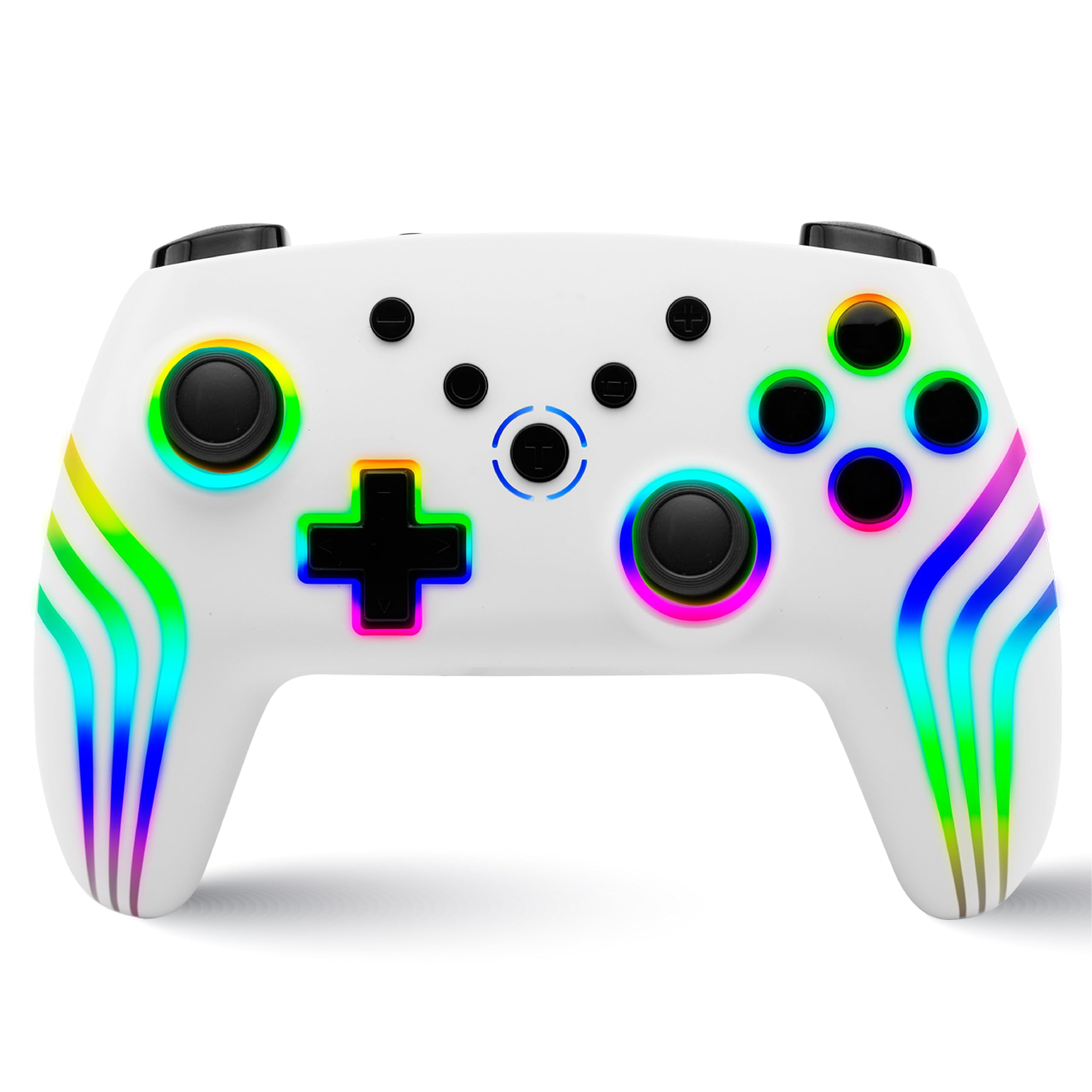
Foto: Ihu na azụ view of the NiTHO NEXUS Wireless Controller with all buttons and ports clearly labeled. Key labels include HOME button, Screenshot key, +/- keys, Pairing button, Left Rockers, Cross arrow key, TURBO button, Mode Indicator Light, A/B/X/Y Keys, Right Rockers, R1, R2, L1, L2, TYPE-C charging port, and Force Online button.
Melite
Ịchaji njikwa
Before initial use, fully charge the controller. Connect the supplied USB Type-C cable to the controller's charging port and the other end to a USB power source (e.g., PC, USB wall adapter). The charging indicator will show the charging status and turn off when fully charged. A full charge takes approximately 2.5 hours and provides up to 9 hours of gameplay.

Foto: Illustration showing the controller's 800mAh battery capacity, indicating up to 9 hours of gameplay and a 2.5-hour charging time.
Ijikọ na Ngwaọrụ
The NiTHO NEXUS controller supports wireless connection via Bluetooth to various platforms.

Foto: The NiTHO NEXUS controller highlighting its universal compatibility with Switch 1 & 2, PC, Android, and iOS devices.
- Nintendo Switch / Switch 2: Turn on your Switch console. Go to "Controllers" > "Change Grip/Order". Press and hold the Pairing button on the top of the NEXUS controller until the indicator lights flash rapidly. Once paired, the indicator light will become solid.
- PC (Windows): Ensure your PC has Bluetooth enabled. Go to "Bluetooth & other devices" settings, click "Add Bluetooth or other device", then "Bluetooth". Press and hold the Pairing button on the controller. Select "Nitho NEXUS" from the list of available devices.
- Android/iOS: Enable Bluetooth on your mobile device. Press and hold the Pairing button on the controller. Select "Nitho NEXUS" from the list of available Bluetooth devices.
Ntuziaka ọrụ
Ntọala ịma jijiji
The controller features dual motor vibration with four adjustable levels: Off, Low, Medium, and High. These can be adjusted to suit your preference during gameplay.

Foto: The controller with visual cues for dual motor vibration, showing 0%, 50%, 75%, and 100% intensity levels.
Ọrụ Turbo
The programmable turbo function allows for rapid, repeated button presses. It has three speed settings: 5, 10, or 15 shots per second.
- Iji mee ka Turbo rụọ ọrụ: Press and hold the TURBO button, then press the desired action button (e.g., A, B, X, Y, L1, R1, L2, R2). The button will now continuously register presses when held.
- Ka ịgbanwee ọsọ Turbo: With Turbo active, press and hold the TURBO button, then move the Right Rocker (right analog stick) Up or Down to cycle through the speeds.
- To deactivate Turbo: Press and hold the TURBO button, then press the action button again.

Foto: The controller highlighting the Turbo function, showing options for 5, 10, and 15 shots per second.
Ụdị ọkụ ọkụ RGB
The controller features customizable RGB lighting with 7 vibrant colors and 4 dynamic lighting modes.
- Jumping Light Effect: Colors change rapidly.
- Colorful Constant Light Effect: A single color remains constant.
- Rainbow Color Mixing Light Effect: Colors blend and transition smoothly.
- Breathing Light Effect: Colors fade in and out.
Refer to the controller's specific button combinations (usually a dedicated RGB button or a combination with the HOME button) to cycle through these modes and colors.

Foto: The controller displaying various RGB LED light multi-effects, including Jumping Light, Colorful Constant Light, Rainbow Color Mixing Light, and Breathing Light.
6-Axis Gyro Motion Sensor
The integrated 6-axis gyro sensor allows for precise motion control in compatible games, capturing tilts and rotations for responsive gameplay, particularly in racing, action, and adventure titles.

Foto: The controller with an overlay demonstrating its 6-axis motion sensing capabilities, showing rotational movement.
Mmetụta Ụlọ Nzukọ na-akpalite
The magnetic Hall Effect triggers provide smooth and accurate input, reducing wear and preventing common issues like stick drift, ensuring long-lasting precision.

Foto: Close-up of the controller's trigger area, emphasizing the Hall Effect Trigger technology.
Nlekọta
- Debe ihe njikwa ahụ ọcha site n'iji ákwà dị nro ma kpọọ nkụ hichaa ya.
- Avoid exposing the controller to extreme temperatures, direct sunlight, or moisture.
- Do not attempt to disassemble the controller, as this will void the warranty.
- Store the controller in a safe place when not in use to prevent physical damage.
Nchọpụta nsogbu
- Onye njikwa anaghị ejikọta: Ensure the controller is charged. Make sure Bluetooth is enabled on your device and the controller is in pairing mode (indicator lights flashing). Try restarting both the controller and the device.
- Mbelata ma ọ bụ nkwụsị ntinye: Ensure there are no obstructions between the controller and the device. Move closer to the device. Reduce interference from other wireless devices.
- Bọtịnụ anaghị anabata: Check if the controller is charged. If specific buttons are unresponsive, try resetting the controller (refer to the "Force Online button" or a small reset pinhole if available, not explicitly mentioned but common).
- Ịma jijiji anaghị arụ ọrụ: Check in-game settings to ensure vibration is enabled. Verify the controller's vibration level is not set to "Off".
- Stick drift: The NiTHO NEXUS features Hall Effect triggers designed to prevent stick drift. If you experience this issue, ensure the controller's firmware is up to date (check manufacturer's website) or contact support.
Nkọwapụta
| Njirimara | Nkọwa |
|---|---|
| Nọmba nlereanya | Nexus |
| Ndakọrịta | PC (Windows), Switch 2, Switch / Lite / OLED, Android, iOS |
| Njikọta | Ikuku (Bluetooth) |
| Batrị | 800mAh batrị na-abụghị ọkọlọtọ (gụnyere) |
| Ndụ batrị | Ruo awa iri abụọ |
| Oge Nchaji | Ihe ruru. awa 2.5 |
| Ihe na-akpalite | Magnetic Hall Effect Triggers |
| Sensọ ngagharị | 6-Axis Gyro |
| Mmaji | Dual Motor, 4 adjustable levels |
| Ọrụ Turbo | 3 speeds (5, 10, 15 shots/sec) |
| RGB ọkụ | 7 colors, 4 dynamic modes |
| Akụkụ ngwaahịa | 16.1 x 6.5 x 11.1 cm |
| Ibu Ibu | 270 g |
| Mba onye si | China |
Akwụkwọ ikike na nkwado
Maka ozi gbasara akwụkwọ ikike na nkwado teknụzụ, biko gaa na Nitho gọọmentị. website or contact their customer service directly. The manufacturer's contact email is: nithoamazonin@mtm-t.com.
For support in India, you may also contact the importer: Marketgate Technologies Private Limited, India, email: marketgateindia@gmail.com.
Biko dowe ihe akaebe nke ịzụrụ ihe maka akwụkwọ ikike.