
Rocketek B0FFGMBWRZ
Wireless CarPlay and Android Auto Dongle User Manual
Rocketek Model: B0FFGMBWRZ
Okwu mmalite
This manual provides comprehensive instructions for the 2025 Upgraded Wireless CarPlay and Android Auto Dongle. This device is designed to convert your existing wired CarPlay or Android Auto system into a wireless setup, offering enhanced convenience and functionality. It allows seamless integration with your smartphone, retaining original vehicle controls while adding features like built-in Netflix and YouTube.
Melite
Follow these steps to set up your Wireless CarPlay and Android Auto Dongle:
- Connect the Dongle: Connect the wireless CarPlay dongle to your car's original USB or USB-C port using the provided USB-A to USB-C or USB-C to USB-C cable. Ensure the connection is secure.
- Chere maka nnabata: After connecting, the car's system will load and recognize the USB dongle. This may take a few moments. The car's display will show the dongle's interface.
- Enable Wireless Connectivity: On your smartphone, switch on both Wi-Fi and Bluetooth.
- Pair with the Dongle: On your phone's Bluetooth settings, find and select the Bluetooth name of the dongle (usually labeled "HI-BOX"). Click "Pair" on your phone when prompted.
- Njikọ zuru oke: After successful pairing, choose the "Use CarPlay/Android Auto" option on your phone to establish the wireless connection.
Once connected, your car's display will mirror your CarPlay or Android Auto interface wirelessly.

Figure 1: Plug and Play Installation Steps
Video 1: Demonstration of Wireless CarPlay and Android Auto Adapter Setup and Use. This video shows the connection process, how the car's screen loads the dongle, and the seamless transition to wireless CarPlay, including the use of steering wheel controls and Siri voice commands.
Ntuziaka ọrụ
The Wireless CarPlay and Android Auto Dongle enhances your in-car experience with various features:
Ikuku CarPlay na gam akporo Auto
After initial setup, the dongle automatically connects to your phone's CarPlay or Android Auto wirelessly. You can access navigation, music, calls, messages, and other applications directly from your car's display. The system retains the car's original controls, including touch screen, physical buttons, knobs, and voice commands (e.g., Siri).

Figure 2: Retained Original Vehicle Controls
Built-in Netflix & YouTube
The dongle features pre-installed Netflix and YouTube applications, allowing you to stream video content directly on your car's screen when connected to the internet. For offline entertainment, you can insert a TF card to play local videos and music.

Figure 3: Built-in Entertainment Features
Ndakọrịta
The Wireless CarPlay and Android Auto Dongle is designed for broad compatibility:
- Compatible with most original car models equipped with wired CarPlay/Android Auto from the factory after 2016.
- Supports iPhone devices running iOS 10 and above.
- Supports Android phones running Android 11 and above.
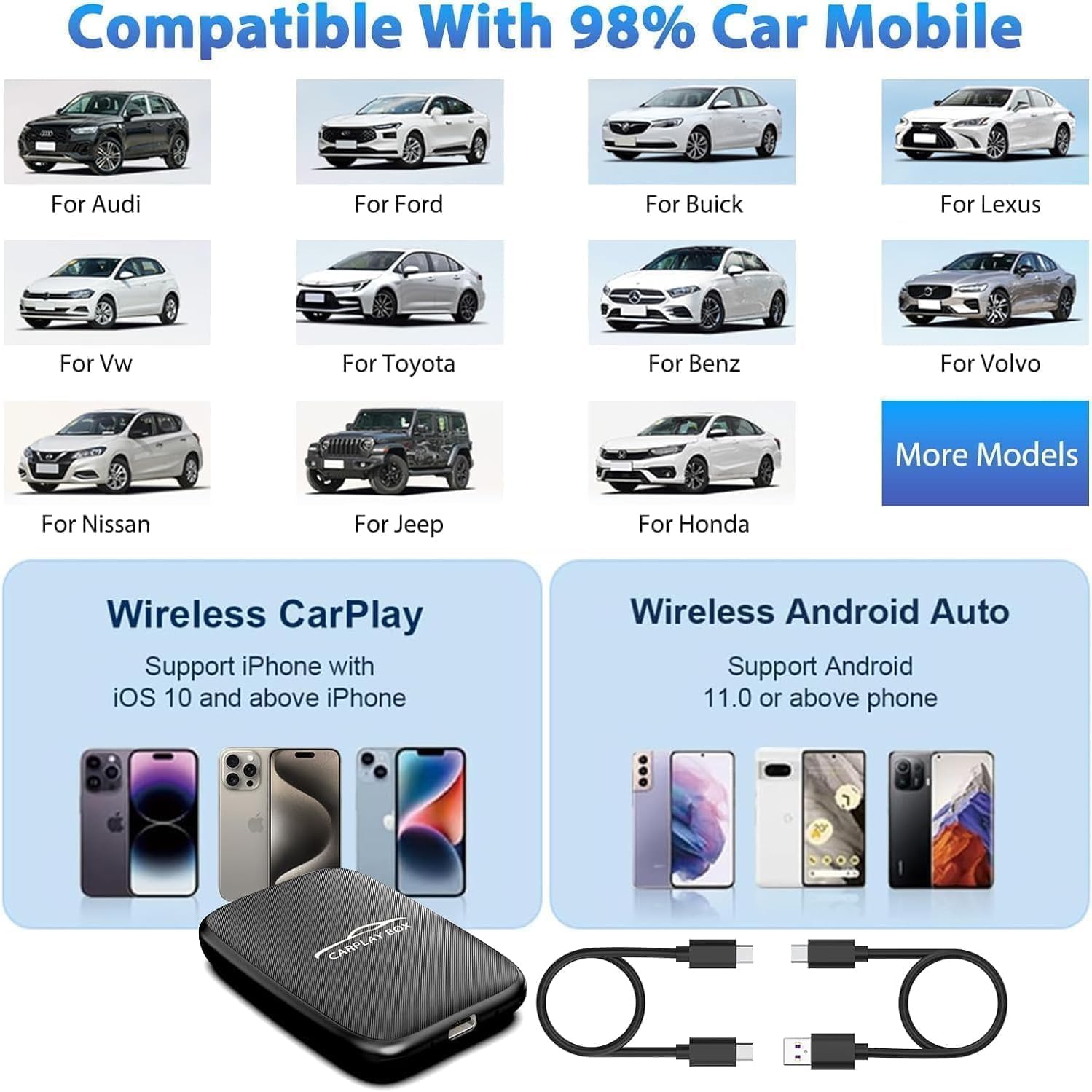
Figure 4: Broad Compatibility with Vehicles and Smartphones
Nlekọta
To ensure optimal performance and longevity of your dongle:
- Debe ngwaọrụ ahụ ọcha na enweghị ntụ. Jiri akwa dị nro, kpọrọ nkụ maka nhicha.
- Zere ikpughe ngwaọrụ ahụ na oke okpomọkụ, ìhè anyanwụ kpọmkwem, ma ọ bụ mmiri mmiri.
- Agbalịla ịkwatu ma ọ bụ rụzie ngwaọrụ ahụ n'onwe gị. Nke a ga-eme ka akwụkwọ ikike ahụ ghara ịdị irè.
- Store the dongle in a cool, dry place when not in use.
Nchọpụta nsogbu
If you encounter issues with your dongle, try the following solutions:
- Okwu njikọ:
- Ensure the dongle is securely plugged into the car's USB port.
- Verify that your phone's Wi-Fi and Bluetooth are enabled.
- Forget the Bluetooth connection on your phone and re-pair with the "HI-BOX" device.
- Malitegharịa sistemụ infotainment nke ụgbọala gị na ekwentị gị.
- Netflix/YouTube Not Working:
- Ensure the dongle has an active internet connection (e.g., via your phone's hotspot).
- Check for any available software updates for the dongle.
- Verify that the Netflix/YouTube apps are updated to their latest versions.
- Enweghị ọdịyo:
- Check the volume levels on both your car's system and your smartphone.
- Ensure the car's audio input is set to the correct source (e.g., USB, Bluetooth).
Ọ bụrụ na nsogbu ka dị, biko kpọtụrụ nkwado ndị ahịa.
Nkọwapụta
| Njirimara | Nkọwa |
|---|---|
| Ụdị | Rocketek |
| Nọmba nlereanya | B0FFGMBWRZ |
| Ibu Ibu | 3.2 ounces |
| Akụkụ ngwugwu | 16.73 x 5.91 x 0.83 sentimita asatọ |
| Agba | nwa |
| Atụmatụ pụrụ iche | Wireless CarPlay, Built-in Netflix, Built-in YouTube |
| Njikọta | 5.8 GHz WiFi, Bluetooth 5.0 |
| Ndakọrịta (Ụgbọala) | Original models with wired CarPlay/Android Auto (after 2016) |
| Ndakọrịta (Ekwentị) | iOS 10+ (iPhone), Android 11+ (Android) |
Akwụkwọ ikike na nkwado
Rocketek provides a Ọrụ ọnwa iri abụọ na anọ gachara for this product. If you have any questions, concerns, or require technical assistance, please do not hesitate to contact our friendly customer support team. We are committed to providing quality products and superior customer service.
For support, please refer to the contact information provided with your product packaging or visit the official Rocketek websaịtị.
Ask a question about this manual
Ask about setup, troubleshooting, compatibility, parts, safety, or missing instructions. Manuals+ will review the question and use this page’s manual context to help answer it.