
Okwu mmalite
This manual provides essential instructions for the setup, operation, maintenance, and troubleshooting of your Insignia 32-inch 1080p HD HDR LCD Fire TV Smart TV, model NS-32F401CA26. Please read this manual thoroughly before using your television to ensure proper and safe operation.
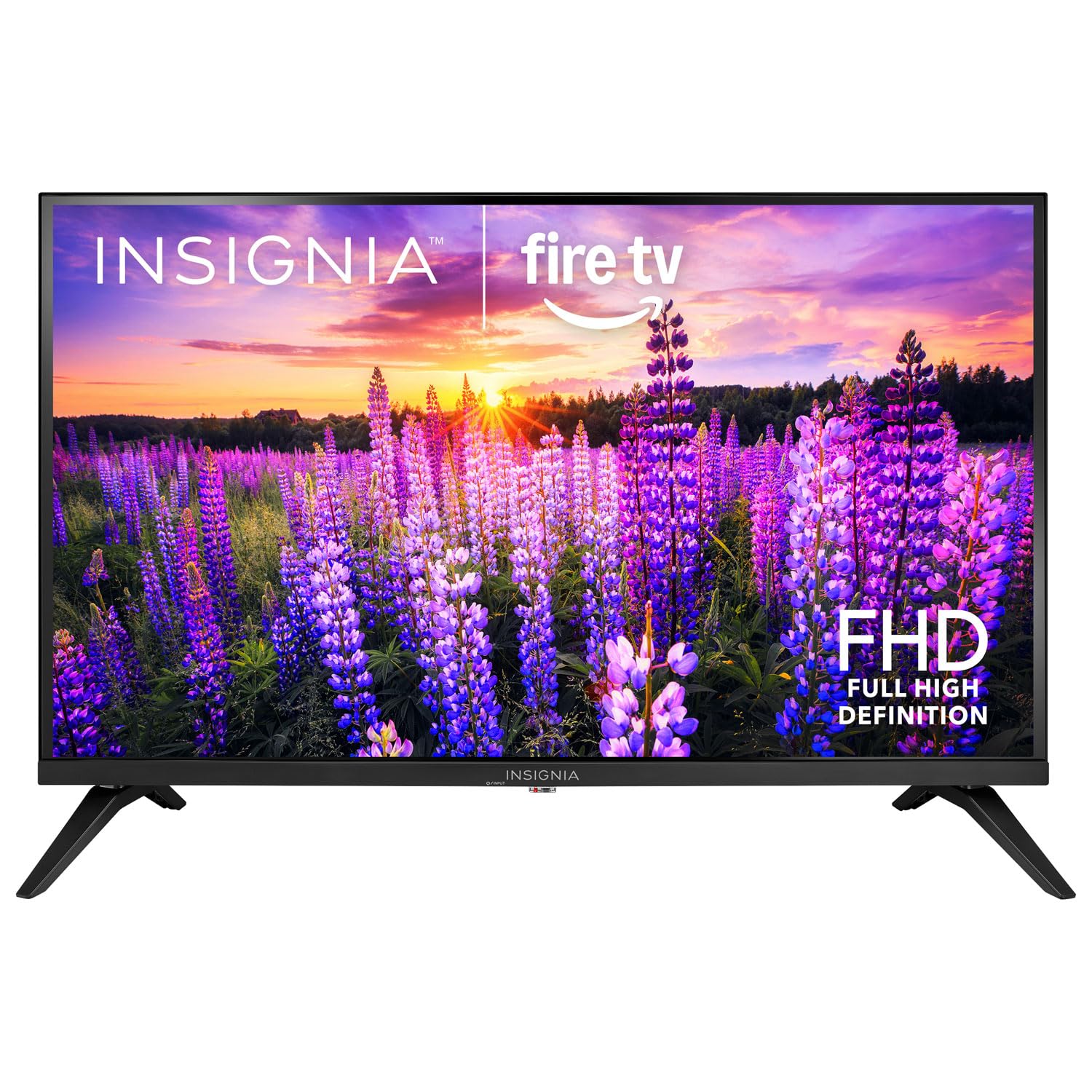
Foto: N'ihu view of the Insignia 32-inch Fire TV Smart TV, showing the screen and a remote control.
1. Nhazi
1.1 Nwepu
Jiri nlezianya wepụ TV na ngwa niile na nkwakọ ngwaahịa. Jido ihe nkwakọ ngwaahịa maka mbugharị ma ọ bụ nchekwa n'ọdịnihu.
1.2 Na-agbakwunye nkwụnye ma ọ bụ mgbidi mgbidi
For Stand Installation:
- Debe TV ahụ n'elu ala dị nro ma dị ọcha iji gbochie mmebi ihuenyo.
- Align the stand bases with the screw holes on the bottom of the TV.
- Chekwaa ihe nkwụnye ahụ site na iji skru ndị enyere.
Maka ịgbanye mgbidi:
- This TV supports a VESA Mount Standard of 200 x 200 mm.
- Use a compatible wall mount kit (sold separately) and follow its installation instructions.
- Ensure the wall can support the weight of the TV and the mount.
1.3 Ijikọ ike
Plug the power cord into the TV's power input, then plug the other end into a working electrical outlet.
1.4 Ijikọ ngwaọrụ mpụga
Your TV includes multiple ports for external devices:
- HDMI Ports (Total 2): Jikọọ ndị na-egwu Blu-ray, ihe egwuregwu, igbe eriri/satịlaịtị.
- USB 3.0 Port (Total 1): Jikọọ ngwaọrụ nchekwa USB maka ịkpọghachi mgbasa ozi.
- Ntinye Antenna/Cable: Jikọọ antenna maka mgbasa ozi n'elu ikuku ma ọ bụ njikọ eriri.
1.5 Initial Setup (Fire TV OS)
Upon first power-on, the TV will guide you through the Fire TV setup process:
- Mgbakwunye njikwa anya: Insert the included 2 AAA batteries into the remote. Follow on-screen instructions to pair the remote.
- Njikọ netwọk: Họrọ netwọk Wi-Fi gị wee tinye paswọọdụ.
- Akaụntụ Amazon: Log in with your Amazon account or create a new one.
- Nyocha ọwa: Ọ bụrụ na ị na-eji antenna, TV ga-enyocha ọwa dị.
- Mmelite ngwanrọ: TV nwere ike ibudata ma wụnye mmelite ngwanrọ kachasị ọhụrụ.
2. Na-arụ ọrụ TV gị
2.1 Gbanyụọ ma ọ bụ gbanyụọ
Pịa Ike button on the remote control to turn the TV on or off.
2.2 Na-agagharị Interface TV Ọkụ
Jiri mpempe ntụziaka na Họrọ button on your remote to browse the Fire TV home screen, access apps, and navigate menus.
2.3 Using the Alexa Voice Remote
Pịa ma jide Alexa button on your remote and speak into the microphone to:
- Chọọ maka ihe nkiri na ihe nkiri TV.
- Launch applications (e.g., "Open Netflix").
- Control playback (e.g., "Pause", "Fast forward").
- Jụọ ajụjụ ma ọ bụ nweta ozi.
2.4 Ịnweta ngwa
Popular streaming services like Amazon Prime Video, Netflix, and YouTube are pre-installed. You can download additional apps from the Amazon Appstore.
2.5 Na-edozi Foto na Ntọala ụda
Nweta na Ntọala menu on the Fire TV home screen to adjust:
- Foto: Brightness, contrast, color, aspect ratio (16:9).
- Ụda: Volume, sound mode, DTS Virtual-X settings.
- Ngosipụta: Resolution (1080p), refresh rate (120 Hz).
2.6 Njikwa Nne na Nna
The TV includes parental control features. Navigate to the Ntọala menu, wee họrọ Mmasị, Ọzọkwa Njikwa Nne na Nna to set restrictions on content, purchases, and app usage. A PIN is required to enable or disable these controls.
3. Nlekọta
3.1 Ihicha TV
- Ihuenyo: Jiri nwayọ hichaa ihuenyo ahụ site na iji akwa dị nro na-enweghị lint. Maka akara ndị isi ike, ntakịrị dampen akwa na mmiri ma ọ bụ ihuenyo Cleaner kpọmkwem maka TV. Afesala mmiri mmiri ozugbo na ihuenyo.
- Ahụ: Jiri ákwà dị nro ma kpọọ nkụ hichaa fremu TV ahụ ma kwụnye ya.
- Kwupuo TV mgbe niile tupu ihicha ya.
3.2 Mmelite ngwanrọ
Your Fire TV Smart TV automatically checks for and installs software updates when connected to the internet. You can manually check for updates in the Ntọala menu n'okpuru Ọkụ TV m > Ihe gbasara > Lelee maka mmelite.
3.3 Ngbanwe batrị dịpụrụ adịpụ
When the remote control's performance degrades, replace the two AAA batteries. Ensure correct polarity when inserting new batteries.
4. Nchọpụta nsogbu
| Nsogbu | Ihe nwere ike ime | Ngwọta |
|---|---|---|
| Enweghị ike | Ejikọghị eriri ọkụ eletrik; ihe nkwụnye ọkụ anaghị arụ ọrụ. | Ensure power cord is securely plugged into TV and a live outlet. Test outlet with another device. |
| Enweghị foto ma ọ bụ ụda | Incorrect input source; external device off or disconnected. | Pịa Ntinye button on the remote to select the correct source. Check connections of external devices. Ensure devices are powered on. |
| Njikwa anya anaghị arụ ọrụ | Batrị nwụrụ anwụ; ebe dịpụrụ adịpụ adịghị ejikọta. | Replace batteries (2 AAA). Re-pair remote by holding the Ụlọ button for 10 seconds near the TV. |
| Nsogbu njikọ Wi-Fi | Okwuntughe na-ezighi ezi; nsogbu nke rawụta; TV dị anya na rawụta. | Lelee paswọọdụ Wi-Fi. Malitegharịa rawụta na modem gị. Bugharịa TV nso na rawụta ma ọ bụ jiri ihe ndọtị Wi-Fi. |
| Ngwa ndị anaghị ebu ma ọ bụ daa | Temporary software glitch; insufficient memory. | Restart the TV. Clear app cache (Settings > Applications > Manage Installed Applications). Ensure sufficient storage. |
5. Nkọwapụta
| Nọmba nlereanya | NS-32F401CA26 |
| Nha ihuenyo | 32 sentimita asatọ |
| Ngosipụta teknụzụ | LCD |
| Mkpebi | 1080p (HD zuru ezu) |
| Ọnụego ume ọhụrụ | 120 Hz |
| Akwadoro usoro HDR | HDR10 |
| Akụkụ akụkụ | 16:9 |
| Teknụzụ Njikọta | Wi-Fi |
| ọdụ ụgbọ mmiri HDMI | 2 |
| USB 3.0 ọdụ ụgbọ mmiri | 1 |
| Ọrụ ịntanetị akwadoro | Amazon Prime Video, Netflix, YouTube, Alexa |
| Nkọwa okwu | DTS Virtual-X virtual surround sound |
| Integrated Surround Sound Format | DTS Virtual-X |
| Usoro njikwa | Remote (with Alexa Voice) |
| Batrị achọrọ | 2 AAA (gụnyere) |
| Akụkụ ngwaahịa (D x W x H) | 47.3D x 17.1W x 71.9H centimita |
| VESA Mount Standard | 200 x 200 mm |
| Atụmatụ ndị ọzọ | Njikwa Nne na Nna |
6. Akwụkwọ ikike na nkwado
For warranty information, please refer to the warranty card included with your product or visit the official Insignia support website. For technical assistance, product registration, or service inquiries, please contact Insignia customer support through their official channels.
Note: Specific warranty terms and support contact details may vary by region and are subject to change.