
Okwu mmalite
This user manual provides detailed instructions for the C idea CM817 Pro Max 8-inch Tablet. Please read this manual thoroughly before using your device to ensure proper operation and to maximize its features. Keep this manual for future reference.
Ihe ngwugwu
Chọpụta na ihe niile dị na ngwugwu:
- C idea CM817 Pro Max 8-inch Tablet
- Nchaji nkwụnye
- USB-C USB
- Akwụkwọ ntuziaka (akwụkwọ a)
- Stylus Pen (if included in your specific package)
- Keyboard (if included in your specific package)
- Mouse (if included in your specific package)

Image: The C idea CM817 Pro Max tablet shown with its common accessories, which may include a keyboard, mouse, charging adapter, USB-C cable, and stylus pen.
Ngwaahịa gafereview
Familiarize yourself with the physical components of your C idea CM817 Pro Max tablet.

Image: A diagram illustrating the various ports and buttons on the C idea CM817 Pro Max tablet, including the front camera, rear camera, power button, volume controls, speakers, TF/SIM card slot, USB-C port, and headphone jack.
- Igwefoto ihu: Maka oku vidiyo na selfie.
- Igwefoto azụ: Maka ịse foto na vidiyo.
- Ike On / Gbanyụọ Button: Press and hold to power on/off or restart. Press briefly to wake/sleep the screen.
- Bọtịnụ olu: Adjust the tablet's audio volume.
- Ndị na-ekwu okwu: Output audio.
- TF/SIM Slot: Insert a TF (MicroSD) card for expandable storage or a SIM card for cellular connectivity.
- Ọdụ USB-C: For charging the tablet and connecting to a computer for data transfer.
- Jack ekweisi: Jikọọ ekweisi 3.5mm.
Melite
1. Ịchaji mbadamba nkume
Before first use, fully charge the tablet. Connect the USB-C cable to the tablet's USB-C port and the other end to the charging adapter. Plug the adapter into a power outlet. The battery indicator on the screen will show charging status.
2. Ịgbanye / gbanyụọ
- Ike Na: Press and hold the Power On/Off button until the C idea logo appears.
- Gbanyụọ: Press and hold the Power On/Off button until the power options menu appears, then select "Power off".
- Malitegharịa: Site na menu nhọrọ ike, họrọ "Malitegharịa".
3. Mbido Mbido
Upon first power-on, follow the on-screen prompts to configure your tablet:
- Họrọ asụsụ ọkacha mmasị gị.
- Jikọọ na netwọk Wi-Fi.
- Banye na akaụntụ Google gị ma ọ bụ mepụta nke ọhụrụ. Nke a dị mkpa iji budata ngwa na Google Play Store.
- Tọọ mkpọchi ihuenyo (PIN, ụkpụrụ, ma ọ bụ paswọọdụ).
- Review ma nabata usoro na ọnọdụ.
4. Itinye kaadị SIM na MicroSD
Locate the TF/SIM slot on the side of the tablet. Use the provided SIM ejector tool (if applicable) to open the tray. Carefully place your SIM card and/or MicroSD card into the designated slots, ensuring correct orientation. Close the tray securely.
Ntuziaka ọrụ
1. Nsoro ụzọ
- Metụ: Kpatụ akara ka imepe ngwa ma ọ bụ họrọ otu ihe.
- Mịpụta: Drag your finger across the screen to scroll through pages or content.
- Tuo: Jiri mkpịsị aka abụọ mee ka onyonyo dịkwuo elu ma ọ bụ dị omimi web ibe.
- Ihuenyo ụlọ: Ihuenyo bụ isi ebe ị nwere ike ịnweta ngwa na wijetị.
- Ogwe ngosi: Si n'elu ihuenyo gbanye ala ka ị nweta ọkwa na ntọala ngwa ngwa.

Image: The C idea CM817 Pro Max tablet showcasing its Android home screen, featuring various application icons and a clean user interface.
2. Wi-Fi and Cellular Connectivity
To connect to Wi-Fi, go to Ntọala> Netwọk & ịntanetị> Wi-Fi. Turn Wi-Fi on and select your desired network. Enter the password if prompted. For cellular data, ensure a SIM card is inserted and go to Ntọala> Netwọk & ịntanetị> Netwọk mkpanaka to configure data settings.
3. Iji igwefoto
Open the Camera app from the home screen or app drawer. Tap the shutter button to take a photo. Switch between the 5MP front camera and 8MP rear camera using the camera switch icon. You can also record videos.
4. Njikwa nchekwa
Your tablet comes with 512GB of internal storage and supports up to 512GB expandable storage via a MicroSD card. To view storage usage, go to Ntọala > Nchekwa. Regularly clear unnecessary files and uninstall unused apps to maintain performance.

Image: Multiple C idea tablets demonstrating the ample storage capacity, highlighting 8GB RAM, 512GB internal ROM, and support for an additional 512GB via TF (MicroSD) card.
5. Ndụ batrị
The 8000mAh battery provides extended usage. To optimize battery life, reduce screen brightness, disable Wi-Fi/Bluetooth when not in use, and close background apps. You can monitor battery usage in Ntọala > Batrị.
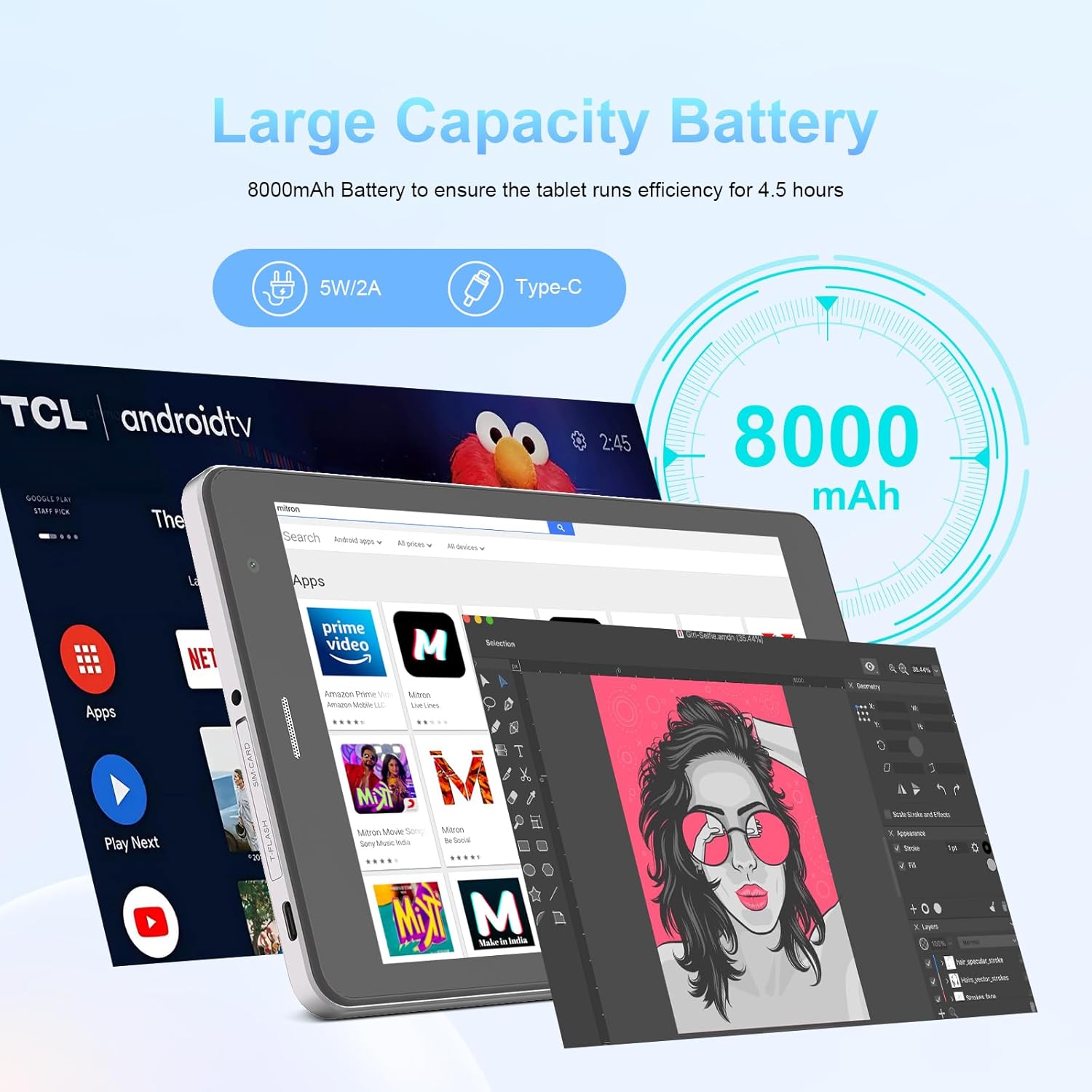
Image: The C idea CM817 Pro Max tablet, emphasizing its 8000mAh large capacity battery, designed for extended operational hours.
6. Ngosipụta Ntọala
The tablet features an 8-inch 1280x800 IPS HD display. Adjust brightness, font size, and display timeout in Ntọala > Ngosipụta maka ntụsara ahụ viewahụmahụ.

Image: The C idea CM817 Pro Max tablet showcasing its 8-inch IPS HD screen with a resolution of 800x1280 pixels, providing clear visuals.
Nlekọta
1. Nhicha
Use a soft, lint-free cloth to clean the screen and body of the tablet. Do not use abrasive cleaners or solvents, as they may damage the surface. Avoid getting moisture into ports.
2. Mmelite ngwanrọ
Regularly check for system updates to ensure your tablet has the latest features and security patches. Go to Ntọala> Sistemu> Mmelite sistemụ iji lelee ma wụnye mmelite.
3. Nlekọta batrị
To prolong battery lifespan, avoid exposing the tablet to extreme temperatures. Do not let the battery completely drain frequently. Use the original charger or a certified compatible charger.
Nchọpụta nsogbu
- Mbadamba ụrọ anaghị agbanwu: Ensure the tablet is charged. Press and hold the Power On/Off button for at least 10-15 seconds to force a restart.
- Nsogbu njikọ Wi-Fi: Restart your Wi-Fi router and the tablet. Forget the network in Wi-Fi settings and reconnect.
- Ịrụ ọrụ nwayọ: Close unused apps, clear cache (Settings > Storage), and restart the tablet. Consider uninstalling large or unnecessary applications.
- Igwefoto anaghị arụ ọrụ: Ensure the Camera app has necessary permissions (Settings > Apps > Camera > Permissions). Restart the tablet.
- Nchekwa juru: Hichapụ foto/vidiyo ochie, wepụ ngwa ndị a na-ejighị, ma ọ bụ bugharịa files to an inserted MicroSD card.
- Ngwa na-akụda: Clear the app's cache and data (Settings > Apps > [App Name] > Storage > Clear cache/Clear data). If the issue persists, uninstall and reinstall the app.
Nkọwapụta
| Njirimara | Nkọwa |
|---|---|
| Ụdị | C echiche |
| Aha Nlereanya | CM817 Pro Max |
| Sistemụ nrụọrụ | Android 15 |
| Nhazi | Octa-core (MediaTek) |
| RAM | 8GB |
| Nchekwa ime (ROM) | 512GB |
| Nchekwa enwere ike ịgbasa | Up to 512GB (via TF/MicroSD card) |
| Nha ihuenyo | 8 sentimita asatọ |
| Mkpebi ihuenyo | 1280 x 800 pikselụ (IPS HD) |
| Igwefoto ihu | 5MP |
| Igwefoto azụ | 8MP |
| Ike batrị | 8000mAh (Lithium Polymer) |
| Njikọta | Wi-Fi, 5G SIM, Bluetooth |
| ọdụ ụgbọ mmiri | USB-C, 3.5mm Headphone Jack |
| Ibu Ibu | 1 n'arọ 80 g |
| Akụkụ ngwugwu | 29.8 x 18 x 6.4 cm |
Akwụkwọ ikike na nkwado
For warranty information and technical support, please refer to the warranty card included in your package or contact C idea customer service. Keep your purchase receipt as proof of purchase.