
Xprinter XP-420B
Xprinter XP-420B USB Direct Thermal Label Printer User Manual
Model: XP-420B
1. Ngwaahịa gafereview
The Xprinter XP-420B is a high-speed direct thermal label printer designed for various applications, including shipping labels. It offers a maximum print speed of 152 mm/s (6 inches/second) and a resolution of 203 DPI, ensuring clear and precise prints. Its robust double-walled clamshell design enhances durability, and the intelligent print head temperature control system ensures stable output. This printer is compatible with both Windows and Mac operating systems, making it a versatile solution for your labeling needs.
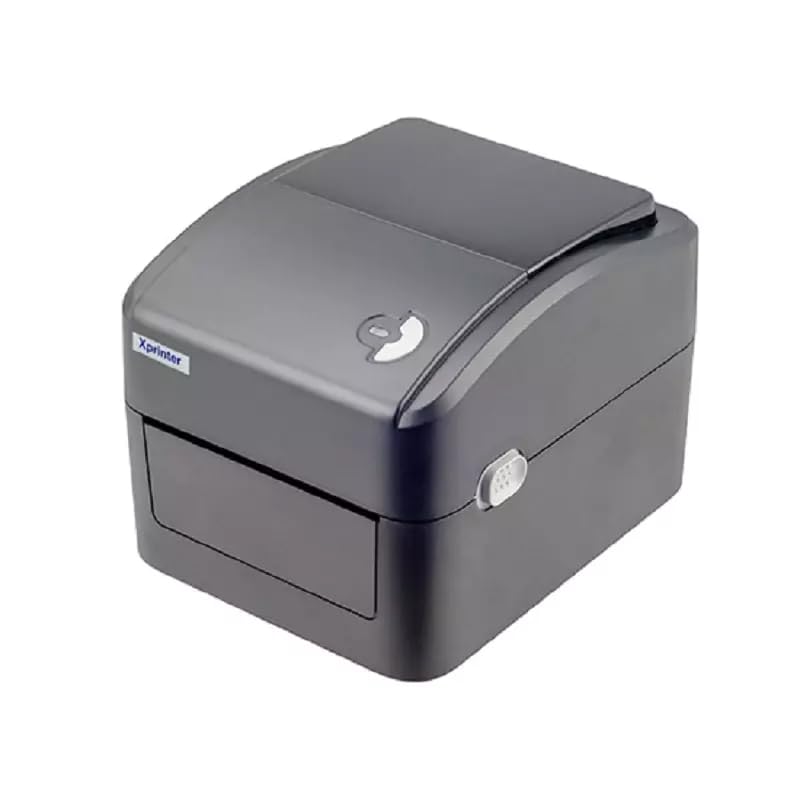
Foto 1: N'ihu view of the Xprinter XP-420B thermal label printer.
2. Ntuziaka Nhazi
2.1 Mwepu na nyocha izizi
- Jiri nlezianya wepụ ihe nbipute na ngwa niile na nkwakọ ngwaahịa.
- Verify that all components are present: printer unit, power adapter, USB cable, and user manual.
- Inspect the printer for any visible damage that may have occurred during transit.
2.2 Ijikọ ngwa nbipute
- Connect the power adapter to the printer's power port and then plug it into a power outlet.
- Connect one end of the provided USB cable to the printer's USB port and the other end to an available USB port on your computer.
- Power on the printer using the power switch, usually located on the side or rear.

Figure 2: Xprinter XP-420B showing USB connectivity.
2.3 Ndekọ Ibugo
- Open the printer's top cover by pressing the release latches on both sides.
- Place the roll of thermal labels onto the label spindle, ensuring the labels feed from the bottom of the roll.
- Feed the leading edge of the labels through the label guide until it extends slightly past the print head.
- Adjust the movable label guides to fit the width of your labels snugly, without pinching them.
- Close the top cover firmly until it latches securely.
- The printer will automatically calibrate and detect the label size.
2.4 Nwụnye ọkwọ ụgbọala
Before printing, you must install the appropriate printer drivers on your computer. Drivers are typically provided on a CD included with the printer or can be downloaded from the official Xprinter website. The XP-420B supports both Windows and Mac operating systems.
- Maka Windows: Run the setup executable from the driver CD or downloaded file ma soro ntuziaka na ihuenyo.
- Maka Mac: Download the Mac driver from the Xprinter website and follow the installation prompts.
3. Ntuziaka ọrụ
3.1 Mbipụta bụ isi
- Gbaa mbọ hụ na agbanyere ngwa nbipute na jikọọ na kọmputa gị.
- Open the document or application from which you wish to print (e.g., shipping software, word processor).
- Họrọ "Bipụta" na menu ngwa.
- Choose "Xprinter XP-420B" as your printer.
- In the printer settings or preferences, ensure the correct label size is selected. The printer supports adjustable label sizes.
- Click "Print" to send the job to the printer.
3.2 Adjusting Label Size
The XP-420B allows for adjustable label sizes. This adjustment is primarily done through the printer driver settings on your computer and by physically adjusting the label guides within the printer.
- Software Adjustment: In your printing application or printer driver settings, navigate to the "Page Setup" or "Paper Size" options. Select or define the custom dimensions for your labels (e.g., 4x6 inches for shipping labels).
- Physical Adjustment: As described in Section 2.3, ensure the internal label guides are set correctly to the width of your loaded labels.
4. Nlekọta
4.1 Na-ehicha isi mbipụta
Regular cleaning of the print head is crucial for maintaining print quality and extending the printer's lifespan. It is recommended to clean the print head after every roll of labels or if print quality degrades.
- Turn off the printer and disconnect the power cord.
- Mepee mkpuchi elu nke ngwa nbipute.
- Wait a few minutes for the print head to cool down if the printer has been recently used.
- Gently wipe the print head surface with an alcohol swab or a lint-free cloth lightly dampetinyere ya na mmanya isopropyl.
- Hapụ isi mbipụta ahụ ka ọ kpọọ nkụ kpamkpam tupu e mechie mkpuchi ahụ ma jikọọ ike ọzọ.
4.2 Nhicha izugbe
- Use a soft, dry cloth to wipe the exterior of the printer.
- Remove any dust or label debris from the inside of the printer using a soft brush or compressed air.
- Ejila ihe nchacha abrasive ma ọ bụ ihe mgbaze.
5. Nchọpụta nsogbu
| Nsogbu | Ihe nwere ike ime | Ngwọta |
|---|---|---|
| Ngwa nbipute anaghị aza | Power off; USB cable disconnected; Driver issue. | Ensure power is on and connected. Check USB cable. Reinstall printer driver. |
| Poor print quality (faded, lines) | Dirty print head; Incorrect label type; Low print density setting. | Clean the print head (Section 4.1). Ensure you are using direct thermal labels. Adjust print density in driver settings. |
| Akara aha anaghị enye nri nke ọma | Labels improperly loaded; Label guides not adjusted; Sensor obstruction. | Reload labels correctly. Adjust label guides. Clean any dust or debris from sensors. |
| Printer prints blank labels | Labels loaded upside down; Not a direct thermal label. | Ensure labels are loaded with the printable side facing up. Verify labels are direct thermal. |
6. Nkọwapụta ngwaahịa
| Njirimara | Nkọwa |
|---|---|
| Ụdị | Xprinter |
| Aha Nlereanya | XP-420B |
| Teknụzụ Njikọta | USB |
| Teknụzụ obibi akwụkwọ | Direct Thermal |
| Mkpebi | 203 DPI |
| Ọsọ mbipụta kacha | 152 mm/s (6 inches/second) |
| Ebe nchekwa | 8MB SDRAM, 8MB Flash |
| Mmepụta ngwa nbipute | Monochrome |
| Ibu Ibu | 3 kilogram |
| Akụkụ ngwaahịa | 20D x 6W x 10H centimita |
| Ndakọrịta | Windows, Mac |
7. Akwụkwọ ikike na nkwado
7.1 Ozi akwụkwọ ikike
The Xprinter XP-420B comes with a Akwụkwọ ikike nke afọ 1 site na ụbọchị ịzụrụ. Akwụkwọ ikike a na-ekpuchi ntụpọ nrụpụta na adịghị arụ ọrụ n'okpuru ojiji nkịtị. Biko dowe ihe akaebe nke ịzụrụ ihe maka akwụkwọ ikike.
7.2 Nkwado ndị ahịa
For technical assistance, troubleshooting beyond this manual, or warranty service, please contact Xprinter customer support. Refer to the contact information provided with your product packaging or visit the official Xprinter websaịtị maka nkọwa nkwado kachasị ọhụrụ.
Ask a question about this manual
Ask about setup, troubleshooting, compatibility, parts, safety, or missing instructions. Manuals+ will review the question and use this page’s manual context to help answer it.