
SUPVAN E11
SUPVAN E11 Bluetooth Label Maker Machine User Manual
Model: E11 | Brand: SUPVAN
1. Okwu mmalite
This manual provides detailed instructions for the setup, operation, and maintenance of your SUPVAN E11 Bluetooth Label Maker Machine. The E11 is designed for efficient and versatile labeling tasks, featuring both a physical keyboard and smart app connectivity for creating customized labels. It utilizes thermal printing technology, eliminating the need for ink or toner, and is powered by a rechargeable battery for portability.

Image: The SUPVAN E11 Label Maker demonstrating its inkless thermal printing capability with thermal paper.
2. Kedu ihe dị na Igbe ahụ
Biko hụ na ihe ndị a niile dị na ngwugwu gị:
- SUPVAN E11 Label Maker Machine
- USB-C eriri USB
- White Continuous Label Tape (1 roll)
- Akwụkwọ ntuziaka onye ọrụ

Image: A visual representation of the SUPVAN E11 Label Maker, USB-C cable, a roll of white label tape, and the user manual, indicating the package contents.
3. Ngwaahịa gafereview
The SUPVAN E11 Label Maker features a compact design with an integrated QWERTY keyboard and a clear display for direct input. It includes dedicated function keys for various settings and a side slot for label tape output. The device is powered by a built-in rechargeable battery.

Image: The SUPVAN E11 Bluetooth Label Maker Machine, showcasing its physical keyboard and a smartphone screen displaying the companion app interface.
4. Nhazi
4.1 Ịchaji ngwaọrụ
Before first use, fully charge the label maker. Connect the provided USB-C cable to the charging port on the device and plug the other end into a compatible USB power adapter (not included). The device features a built-in 1200 mAh rechargeable battery.
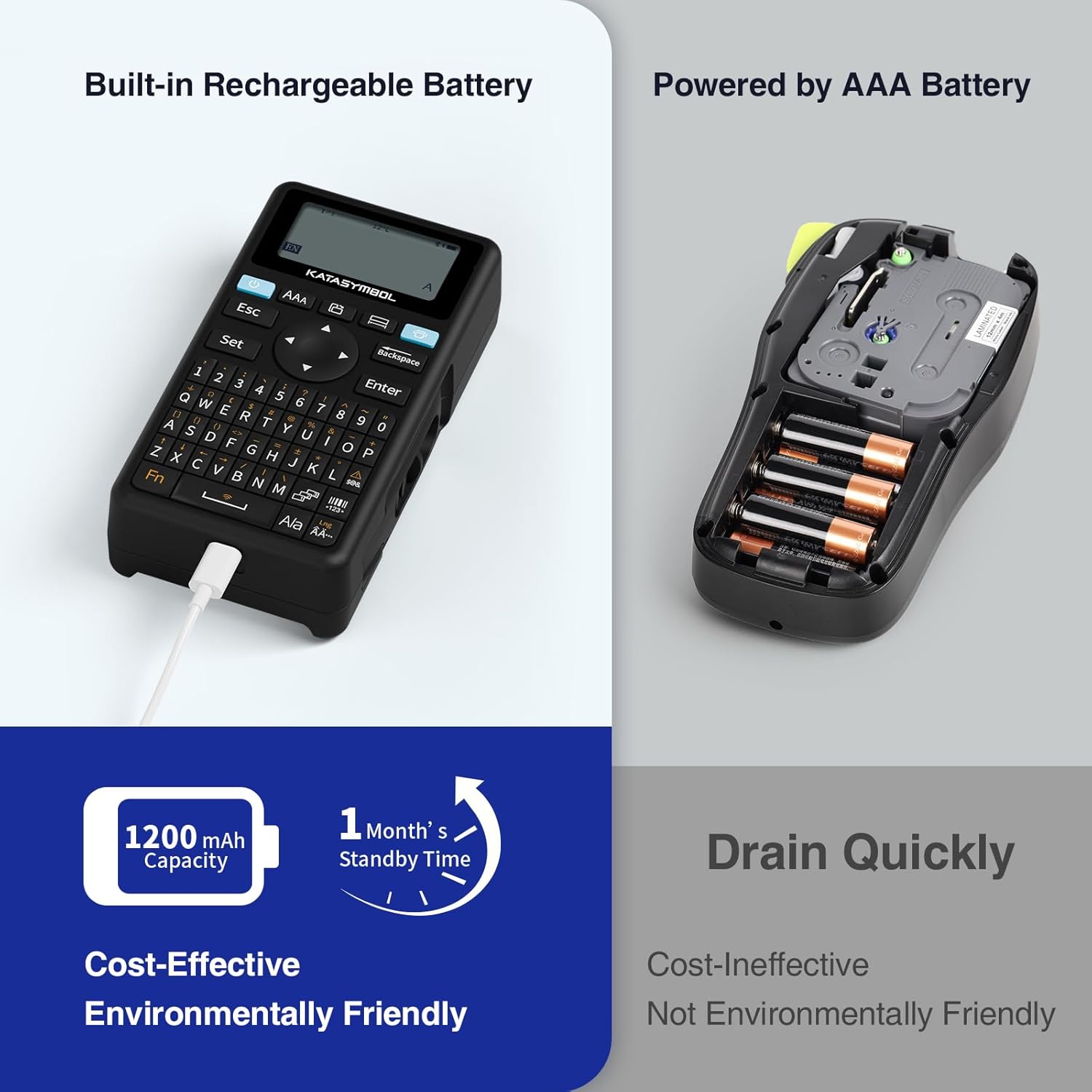
Image: The SUPVAN E11 Label Maker highlighting its built-in rechargeable battery and USB-C charging port.
4.2 Mbuli teepu akara
- Open the tape compartment cover on the back of the label maker.
- Insert the label tape roll into the compartment, ensuring the tape feeds correctly through the output slot. The tape should be positioned with the printable side facing up.
- Mechie mkpuchi nkebi ahụ nke ọma.
4.3 App Installation (for Bluetooth Printing)
To utilize the smart app features, download the 'Katasymbol' app from your device's app store (Google Play Store or Apple App Store). Ensure Bluetooth is enabled on your smartphone or tablet.
5. Ntuziaka ọrụ
5.1 Printing via Keyboard
- Pịa bọtịnụ ike ka ịgbanwuo ngwaọrụ.
- Use the QWERTY keyboard to type your desired label text.
- Adjust font size, style, or other settings using the dedicated function keys.
- Press the 'Print' button to generate the label.
5.2 Printing via Bluetooth App
- Ensure the label maker is powered on and Bluetooth is active on your mobile device.
- Open the 'Katasymbol' app and connect to your E11 label maker via Bluetooth.
- Use the app interface to design your label, including text, fonts, icons, and frames.
- Tupuview your label and then tap the 'Print' button in the app.
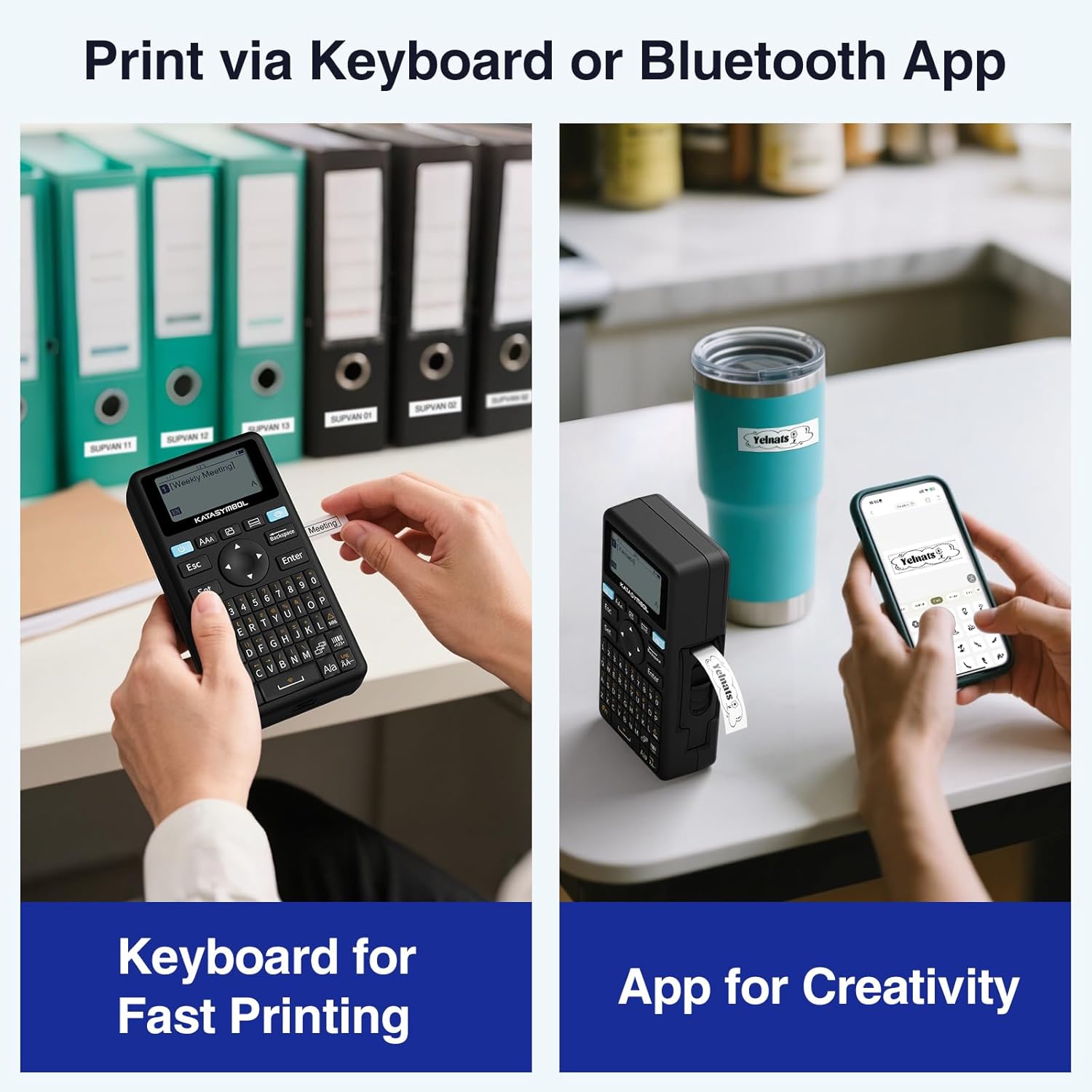
Image: A comparison showing two methods of printing with the SUPVAN E11: direct input via the physical keyboard and design/print via the Bluetooth-connected smartphone app.
5.3 Ngwa atụmatụ
The companion app offers extensive customization options:
- Ụdị mkpụrụedemede: Access to 40+ fonts.
- Akara ngosi: Choose from 650+ icons.
- Frames: Utilize 50+ frames for label borders.
- Ndebiri: Create and save custom label templates.
- Nkwado asụsụ: Supports 17 languages, including Spanish and French.

Image: A smartphone screen displaying the SUPVAN E11 app interface, highlighting the wide range of editing functions including fonts, icons, and frames available for label customization.
5.4 Label Types and Features
The E11 supports both continuous and fixed-size labels. It features minimal margin printing (approximately 0.2 inches), reducing tape waste. Labels are designed to be waterproof, heat-resistant, low-temperature resistant, and BPA-free, making them suitable for various environments.

Image: A close-up of a label printed by the SUPVAN E11, illustrating the minimal margin feature (0.2 inches) compared to other label makers.
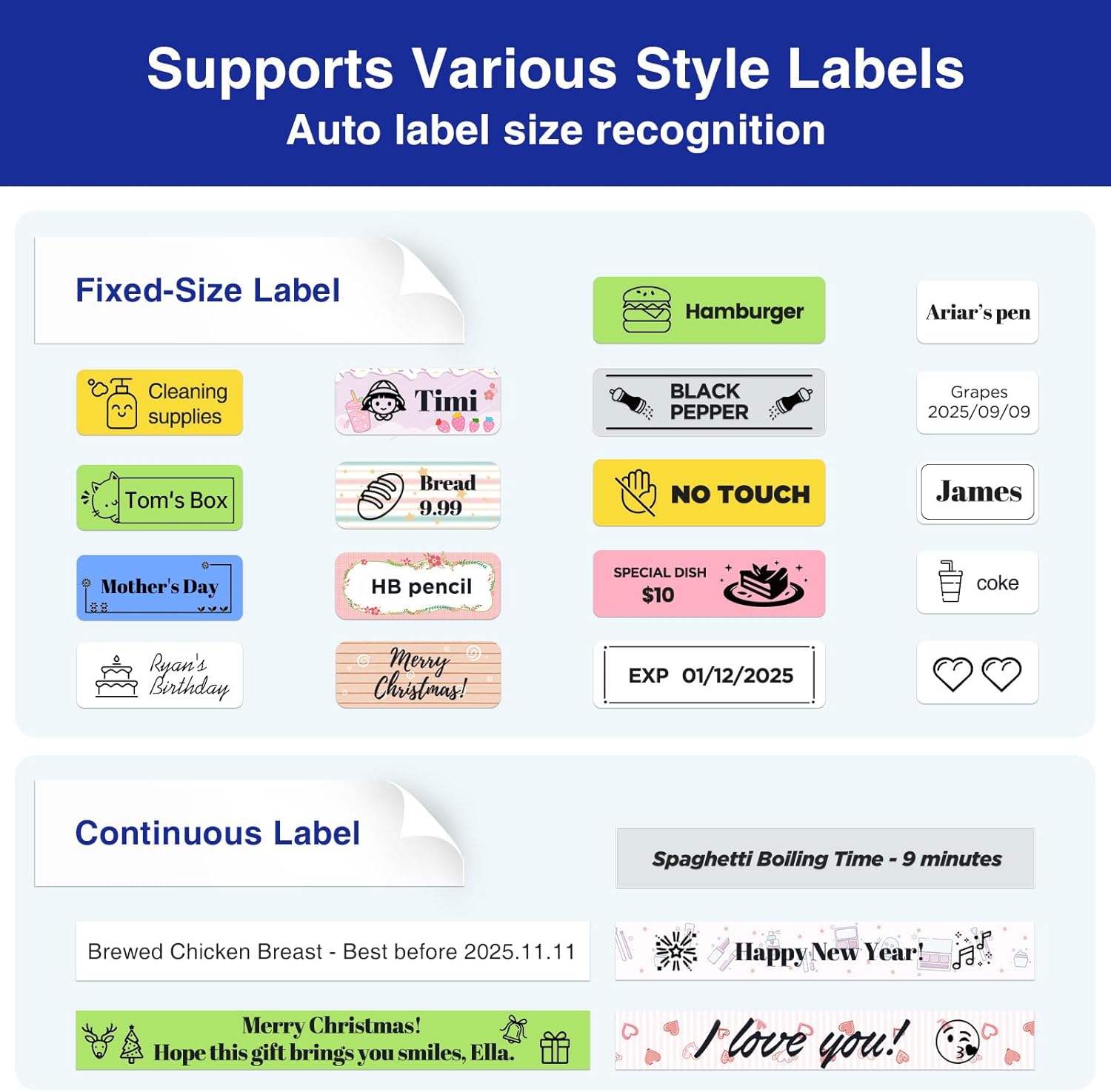
Foto: Examples of various label styles and applications, including fixed-size labels for items like food and continuous labels for longer text, demonstrating the versatility of the SUPVAN E11.
6. Nlekọta
- Nhicha: Use a soft, dry cloth to clean the exterior of the label maker. Do not use abrasive cleaners or solvents.
- Isi Bipụta: If print quality degrades, gently clean the thermal print head with a cotton swab lightly dampGbaa mbọ hụ na ngwaọrụ ahụ gbanyụrụ ma kpọọ nkụ tupu e jiri ya.
- Nchekwa: Store the label maker and tape rolls in a cool, dry place away from direct sunlight and extreme temperatures.
7. Nchọpụta nsogbu
If you encounter issues with your SUPVAN E11 Label Maker, please refer to the following common solutions:
- Ngwaọrụ anaghị agbanwu: Ensure the battery is charged. Connect the USB-C cable and allow it to charge for at least 30 minutes before attempting to power on again.
- Ọdịmma mbipụta na-adịghị mma: Check if the label tape is loaded correctly. Clean the print head as described in the Maintenance section. Ensure you are using genuine SUPVAN thermal label tape.
- Nsogbu njikọ Bluetooth: Ensure Bluetooth is enabled on both the label maker and your mobile device. Restart both devices and try reconnecting through the 'Katasymbol' app.
- Label tape jamming: Verify the tape is inserted smoothly and not creased. Remove any jammed tape carefully.
- Label maker turns off unexpectedly: This may indicate a low battery. Recharge the device.
For further assistance, please contact SUPVAN customer support.
8. Nkọwapụta
| Aha Nlereanya | E11 |
| Ụdị | SUPVAN |
| Akụkụ ngwaahịa | 5.7"D x 2.9"W x 1.3"H |
| Ibu Ibu | 0.705 ounce (gram 20) |
| Teknụzụ Njikọta | Bluetooth, USB Ụdị C |
| Teknụzụ obibi akwụkwọ | Thermal |
| Mmepụta ngwa nbipute | Monochrome |
| Mkpebi mbipụta ojii na ọcha kacha | 203 ntụpọ kwa inch |
| Ogo mgbasa ozi kacha | 1/2 nke anụ ọhịa |
| Batrị | 1200 mAh Rechargeable (1 AA battery equivalent included) |
| Atụmatụ pụrụ iche | Fast Keyboard, Minimal Margin, Rechargeable Battery, Smart App, Wide Label Compatibility |
9. Akwụkwọ ikike na nkwado
For warranty information and customer support, please refer to the official SUPVAN website or contact their customer service directly. Contact details can typically be found on the product packaging or the SUPVAN official websaịtị.
10. Official Product Video
Watch the official product video for a visual guide on using your SUPVAN E11 Label Maker.
Video: An official product video demonstrating the features and usage of the SUPVAN E11 Label Maker Machine, including charging, keyboard printing, app printing, and tape loading.
Ask a question about this manual
Ask about setup, troubleshooting, compatibility, parts, safety, or missing instructions. Manuals+ will review the question and use this page’s manual context to help answer it.