
1. Okwu mmalite
This manual provides essential information for setting up, operating, and maintaining your ASUS AiO V440 All-in-One PC. Please read this guide thoroughly before using your device to ensure proper functionality and longevity. The ASUS AiO V440 is designed for business, education, and everyday use, offering a blend of performance and convenience.
2. Ihe ngwugwu
Chọpụta na ihe niile dị na ngwugwu gị:
- ASUS AiO V440 All-in-One PC
- Ahụigodo ikuku
- Ikuku Optical Mouse
- Ihe nkwụnye ọkụ
- Akwụkwọ (akwụkwọ ntuziaka a, kaadị akwụkwọ ikike)
3. Ntuziaka Nhazi
3.1 Mwepu na ntinye
Carefully remove the ASUS AiO V440 from its packaging. Place the unit on a stable, flat surface with adequate ventilation around the back and sides. Avoid placing it near heat sources or in direct sunlight.
3.2 Njikọta Peripherals
- Njikọ ike: Connect the power adapter to the DC-in port on the back of the AiO, then plug the power cord into an electrical outlet.
- Igodo na òké ikuku: Insert batteries into the wireless keyboard and mouse. The devices are typically pre-paired with the AiO. If not, follow the pairing instructions provided with the peripherals.
- Njikọ netwọkụ (Nhọrọ): For a wired internet connection, connect an Ethernet cable to the RJ45 Gigabit Ethernet port on the back. For wireless, the system supports Wi-Fi 6E.
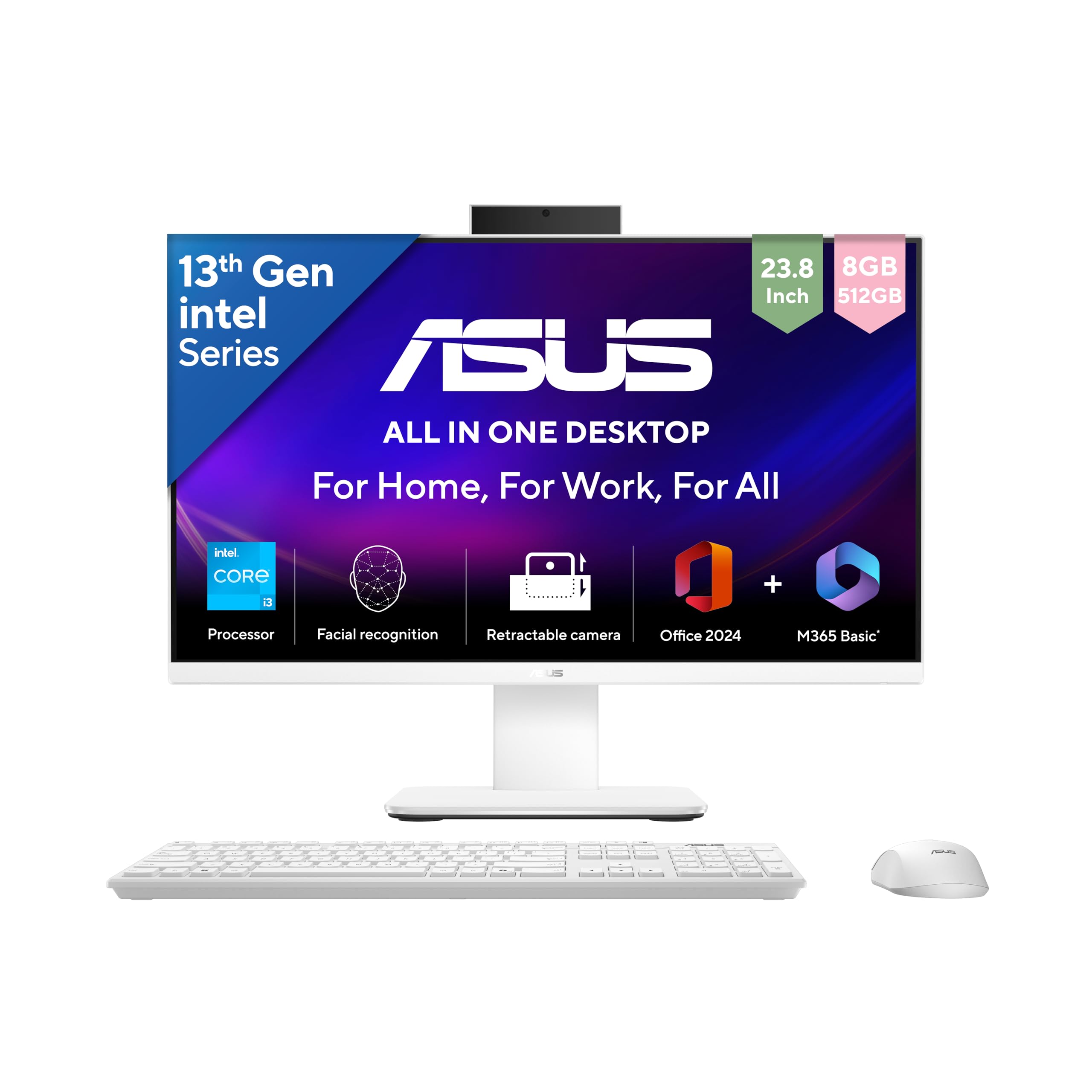
Image: The ASUS AiO V440 All-in-One PC, shown with its included wireless keyboard and mouse, ready for setup.
3.3 Ike mbido
Press the power button, usually located on the bottom right side or back of the display. The system will boot up, and you will be guided through the Windows 11 Home setup process.
4. Operating Your ASUS AiO V440
4.1 Ụlọ Windows 11
Your ASUS AiO V440 comes with Windows 11 Home pre-installed. Familiarize yourself with the Windows 11 interface, including the Start Menu, Taskbar, and File Explorer. Microsoft provides extensive online resources for navigating Windows 11.
4.2 Pre-installed Software
The system includes Microsoft 365 Basic with 100GB Cloud Storage for 1 Year and Office Home 2024 with lifetime validity. Activate these software packages as prompted during initial setup or upon first launch.

Image: The ASUS AiO V440 display showcasing the Windows 11 interface and highlighting the pre-installed Microsoft 365 Basic and Office Home 2024 software.
5. Atụmatụ igodo
5.1 Arụmọrụ
The ASUS AiO V440 is powered by an Intel Core i3-1315U Processor (1.2 GHz, up to 4.5 GHz, 6 cores) and features Integrated Intel Graphics. It comes with 8GB DDR5 RAM and a 512GB M.2 NVMe PCIe 4.0 SSD for fast and efficient operation.
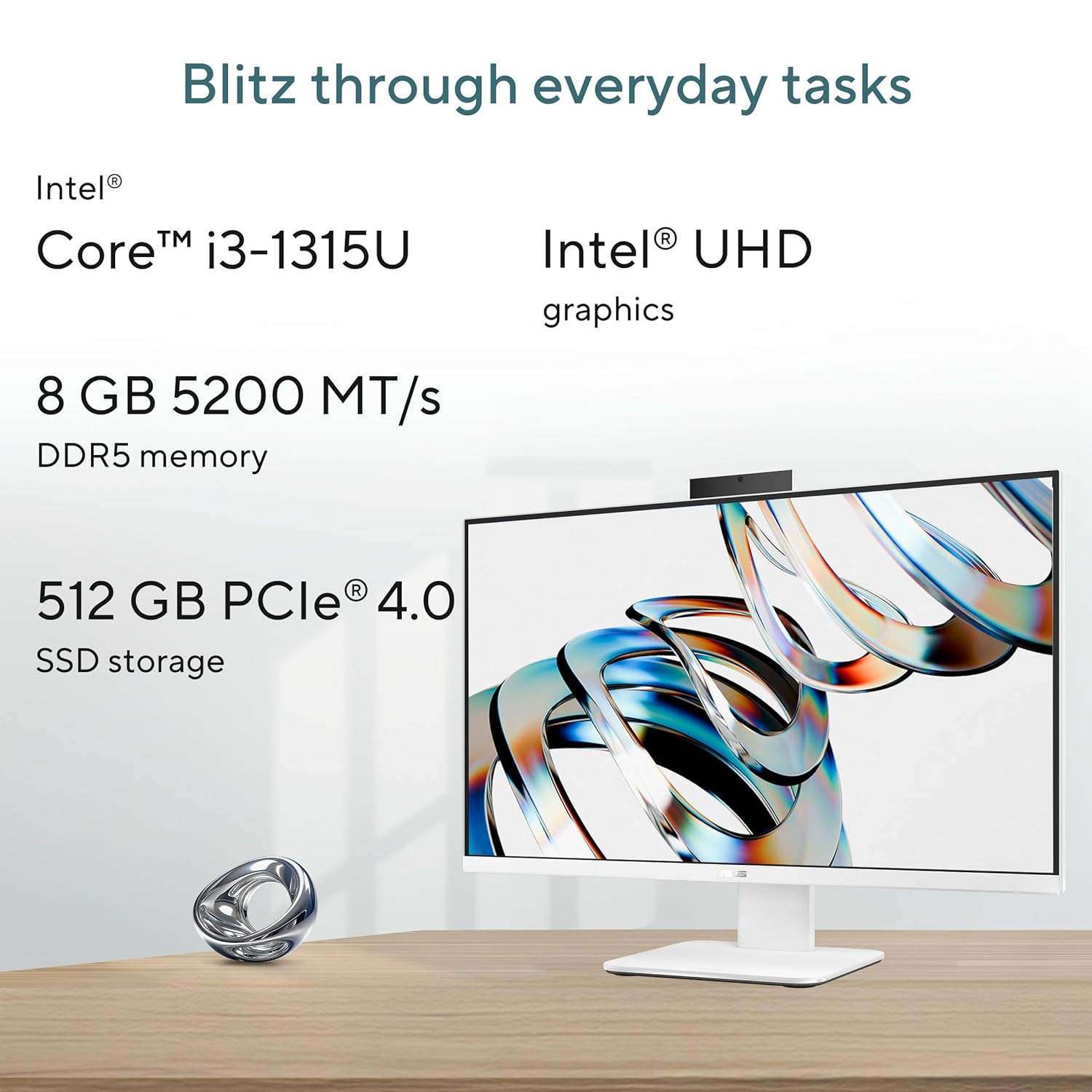
Image: Visual representation of the ASUS AiO V440's core specifications, including its Intel Core i3 processor, integrated graphics, DDR5 memory, and SSD storage, emphasizing its capability for everyday tasks.
5.2 Ngosipụta
Experience clear visuals on the 23.8-inch FHD (1920 x 1080) anti-glare display with 250 nits brightness and a 100Hz refresh rate. The display is TÜV Rheinland-certified for eye care, offering a comfortable viewing experience with 178° PS-wide-viewakụkụ .

Image: The ASUS AiO V440 display showcasing its vibrant visuals and key display features like FHD resolution, wide viewing angles, anti-glare coating, and eye care certification.
5.3 Njikọta
The AiO V440 offers comprehensive connectivity options:
- Side I/O Ports: 1x Kensington lock, 1x 3.5mm combo audio jack, 1x USB 2.0 Type-A.
- Ọdụ ụgbọ mmiri I/O azụ: 1x DC-in, 1x RJ45 Gigabit Ethernet, 1x HDMI in 1.4, 1x HDMI in & HDMI out 1.4, 1x USB 3.2 Gen 1 Type-C, 3x USB 3.2 Gen 1 Type-A.
- Ikuku: Ultrafast Wi-Fi 6E for reliable network connectivity.

Foto: Zuru ezu view of the ASUS AiO V440's side and back input/output ports, illustrating its extensive connectivity options for various peripherals and network connections.
5.4 Igwefoto na Ọdịyo
The integrated Retractable 1080p HD Camera ensures privacy when not in use. For enhanced communication, the system features AI Noise Cancellation to reduce background noise during calls.

Image: The ASUS AiO V440 demonstrating its smart conferencing capabilities, including ASUS AI Cameras with Windows Studio effects and AI Noise Cancellation for clear communication.
5.5 Nchekwa
The retractable camera provides instant privacy by allowing you to physically hide the camera. A Kensington lock slot is included for physical security, helping to prevent theft in public or shared environments.

Image: The ASUS AiO V440 illustrating its security features, including the retractable camera for privacy and the Kensington Nano lock slot for physical theft prevention.
6. Nlekọta na nlekọta
To ensure the longevity and optimal performance of your ASUS AiO V440, follow these maintenance guidelines:
- Nhicha: Use a soft, lint-free cloth to clean the screen and exterior surfaces. For stubborn marks, slightly dampen the cloth with water or a non-abrasive screen cleaner. Avoid harsh chemicals.
- Igwe ikuku: Ensure that the ventilation openings on the device are not blocked to prevent overheating.
- Mmelite ngwanrọ: Na-emelite sistemụ arụmọrụ Windows gị na draịva gị mgbe niile iji hụ na nchekwa na arụmọrụ dị.
- Njikwa Ike: Use the provided power adapter. Unplug the device during electrical storms or when not in use for extended periods.
7. Nchọpụta nsogbu
This section addresses common issues you might encounter with your ASUS AiO V440.
| Nsogbu | Ngwọta enwere ike |
|---|---|
| PC anaghị arụ ọrụ. | Ensure the power adapter is securely connected to both the AiO and a working electrical outlet. Try a different outlet. |
| Wireless keyboard/mouse not working. | Check batteries in the keyboard and mouse. Ensure the USB receiver (if applicable) is plugged into a USB port. Try re-pairing the devices according to their specific instructions. |
| Display quality appears low or blurry. | Verify the display resolution is set to 1920 x 1080 pixels in Windows display settings. Ensure graphics drivers are up to date. |
| Enweghị ụda sitere na ndị ọkà okwu. | Check volume levels in Windows. Ensure no headphones are plugged into the audio jack. Update audio drivers. |
| Internet connection issues. | For Wi-Fi, check your router and network settings. For wired, ensure the Ethernet cable is properly connected. Restart your router and the AiO. |
8. Nka na ụzụ nkọwa
| Njirimara | Nkọwapụta |
|---|---|
| Ụdị | ASUS |
| Nọmba nlereanya | V440VAB-KWPC001WS |
| Sistemụ nrụọrụ | Windows 11 Ụlọ |
| Nhazi | Intel Core i3-1315U (1.2 GHz, up to 4.5 GHz, 6 cores) |
| Eserese | Ihe eserese Intel agbakwunyere |
| Ngosipụta | 23.8-inch FHD (1920 x 1080), 100Hz, Anti-glare, 250 nits |
| RAM | 8GB DDR5 |
| Nchekwa | 512GB M.2 NVMe PCIe 4.0 SSD |
| Igwefoto | Retractable 1080p HD Camera |
| Njikọta | Wi-Fi 6E, Gigabit Ethernet |
| ọdụ ụgbọ mmiri I/O | 1x USB 2.0 Type-A, 3x USB 3.2 Gen 1 Type-A, 1x USB 3.2 Gen 1 Type-C, 2x HDMI (in/out), 1x RJ45, 1x 3.5mm combo audio jack, 1x Kensington lock |
| Akụkụ (Ihe) | 54.1 x 1.7 x 41.6 centimita |
| Ibu (Ihe) | 6.9 kilogram |
| Akụkụ ndị dị n'akụkụ | Wireless Keyboard, Wireless Mouse |
9. Akwụkwọ ikike Ozi
This genuine ASUS AiO comes with a 1-year Global Warranty na Onsite Domestic Warranty from ASUS. This warranty covers manufacturing defects and does not cover physical damage. To activate your warranty, please register on the ASUS brand websaịtị.
10. Nkwado na Ozi kọntaktị
For product-related queries, technical assistance, or warranty claims, please contact ASUS support:
- Nọmba na-anaghị akwụ ụgwọ: 18002090365 (Monday - Saturday, 09:00 AM - 18:00 PM)
- Email: rc_india@asus.com
- Nkwado Websaịtị: Visit the official ASUS support page for drivers, FAQs, and service center locations: https://www.asus.com/in/support

Image: ASUS support information, highlighting the '4A Guarantee' and providing contact details and a QR code for accessing the support websaịtị.