
1. Okwu mmalite
This manual provides instructions for the installation, operation, and maintenance of the JONSBO ZA-120W PC Case Fan. The ZA-120W is a 120mm computer case fan featuring Addressable RGB (ARGB) lighting with a 4-sided infinity mirror effect, a 28mm thick frame, and PWM (Pulse Width Modulation) control for silent and efficient cooling. It is designed to enhance both the thermal performance and aesthetic appeal of your computer system.
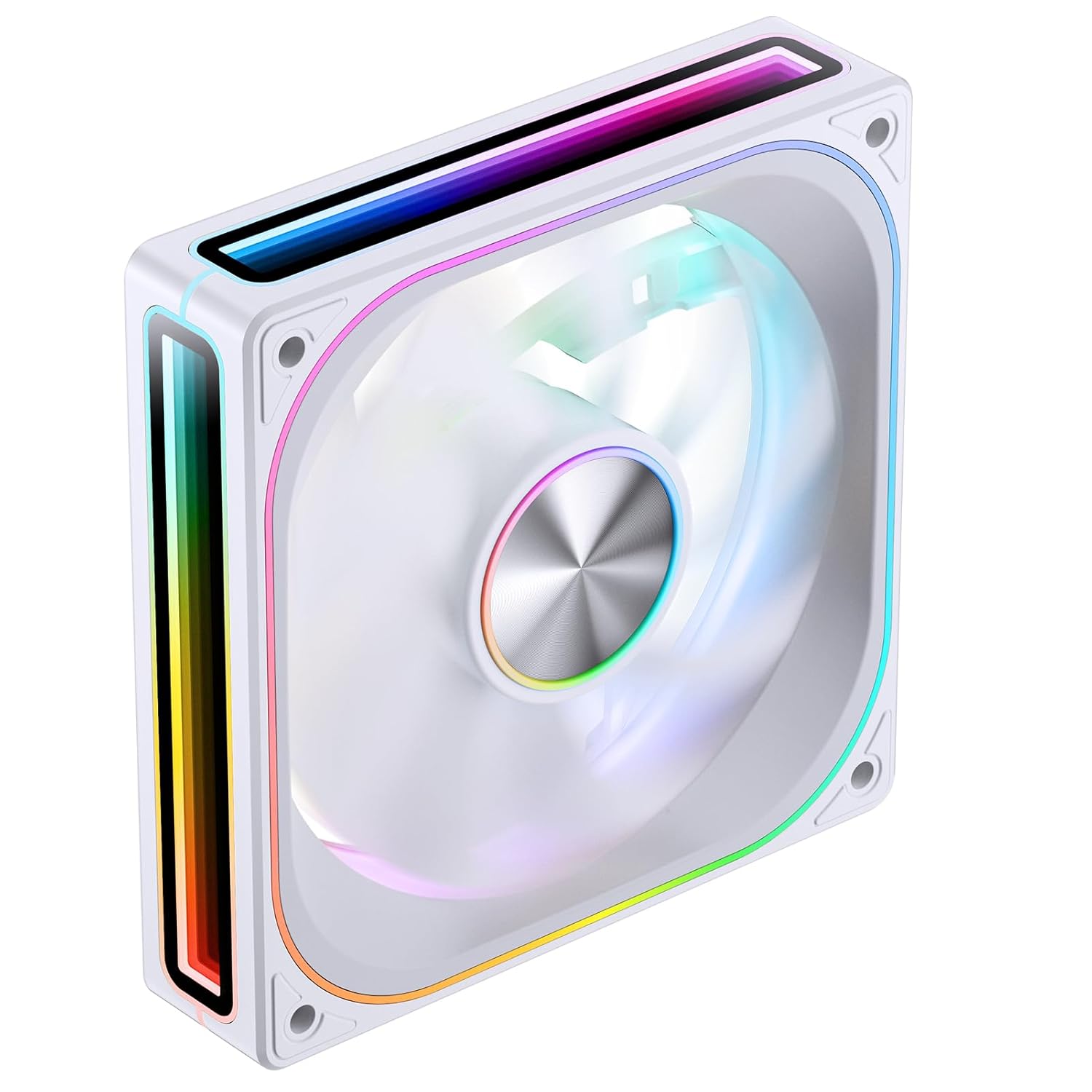
Foto nke 1.1: Nwere akụkụ ihu view of the JONSBO ZA-120W PC Case Fan, showcasing its white frame and vibrant ARGB infinity mirror lighting.
2. Ozi nchekwa
- Hụ na sistemụ kọmputa gị agbanyụrụ ma kwụpụ ya na isi ọkụ eletrik tupu etinye ya ma ọ bụ rụzie ya.
- Handle the fan and its components with care to avoid damage.
- Do not attempt to modify the fan or its wiring, as this may void the warranty and pose a safety risk.
- Keep the fan away from liquids and excessive moisture.
- Ensure proper ventilation around the fan to prevent overheating.
- This product is intended for use within a computer chassis. Do not use it for purposes other than its intended design.
3. Ihe ngwugwu
Chọpụta na ihe niile dị na ngwugwu:
- JONSBO ZA-120W PC Case Fan (1 unit)
- Mounting Screws (4 units)
- Akwụkwọ ntuziaka (akwụkwọ a)
4. Nkọwapụta
| Njirimara | Nkọwa |
|---|---|
| Nọmba nlereanya | ZA120 W |
| Akụkụ | 120mm x 120mm x 28mm (ihe dịka 5.8 x 5 x 1.18 inch) |
| Rotational Speed (Regular Fan Blade) | 700-2400 RPM |
| Air Volume CFM (Regular Fan Blade) | 21.46-62.40 CFM |
| Noise Level (Regular Fan Blade) | 21.3-37.3 dB(A) |
| Ike njikọ .dị | 4-Pin PWM (Fan), 3-Pin ARGB (Lighting) |
| Voltage | 12 volts (DC) |
| Wattage | 120 watt (Rịba ama: Nke a bụtage seems unusually high for a single fan and might refer to a system component or be a typo in the source data. Please refer to product packaging for precise power consumption.) |
| Usoro jụrụ oyi | Ikuku mmanye |
| Atụmatụ pụrụ iche | 4-Sides Infinity Mirror, Aluminum CD Pattern Nameplate, Simplified Wiring |
5. Ntọala na nwụnye
Follow these steps to install your JONSBO ZA-120W PC Case Fan:
5.1 Nwụnye anụ ahụ
- Prepare your PC: Power off your computer and unplug it from the wall outlet. Open your computer case to access the fan mounting locations.
- Chọpụta ebe mgbago: Determine where you want to install the fan (e.g., front, rear, top, bottom of the case, or on a radiator). Ensure the fan's airflow direction (indicated by arrows on the fan frame) matches your desired cooling configuration.
- Ugwu Fan: Position the fan against the mounting holes. Use the provided mounting screws to secure the fan to the case or radiator. Tighten screws evenly but do not overtighten.

Foto 5.1: N'azụ view of the JONSBO ZA-120W fan, illustrating the fan blades and the four screw holes for mounting.
5.2 Njikọ njikọ
The JONSBO ZA-120W fan features simplified wiring with integrated male and female heads for daisy-chaining multiple fans (if applicable to your model) and connecting to the motherboard.
- Connect PWM Cable: Locate a 4-pin fan header on your motherboard (often labeled "CPU_FAN", "SYS_FAN", or "CHA_FAN"). Connect the fan's 4-pin PWM cable to this header. This allows your motherboard to control the fan speed.
- Connect ARGB Cable: Locate a 3-pin 5V Addressable RGB header on your motherboard (often labeled "ARGB", "D_LED", or "VDG"). Connect the fan's 3-pin ARGB cable to this header. Ensure the connector's orientation matches the header to avoid damage. Do not connect to a 4-pin 12V RGB header, as this will damage the ARGB lighting.

Image 5.2: Illustration of the simplified wiring, demonstrating how the fan connects to the motherboard with a single line for both power and ARGB control.

Image 5.3: Visual representation of connecting the 3-pin 5V ARGB cable to a compatible motherboard header for synchronized lighting effects.
After all connections are made, carefully close your computer case and reconnect the power supply.
6. Ntuziaka ọrụ
6.1 Njikwa ọsọ fan (PWM)
The JONSBO ZA-120W fan utilizes PWM technology, allowing your motherboard to dynamically adjust the fan speed based on system temperature. This ensures optimal cooling performance while minimizing noise levels when full speed is not required.
- Access your motherboard's BIOS/UEFI settings or use compatible motherboard software (e.g., ASUS AI Suite, MSI Dragon Center, Gigabyte SIV, ASRock A-Tuning) to configure fan curves.
- You can set custom fan profiles to balance between cooling performance and acoustic levels according to your preferences.
6.2 ARGB njikwa ọkụ
The Addressable RGB lighting of the ZA-120W fan can be controlled and synchronized with other ARGB components in your system via your motherboard's ARGB software. This allows for a wide range of customizable lighting effects and colors.
- Install the appropriate ARGB control software provided by your motherboard manufacturer (e.g., ASUS Aura Sync, MSI Mystic Light Sync, Gigabyte RGB Fusion, ASRock Polychrome Sync).
- Within the software, select the connected ARGB device (your JONSBO fan) and choose from various lighting modes, colors, and effects.
- Ensure your motherboard's ARGB header is enabled in the BIOS/UEFI if necessary.
7. Nlekọta
Regular maintenance helps ensure optimal performance and longevity of your fan.
- Mwepụ uzuzu: Periodically (e.g., every 3-6 months), power off your computer and disconnect it from power. Use compressed air or a soft brush to gently remove dust accumulation from the fan blades and frame. Hold the fan blades to prevent them from spinning rapidly during cleaning, which could damage the bearings.
- Nyocha: Check cables for any signs of wear or damage. Ensure all connections remain secure.
- Do not use liquid cleaners or abrasive materials on the fan.
8. Nchọpụta nsogbu
If you encounter issues with your JONSBO ZA-120W fan, refer to the following common problems and solutions:
- Fans anaghị agba ọsọ:
- Ensure the 4-pin PWM cable is securely connected to a functional fan header on the motherboard.
- Check BIOS/UEFI settings to ensure the fan header is enabled and configured correctly (e.g., not set to "disabled" or "manual 0 RPM").
- Test the fan on a different fan header or with a fan controller if available.
- Ọkụ ARGB anaghị arụ ọrụ:
- Verify the 3-pin ARGB cable is correctly connected to a 5V ARGB header on the motherboard. Ensure the orientation is correct.
- Confirm that you are using the correct motherboard ARGB software and that it recognizes the fan.
- Crucially: Ensure it is connected to a 3-pin 5V ARGB header, not a 4-pin 12V RGB header. Connecting to a 12V header will damage the ARGB LEDs.
- Check for any physical damage to the ARGB cable or connector.
- Fan is Too Loud:
- Adjust the fan curve settings in your motherboard's BIOS/UEFI or software to reduce fan speed at lower temperatures.
- Gbaa mbọ hụ na etinyere fan ahụ nke ọma na ọ naghị ama jijiji megide ikpe ahụ.
- Clean any dust accumulation on the fan blades.
9. Akwụkwọ ikike Ozi
JONSBO products are covered by a manufacturer's warranty against defects in materials and workmanship. The specific terms and duration of the warranty may vary by region and retailer. Please retain your proof of purchase for warranty claims.
For detailed warranty information, please refer to the warranty card included with your product or visit the official JONSBO websaịtị.
10. Nkwado
If you require further assistance or have questions not covered in this manual, please contact JONSBO customer support or your retailer.
- JONSBO Official Websaịtị: www.jonsbo.com (for product information and support resources)
- Nkwado ndị na-ere ahịa: Contact the store or online vendor where you purchased the product.