
KINDEEP HB12
KINDEEP Wallet Tracker Card User Manual
Ụdị: HB12
Brand: KINDEEP
Okwu mmalite
The KINDEEP Wallet Tracker Card is a slim, rechargeable device designed to help you locate your personal items using the Apple Find My network. This manual provides detailed instructions on how to set up, operate, and maintain your tracker card to ensure optimal performance. It is compatible exclusively with iOS devices.
Ozi nchekwa
- Anwala ịkwasa ma ọ bụ gbanwee ngwaọrụ ahụ.
- Debe ngwaọrụ ahụ pụọ na oke okpomọkụ yana ìhè anyanwụ kpọmkwem.
- Gbaa mbọ hụ na ngwaọrụ akọrọ tupu ị chajịa.
- This device is IP68 waterproof, meaning it can withstand submersion up to 1.5 meters for 30 minutes. However, it is not intended for prolonged underwater use.
- Use only compatible Qi wireless chargers.
Ihe ngwugwu
- 1 x KINDEEP Wallet Tracker Card
- Akwụkwọ ntuziaka onye ọrụ 1 x (akwụkwọ a)
Ngwaahịa gafereview
The KINDEEP Wallet Tracker Card is designed to be ultra-slim, similar in size to a credit card, allowing it to fit seamlessly into wallets, purses, or bags. It features a single power/pairing button and an indicator light.

Foto 1: KINDEEP Wallet Tracker Card and its use with the Apple Find My app.
This image shows the slim KINDEEP Wallet Tracker Card positioned above a brown leather wallet, alongside an iPhone displaying the Apple Find My application. The app screen shows a map with the tracker's location, options to "Play Sound" and get "Directions," illustrating the primary function of the device.
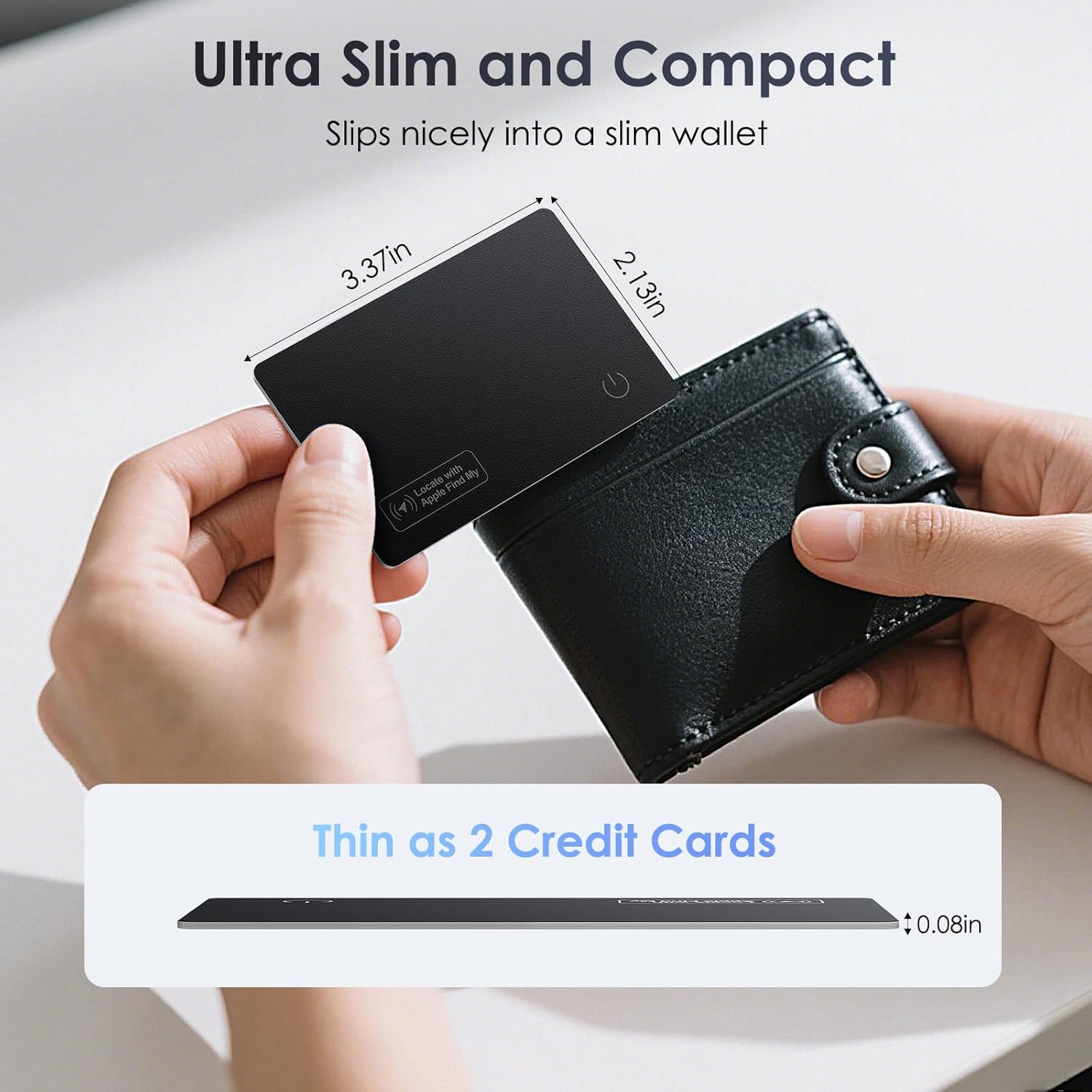
Foto 2: Ultra-slim design of the KINDEEP Wallet Tracker Card.
This image highlights the compact dimensions of the KINDEEP Wallet Tracker Card, showing it next to a black wallet. Annotations indicate its length (3.37in), width (2.13in), and thickness (0.08in), emphasizing that it is as thin as two credit cards, making it ideal for slim wallets.
Setup: Pairing with Apple Find My
Follow these steps to connect your KINDEEP Wallet Tracker Card to your Apple device using the Find My app. Note: This device is for iOS only and is not compatible with Android.
- Chaja ngwaọrụ: Ensure your tracker card is sufficiently charged before pairing. See the "Charging" section for details.
- Kwado Bluetooth: On your iOS device, go to Settings and ensure Bluetooth is turned on.
- Mepee Chọta ngwa m: Launch the Apple Find My application on your iPhone or iPad.
- Add New Item:
- In the Find My app, tap the "Ihe" tab na ala nke ihuenyo.
- Kpatụ ya "+" akara ngosi dị n'akụkụ aka nri elu.
- Họrọ "Tinye ihe ọzọ" or "Ihe Ndị Ọzọ Akwadoro" site na nhọrọ.
- Mee ka ọnọdụ njikọkọ rụọ ọrụ: Press and hold the power button on the KINDEEP Wallet Tracker Card until it beeps, indicating it is in pairing mode.
- Jikọọ: Your iOS device should detect the "Smart Card" (or similar name). Tap "Connect" and follow the on-screen prompts to name your tracker and complete the setup.

Foto 3: Visual guide for the pairing process.
This image illustrates the four key steps for connecting the tracker card: 1) Pressing the power button on the card, 2) Turning on Bluetooth and opening the Find My app on an iPhone, 3) Tapping "Add Item" and selecting "Other Supported Item" in the app, and 4) Connecting to the "Smart Card" once detected.
Ntuziaka ọrụ
Locating Your Item (Play Sound)
When your tracker card is within Bluetooth range of your iOS device, you can make it emit a sound to help you find it.
- Mepee Chọta nke m ngwa na ngwaọrụ iOS gị.
- Select the KINDEEP Wallet Tracker Card from your list of items.
- Kpatụ "Kpọọ ụda". The tracker card will emit a loud sound (up to 100dB) to help you pinpoint its location.

Foto 4: Using the "Play Sound" feature.
This image shows an iPhone displaying the Find My app, with the "Play Sound" option highlighted. Next to it, the KINDEEP Wallet Tracker Card is depicted with sound waves emanating from it, illustrating its ability to emit a loud alert (up to 100dB) to assist in locating the item.
Left Behind Alerts
Receive notifications on your iOS device if you leave your tracker card (and the item it's attached to) behind at an unfamiliar location.
- N'ime Chọta nke m app, select your tracker card.
- Pịgharịa gaa na ala wee pịa "Gwa Mgbe A Hapụrụ Gị".
- Toggle the feature on. You can also set specific locations where you don't want to be notified (e.g., your home).

Foto 5: Left Behind Alert notification.
This image displays an iPhone screen showing a "TIME SENSITIVE" notification that reads, "'Wallet' left behind. This item is no longer detected near you. It was last seen near gregory meola*****". This illustrates the "Left Behind Alert" feature, which notifies users when they move away from their tracked item.
Ọnọdụ efu
If your tracker card is lost, you can enable Lost Mode to display a message and contact information to anyone who finds it, and receive a notification when it's located by another Apple device on the Find My network.
- N'ime Chọta nke m app, select your tracker card.
- Pịgharịa gaa na "Lost Mode" wee pịa "Kwado".
- Follow the prompts to enter a phone number or email address where you can be contacted. You can also write a custom message.
- Confirm to activate Lost Mode.
Ịchaji
The KINDEEP Wallet Tracker Card supports wireless charging. A full charge provides up to 5 months of standby time, though actual usage may vary.
- Place the tracker card on any Qi-compatible wireless charging pad (charger not included).
- Ensure the charging symbol on the tracker card aligns with the charging area of the wireless pad for proper connection.
- An indicator light on the card will show its charging status (e.g., red for charging, blue for full).

Foto 6: Wireless charging of the tracker card.
This image demonstrates the wireless charging capability of the KINDEEP Wallet Tracker Card. The card is placed on a wireless charging stand, with visual cues indicating correct and incorrect placement. Red and blue dots illustrate the charging (red) and fully charged (blue) states, respectively.
Nlekọta
- Nhicha: Wipe the tracker card with a soft, damp akwa . Ejila kemịkalụ siri ike ma ọ bụ ihe mkpocha abrasive.
- Nchekwa: Chekwaa ngwaọrụ ahụ n'ebe dị jụụ, kpọrọ nkụ mgbe ọ naghị eji ya ogologo oge.
- Mkpughe mmiri: While IP68 waterproof, it is recommended to dry the device thoroughly if it gets wet, especially before charging.
Nchọpụta nsogbu
| Nsogbu | Ihe nwere ike ime | Ngwọta |
|---|---|---|
| Tracker not pairing with Find My. | Bluetooth is off; tracker battery is low; incorrect pairing steps; not an iOS device. | Ensure Bluetooth is on. Charge the tracker. Re-attempt pairing following the "Setup" steps precisely. Confirm you are using an iOS device. |
| "Play Sound" not working. | Tracker is out of Bluetooth range; tracker battery is low. | Move closer to the tracker. Ensure the tracker is charged. |
| Tracker not charging wirelessly. | Misalignment on charging pad; charging pad not powered; faulty charging pad. | Adjust the tracker's position on the charging pad to ensure proper alignment. Check if the charging pad is connected to power. Try a different Qi-compatible wireless charger. |
| Left Behind Alerts not received. | Feature not enabled; exclusion zones set; app permissions. | Verify "Notify When Left Behind" is enabled in the Find My app. Check if your current location is set as an exclusion zone. Ensure Find My has necessary location permissions. |
Nkọwapụta
| Njirimara | Nkọwa |
|---|---|
| Nọmba nlereanya | HB12 |
| Akụkụ (L x W x Th) | 3.37 x 2.21 x 0.07 sentimita (8.56 x 5.61 x 0.18 cm) |
| Ibu Ibu | 0.48 ounce (13.6 grams) |
| Ụdị batrị | 1 batrị lithium ion (gụnyere) |
| Ndụ batrị (Njikere) | Ruo ọnwa anọ na otu ụgwọ zuru oke |
| Ịchaji | Ikuku (dakọtara na Qi) |
| Ngosi nke enweghị mmiri | IP68 |
| Ndakọrịta | iOS Only (Works with Apple Find My) |
| Ihe onwunwe | PVC |
| Oke ụda | Up to 100dB alert sound |
Akwụkwọ ikike na nkwado
KINDEEP products are manufactured with high-quality standards. For warranty information or technical support, please refer to the contact details provided with your purchase or visit the official KINDEEP websaịtị. Biko dowe ihe akaebe nke ịzụrụ ihe maka akwụkwọ ikike.
Ask a question about this manual
Ask about setup, troubleshooting, compatibility, parts, safety, or missing instructions. Manuals+ will review the question and use this page’s manual context to help answer it.