
1. Okwu mmalite
The Qiilu Industrial Grade Isolated USB to 4-Channel RS232 Converter provides a robust solution for connecting multiple RS232 serial devices to a computer via a single USB port. Designed for industrial environments, it features advanced isolation and protection mechanisms to ensure stable and reliable data communication. This manual provides detailed instructions for the proper setup, operation, and maintenance of your device.
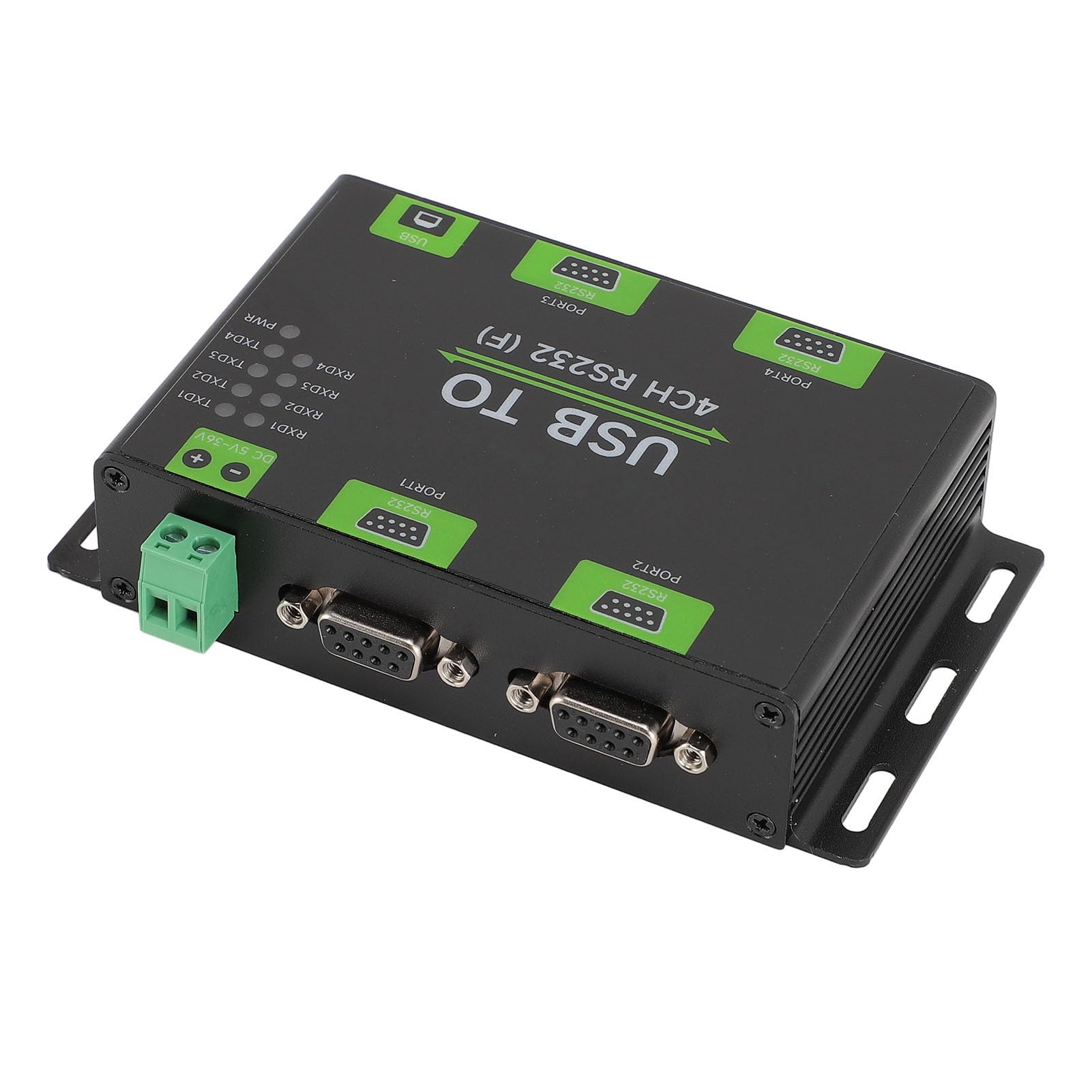
Ọgụgụ 1: N'elu-ala view of the Qiilu USB to 4-Channel RS232 Converter, showing USB, power, and RS232 ports with LED indicators.
2. Akụrụngwa Ngwaahịa
- Ịrụ Ọsọ Ọsọ: Utilizes the original FT4232HL chip for stable and high-speed telecommunication, ensuring compatibility with various RS232 industrial devices.
- Advanced Isolation: Incorporates digital and power isolation mechanisms, offering low power consumption and strong anti-interference capabilities.
- Surge Voltage Nchedo: Equipped with Transient Voltage Suppression (TVS) design to effectively mitigate surge and transient spike voltages, providing superior thunder and static protection.
- Ugbu a na Voltage Guard: Features a self-resetting fuse and diode to maintain stable output current and voltage, safeguarding the device from overcurrent and overvoltage ọnọdụ.
- Ihe ngosi ndị na-egosi onye ọrụ: Includes external LED indicators for power supply and data transmission statuses (TXD/RXD), simplifying operation and monitoring.
3. Ihe ngwugwu
Ngwungwu ahụ gụnyere ihe ndị a:
- 1 x USB to RS232 Converter
- 1 x Power Adapter (for DC 5-36V input)
- 1 x eriri USB
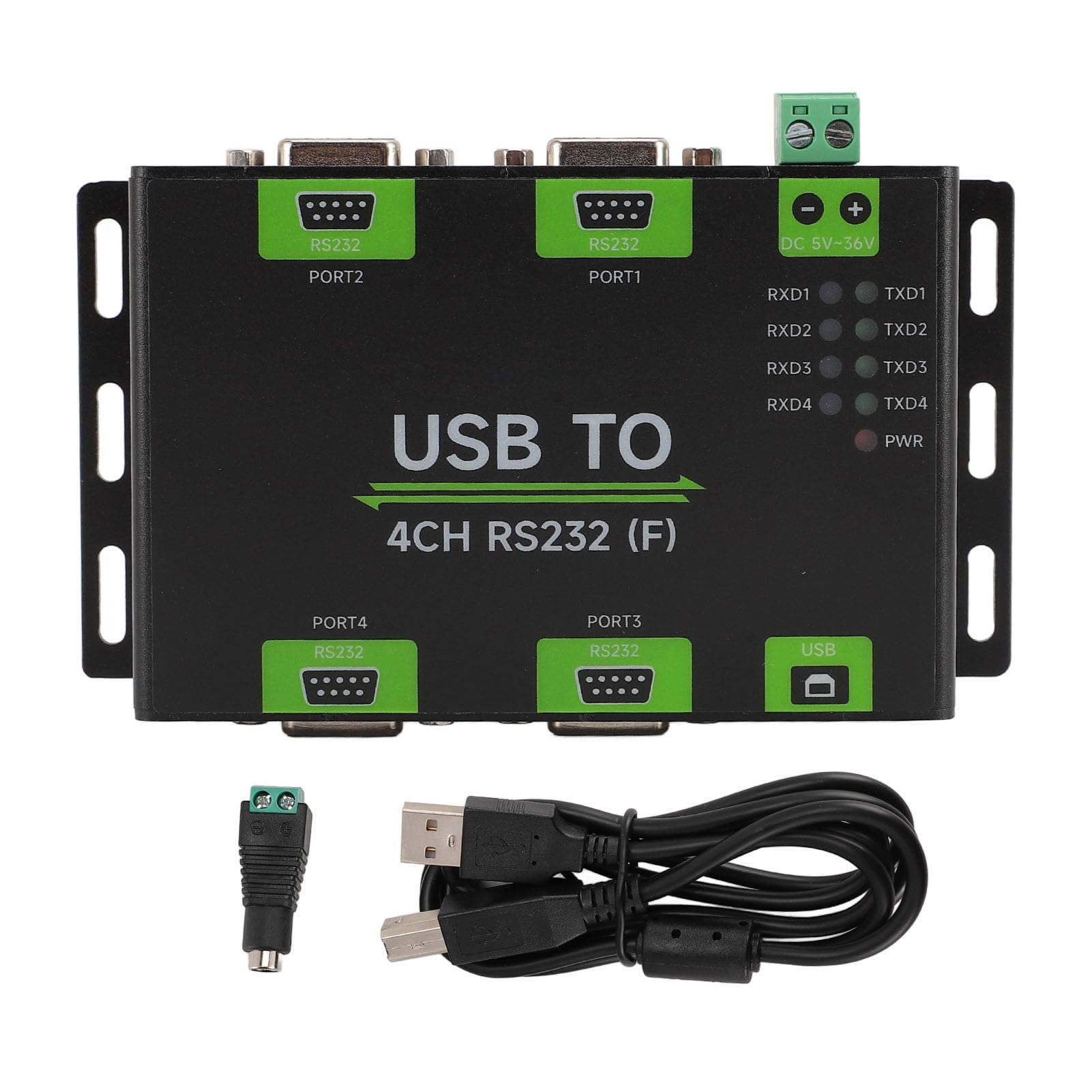
Figure 2: The converter unit shown with its accompanying power adapter and USB cable.
4. Nkọwapụta
| Njirimara | Nkọwa |
|---|---|
| Ụdị ihe | Industrial Grade Isolated USB to RS232 Converter |
| Ihe onwunwe | Aluminom Alloy |
| Ọbịa Interface | USB |
| Ngwa ngwa | RS232 (4-channel) |
| Telecommunication Range | 300bps ~ 921600bps |
| USB Interface Working Level | 5V |
| Ụdị njikọ USB | Ọdụ ụgbọ mmiri USB B |
| USB Interface Guard | 200mA Self-Restoring Fuse, Isolated Output |
| USB Output Distance | Approximately 5m (16.4ft) |
| Ịnye ọkụ Voltage | 5 ruo 36V DC |
| Power Supply Terminals Interface Guard | Weghachite Nchekwa Njikọ |
| RS232 Interface Form | DB9 Female Head |
| RS232 Interface Guard | TVS Tube Guard, Static Protection |
| RS232 Distance | Approximately 15m (49.2ft) |
| Oke okpomoku na-arụ ọrụ | -40 ℃ ~ 85 ℃ |
| Oke iru mmiri na-arụ ọrụ | 5% ~ 95% RH |
| Ndakọrịta sistemụ arụmọrụ | For OS X, for Linux, for Android |
| Ụdị | Qiilu |
| Nọmba nlereanya | Qiilu4a27tudq0n |
| Ibu Ibu | 293 grams |
5. Nhazi ntuziaka
- Njikọ Ike: Connect the provided power adapter to the DC 5-36V power input terminal on the converter. Ensure the power source matches the specified voltage oke.
- Connect USB Host: Connect one end of the USB cable to the USB B port on the converter and the other end to an available USB port on your computer (host device).
- Wụnye ndị ọkwọ ụgbọala: Your operating system may automatically install necessary drivers. If not, please refer to the manufacturer's website for driver downloads specific to the FT4232HL chip.
- Connect RS232 Devices: Connect your RS232 serial devices to the DB9 female head ports (PORT1, PORT2, PORT3, PORT4) on the converter.
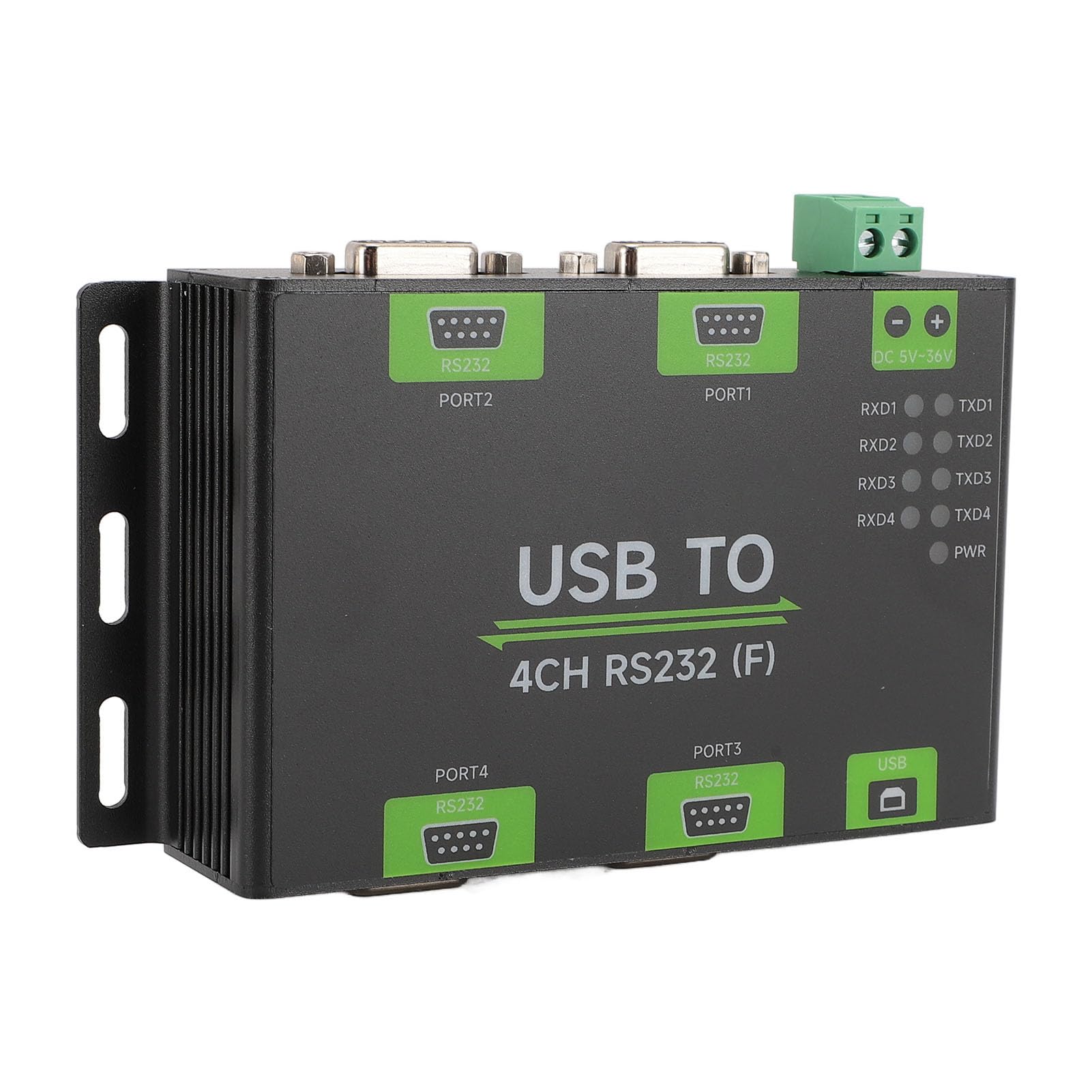
Ọgụgụ 3: N'akuku view highlighting the USB, power input, and RS232 ports for connection.
6. Ntuziaka ọrụ
Once connected and powered, the converter will begin operation. Monitor the LED indicators for status:
- PWR (Power Indicator): This LED turns red when the USB is connected and voltage is detected, indicating the device is powered on.
- TXD (Send Indicator): This LED turns green when data is being sent from the RS232 interface.
- RXD (Receiving Indicator): This LED turns blue when data is being received by the RS232 interface.
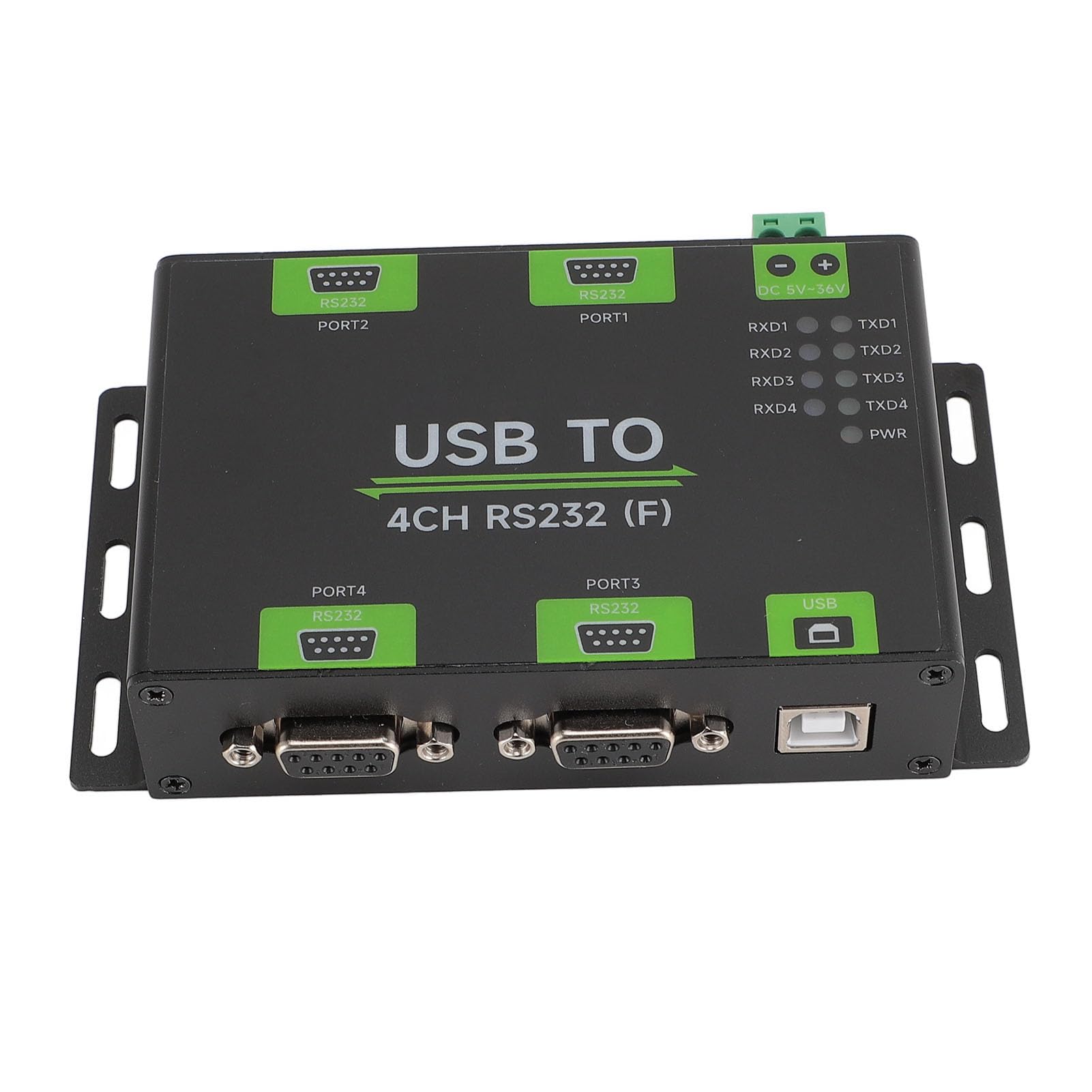
Ọgụgụ 4: nso nso view of the PWR, TXD, and RXD LED indicators on the converter.
7. Nlekọta
- Keep the converter in a clean, dry environment.
- Avoid exposing the device to extreme temperatures or humidity outside the specified operating range.
- Anwala imepe casing or modify the internal components, as this will void the warranty and may damage the device.
- Jiri akwa dị nro hichaa mpụta. Ejila ihe nhicha mmiri mmiri.
8. Nchọpụta nsogbu
- Enweghị Ike (PWR LED gbanyụrụ):
- Check if the USB cable is securely connected to both the converter and the host device.
- Verify that the host device's USB port is functional.
- Ensure the power adapter is correctly connected and providing power within the 5-36V range.
- No Data Transmission (TXD/RXD LEDs off during communication):
- Confirm that the RS232 devices are properly connected to the converter's DB9 ports.
- Verify that the RS232 devices are powered on and configured correctly.
- Check your software settings on the host computer to ensure the correct COM port is selected and communication parameters (baud rate, data bits, parity, stop bits) match those of the RS232 device.
- Ensure the drivers for the FT4232HL chip are correctly installed.
- Njikọ na-adịte aka:
- Lelee njikọ niile nke eriri maka ịdị nro.
- Ensure the USB and RS232 cable lengths do not exceed the recommended distances (5m for USB, 15m for RS232).
- Wedata nnyonye anya eletrọnịkị ndị ọzọ.
9. Akwụkwọ ikike Ozi
This product comes with a manufacturer's warranty for 90 days from the date of purchase. Please retain your proof of purchase for warranty claims. The warranty covers defects in materials and workmanship under normal use. It does not cover damage caused by misuse, accident, unauthorized modification, or improper installation.
10. Nkwado
For further assistance or technical support, please contact Qiilu customer service. When seeking support, please refer to the product model number Qiilu4a27tudq0n.