
1. Okwu mmalite
The Jeecoo G10 Wireless Gaming Headset offers versatile connectivity and high-quality audio for an immersive gaming experience. It supports dual connection modes: a 2.4 GHz USB dongle for low-latency wireless connectivity and Bluetooth 5.3 for stable connections with mobile devices. This headset is compatible with multiple platforms including PC, PS5, PS4, laptops, Mac, smartphones, and Nintendo Switch. Featuring 50mm drivers, it delivers clear stereo sound, allowing users to perceive in-game audio cues effectively. The headset also includes a sensitive omnidirectional noise-canceling microphone for clear communication and an ergonomic design with a fabric suspension headband and memory protein earmuffs for comfort during extended use. A powerful 1200mAh battery provides over 50 hours of gaming time on a single charge.

Image: Jeecoo G10 Wireless Gaming Headset highlighting dual connection modes and device compatibility.
2. Kedu ihe dị na Igbe ahụ
- G10 wireless gaming headset
- Ihe nnata USB ikuku
- Ịchaji eriri
- Akwụkwọ ntuziaka onye ọrụ

Image: The Jeecoo G10 Wireless Gaming Headset and its included accessories.
3. Ngwaahịa gafereview
Njikwa na atụmatụ
- Ike On / Gbanyụọ Button: Press for 3 seconds to turn on/off. Double-click to open Bluetooth mode.
- Wheel olu: Na-edozi olu elu ma ọ bụ ala.
- Bọtịnụ Ogbi Ogbi: Mebie ma ọ bụ mebie ụda igwe okwu.
- Ụdị-C ọdụ ụgbọ mmiri: Maka ịchaji ekweisi.
- Igwe okwu na-agbanwe agbanwe: The microphone arm can be adjusted for optimal voice pickup.
- Nkasi obi Features a fabric suspension headband and soft, breathable memory protein earmuffs for extended comfort.

Image: Multi-function controls on the Jeecoo G10 headset.

Image: AI Mic Noise Reduction feature.
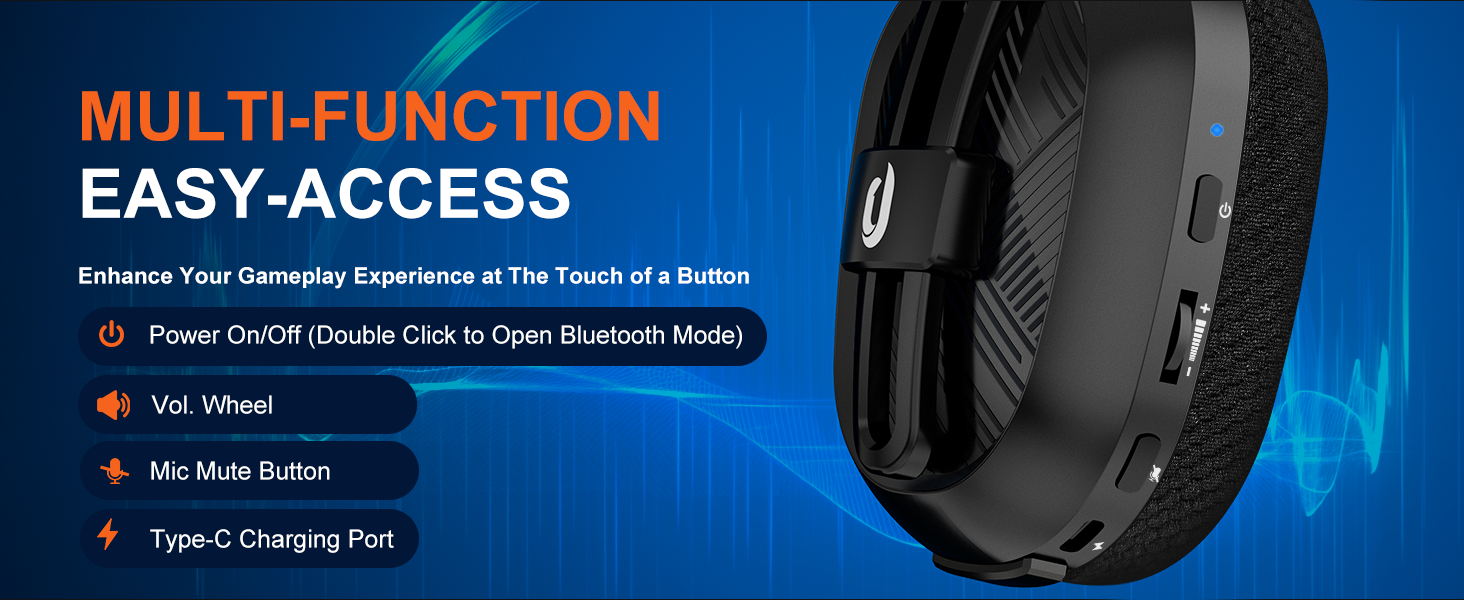
Image: Device compatibility table for the G10 headset.
4. Nhazi ntuziaka
4.1. USB Adapter Mode (PC, Laptop, Macbook)
- Connect the USB adapter into a USB port on your device.
- Press the power button for 3 seconds to turn on the headset. (Note: You will hear an "adapter mode" prompt sound when the headset is turned on and successfully connected).
- Fix the settings: Go to system settings > sound settings. Choose "G10" as your Output Device and choose "G10" as your Input Device.
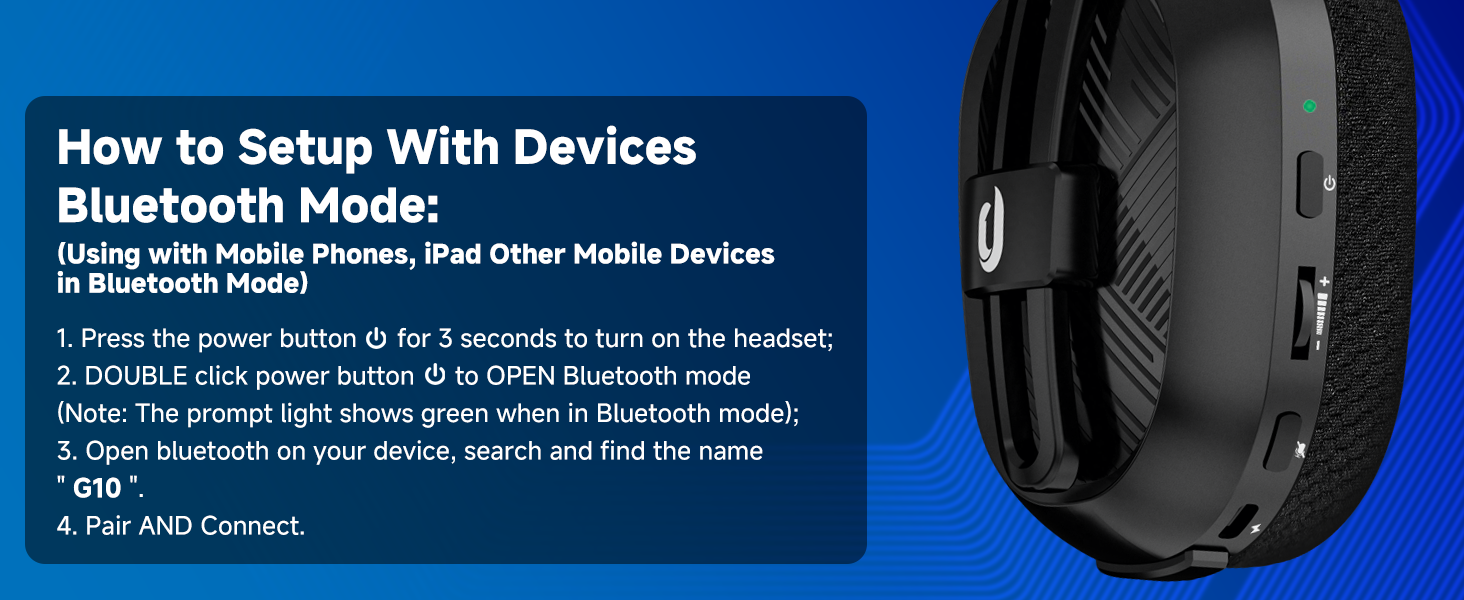
Image: PC setup for USB Adapter Mode.
4.2. USB Adapter Mode (PS4/PS5)
- Connect the USB adapter into a USB port on your PS4/PS5 console.
- Press the power button for 3 seconds to turn on the headset. (Note: You will hear an "adapter mode" prompt sound when the headset is turned on and successfully connected).
- Fix PS4/PS5 console settings: Go to main menu > settings > devices > audio devices. Set "G10" as both the Input Device and Output Device.
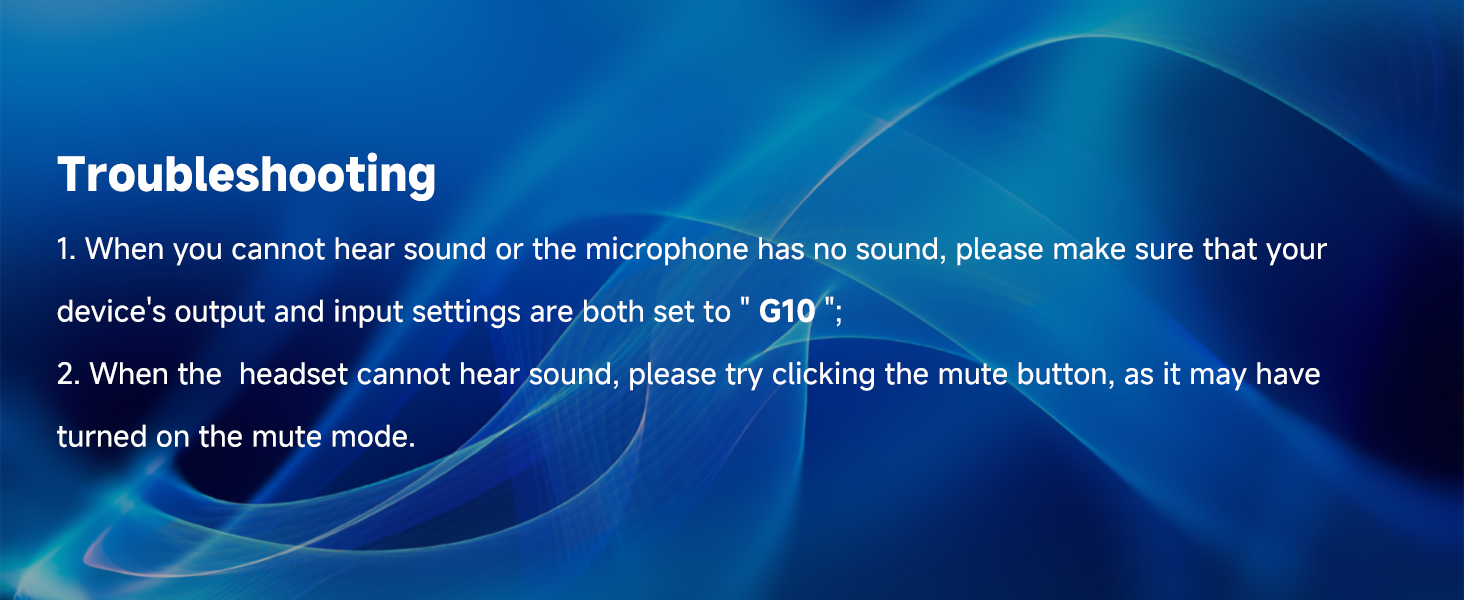
Image: PS4/PS5 setup for USB Adapter Mode.
4.3. Bluetooth Mode (Mobile Phones, iPad, Other Mobile Devices)
- Press the power button for 3 seconds to turn on the headset.
- Double-click the power button to open Bluetooth mode. (Note: The prompt light shows green when in Bluetooth mode).
- Open Bluetooth on your device, search, and find the name "G10".
- Pair and Connect.
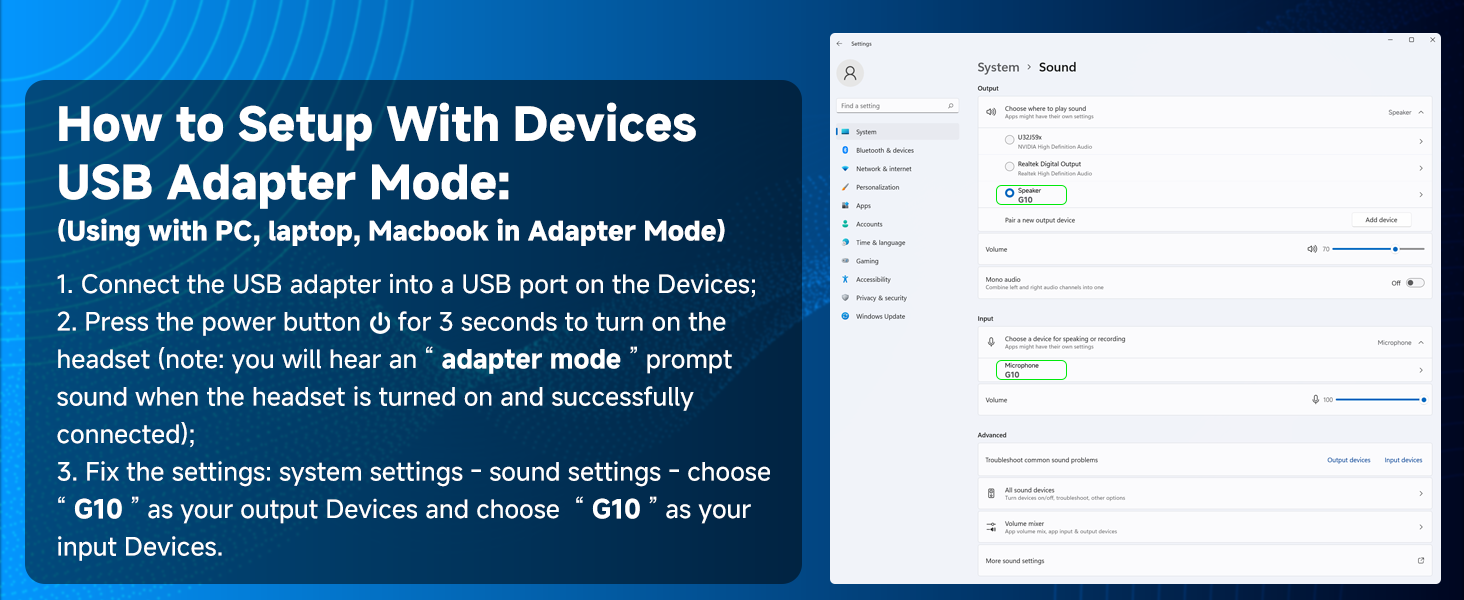
Image: Bluetooth setup for mobile devices.
Vidiyo: Ofeview of the Jeecoo G10 Wireless Gaming Headset's features and multi-platform compatibility, including setup for PC, PS5, PS4, and Nintendo Switch.
5. Ntuziaka ọrụ
5.1. Na-agbanwe olu
Use the volume wheel located on the left earcup to increase or decrease the audio volume. Roll the wheel up to increase volume and down to decrease it.
5.2. Eji igwe okwu
The flexible microphone arm can be bent and positioned closer to your mouth for clearer voice pickup. Press the mic mute button on the left earcup to toggle the microphone on or off. A visual indicator may show the microphone's status.
5.3. Ịchaji ekweisi
Connect the provided Type-C charging cable to the charging port on the headset and to a compatible USB power source. The headset requires approximately 3 hours for a full charge, providing up to 50 hours of gaming time.

Image: Battery life and charging details.
6. Nlekọta
6.1. Nhicha
Wipe the headset with a soft, dry cloth. Avoid using harsh chemicals or abrasive materials. For earmuffs, gently clean with a damp cloth if necessary and allow to air dry completely.
6.2. Nchekwa
Store the headset in a cool, dry place away from direct sunlight and extreme temperatures. When storing for a long period, ensure the battery is partially charged (around 50%) to maintain battery health.
7. Nchọpụta nsogbu
- No Sound or Microphone Not Working: Ensure your device's output and input settings are both set to "G10".
- Headset Cannot Hear Sound: Try clicking the mute button, as it may have been accidentally turned on.
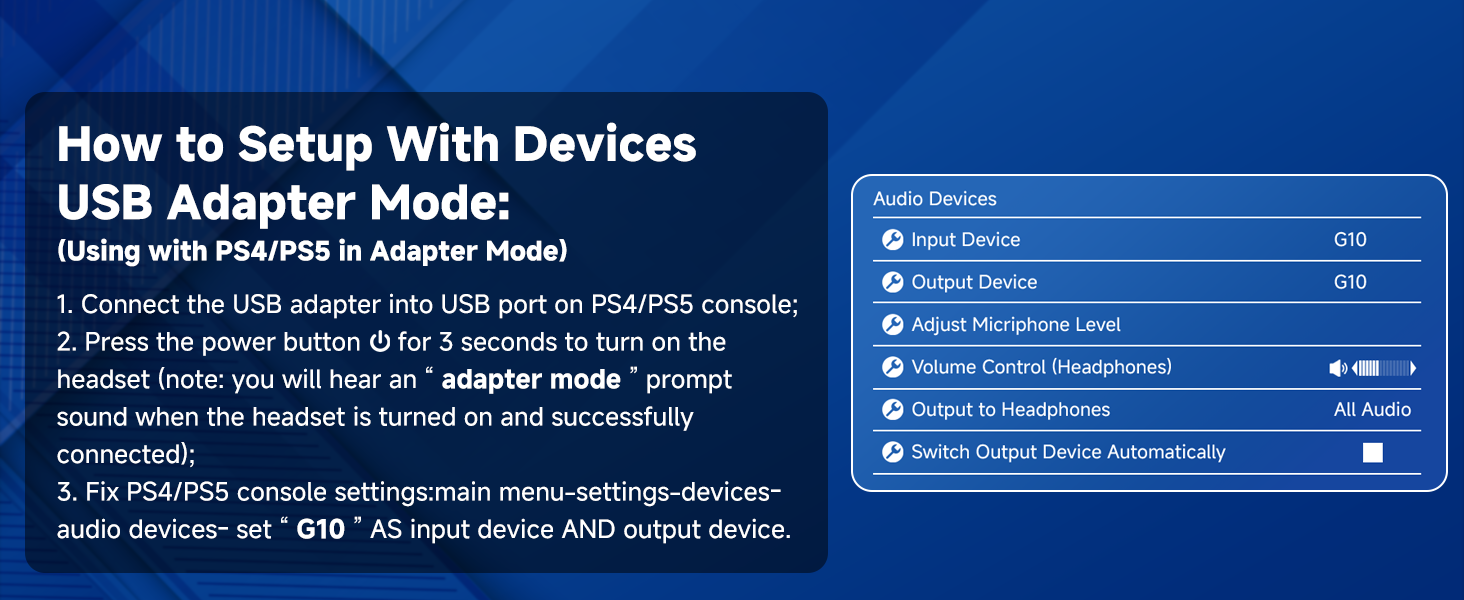
Image: Troubleshooting steps for common issues.
8. Nkọwapụta
| Njirimara | Nkọwapụta |
|---|---|
| Aha Nlereanya | G10 |
| Teknụzụ Njikọta | Bluetooth 5.3, 2.4GHz Ikuku |
| Oke nkwurịta okwu ikuku | Ruo n'ụkwụ 49 |
| Ụdị ọkwọ ụgbọ ala ọdịyo | Onye ọkwọ ụgbọ ala dị ike (50mm) |
| Nzaghachi ugboro ugboro | 20 Hz - 20000 Hz |
| Njirimara igwe okwu | Noise Cancellation, Omnidirectional |
| Ndụ batrị | Awa 50 |
| Oge Nchaji | Awa 3 |
| Ibu | 13.4 ounces (0.38 Kilogram) |
| Ihe onwunwe | Fabric, Memory Foam, Plastic |
| Ngwa dakọtara | PS5, PS4, PC, Nintendo Switch, phones, laptops, Mac, iPad (Not compatible with Xbox) |
9. Akwụkwọ ikike na nkwado
For warranty information and customer support, please refer to the contact details provided in the included User Manual or visit the official Jeecoo websaịtị. Debe nnata nzụta gị maka nkwupụta akwụkwọ ikike ọ bụla.