
1. Okwu mmalite
This manual provides essential information for the safe and efficient use of your BOOX Go 7 ePaper Tablet. Please read it thoroughly before operating the device and retain it for future reference.

Figure 1.1: BOOX Go 7 ePaper Tablet
2. Ozi nchekwa
- Ewepụla ngwaọrụ ahụ na oke okpomọkụ, ìhè anyanwụ kpọmkwem, ma ọ bụ oke iru mmiri.
- Zere idobe ma ọ bụ idobe ngwaọrụ ahụ na mmetụta siri ike.
- Jiri naanị eriri USB enyere maka ịchaji.
- Keep the device away from water and liquids, despite its water-repellent features.
- Agbalịla ịgbasa ma ọ bụ rụzie ngwaọrụ ahụ n'onwe gị. Kpọtụrụ ndị ọrụ enyere ikike.
3. Ihe ngwugwu
Chọpụta na ihe niile dị na ngwugwu:
- BOOX Go 7 ePaper Tablet
- eriri USB
- Ntuziaka mmalite ngwa ngwa (nwere ike ịdị iche site na mpaghara)

Figure 3.1: BOOX Go 7 Package Contents
4. Ngwaọrụ gafereview
4.1 Akụkụ anụ ahụ
Familiarize yourself with the main components of your BOOX Go 7 tablet:
- E Ink Screen: 7-inch monochrome display with 300 ppi resolution.
- Ihu ihu: Adjustable illumination for reading in various lighting conditions.
- Page-Turn Buttons: Ergonomically designed buttons for easy navigation.
- Ọdụ USB-C: Maka ịchaji na ịnyefe data.
- Bọtịnụ ike: Located on the top edge.
- Igwe okwu arụnyere n'ime ya: Maka ntinye ọdịyo.
- Built-in Dual Speakers: Maka mmepụta ọdịyo.

Figure 4.1: Page-Turn Buttons and Water-Repellent Protection
5. Nhazi
5.1 Nchaji izizi
Before first use, fully charge your BOOX Go 7 tablet. Connect the provided USB-C cable to the device and a compatible power adapter (not included) or a computer's USB port. The charging indicator will show the charging status.
5.2 Gbanyụọ ma ọ bụ gbanyụọ
- Iji gbanye: Press and hold the Power button until the BOOX logo appears.
- Iji gbanyụọ: Press and hold the Power button, then select "Power Off" from the options on the screen.
- Ịrahụ Ụra/Teta: Jiri nwayọ pịa bọtịnụ Ike.
5.3 Njikọ netwọkụ (Wi-Fi)
- Site na ihuenyo mbụ, pịa ala site n'elu iji nweta panel Ntọala Ngwa ngwa.
- Tap the Wi-Fi icon to enable Wi-Fi.
- Pịa ma jide akara ngosi Wi-Fi iji mepee ntọala Wi-Fi.
- Họrọ netwọk ịchọrọ site na ndepụta ahụ wee tinye paswọọdụ ma ọ bụrụ na ịchọrọ.
- Ozugbo ejikọtara ya, akara ngosi Wi-Fi ga-egosi njikọ na-aga nke ọma.
6. Ntuziaka ọrụ
6.1 Nsoro ụzọ
- Ihuenyo mmetụ aka: Tap, swipe, and pinch to navigate menus, open applications, and interact with content.
- Page-Turn Buttons: Use the physical buttons on the side to turn pages in documents and books.
6.2 Reading Documents and Books
The BOOX Go 7 supports various document formats. Open your desired file from the library. Use the page-turn buttons or swipe gestures to navigate through pages. Adjust font size, contrast, and frontlight settings for optimal reading comfort.
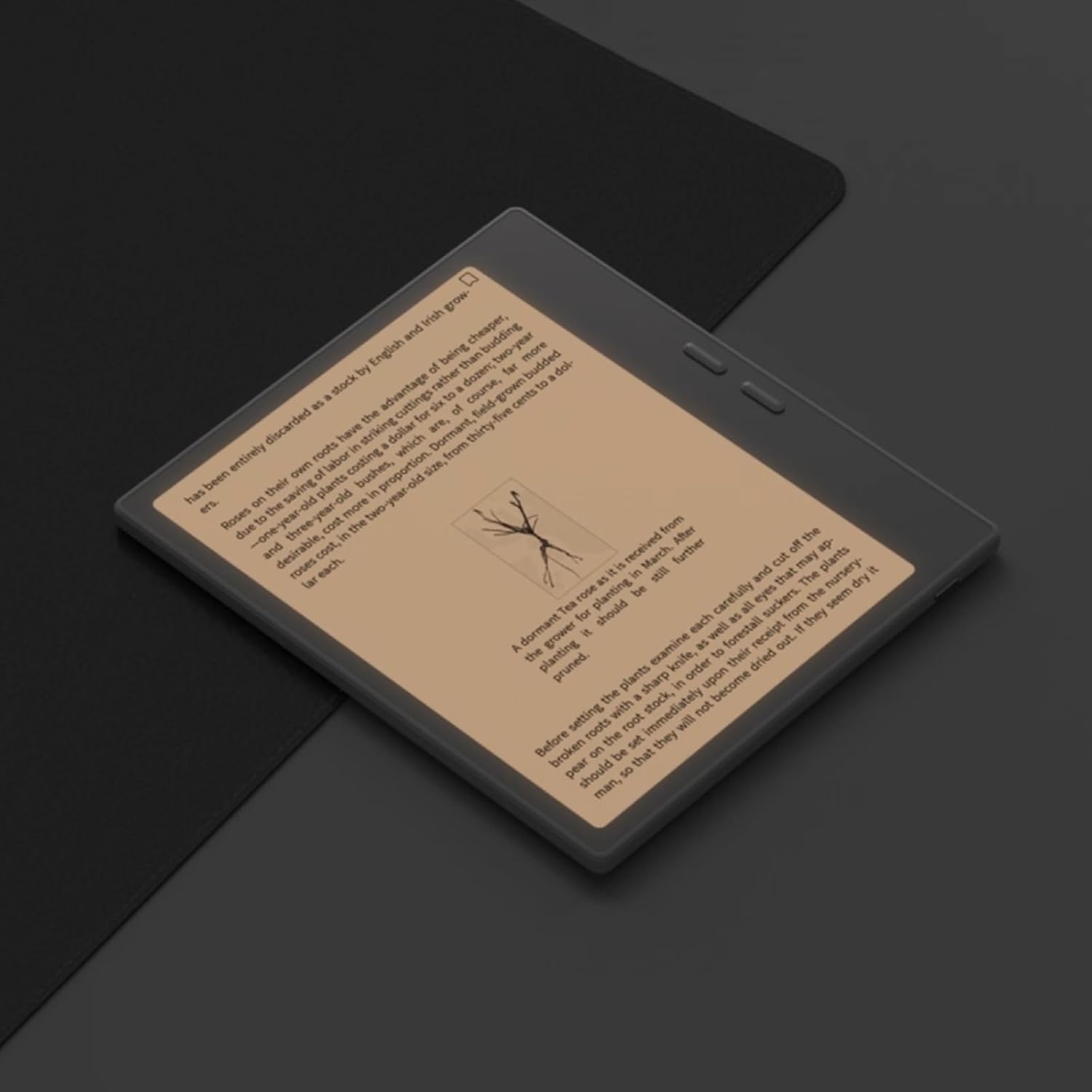
Figure 6.1: Reading with Frontlight
6.3 Using Android Applications
As an Android 13 device, the BOOX Go 7 allows installation of various applications from the Google Play Store. Navigate to the App Store, search for your desired application, and install it. Note that some applications may not be fully optimized for ePaper displays.

Figure 6.2: Various Android Applications on BOOX Go 7
6.4 Note-Taking and Drawing
Utilize the stylus (if included or purchased separately) for note-taking, sketching, and annotating documents. The device offers various templates and tools for creative and organizational tasks.

Figure 6.3: Stylus Use for Note-Taking

Figure 6.4: Handwriting to Text Conversion
7. Nlekọta
7.1 Na-ehicha ngwaọrụ
Use a soft, lint-free cloth to gently wipe the screen and body of the device. Do not use harsh chemicals, abrasive cleaners, or excessive moisture.
7.2 Mmelite ngwanrọ
Regularly check for and install software updates to ensure optimal performance and access to new features. Connect to Wi-Fi and navigate to Ntọala> Sistemu> Mmelite sistemụ ka ịlele maka mmelite dị.
8. Nchọpụta nsogbu
- Ngwaọrụ anaghị agbanwu: Hụ na ngwaọrụ ahụ nwere chajị. Jikọọ ya na isi iyi ike wee nwaa ọzọ.
- Ihuenyo anaghị aza: Perform a soft reset by holding the Power button for 10-15 seconds.
- Nsogbu njikọ Wi-Fi: Verify your Wi-Fi password and router settings. Try restarting your router and the device.
- Ngwa ndị na-emebi: Ensure applications are updated to their latest versions. Clear the app's cache or reinstall if issues persist.
9. Nkọwapụta
| Ụdị | AKWỤKWỌ |
| Aha Nlereanya | Gaa 7 |
| Ike nchekwa | 64 GB |
| Nha ihuenyo | 7 sentimita asatọ |
| Max Display Resolution | 300 Pixels per inch |
| Sistemụ nrụọrụ | Android 13 |
| Agba | Noir (Ojii) |
| Ogo RAM arụnyere | 4 GB |
| Atụmatụ pụrụ iche | USB OTG support, Expandable storage, Stylus support |
| Afọ Nlereanya | 2025 |
| Ụdị batrị | Lithium-ion |
| Ọdịnaya Ike batrị | 8.8 Watt awa |
| Akara nhazi | Qualcomm |
| Nkọwa nhazi | Qualcomm Snapdragon |
| Igwefoto | Enweghị igwefoto |
| Ụdị ihe mmetụta | Gyroscope |
| Item Dimensions (LxWxT) | 15.6L x 0.6W x 13.7T centimeters |
| Ụzọ ntinye | Touchscreen with stylus |
| Nkọwa kaadị eserese | Ejikọtara |
| Ngwa dakọtara | Stylus |
| Ụdị ngosi | Ink eletriki |
| Mkpebi ihuenyo | 1280 x 800 pikselụ |
| Akụkụ akụkụ | 16:10 |
| Njikọta ngwaike | USB |
| Teknụzụ ikuku | Bluetooth, Wi-Fi (802.11ax) |
| Mgbakọta ọdụ ụgbọ mmiri USB | 1 |

Figure 9.1: BOOX Go 7 Energy Label (Njikọ EPREL)
10. Akwụkwọ ikike Ozi
The BOOX Go 7 ePaper Tablet comes with a Akwụkwọ ikike dị afọ 2. This warranty covers manufacturing defects under normal use. For specific terms and conditions, please refer to the warranty card included in your package or contact customer support.
The standard return policy allows for returns within 30 days of purchase for refund or replacement.
11. Nkwado
For technical assistance, troubleshooting, or warranty claims, please contact BOOX customer service. You can find support resources and submit inquiries through the official BOOX help center.
- Mmelite femụwe: BOOX commits to at least 3 years of firmware updates for each product.
- Nchekwa igwe ojii: 10 GB of free cloud storage is provided for each user.
- Oge nzaghachi: Customer inquiries are typically responded to within 24 hours.
Maka ozi ndị ọzọ, gaa na BOOX Brand Store on Amazon.