
Okwu mmalite
Thank you for choosing the SENGBIRCH Keyboard Case for your Lenovo Tab M11 11" 2024. This manual provides essential information for the proper setup, operation, and maintenance of your new keyboard case. Please read it thoroughly before use to ensure optimal performance and longevity of the product.
Ihe ngwugwu
- 1 x Protective Case with Bluetooth Keyboard
- 1 x USB-C Nchaji USB
- 1 x Akwụkwọ ntuziaka onye ọrụ
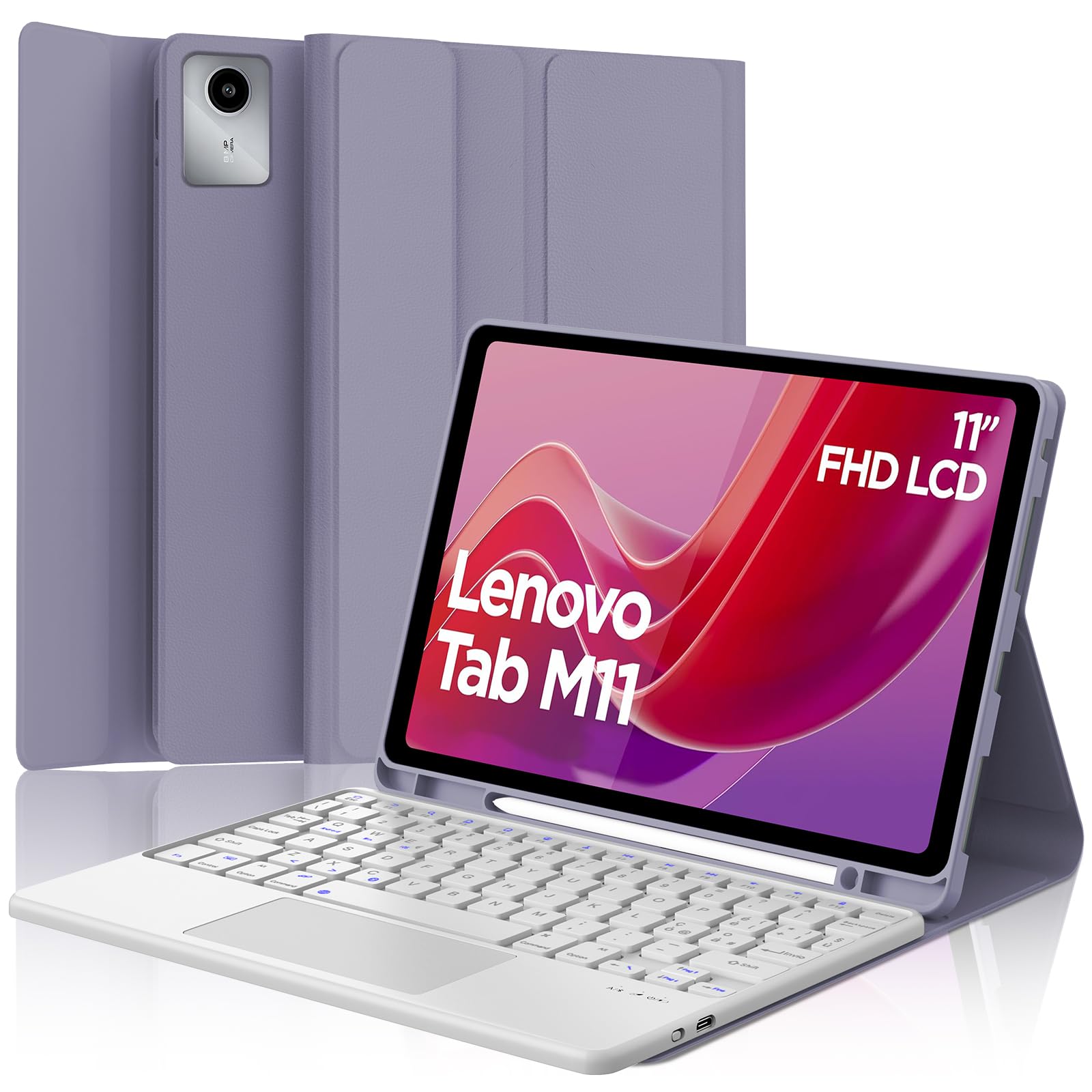
Image: The SENGBIRCH Keyboard Case for Lenovo Tab M11 11" 2024, showcasing the keyboard and protective cover.
Ntuziaka nhazi
1. Nyochaa ndakọrịta
This keyboard case is specifically designed for the Lenovo Tab M11 11" 2024 (Models TB330FU/TB330XU). Please verify your tablet model before proceeding.

Image: A visual guide illustrating compatibility with the Lenovo Tab M11 11" 2024 and incompatibility with other models like Lenovo Tab M10 Plus Gen 3 and Lenovo Tab M10.
2. Ịchaji ahụigodo
- Connect the provided USB-C charging cable to the keyboard's charging port.
- Jikọọ nsọtụ nke ọzọ nke eriri na ihe nkwụnye ọkụ USB (anaghị etinye ya) ma ọ bụ ọdụ ụgbọ USB nke kọmputa.
- The charging indicator light will illuminate. Allow 2-3 hours for a full charge.

Image: Close-up of the keyboard showing the USB-C charging port and a charging cable connected, indicating battery life and silent scissor keys.
3. Njikọ Bluetooth
- Ensure the keyboard is charged. Turn on the keyboard by sliding the power switch.
- Pịa Jikọọ button on the keyboard (usually indicated by a Bluetooth icon). The Bluetooth indicator light will start blinking.
- On your Lenovo Tab M11, go to Ntọala > Bluetooth and turn Bluetooth on.
- Your tablet will search for available devices. Select "Bluetooth Keyboard" or a similar name from the list.
- Once paired, the Bluetooth indicator light on the keyboard will stop blinking.

Image: A diagram illustrating the wireless Bluetooth connection of the keyboard to various devices, including smartphones, tablets, and laptops, supporting iOS, Android, and Windows operating systems.
4. Inserting the Tablet into the Case
Carefully align your Lenovo Tab M11 with the protective case. Ensure all ports, buttons, and the camera are correctly aligned with the case's precise cutouts. The magnetic design will help secure the tablet and keyboard in place.
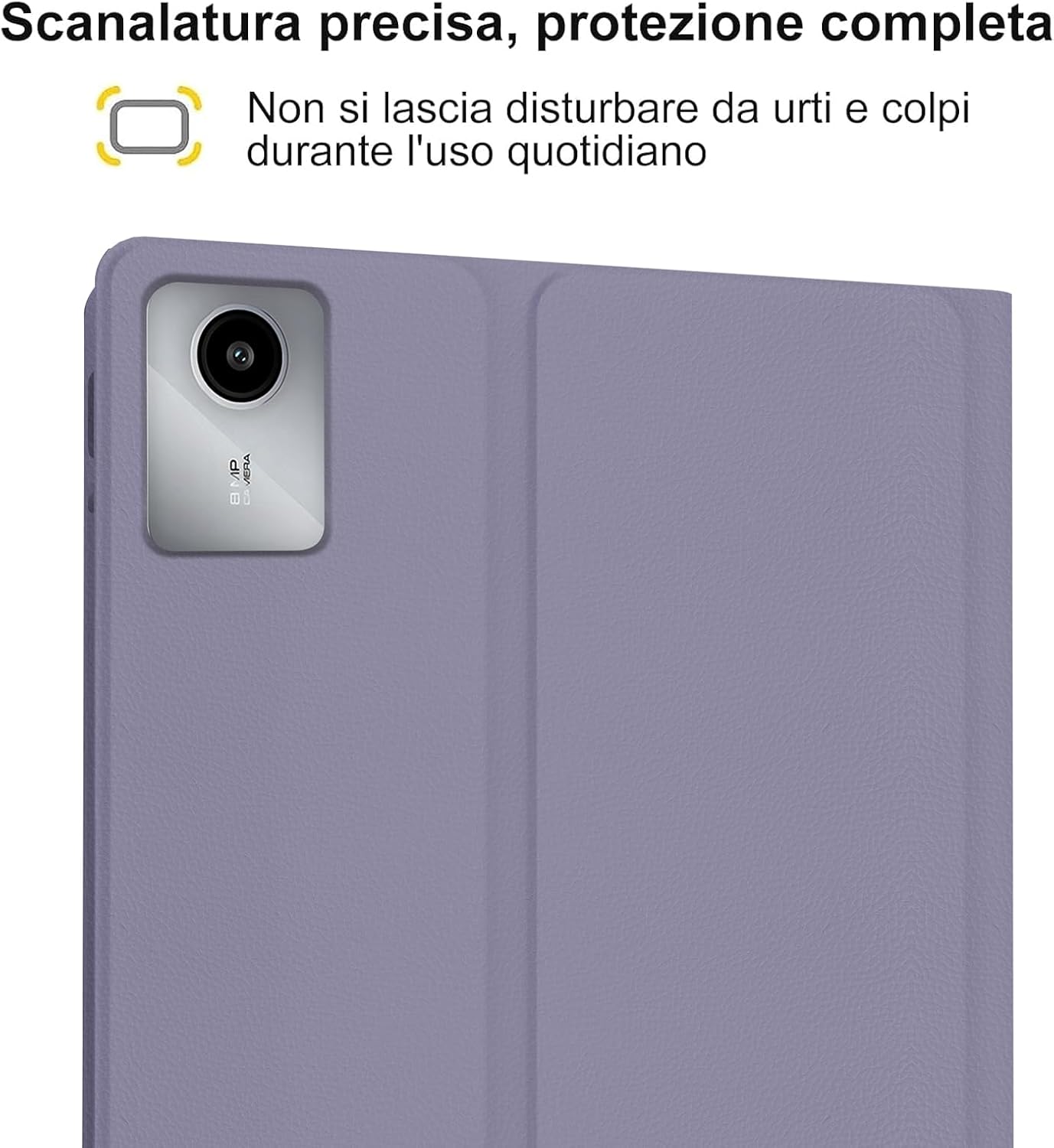
Image: A close-up of the tablet's camera module perfectly aligned with the precise cutout in the protective case, emphasizing full protection against daily impacts.
Ntuziaka ọrụ
1. Using the Keyboard
The keyboard features an Italian QWERTY layout. It provides a tactile typing experience with scissor-key mechanisms for comfortable and efficient input. Familiarize yourself with the function keys (Fn) for shortcuts.

Foto: nkọwa zuru ezu view of the Italian QWERTY keyboard layout, highlighting its magnetic attachment, over 100 hours of battery life, and USB-C charging capability.
2. Using the Trackpad
The integrated trackpad allows for precise navigation and control, similar to a laptop. It supports multi-touch gestures (e.g., two-finger scroll, pinch-to-zoom) depending on your tablet's operating system settings.
3. Na-edozi ọkụ azụ
The keyboard features 7-color backlighting with 3 adjustable brightness levels. Use the dedicated backlight key (often indicated by a light bulb icon or Fn + a specific key) to cycle through colors and brightness settings.
4. Automatic Wake/Sleep Function
The case supports automatic wake/sleep functionality. Opening the case will wake your tablet, and closing it will put your tablet to sleep, conserving battery life.

Image: Two illustrations demonstrating the automatic wake-up function when the case is opened and the automatic sleep function when the case is closed.
5. Adjustable Viewna akụkụ
The case allows you to adjust the tablet's viewing angle for comfortable use, whether typing, watching videos, or browsing. The non-slip grooves ensure stability at various angles.
Image: A diagram showing the tablet case propped up at different viewing angles (120°, 125°, 130°) with non-slip grooves for stability, illustrating ergonomic viewọnọdụ ọnọdụ.
Nlekọta
Nhicha Igbe na Keyboard
- Jiri ihe dị nro hichaa mpụta nke akpa ahụ, damp akwa . Zere kemịkalụ siri ike ma ọ bụ ihe nhicha abrasive.
- For the keyboard, use a soft, dry cloth or a can of compressed air to remove dust and debris from between the keys.
- Hụ na ejirighị ike gbanyụọ ahụigodo ahụ tupu ị sachaa ya.
Nlekọta batrị
- Charge the keyboard regularly to maintain battery health.
- Zere ịchaji batrị ugboro ugboro.
- If storing the keyboard for an extended period, charge it to about 50% and store in a cool, dry place.
Nchọpụta nsogbu
Keyboard Not Connecting via Bluetooth
- Lelee batrị: Gbaa mbọ hụ na agbachara ahụigodo nke ọma.
- okirikiri ike: Gbanyụọ ahụigodo ahụ wee gbanye ọzọ.
- Tinyegharịa ụzọ: Delete the keyboard from your tablet's Bluetooth device list and attempt to pair it again.
- Tablet Bluetooth: Ensure your tablet's Bluetooth is enabled and functioning correctly.
Ìhè azụ anaghị arụ ọrụ
- Lelee Ike: Gbaa mbọ hụ na ahụigodo nwere ụgwọ batrị zuru oke.
- Backlight Key: Press the backlight key (or Fn + backlight key) to cycle through brightness levels and colors.
Trackpad Not Responding
- Njikọ Bluetooth: Gbaa mbọ hụ na ejikọrọ ahụigodo nke ọma site na Bluetooth.
- Malitegharịa: Gbanyụọ wee gbanye ahụigodo.
- Tablet Settings: Check your tablet's settings for trackpad or mouse options to ensure it's enabled.
Okwu Ịchaji
- Nyocha USB: Ensure the USB-C cable is securely connected to both the keyboard and the power source.
- Isi mmalite ike: Try a different USB power adapter or computer USB port.
- Mmebi eriri USB: Inspect the charging cable for any signs of damage.
Nkọwapụta
| Njirimara | Nkọwa |
|---|---|
| Ụdị | SENGBIRCH |
| Ngwa dakọtara | Lenovo Tab M11 11" 2024 (TB330FU/TB330XU) |
| Teknụzụ Njikọta | Bluetooth |
| Nkọwa ahụigodo | Accessible (Italian QWERTY Layout) |
| Njirimara Pụrụ Iche | Trackpad, Backlit Keyboard (7 colors, 3 brightness levels) |
| Isi Iyi Ike | Battery Powered (Lithium Polymer) |
| Ndụ Battery (Na-aga n'ihu) | Ruo awa 24 (ụbọchị 3) |
| Oge Njikere | Ọnwa 3 |
| Oge Nchaji | 2-3 hours (via USB-C) |
| Ihe onwunwe | TPU, ABS, Synthetic Leather |
| Ibu Ibu | 700 g |
| Akụkụ ngwugwu | 26 x 18 x 3 cm |
Ozi akwụkwọ ikike
This SENGBIRCH product comes with a akwụkwọ ikike afọ abụọ from the date of purchase. This warranty covers manufacturing defects and issues arising from normal use. It does not cover damage caused by misuse, accidents, unauthorized modifications, or normal wear and tear.
Biko dowe ihe akaebe nke ịzụrụ ihe maka akwụkwọ ikike.
Nkwado
If you encounter any problems or have questions regarding your SENGBIRCH Keyboard Case, please do not hesitate to contact our customer support team. We are committed to providing satisfactory service and assistance.
For support, please refer to the contact information provided on the product packaging or the official SENGBIRCH websaịtị.