
1. Okwu mmalite
This manual provides essential information for setting up, operating, maintaining, and troubleshooting your GIGABYTE AORUS Elite 16 BWH gaming laptop. The AORUS Elite 16 BWH is designed for high-performance gaming and demanding applications, featuring an Intel Core Ultra 9 processor, NVIDIA GeForce RTX 5070 laptop GPU, a 16-inch WQXGA 165Hz display, and Windows 11 Pro.
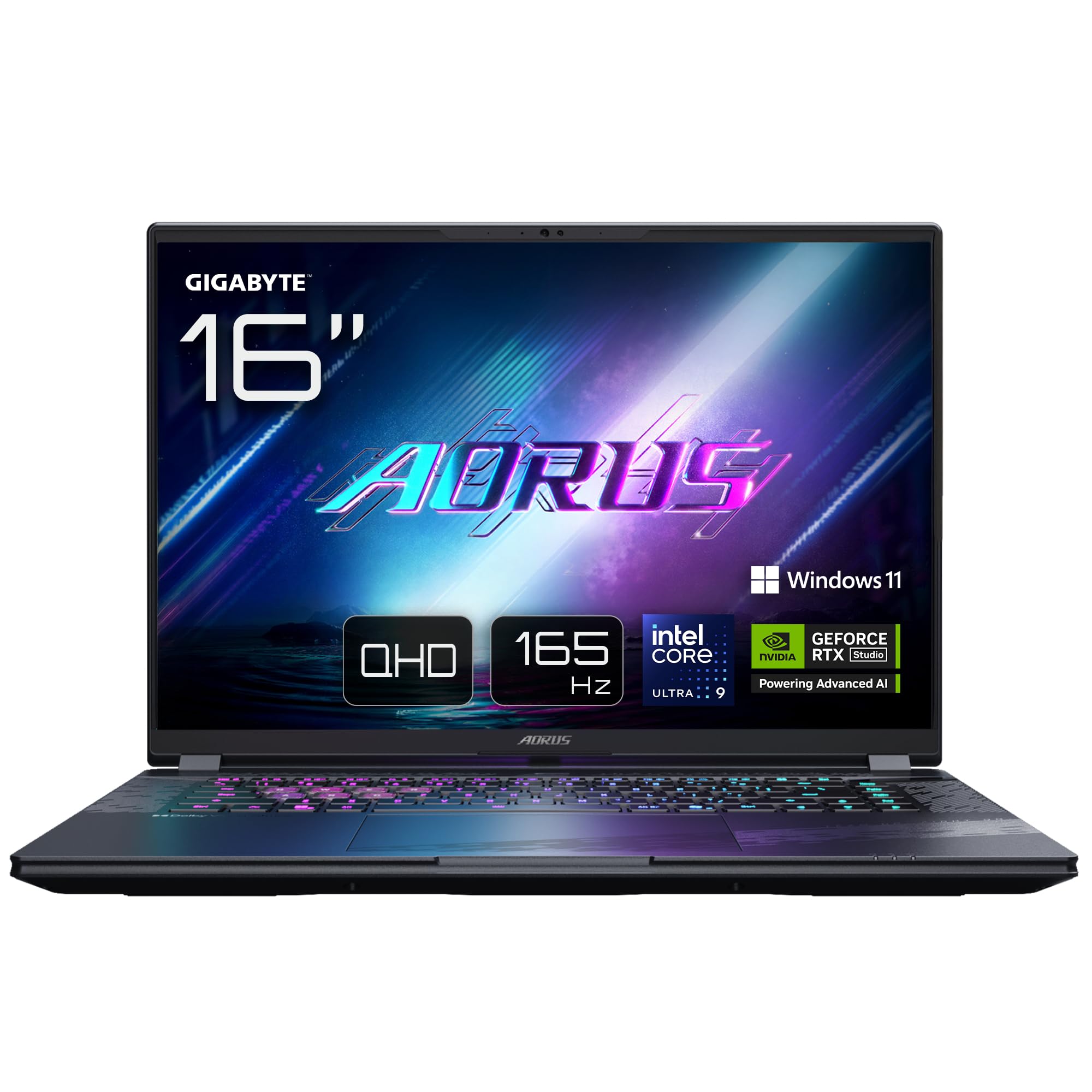
Image: The GIGABYTE AORUS Elite 16 BWH gaming laptop, showcasing its open display and keyboard.
2. Nhazi
2.1 Unboxing na nlele mbụ
Carefully remove the laptop and all accessories from the packaging. Verify that all components listed in the "What's in the Box" section are present and undamaged.
- GIGABYTE AORUS ELITE 16 BWHC3FRC65SP Laptop
- Ihe nkwụnye ọkụ na eriri
- Akwụkwọ (akwụkwọ ntuziaka a, kaadị akwụkwọ ikike)
2.2 Ijikọ ike
Connect the power adapter to the laptop's power input port and then plug the power cable into an electrical outlet. It is recommended to fully charge the battery before initial use.
2.3 Ike mbụ na
Pịa bọtịnụ ike iji gbanye laptọọpụ ahụ. Soro ntuziaka dị na ihuenyo iji mezue usoro ntọala Windows 11 Pro, gụnyere nhọrọ asụsụ, njikọ netwọk, na ịmepụta akaụntụ onye ọrụ.
2.4 Connecting Peripherals and Network
The laptop features various ports for connecting external devices and networks.
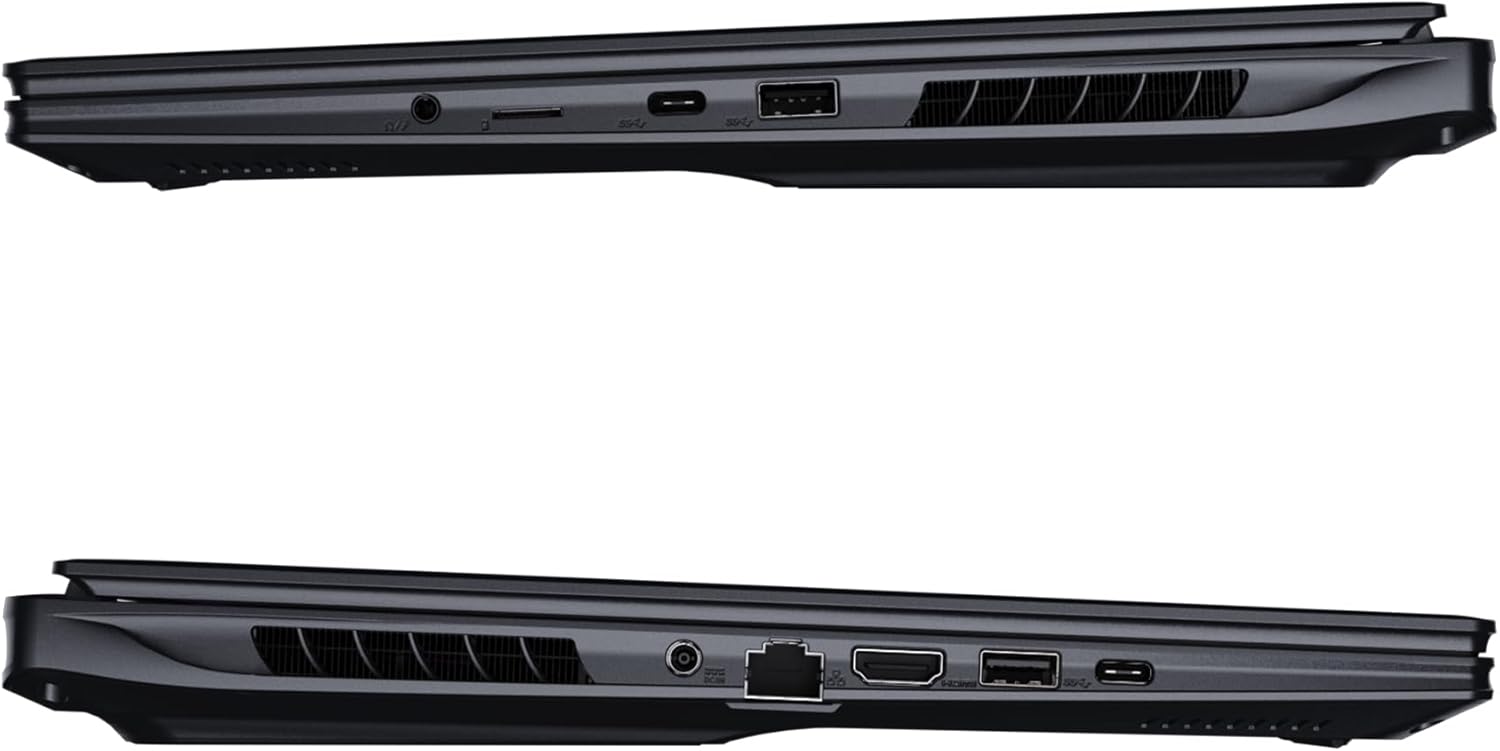
Foto: Akụkụ view nke laptọọpụ na-egosi ọdụ ụgbọ mmiri dị maka njikọ.
- ọdụ ụgbọ mmiri USB: Jikọọ ngwaọrụ USB dịka òké, ahụigodo, ma ọ bụ ebe nchekwa mpụga.
- Ọdụ ụgbọ mmiri HDMI: Connect to an external display or TV.
- Thunderbolt 4 Port: Maka nnyefe data ọsọ ọsọ na mmepụta ngosipụta.
- Njikọ Ethernet: Maka njikọ netwọk ikuku.
- Jack ekweisi: Maka mmepụta ọdịyo na ekweisi ma ọ bụ ọkà okwu mpụga.
- Wi-Fi 7: Connect to wireless networks via the integrated Wi-Fi 7 module.
- Bluetooth Bluetooth: Jikọọ na ngwaọrụ Bluetooth.
3. Ịrụ ọrụ Laptọọpụ gị
3.1 Ngosipụta atụmatụ
Your AORUS Elite 16 BWH features a 16-inch WQXGA (2560x1600) IPS display with a 165Hz refresh rate and 16:10 aspect ratio, offering a wide viewing experience. It supports Dolby Vision for enhanced visual quality and is Pantone validated for color accuracy.

Image: The laptop's 16:10 aspect ratio display, highlighting its IPS panel and Pantone validation.
3.2 Ahụigodo na Touchpad
The laptop is equipped with a backlit keyboard for comfortable typing in various lighting conditions and a responsive touchpad for navigation.
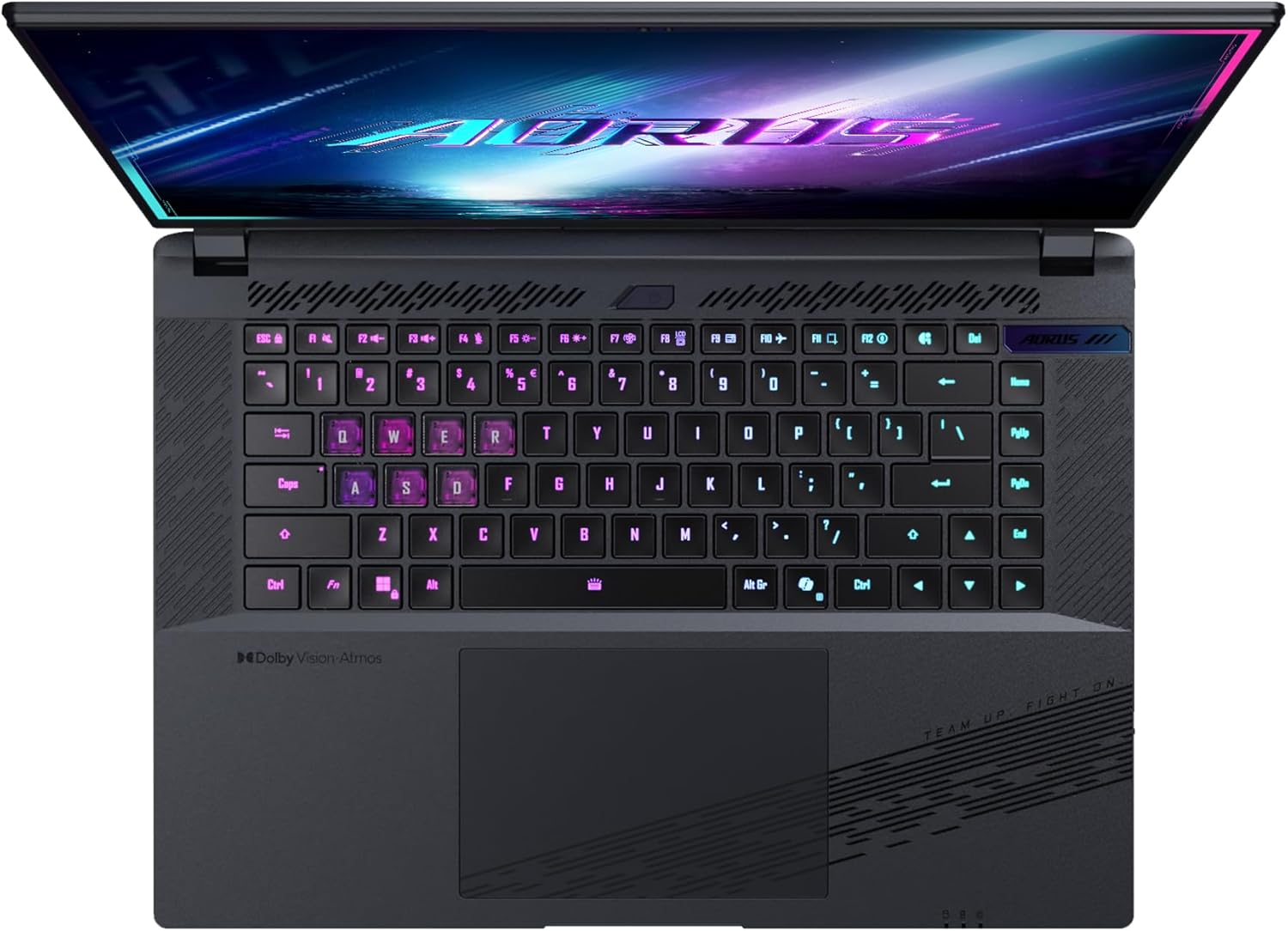
Foto: N'elu-ala view of the laptop's keyboard, showcasing its backlit keys.
The keyboard also features a dedicated Copilot Key for quick access to AI functionalities in Windows 11.

Image: Close-up of the keyboard, highlighting the Copilot Key for AI features.
3.3 Sistemụ ọdịyo
Experience immersive audio with Dolby Atmos support and integrated 2W speakers. The laptop also includes a built-in microphone for communication.

Image: Visual representation of Dolby Atmos and Dolby Vision audio and visual enhancements.
3.4 Atụmatụ arụmọrụ
The AORUS Elite 16 BWH is powered by an Intel Core Ultra 9 processor with an integrated NPU for AI acceleration and an NVIDIA GeForce RTX 5070 laptop GPU, ensuring high performance for gaming and demanding tasks. It also features Advanced Optimus with DDS Technology for optimized graphics performance.

Foto: nkọwa zuru ezu view of the Intel Core Ultra 9 processor chip.
Foto: nkọwa zuru ezu view of the NVIDIA GeForce RTX 50 Series laptop GPU chip.
3.5 Onye nnọchi anya GiMATE AI
Utilize GiMATE, your personal AI agent, to optimize performance, manage smart cooling, enhance privacy, control power settings, and improve audio and voice functionalities.

Image: GiMATE AI Agent interface showing various optimization features.
4. Nlekọta
4.1 Sistemụ jụrụ oyi
The laptop features the WINDFORCE Infinity cooling system to maintain optimal temperatures during intensive use. Ensure the vents are clear of obstructions to allow proper airflow.

Image: Representation of the WINDFORCE Infinity cooling system.
4.2 Nhicha
Use a soft, lint-free cloth to clean the screen and exterior surfaces. For stubborn marks, dampen the cloth slightly with water or a screen-cleaning solution. Avoid harsh chemicals.
4.3 Nlekọta batrị
Iji mee ka batrị dị ogologo, zere oke okpomọkụ ma ghara ịhapụ laptọọpụ ahụ chajị zuru oke ma ọ bụ gbanyụọ ya ruo ogologo oge.
4.4 Mmelite ngwanrọ
Regularly update your Windows operating system, drivers, and GIGABYTE software to ensure optimal performance and security.
5. Nchọpụta nsogbu
5.1 Okwu ike
- Laptọọpụ anaghị agbanwu: Ensure the power adapter is securely connected and the outlet is functional. Check the battery charge level.
- Batrị anaghị akwụ ụgwọ: Hụ na ihe nkwụnye ọkụ eletrik na eriri ahụ emebighị. Nwaa oghere ọzọ.
5.2 Ihe ngosi
- Enweghị ngosi: Connect an external monitor to check if the issue is with the laptop's screen. Ensure the laptop is powered on.
- Ngosipụta na-egbuke egbuke ma ọ bụ gbagọrọ agbagọ: Melite draịva eserese. Lelee njikọ eriri ngosipụta ma ọ bụrụ na ị na-eji ihe nlele mpụga.
5.3 Okwu Njikọta
- Wi-Fi anaghị ejikọta: Lelee ma Wi-Fi agbanyere na ntọala Windows. Malitegharịa rawụta na laptọọpụ gị.
- Ngwa Bluetooth anaghị ejikọta: Ensure the device is in pairing mode and within range. Update Bluetooth drivers.
5.4 Nsogbu Arụmọrụ Izugbe
- Ịrụ ọrụ nwayọ: Close unnecessary applications. Check for malware. Ensure sufficient free disk space.
- ekpo oke ọkụ: Ensure cooling vents are clear. Use the laptop on a hard, flat surface.
For more complex issues, refer to the GIGABYTE support websaịtị ma ọ bụ kpọtụrụ ndị ahịa.
6. Nkọwapụta
| Njirimara | Nkọwa |
|---|---|
| Ụdị | GIGABYTE |
| Aha Nlereanya | AORUS ELITE 16 BWHC3FRC65SP |
| Nha ihuenyo | 16 sentimita asatọ |
| Agba | Agba ntụ |
| Nha diski ike | 2000 GB (2x 1TB SSD Gen4) |
| Ụdị CPU | Intel Core Ultra 9 275HX |
| Ogo RAM arụnyere | 32 GB DDR5 |
| Sistemụ nrụọrụ | Windows 11 Pro |
| Njirimara Pụrụ Iche | Backlit Keyboard, Memory Card Slot |
| Nkọwa kaadị eserese | Raara onwe ya nye |
| Ihe eserese eserese | NVIDIA GeForce RTX 5070 |
| Teknụzụ diski ike | SSD |
| Ibu Ibu | 2300 grams |
| Webcam Capability | Yes (Frontal) |
| Ihe eserese kaadị RAM nha | 8 GB GDDR6 |
| Oke RAM akwadoro | 64 GB |
| Ọdịnaya Ike batrị | 99 Watt-hours (Lithium-polymer, 4 cells) |
| Njikọta | Bluetooth 5.4, Ethernet (10/1000 Mbit/s), HDMI (1 port), Thunderbolt 4 (1 port), USB 3.2 Gen 2 (2 ports), Wi-Fi 7 (802.11.be) |
| Ọsọ nhazi | 2.7 GHz (Max 5.4 GHz) |
| Ọnụọgụ nke Nhazi | 24 |
| Mkpebi ihuenyo | 2560 x 1600 pikselụ (WQXGA) |
| Ụdị ngosi | IPS LCD |
| Njirimara ọdịyo | Dolby Atmos, 2x 2W Integrated Speakers, Integrated Microphone |
7. Akwụkwọ ikike Ozi
Your GIGABYTE AORUS Elite 16 BWH laptop comes with a Akwụkwọ ikike dị afọ 2. This warranty covers manufacturing defects and hardware malfunctions under normal use. Please retain your proof of purchase for warranty claims. For detailed terms and conditions, refer to the warranty card included with your product or visit the official GIGABYTE websaịtị.
8. Nkwado
For technical assistance, driver downloads, and further product information, please visit the official GIGABYTE support websaịtị ahụ. I nwekwara ike ịchọta Ajụjụ Ndị A Na-ajụkarị na ogbako obodo ebe ahụ.
- GIGABYTE Official Websaịtị: www.gigabyte.com
- Ndị ọrụ nlekọta ndị ahịa: Refer to your regional GIGABYTE websaịtị maka ozi kọntaktị mpaghara.