
Saiyin DS6301
Saiyin 17-inch Sound Bar Model DS6301 User Manual
Okwu mmalite
This manual provides detailed instructions for the setup, operation, and maintenance of your Saiyin 17-inch Sound Bar, Model DS6301. Please read this manual thoroughly before using the product to ensure proper function and safety. Keep this manual for future reference.

Image: The Saiyin 17-inch Sound Bar DS6301, a sleek black unit, is shown placed beneath a television screen, accompanied by its remote control. This illustrates a typical setup for home entertainment.
Ozi nchekwa
Debe ihe nchekwa nchekwa ndị a iji gbochie mmebi ngwaọrụ ma ọ bụ imerụ onwe gị ahụ:
- Do not expose the sound bar to rain, moisture, or extreme temperatures.
- Emeghela casing. Kpọtụrụ ndị ọrụ ruru eru ọrụ niile.
- Gbaa mbọ hụ na ikuku ikuku dị na gburugburu unit ahụ.
- Jiri naanị ihe nkwụnye ọkụ enyere.
- Debe ebe ụmụaka na-apụghị iru.
Ihe ngwugwu
Chọpụta na ihe niile dị na ngwugwu:
- Saiyin 17-inch Sound Bar (Model DS6301)
- Njikwa anya
- Ihe nkwụnye ọkụ
- 3.5mm Audio USB
- Igwe ọkụ anya
- Ntuziaka mmalite ngwa ngwa
- Akwụkwọ ntuziaka (akwụkwọ a)
- Wall Mounting Kits (screws and anchors)

Foto: Otu n'elu view displaying all components included with the Saiyin Sound Bar: the sound bar itself, a remote control, a power adapter, a 3.5mm audio cable, an optical cable, a quick start guide, a user manual, and wall mounting hardware.
Ngwaahịa gafereview
Sound Bar Features
- Dual full-range speakers for 40W sound output.
- Bluetooth 5.3 for wireless connectivity.
- Optical and Auxiliary (3.5mm) input options.
- SUB OUT port for connecting an external powered subwoofer (subwoofer not included).
- Compact 17-inch design, suitable for various spaces.
- Wall-mountable (kit included).
- Compatible with various TV remotes (Fire TV/Stick, Google Chromecast, Apple TV).

Foto: Ihe gbawara view of the Saiyin Sound Bar, illustrating its internal components including two full-range speakers with supersized diaphragms, designed to ensure ample sound output and a total of 40 Watts of power.
Njikwa na egosi
The sound bar features both on-device buttons and an LED indicator light for status feedback.
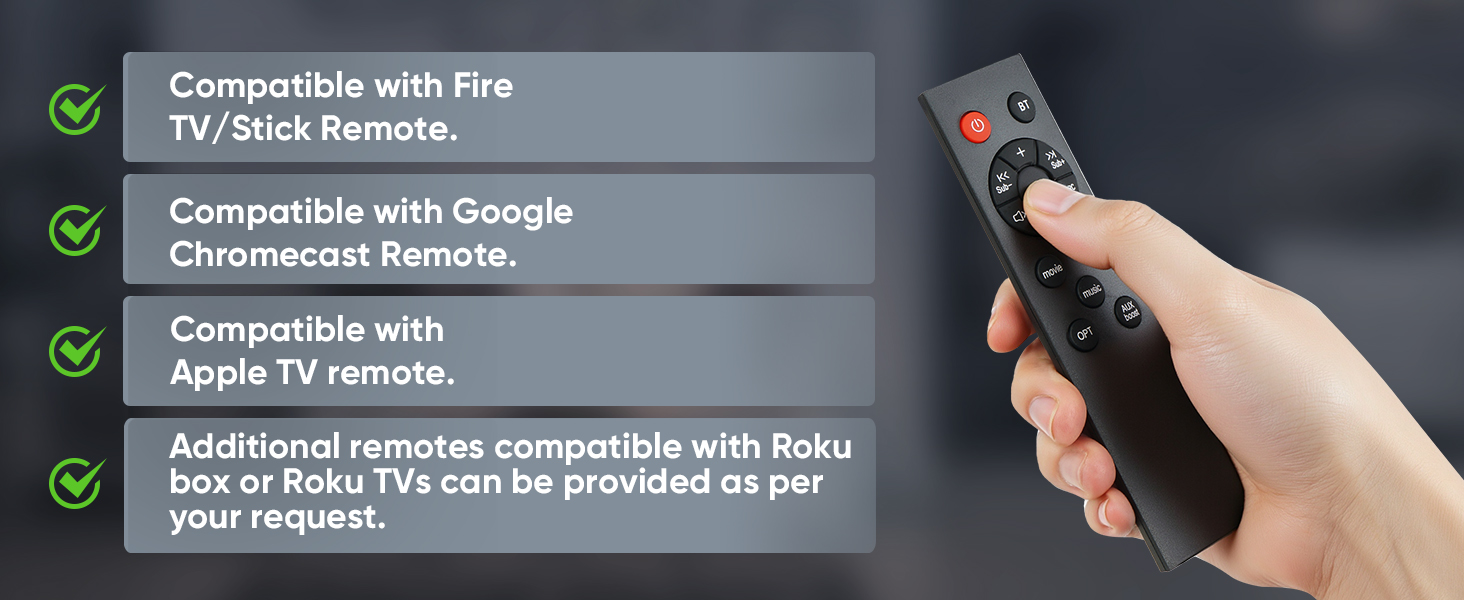
Foto: nkọwa zuru ezu view of the sound bar's side panel, showing the control buttons and the LED indicator lights. The lights correspond to different input modes: green for AUX, blue for Bluetooth (BT), purple for Optical, and red for Standby. A remote sensor is also visible on the front grille.
- Bọtịnụ ike: Na-agbanye ma ọ bụ gbanyụọ ụda ụda.
- Bọtịnụ Ụdị (M): Cycles through input modes (Bluetooth, Auxiliary, Optical).
- Mpịakọta Mpịakọta / Ala: Na-emezi ụda olu.
- Ìhè ihe ngosi LED: Displays the current input mode and standby status.
- Ihe mmetụta dị anya: Na -enweta akara site na njikwa ime obodo.
Melite
1. Ntinye
The Saiyin Sound Bar can be placed on a flat surface or mounted on a wall.
- Ndokwa Desktọpụ: Position the sound bar directly in front of your TV or monitor on a stable surface.
- Ịkwanye mgbidi: Use the included wall mounting kit. Ensure the wall can support the weight of the sound bar. Follow the instructions provided with the wall mounting kit for secure installation.

Image: The Saiyin Sound Bar is shown securely mounted on a wall directly beneath a television, demonstrating its wall-mountable design. A remote control is visible in the foreground, indicating control options.
2. Ijikọ na Ike
Connect the provided power adapter to the DC IN port on the sound bar and then plug it into a wall outlet.
3. Njikọ ọdịyo
The sound bar supports Bluetooth, Optical, and Auxiliary (3.5mm) connections. Choose the method best suited for your device.
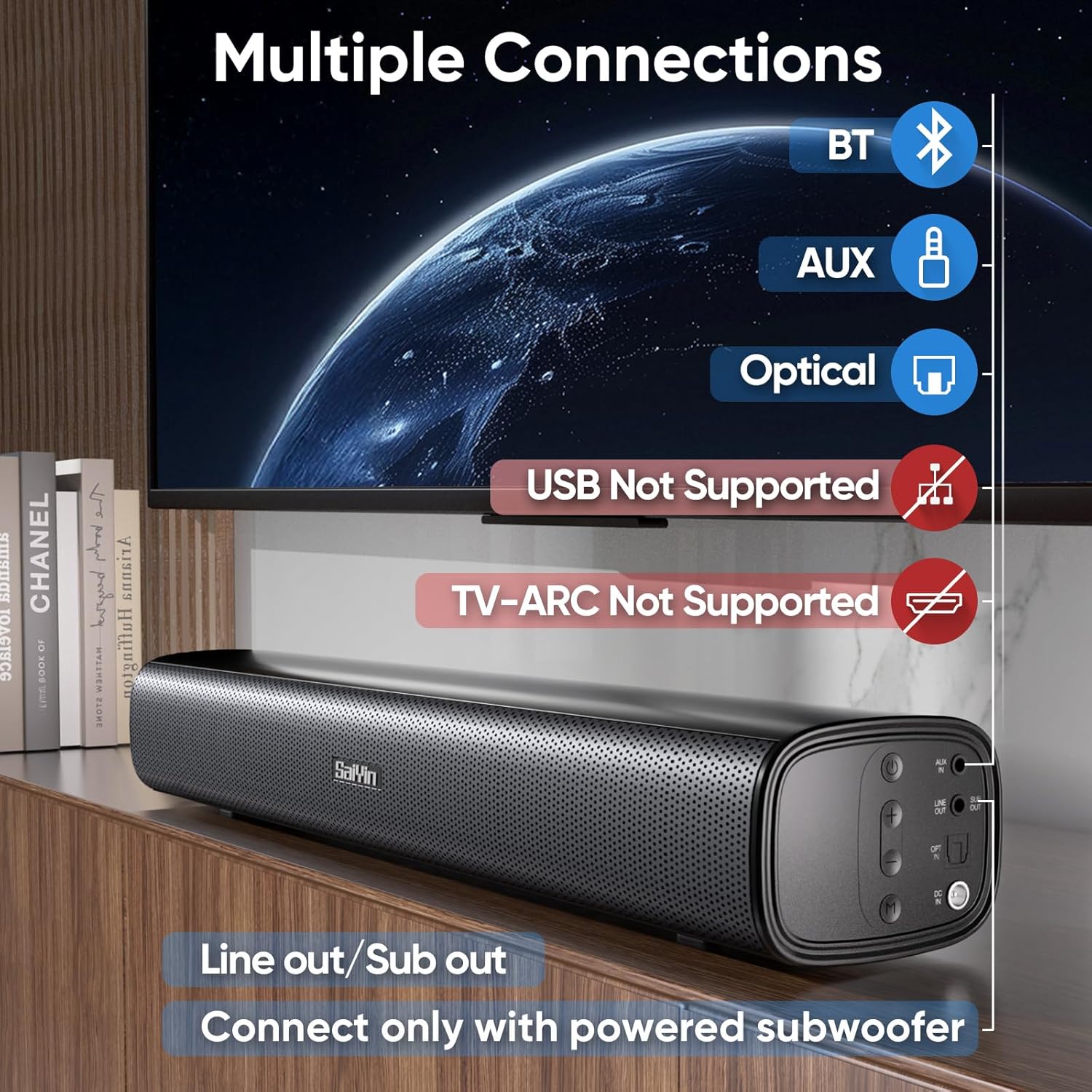
Image: A visual representation of the sound bar's connectivity ports and supported methods. Icons for Bluetooth, AUX, and Optical inputs are shown, along with a "SUB Out" port for an external powered subwoofer. Red "X" marks indicate that USB and TV-ARC connections are not supported.
Njikọ Bluetooth
- Ike na ụda ụda.
- Press the 'M' button on the sound bar or the 'BT' button on the remote until the LED indicator turns blue.
- On your device (e.g., smartphone, TV), enable Bluetooth and search for "Saiyin DS6301".
- Select "Saiyin DS6301" to pair. The LED indicator will stop flashing once connected.
Njikọ anya
- Connect one end of the optical cable (included) to the OPTICAL OUT port on your TV and the other end to the OPTICAL IN port on the sound bar.
- Ike na ụda ụda.
- Press the 'M' button on the sound bar or the 'OPT' button on the remote until the LED indicator turns purple.
- Ihe dị mkpa: Adjust your TV's audio settings as described in the "TV Audio Settings" section below.
Auxiliary (3.5mm) Connection
- Connect one end of the 3.5mm audio cable (included) to the AUX OUT port on your device (e.g., TV, PC) and the other end to the AUX IN port on the sound bar.
- Ike na ụda ụda.
- Press the 'M' button on the sound bar or the 'AUX' button on the remote until the LED indicator turns green.
SUB OUT Connection (Optional)
To enhance bass, you can connect an external powered subwoofer (not included) to the SUB OUT port on the sound bar. Ensure the subwoofer has its own power supply.
4. TV Audio Settings (for Optical Connection)
For optimal sound and to avoid issues like silent or noisy output when using the optical connection, it is crucial to adjust your TV's audio settings.
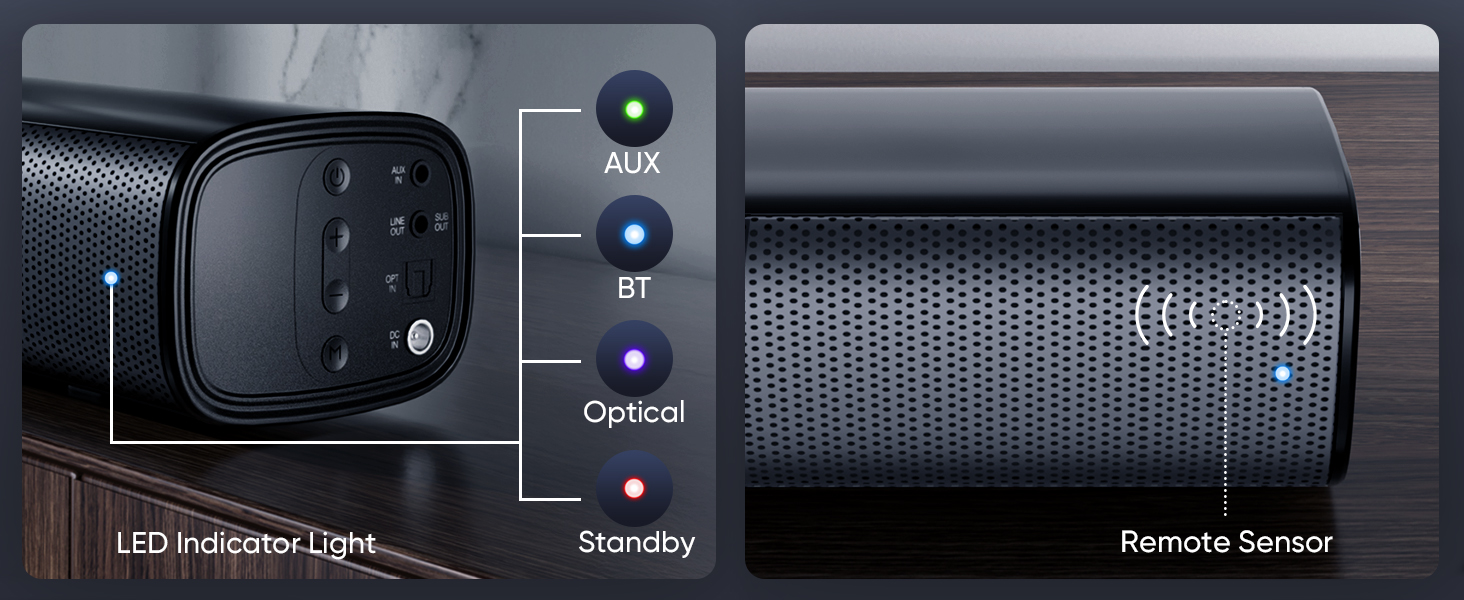
Image: A step-by-step guide demonstrating how to configure TV audio settings for optical connection. It shows navigating to "Sound Output" and selecting "Optical," then changing "Digital Audio Output Format" to "PCM/Stereo Sound," and finally disabling "Dolby / DTS" in both TV settings and streaming applications.
- Navigate to your TV's settings menu.
- Find "Sound Output" or "Audio Settings".
- Select "Optical" as the sound output device.
- Locate "Digital Audio Output Format" or similar setting and change it to "PCM" or "Stereo Sound".
- Disable Dolby and DTS: To prevent silent or noisy output, ensure that Dolby and DTS audio formats are disabled in your TV's audio settings and within any streaming applications (e.g., Netflix, Amazon Prime Video, HBO, Hulu, YouTube).
Ntuziaka ọrụ
Gbanyụọ/ Gbanyụọ
Press the power button on the sound bar or the remote control to turn the unit on or off.
Selecting Input Mode
Press the 'M' button on the sound bar or the corresponding input button (BT, AUX, OPT) on the remote control to switch between Bluetooth, Auxiliary, and Optical input modes. The LED indicator will change color to reflect the selected mode.
Njikwa olu
Use the Volume Up (+) and Volume Down (-) buttons on the sound bar or the remote control to adjust the audio level.
Ojiji njikwa anya
The included remote control provides full functionality for the sound bar. Ensure there are no obstructions between the remote and the sound bar's remote sensor.
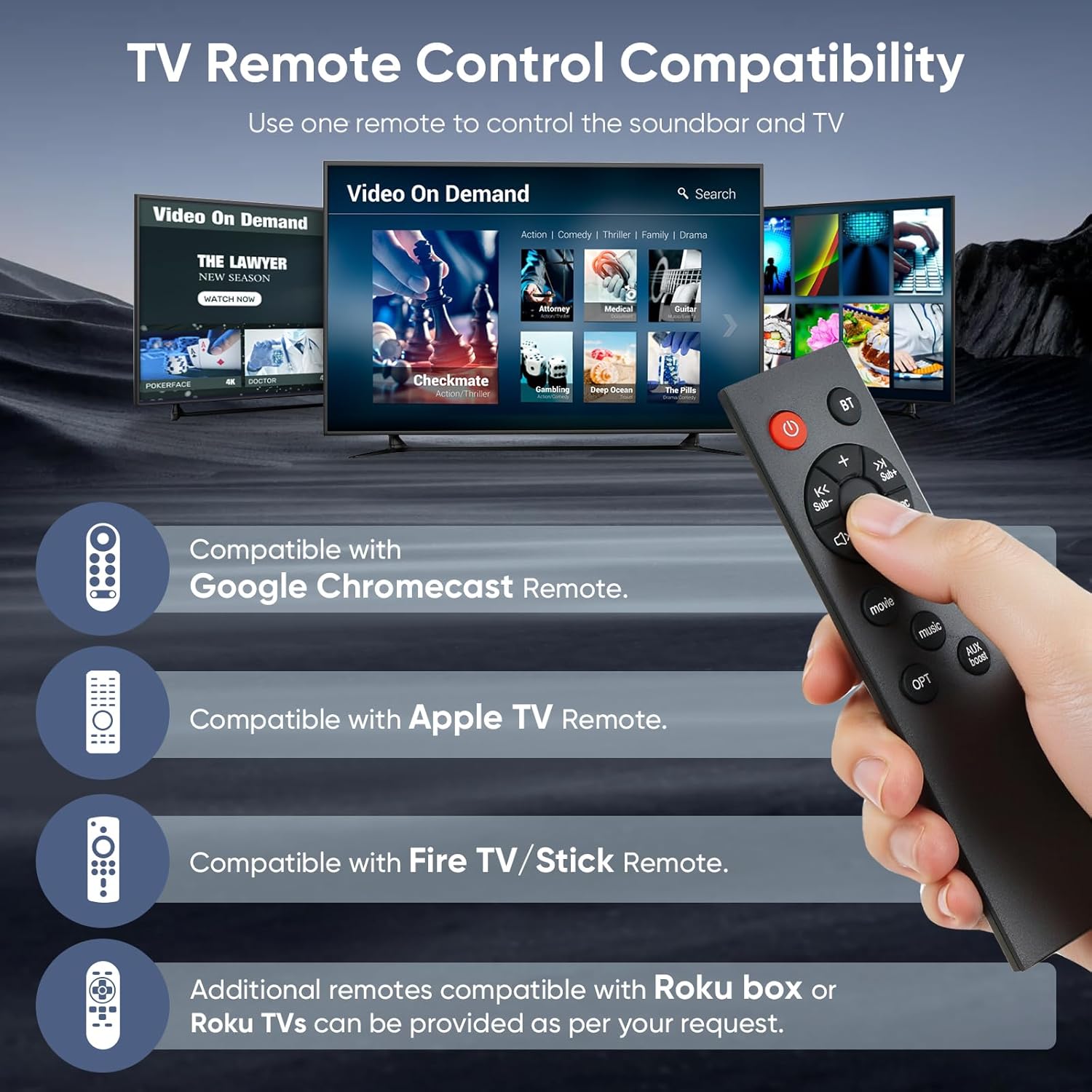
Image: A hand holds the Saiyin Sound Bar remote control, with a background depicting multiple TV screens displaying streaming content. The image highlights the sound bar's compatibility with Fire TV/Stick, Google Chromecast, and Apple TV remotes, allowing for a unified control experience.
The sound bar is designed to be compatible with several popular TV/streaming device remotes, including:
- Fire TV/Stick Remote
- Google Chromecast Remote
- Apple TV Remote
Additional remotes compatible with Roku box or Roku TVs can be provided upon request from customer support.
Ụdị ụda
The sound bar offers optimized sound modes for different content types:
- Ụdị egwu: Balanced audio for musical content.
- Ọnọdụ ihe nkiri: Enhanced dynamics and bass for cinematic experiences.
- Ụdị akụkọ: Optimized for clear dialogue, making voices more prominent.
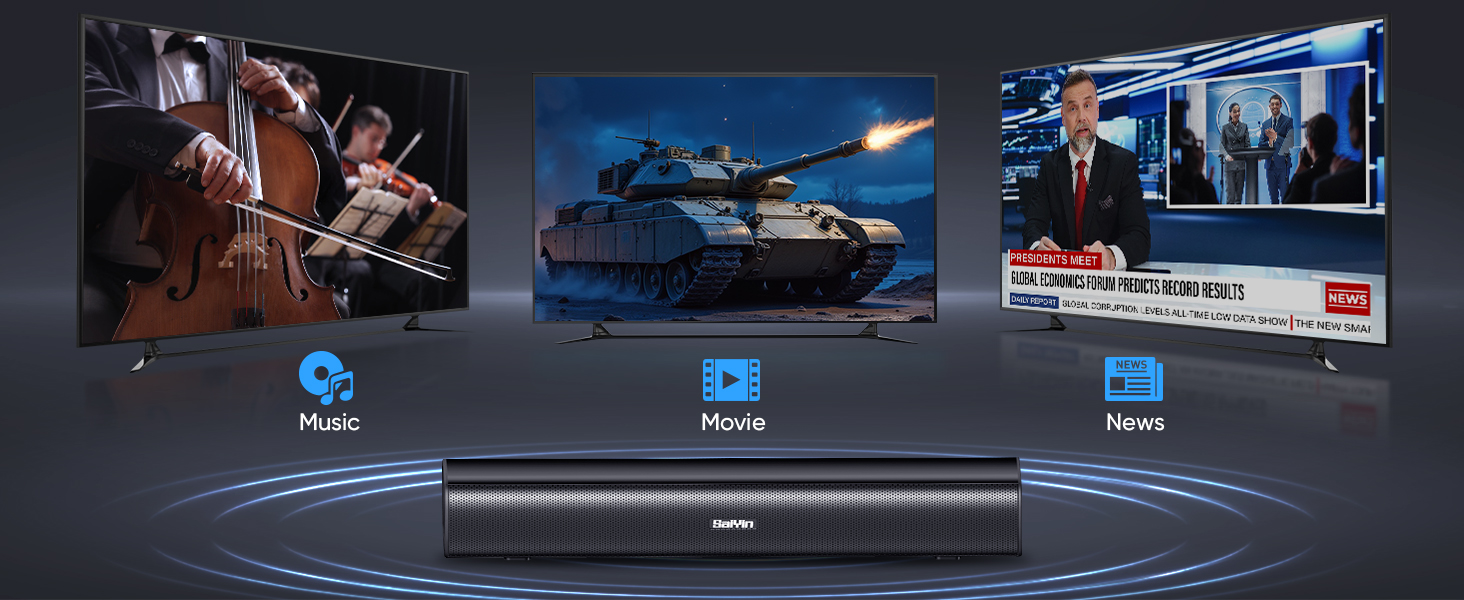
Image: The Saiyin Sound Bar is shown with three television screens above it, each displaying different content: a classical music concert for "Music" mode, an action scene with a tank for "Movie" mode, and a news broadcast for "News" mode. This illustrates the sound bar's specialized audio modes.
Nlekọta
- Nhicha: Use a soft, dry cloth to clean the surface of the sound bar. Do not use liquid cleaners or abrasive materials.
- Nchekwa: Ọ bụrụ na ị na-echekwa ụda ụda ruo ogologo oge, kwụpụ ya na ike wee chekwaa ya n'ebe dị jụụ na nkụ.
Nchọpụta nsogbu
| Nsogbu | Ihe nwere ike ime | Ngwọta |
|---|---|---|
| Enweghị ụda sitere na ụda ụda. |
|
|
| Ụda kwụ ọtọ ma ọ bụ nke gbagọrọ agbagọ. |
|
|
| Njikwa anya anaghị arụ ọrụ. |
|
|
| Njikọ Bluetooth adaghị. |
|
|
Nkọwapụta
| Aha Nlereanya | DS6301 |
| Ụdị Ọkà Okwu | Igwe ụda ụda |
| Nha Ọkà Okwu | 17 sentimita asatọ |
| Ike Nwepu kacha elu | 40 Watt |
| Nhazi ọwa ụda gburugburu | 2.0 |
| Teknụzụ Njikọta | Auxiliary, Bluetooth 5.3, Optical |
| Teknụzụ nzikọrịta ozi ikuku | Bluetooth |
| Ọnọdụ mmepụta ọdịyo | Stereo |
| Ngwa dakọtara | Laptop, Projector, Television |
| Eji akwadoro | For Televisions, For Gaming Consoles, Home Entertainment |
| Usoro njikwa | Push Button, Remote |
| Ụdị nkwụnye | Wall Mount or Desktop Placement |
| Akụkụ ngwaahịa (L x W x H) | 17" x 3.5" x 2.5" (43.18 cm x 8.89 cm x 6.35 cm) |
| Ibu Ibu | Pound 2 (0.91 n'arọ) |
| Agba | Nwa |
| Isi Iyi Ike | Igwe ọkụ eletrik |
| Onye nrụpụta | Shenzhen Saiyin Electronics Co.,Ltd. |
Akwụkwọ ikike na nkwado
Ozi akwụkwọ ikike
The Saiyin Sound Bar Model DS6301 comes with a limited warranty. Please refer to the Quick Start Guide or contact customer support for specific warranty terms and conditions.
Nkwado ndị ahịa
For any questions, technical assistance, or to request replacement parts (including optical/auxiliary cables, power cords, and remotes), please contact Saiyin customer care. 24/7 customer care is available.
Contact information can typically be found on the product packaging, Quick Start Guide, or the official Saiyin websaịtị.
Ask a question about this manual
Ask about setup, troubleshooting, compatibility, parts, safety, or missing instructions. Manuals+ will review the question and use this page’s manual context to help answer it.