
Okwu mmalite
Thank you for choosing the Jeecoo A40 Bluetooth Computer Speakers. This manual provides essential information for setting up, operating, and maintaining your new speakers. Please read it thoroughly to ensure proper use and to maximize your audio experience.

Image: The Jeecoo A40 Bluetooth Computer Speakers, a black soundbar with a central control knob and RGB lighting accents.
Njirimara ngwaahịa
- Clear Audio Output: Equipped with dual 5W full-range speakers and rubber diaphragms for enhanced sound clarity.
- Ụdị Njikọ Abụọ: Supports both USB Plug & Play and Bluetooth 5.3 for versatile device connection.
- Ọkụ RGB dị ike: Features four distinct lighting modes including Rainbow Color Cycle, Single Color Pulsing & Changing, Single Color Changing, and Solid Color.
- Njikwa kensinammuo: Easy-access volume knob for adjustment and mode switching, with a dedicated light switch.
- Ndakọrịta sara mbara: Connects with PCs, laptops, MacBooks, smartphones, tablets, and monitors.
- USB-C Adapter Included: Ensures compatibility with various USB ports.
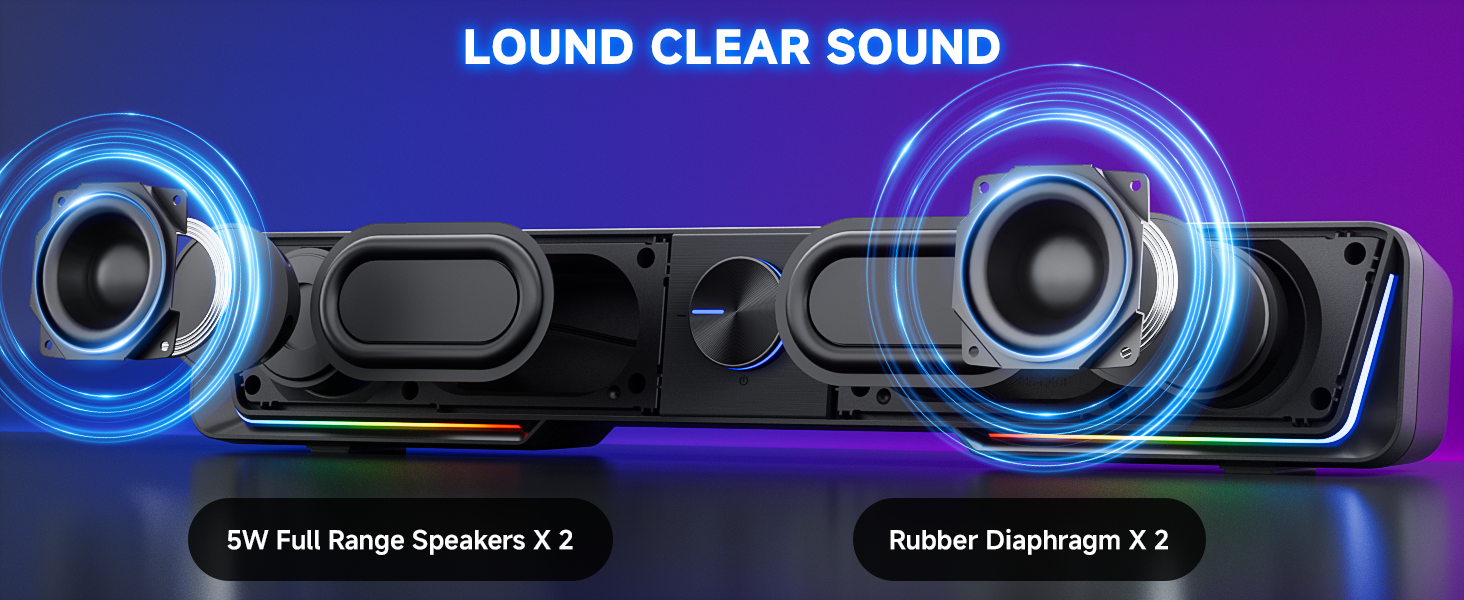
Foto: Ihe gbawara view of the Jeecoo A40 speakers, highlighting the dual full-range speakers and rubber diaphragms responsible for clear sound output.
Kedu ihe dị na Igbe ahụ
- Jeecoo A40 Soundbar Speaker
- Eriri USB (ejikọtara ọnụ)
- Ihe nkwụnye USB-C
Ntuziaka nhazi
Njikọ USB mode
- Connect the integrated USB cable from the Jeecoo A40 speaker to an available USB-A or USB-C port on your computer (PC, laptop, MacBook) or other compatible device. Use the included USB-C adapter if necessary.
- The speaker will automatically power on. No additional drivers or software are required.
- Ensure the speaker is selected as the audio output device in your operating system's sound settings.

Image: Diagram illustrating USB mode compatibility with various devices like PCs, laptops, and MacBooks, and Bluetooth mode compatibility with smartphones and tablets.
Ntọala Windows
- Plug the USB/USB-C cable into a port on your computer.
- Click the speaker icon in your taskbar and choose "A40" as the audio output.
- Alternatively, go to Control Panel/System Preferences > Sound Settings, select "A40" as the audio output, and save changes.

Image: Screenshot showing how to select "A40" as the audio output device in Windows sound settings.
Ntọala Mac
- Plug the USB/USB-C cable into a port on your Mac.
- Go to System Preferences > Sound, select "A40" as the audio output, and save changes.

Image: Screenshots demonstrating how to select "A40" as the sound output device in macOS System Preferences.
Njikọ mode Bluetooth
- Ensure the speaker is powered via a USB port (5V/1A-2A).
- Click the volume knob on the speaker to switch to Bluetooth mode. The LED indicator will show it's ready for pairing.
- On your smartphone, tablet, or other Bluetooth-enabled device, enable Bluetooth and search for "A40" in the device list.
- Select "A40" to pair and connect.
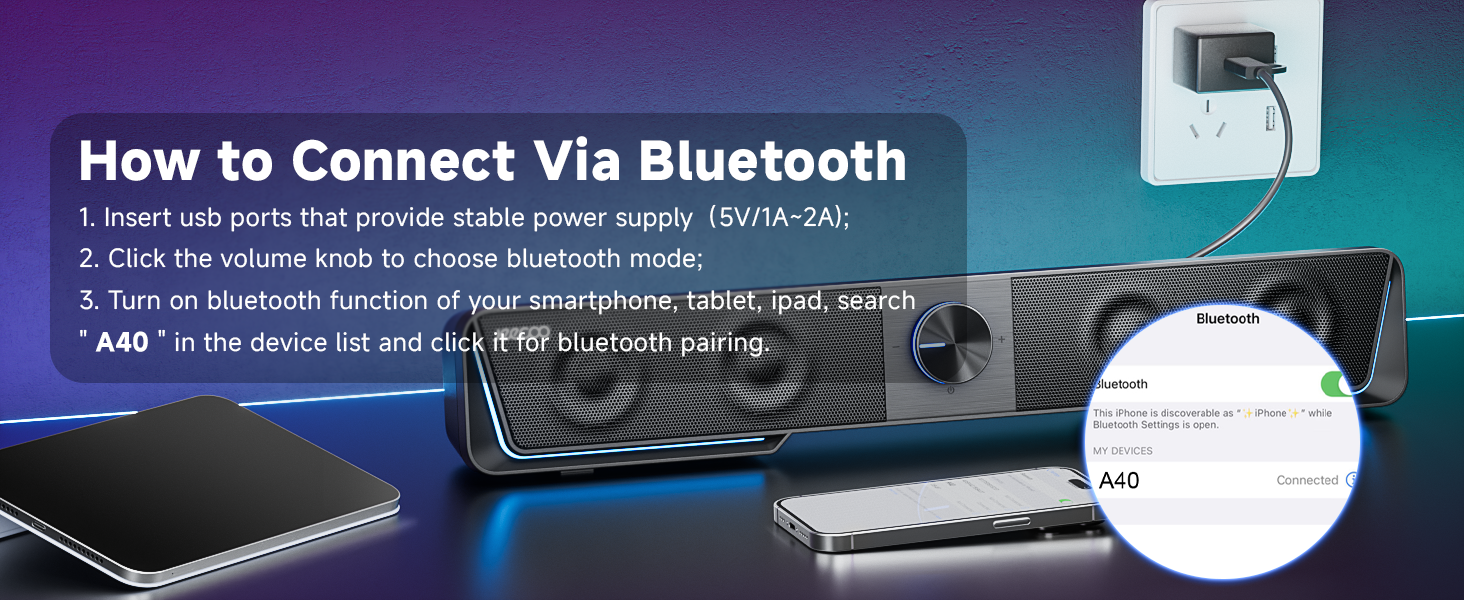
Image: A visual guide on connecting the Jeecoo A40 speakers via Bluetooth, showing a smartphone's Bluetooth settings screen with "A40" selected.
Ntuziaka ọrụ
Gbanyụọ/ Gbanyụọ
- Ike Na: The speaker automatically powers on when connected via USB. To manually power on, long press the volume knob for 3 seconds.
- Gbanyụọ: Long press the volume knob for 3 seconds.
Njikwa olu
- Rotate the central volume knob clockwise to increase volume.
- Rotate the central volume knob counter-clockwise to decrease volume.
- Ensure volume is also adjusted on your connected device and media player for optimal sound.

Image: A three-step guide showing how to adjust volume on the device, the speaker's knob, and the media player for balanced audio output.
Ngbanwe ọnọdụ
- Click the volume knob to switch between USB mode and Bluetooth mode.
Ikanam Light Control
- Touch the light switch button (located on the speaker) to cycle through the four lighting modes:
- Rainbow Color Cycle
- Single Color Pulsing & Changing
- Otu agba na-agbanwe
- Agba siri ike
- The speaker has a lighting memory function, retaining the last selected mode.

Image: Close-up of the Jeecoo A40 speaker's control panel, indicating the light switch and the multi-function volume knob.

Image: The Jeecoo A40 speaker displaying the Rainbow Color Cycle LED lighting effect.
Nlekọta
- Keep the speakers in a dry environment and avoid exposure to liquids.
- Clean the speaker surface with a soft, dry cloth. Do not use abrasive cleaners or solvents.
- Zere itinye ihe dị arọ n'elu ọkà okwu.
- Do not attempt to disassemble or repair the speaker yourself. Refer to customer support for assistance.
Nchọpụta nsogbu
- No sound or speaker not working:
- Ensure "A40" is selected as the audio output on your device.
- Check the volume levels on your media player, device, and the Jeecoo A40 speakers.
- Low sound output:
- Adjust all volume levels (device, media player, speaker knob) upwards.
- Try plugging the USB cable into a different USB port.
- Frequent switching between Bluetooth and USB mode:
- Try using different USB ports or a different device.
- Bluetooth cannot connect:
- Press the light switch button for 3 seconds to reset the Bluetooth connection, then attempt to pair again.
- Connecting to a new Bluetooth device:
- Disconnect the speaker from the original device.
- Alternatively, press the light switch button for 3 seconds to reset Bluetooth, then pair with the new device.
- Desktop computer USB connection:
- For optimal performance, plug the USB cable into a USB port at the back of the desktop host.

Image: A detailed troubleshooting chart for common issues with the Jeecoo A40 speakers, including solutions for no sound, low volume, and Bluetooth connectivity problems.
Nkọwapụta
| Njirimara | Nkọwa |
|---|---|
| Aha Nlereanya | A40 |
| Ụdị Ọkà Okwu | Igwe ụda ụda |
| Teknụzụ Njikọta | Bluetooth 5.3, USB |
| Ọnọdụ mmepụta ọdịyo | Stereo |
| Ike Nwepu kacha elu | Watts 10 (5W*2) |
| Nzaghachi ugboro ugboro | 60Hz-20KHz |
| Oke Bluetooth | Ruo 33 ụkwụ (mita 10) |
| Isi Iyi Ike | USB kwadoro (5V) |
| Akụkụ ngwaahịa (L x W x H) | 16.5" x 1.97" x 2.87" (41.9cm x 5cm x 7.3cm) |
| Ibu Ibu | 1.1 pound (0.5 Kilogram) |
| Ihe onwunwe | Ọla, plastik |
| Atụmatụ pụrụ iche | Bluetooth 5.3, LED Light, Plug & Play, Switch Button, USB Port |
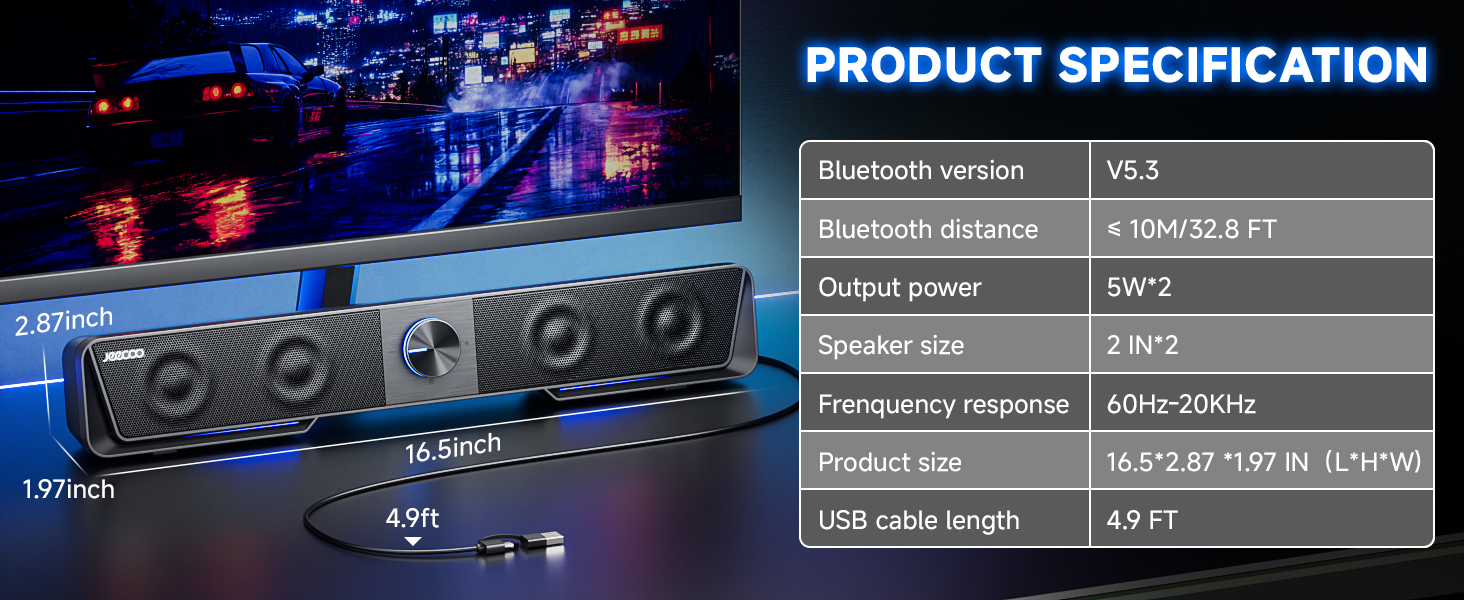
Image: A table summarizing the key technical specifications of the Jeecoo A40 speakers, including Bluetooth version, output power, dimensions, and frequency response.
Akwụkwọ ikike na nkwado
Ozi akwụkwọ ikike
The Jeecoo A40 speakers come with a Akwụkwọ ikike nwere oke. Please refer to the product packaging or the official Jeecoo websaịtị maka usoro na ọnọdụ akọwapụtara gbasara mkpuchi ikike gị.
Nkwado ndị ahịa
If you encounter any issues or have questions regarding your Jeecoo A40 speakers, please contact our customer support team. You can reach us anytime via Amazon messages for prompt assistance and solutions.
Maka ozi ndị ọzọ, gaa na Jeecoo Store on Amazon.