
1. Okwu mmalite
Thank you for choosing the Intelbras PFL7560 Full HD Wi-Fi Projector. This projector is designed to deliver a high-quality visual and audio experience for various applications, from home cinema to business presentations. It features Full HD resolution, 8000 lumens brightness, and integrated 12W stereo speakers. This manual provides essential information for safe and efficient operation of your projector.
2. Ozi nchekwa
Please read all safety instructions carefully before using the projector. Keep this manual for future reference.
- Ịnye ọkụ: Use only the power adapter provided with the projector. Ensure the voltage dakọtara ọkụ ọkụ mpaghara gị.
- Igwe ikuku: Ekpuchila oghere ikuku. Hụ na oghere zuru oke gburugburu ihe ngosi ahụ maka ikuku ikuku kwesịrị ekwesị iji gbochie oke okpomọkụ.
- Nkwanye: Debe ihe ngosi ahụ n'elu ebe kwụsiri ike ma dị larịị. Zere itinye ya n'ebe anwụ na-acha kpọmkwem, nso ebe okpomọkụ dị, ma ọ bụ n'ebe nwere oke iru mmiri ma ọ bụ uzuzu.
- Nchedo anya: Elela anya ozugbo na oghere projector mgbe lamp dị na ya, ebe ọ bụ na ìhè na-egbuke egbuke nwere ike imebi anya.
- Nhicha: Wepụ ihe mkpuchi projektọ ahụ tupu ị sachaa ya. Jiri ákwà dị nro ma kpọọ nkụ. Ejila ihe nhicha mmiri ma ọ bụ ihe nhicha aerosol.
- Ije ozi: Do not attempt to repair the projector yourself. Refer all servicing to qualified service personnel.
3. Ihe ngwugwu
Chọpụta na ihe niile dị na ngwugwu:
- Intelbras PFL7560 Projector Unit
- Njikwa anya
- Igwe ọkụ ọkụ
- Akwụkwọ ntuziaka onye ọrụ
4. Ngwaahịa gafereview
Familiarize yourself with the main components and ports of your Intelbras PFL7560 projector.
4.1. Akụkụ ihe eji egosi ihe

Image: Intelbras PFL7560 Projector with included remote control.
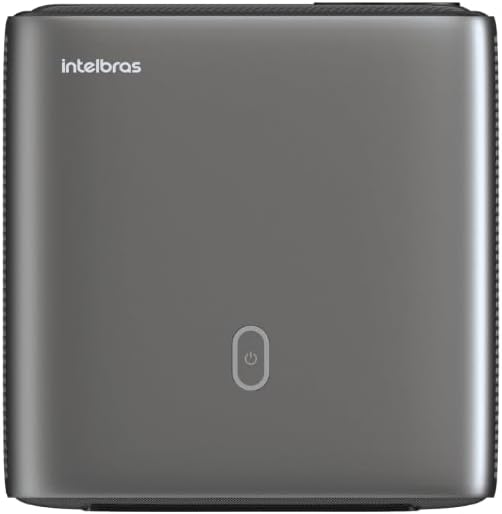
Foto: Top view of the projector, highlighting the power button and sleek design.
4.2. Ports na Njikọta
Ihe projector na-enye ọtụtụ nhọrọ njikọ:
- HDMI: For connecting high-definition devices such as laptops, gaming consoles, or Blu-ray players.
- USB: Maka ijikọ ngwaọrụ nchekwa USB ka ọ kpọọ mgbasa ozi files ozugbo.
- Wi-Fi (802.11 ac/b/g/n): For wireless connectivity and screen mirroring from compatible Android devices.
- Apụọ ọdịyo: Maka ijikọ sistemụ ọdịyo mpụga ma ọ bụ ekweisi.
5. Nhazi
5.1. Ntinye
Choose a suitable location for your projector. The PFL7560 can project images from 60 to 150 inches, making it versatile for various room sizes. Ensure the projector is placed on a stable surface and is not obstructed.
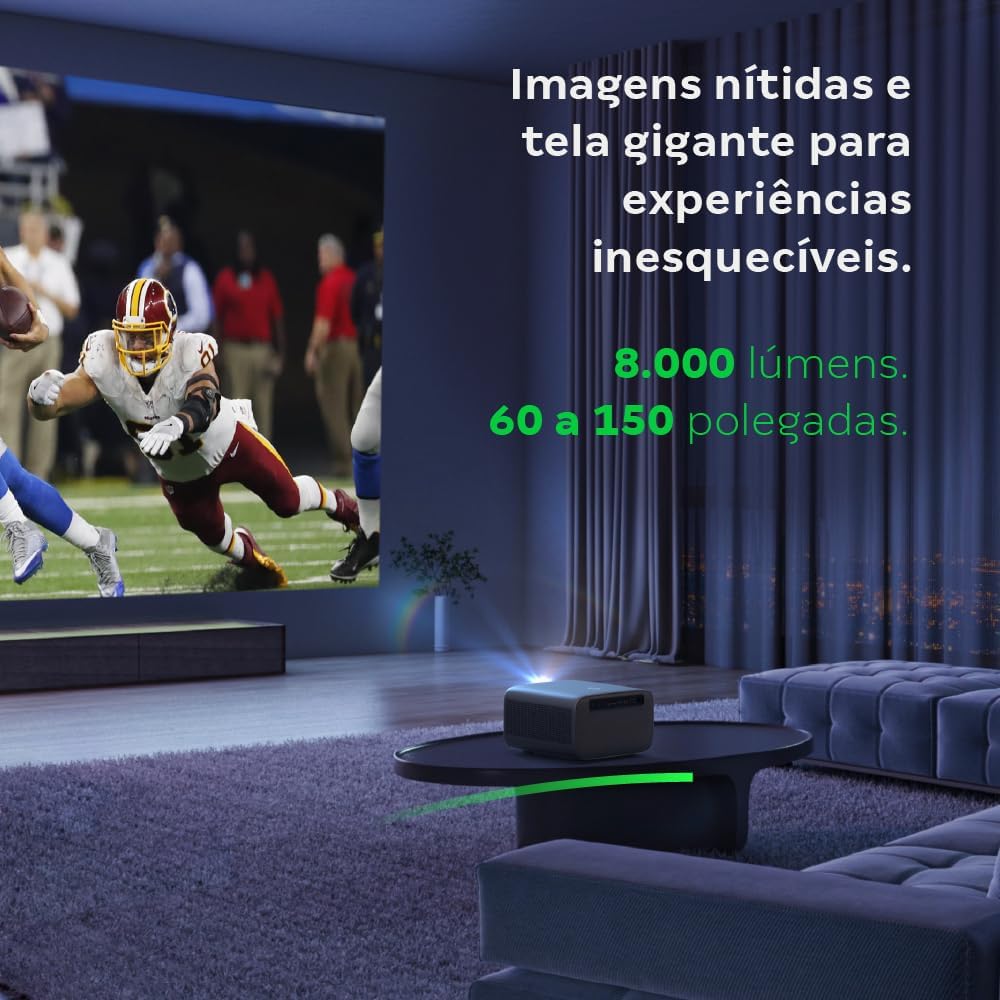
Image: The projector creating a large, clear image in a home environment, demonstrating its capability for immersive viewing.
5.2. Njikọ ike
Jikọọ eriri ọkụ eletrik ahụ na ntinye ike nke ihe ngosi ahụ wee jikọọ na ebe a na-etinye ọkụ eletrik.
5.3. Ike izizi
Press the power button on the projector or the remote control to turn on the device. The projector will initiate its startup sequence.
5.4. Nleba anya na ngbanwe isi okwu
The PFL7560 features automatic focus and keystone correction for a perfectly aligned and sharp image without manual effort. If manual adjustment is needed, refer to the on-screen display (OSD) menu.
6. Ntuziaka ọrụ
6.1. Ijikọ Ngwaọrụ
- HDMI: Connect your device using an HDMI cable to the HDMI port on the projector. Select the corresponding HDMI input from the projector's source menu.
- USB: Insert a USB drive into the USB port. The projector's media player will typically detect the drive automatically, allowing you to browse and play files.
- Wi-Fi / Screen Mirroring: For compatible Android devices, enable screen mirroring on your device and select the projector from the available devices. Ensure both devices are connected to the same Wi-Fi network.
6.2. Mmepụta ọdịyo
The projector is equipped with two integrated 12W speakers, providing clear and immersive audio. For external audio, connect speakers or headphones to the audio output port.

Image: Detail of the projector's integrated 12W speakers, designed for powerful and clear sound.
7. Nlekọta
7.1. Na-ehicha oghere
Use a soft, lint-free cloth specifically designed for optical lenses to gently wipe the projector lens. Avoid using abrasive materials or harsh chemicals.
7.2. Ịsacha Ahụ Ihe Nlereanya
Wipe the exterior of the projector with a soft, dry cloth. Do not use liquid or spray cleaners directly on the unit.
7.3. LED Light Source Longevity
The Intelbras PFL7560 uses an LED light source with a lifespan of up to 30,000 hours, ensuring long-term use and consistent performance without significant brightness degradation.
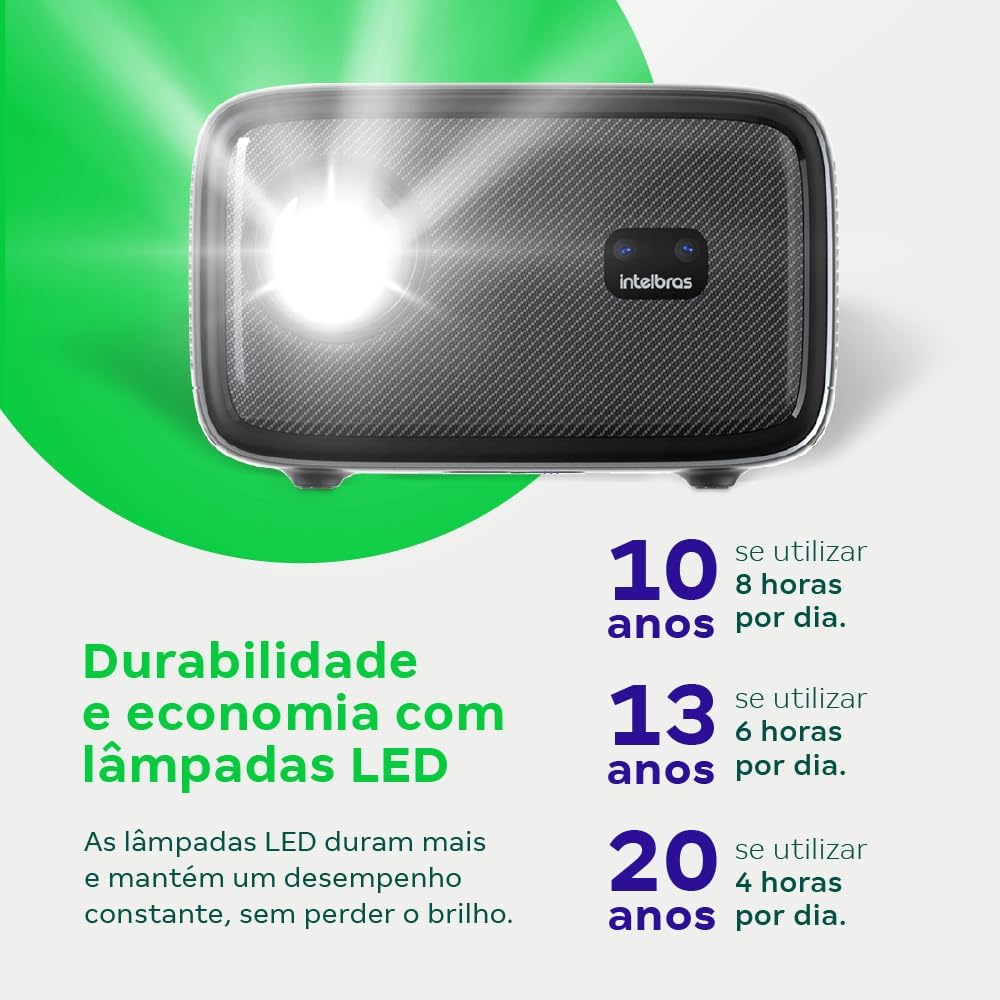
Image: An infographic illustrating the extended durability and economic benefits of the LED lamp, lasting up to 30,000 hours.
8. Nchọpụta nsogbu
Ọ bụrụ na ị na-enwe nsogbu na projector gị, rụtụ aka na nsogbu na azịza ndị a na-ahụkarị:
- Enweghị onyonyo: Ensure the power cable is securely connected and the projector is turned on. Check the input source selection to match your connected device.
- Onyonyo na-adịghị ahụkebe: Adjust the focus. If the image is distorted, check for automatic keystone correction or adjust it manually via the settings menu.
- Enweghị ụda: Verify the volume level on both the projector and the connected device. Ensure external speakers are properly connected if used, or that the internal speakers are enabled.
- Okwu Njikọta: For Wi-Fi or screen mirroring, ensure both the projector and your device are on the same network. Restart both devices if necessary.
- ekpo oke ọkụ: Ensure the projector's ventilation openings are not blocked. Turn off the projector and allow it to cool down if it feels excessively hot.
9. Nkọwapụta
| Njirimara | Nkọwapụta |
|---|---|
| Ụdị | Intelbras |
| Aha Nlereanya | PFL 7560 |
| Teknụzụ Njikọta | Wi-Fi |
| Atụmatụ pụrụ iche | Wi-Fi dị njikere |
| Ngosipụta mkpebi | 1920 x 1080 (HD zuru ezu) |
| Mkpebi obodo | 1920 x1080 |
| Ngosipụta kachasị | 1920 x1080 |
| Ụdị ngosi | LCD |
| Icha ọkụ | 8000 Lumen |
| Ngwa dakọtara | Laptọọpụ, Smartphone, Mbadamba ụrọ |
| Ndụ na-arụ ọrụ Light Source | Awa 30000 |
| Ngwaọrụ Akụrụngwa | 802.11 ac/b/g/n |
| Ndekọ vidiyo | H.264, H.265 |
| Eji akwadoro | Ụlọ ihe nkiri |
| Audio | 2 x 12W ọnụ okwu ọnụ |
10. Akwụkwọ ikike na nkwado
For warranty information, technical support, or service requests, please refer to the official Intelbras websaịtị ma ọ bụ kpọtụrụ ndị ahịa ha ozugbo. Debe nnata nzụta gị dị ka ihe akaebe nke ịzụrụ maka nkwupụta ikike.