
1. Okwu mmalite
This manual provides detailed instructions for the installation, operation, and maintenance of your RSNAVI Android Car Stereo. This unit is designed to integrate advanced multimedia and navigation features into your Chrysler Grand Voyager (2011-2015 model years).
Please read this manual thoroughly before installation and use to ensure proper functionality and to maximize your experience with the device.

Foto 1.1: RSNAVI Android Car Stereo with included accessories.
This image displays the RSNAVI 9-inch Android Car Stereo unit integrated into a vehicle's dashboard, specifically designed for the Chrysler Grand Voyager. Surrounding the main unit are various accessories: a rearview camera for enhanced visibility, an external microphone for clear audio input during calls, and a cooling fan to maintain optimal operating temperature. The screen shows a map interface and various application icons, indicating its multimedia and navigation capabilities.
2. Compatibility and Package Contents
2.1 Ndakọrịta Ụgbọala
This RSNAVI Android Car Stereo is specifically designed for the Chrysler Grand Voyager manufactured between 2011 na 2015. Before installation, confirm the year, size, and shape of your vehicle's center console to ensure proper fitment.
Ihe ngwugwu 2.2
The standard package includes the following components:
- RSNAVI Android Car Stereo Head Unit
- Canbus Decoder
- Ụdọ ọkụ
- USB RCA
- Antenna redio
- Antenna GPS
- USB Cables (Dual USB interface)
- Igwe okwu mpụga
- N'azụview Camera (AHD/CVBS compatible)
- Installation Frame (if applicable for specific models)
3. Ntọala na nwụnye
3.1 Lelee tupu ntinye
- Ensure the vehicle's ignition is off and the battery is disconnected before starting any electrical work.
- Nyochaa akụrụngwa niile edepụtara na ngalaba 2.2 dị.
- Familiarize yourself with your vehicle's dashboard removal process. Online video tutorials specific to the Chrysler Grand Voyager 2011-2015 can be helpful.
3.2 Wiring na njikọ
The car stereo comes with dedicated wiring harnesses designed for your vehicle. Connect the power cord, RCA cables, radio antenna, GPS antenna, USB cables, external microphone, and rearview camera to their respective ports on the head unit and to the vehicle's wiring system.
- eriri ike: Connect to the vehicle's power supply, ensuring correct polarity. The included Canbus decoder facilitates integration with vehicle systems.
- Eriri RCA: For audio/video input/output connections (e.g., external amplifier, additional monitors).
- Mpi: Connect the radio antenna for FM/RDS reception and the GPS antenna for navigation functionality. Position the GPS antenna in a location with a clear view nke elu-igwe.
- Ọnụ ụzọ USB: Use the dual USB interfaces for connecting USB drives, charging devices, or for wired CarPlay/Android Auto connections.
- Igwe okwu na mpụga: Connect for improved call quality and voice commands.
- N'azụview Igwefoto: Connect the camera to the 'Inverted Input' (AHD/CVBS) port. Ensure proper routing of the camera cable to the rear of the vehicle.

Foto 3.1: Included wiring harness and installation frame.
This image displays the specific wiring harness and a custom-fit frame provided with the RSNAVI car stereo. The harness includes various connectors for power, speakers, and data, designed to integrate seamlessly with the Chrysler Grand Voyager's electrical system. The frame ensures a flush and secure installation of the 9-inch head unit into the vehicle's dashboard opening.

Foto 3.2: Dashboard before and after stereo installation.
This image set illustrates the visual transformation of a Chrysler Grand Voyager dashboard. The top-left panel shows the original factory radio. The other panels demonstrate the RSNAVI Android Car Stereo installed, displaying various interfaces such as a navigation map, a media player, and the main application screen, highlighting the integrated appearance and functionality.
3.3 Nyochaa nwụnye mgbe emechara
- Jikọọ batrị ụgbọ ala.
- Turn on the ignition and power on the head unit.
- Test all functions: radio, Bluetooth, GPS, USB, steering wheel controls, and rearview igwefoto.
- If any issues arise, refer to the Troubleshooting section or recheck connections.
4. Ntuziaka ọrụ
4.1 Sistemụ gafereview
The RSNAVI car stereo operates on an Android system, providing a familiar and customizable user interface via its 9-inch touchscreen. The system supports various applications and features, similar to a smartphone or tablet.
4.2 CarPlay ikuku / Android Auto
Connect your smartphone wirelessly to access Apple CarPlay or Android Auto. This feature allows for hands-free calls, access to phone contacts, emails, notifications, map navigation, music, and video playback directly on the car stereo display. This integration is designed to enhance driving safety by minimizing phone interaction.
- Gbaa mbọ hụ na agbanyere Bluetooth na Wi-Fi na ekwentị gị.
- On the car stereo, open the CarPlay or Android Auto application.
- Follow the on-screen prompts to pair your device.
- Once connected, your phone's compatible apps will appear on the stereo display.

Foto 4.1: CarPlay, Android Auto, and Mirror Link interfaces.
This image illustrates the various smartphone integration options available with the RSNAVI car stereo. It shows the user interfaces for Wireless CarPlay and Android Auto, displaying familiar app icons for navigation, music, and communication. Additionally, it demonstrates the Mirror Link function, which allows the display of an iOS or Android phone screen directly onto the car stereo, enabling full control of the phone's interface.
4.3 GPS igodo
The unit features a dual navigation system supporting both offline and online maps. A built-in offline map is provided, but internet data download is required for initial setup or updates. Online maps require a Wi-Fi connection.
- Ensure the GPS antenna is properly installed and has a clear signal.
- To use offline maps, navigate to the map application and download the necessary regional data via a Wi-Fi connection.
- For online navigation, connect the unit to a Wi-Fi hotspot.
Njikọ WiFi 4.4
Connect the car stereo to a Wi-Fi hotspot (e.g., from your smartphone) to access online features. This enables app installation from the Play Store, online navigation, and streaming media.
- Go to the system settings and select 'Wi-Fi'.
- Turn on Wi-Fi and select your desired network.
- Tinye paswọọdụ ma ọ bụrụ na kpaliri.

Foto 4.2: GPS Navigation and WiFi Hotspot features.
This image highlights the navigation and connectivity capabilities of the RSNAVI car stereo. The top section displays a detailed GPS map with route guidance, indicating distance and estimated travel time. The bottom section illustrates the WiFi Hotspot feature, showing a screen filled with various streaming applications like Netflix, Hulu, and YouTube, demonstrating the unit's ability to access online content when connected to a network.
4.5 Bluetooth arụ ọrụ
The integrated Bluetooth module allows for hands-free calling, phone book synchronization, and audio streaming from your smartphone.
- Kwado Bluetooth na ekwentị gị wee mee ka a chọpụta ya.
- On the car stereo, open the Bluetooth application and search for devices.
- Select your phone from the list and confirm the pairing code.
- Ozugbo ejikọtara ya, ị nwere ike ịkpọ oku/nata ma kpọọ egwu na-enweghị eriri.
4.6 FM/RDS Redio
The unit includes an FM/RDS radio tuner for clear channel reception and low noise. RDS (Radio Data System) provides additional information such as station name and program type.
- Open the Radio application.
- Use the scan function to automatically find and save available stations.
- Manually tune to frequencies or select from saved presets.
4.7 Audio Equalizer (EQ)
Adjust the audio output using the built-in equalizer to customize the sound profile. This includes settings for bass, treble, and mid-range frequencies, as well as various sound field modes.
- Access the EQ settings from the main menu or audio settings.
- Select a preset or manually adjust the frequency bands to your preference.
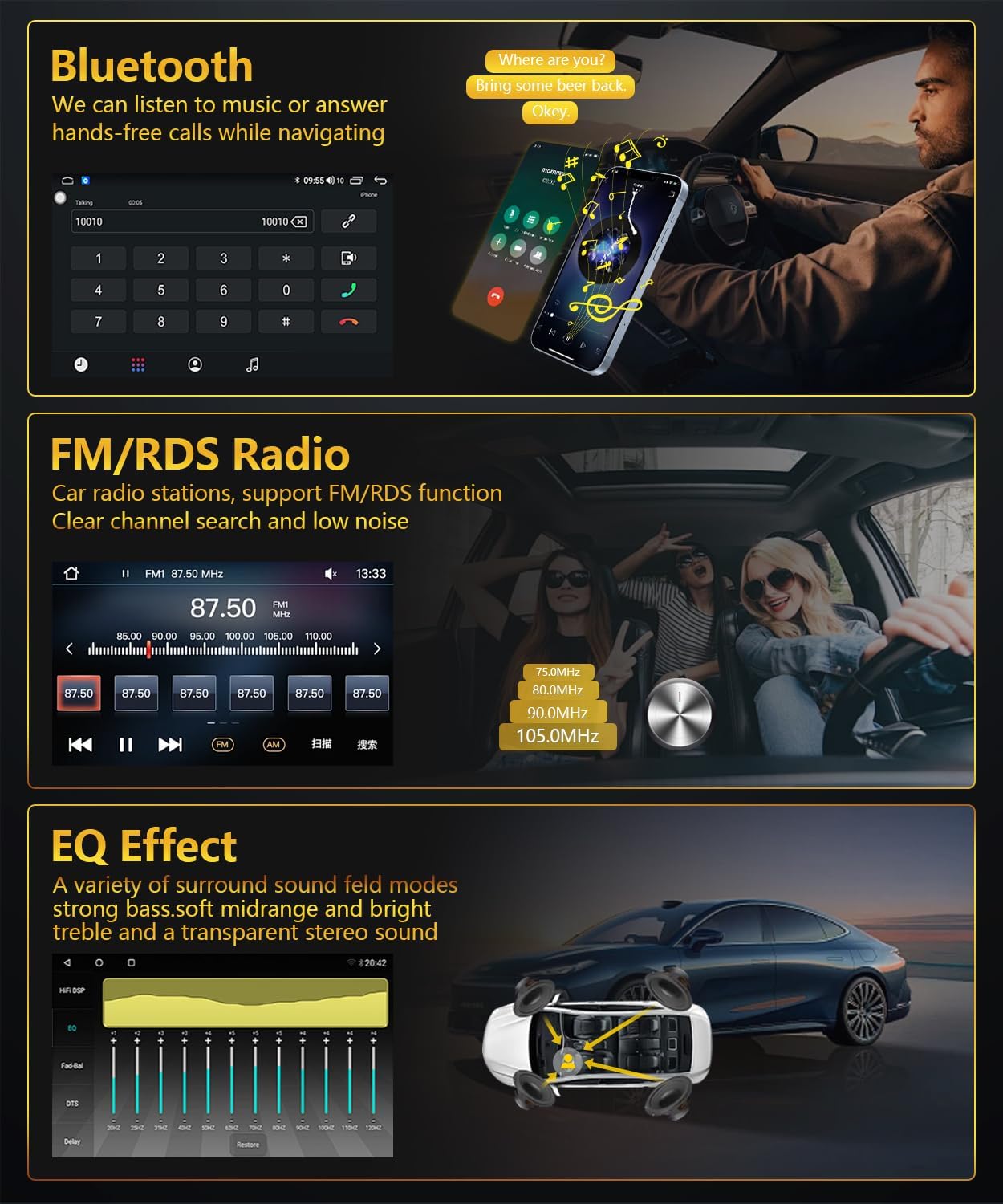
Foto 4.3: Bluetooth, FM/RDS Radio, and EQ Effect features.
This image showcases three key audio features of the RSNAVI car stereo. The top section displays the Bluetooth calling interface, showing a dial pad and contact information. The middle section illustrates the FM/RDS radio tuner, with frequency display and station presets. The bottom section presents an audio equalizer (EQ) interface, allowing users to fine-tune sound characteristics like bass, mid-range, and treble, accompanied by a diagram showing speaker placement in a car for optimal sound distribution.
4.8 Reversing Camera Display
Otu ahụ na-akwado azụview camera input. When the vehicle is shifted into reverse gear, the screen automatically switches to display the camera feed, aiding in safe maneuvering. The included camera is waterproof and features night vision and a wide-angle view.
- Gbaa mbọ hụ na azụview camera is correctly installed and connected to the 'Inverted Input'.
- Shift the vehicle into reverse gear; the display will automatically show the camera view.
4.9 Njikwa Wheel
If your vehicle has original steering wheel control buttons, they can be configured to operate the car radio, providing convenient and safe control while driving.
- Access the 'Steering Wheel Control' settings in the system menu.
- Follow the on-screen instructions to map the vehicle's steering wheel buttons to the desired functions on the car stereo.

Foto 4.4: Reversing Display and Steering Wheel Control.
This image highlights two important safety and convenience features. The top section illustrates the rearview camera system, detailing its HD image quality, waterproof design, night vision, and wide-angle capabilities, with a visual representation of the camera's field of view. The bottom section displays the car stereo's interface for configuring steering wheel controls, showing various button functions like volume, track skip, and call management, allowing for seamless operation without taking hands off the wheel.
5. Nlekọta
5.1 Nlekọta n'ozuzu
To ensure the longevity and optimal performance of your car stereo, follow these general maintenance guidelines:
- Nchacha ihuenyo: Jiri akwa dị nro, nke na-enweghị lint, jiri nwayọ hichaa ihuenyo mmetụ ahụ. Maka isi ike smudges, ntakịrị dampJiri mmiri ma ọ bụ ihe nhicha dị mma kpuchie ákwà ahụ. Zere kemịkalụ siri ike ma ọ bụ ihe ndị na-emebi emebi.
- Mwepụ uzuzu: Periodically clean dust from the unit's vents and openings using a soft brush or compressed air to prevent overheating.
- Okpomọkụ: Avoid exposing the unit to extreme temperatures for extended periods. The operating temperature range is -20℃ to 75℃.
- Mmelite ngwanrọ: Check for available software updates periodically to ensure the system has the latest features and bug fixes.
6. Nchọpụta nsogbu
This section addresses common issues you might encounter with your RSNAVI Android Car Stereo.
6.1 Okwu nkịtị na Ngwọta
- Enweghị ike:
- Check all power connections and fuses.
- Ensure the vehicle battery is properly connected.
- Enweghị ụda:
- Verify speaker connections.
- Check volume levels and mute settings.
- Ensure the correct audio source is selected.
- Mfu mgbaàmà GPS:
- Gbaa mbọ hụ na ejikọrọ antenna GPS na nchekwa ma debe ya n'ebe nwere oghere doro anya view nke elu-igwe.
- If using offline maps, ensure map data has been fully downloaded.
- Okwu njikọ Bluetooth:
- Ensure Bluetooth is enabled on both the stereo and your phone.
- Delete previous pairings and attempt to re-pair.
- Malitegharịa ngwaọrụ abụọ ahụ.
- Poor UI Responsiveness:
- Mechie ngwa ndabere na-adịghị mkpa.
- Mee usoro malitegharịa.
- Njikwa wiilụ steeringị anaghị arụ ọrụ:
- Verify the Canbus decoder is correctly installed.
- Reconfigure the steering wheel control settings in the system menu.
6.2 Ntọala ụlọ ọrụ
If persistent issues occur, a factory reset may resolve them. The factory setting keyword is 3368. Use this option with caution as it will erase all user data and settings.
7. Nkọwapụta
| Njirimara | Nkọwapụta |
|---|---|
| Sistemu | Android |
| Chipset | UIS81411 |
| Nha ihuenyo | 9 sentimita asatọ |
| Memory (RAM + ROM) | 2GB (RAM) + 64GB (ROM) |
| Mkpebi ihuenyo | 1280*720 |
| Igwe redio | UIS |
| Mpụta ike | 4 x 45W |
| Okpomọkụ na-arụ ọrụ | -20 ℃ ruo 75 ℃ |
| Ike Amplifier Chip | TDA7388 |
| Igwe redio | FM/RDS |
| Mmepụta vidiyo | Akwadoro |
| Inverted Input | AHD/CVBS (Rearview Igwefoto) |
| Igwe okwu mpụga | Akwadoro |
| Gbawara-ikiri | Akwadoro |
| Maapụ | Built-in offline map (Internet download data required) |
| WIFI | Akwadoro |
| USB | Dual USB interface |
| Teknụzụ Njikọta | Bluetooth, USB, Wi-Fi |
| Ọnọdụ mmepụta ọdịyo | Stereo |
| Ngwa gụnyere | Canbus, Car Radio, Power cord, RCA Cable, Radio Antenna |
| Akụkụ ngwaahịa | 33.02 x 27 x 11.02 cm; 1 n'arọ |
| Nọmba nlereanya | 4 Core 2G-64G CAM |
8. Akwụkwọ ikike na nkwado ndị ahịa
RSNAVI is committed to providing quality products and support. Your purchase includes:
- Nkwenye nkwụghachi ego nke ụbọchị 30: If you are not satisfied with your purchase, you may return it within 30 days for a full refund.
- Akwụkwọ ikike nke ọnwa 24: The product is covered by a 24-month warranty against manufacturing defects.
- Nkwado nka na ụzụ oge ndụ: RSNAVI offers lifetime technical assistance for any questions regarding installation or use.
For any questions or assistance, please contact our customer service team via email. We aim to respond and address your concerns within 24 hours.