
Havion D2
Havion D2 Wired Video Doorbell Camera User Manual
Model: D2 | Brand: Havion
1. Okwu mmalite
This manual provides detailed instructions for the installation, operation, and maintenance of your Havion D2 Wired Video Doorbell Camera. Please read this manual thoroughly before using the product to ensure proper function and safety. The Havion D2 offers advanced security features including dual cameras, 5MP (3K) resolution, AI motion detection, and two-way audio communication.
2. Ihe ngwugwu
Nyochaa na etinyere ihe niile edepụtara n'okpuru na ngwugwu gị:
- Havion D2 Wired Video Doorbell Camera
- Chime ime ụlọ
- Ihe mgbakwasị ụkwụ na arịlịka
- Akwụkwọ ntuziaka (akwụkwọ a)

Image: Havion D2 Wired Video Doorbell Camera, indoor chime, and a smartphone displaying the app interface.
3. Ngwaahịa gafereview
The Havion D2 is designed to provide comprehensive security for your home entrance. Key features include:
- Igwefoto abụọ: Main 5MP (3K) camera and a sub-camera for head-to-toe view.
- 160° Ultra-Wide Viewn'akuku n'akuku: Minimizes blind spots.
- 2-inch OLED Screen: Provides instant feedback and interactive display.
- Nchọpụta Motion AI: Recognizes people, packages, vehicles, and pets.
- Ihe mmetụta ngagharị abụọ: PIR and radar sensors reduce false alarms.
- Built-in 32GB eMMC Storage: Local storage for recordings, no subscription fees.
- Audio Ụzọ Abụọ: Communicate with visitors via the Havion app.
- Ọhụụ abalị dị elu: Dual-light infrared and white-light cameras for 24/7 monitoring.
- Ngwakọta Smart Home: Dakọtara na Amazon Alexa na Google Assistant.
- Nnyefe ike ikuku: Ensures continuous operation without battery concerns.

Image: Diagram illustrating key features of the Havion D2 doorbell, including 2K camera, dual lenses, dual sensors, 32GB eMMC/cloud storage, 160° view angle, 2-way audio, 2'' OLED screen, smart app, AI motion, and 3.0A fast charging.

Foto: Zuru ezu view of the Havion D2 doorbell components, highlighting the main camera (5MP, 160° wide angle), sub-camera (2MP), and 2-inch True Color OLED screen.
4. Ntọala na nwụnye
4.1 Ndepụta nbanye tupu etinyere
- Ensure your Wi-Fi network is 2.4GHz (5GHz is not supported).
- Confirm you have existing doorbell wiring (8-24VAC).
- Download the Havion app from your smartphone's app store.
4.2 Nwụnye anụ ahụ
- Gbanyụọ Ike: Before beginning, turn off the power to your existing doorbell at the circuit breaker.
- Remove Existing Doorbell: Disconnect and remove your old doorbell button.
- Tinye ihe nkwado ahụ: Use the provided mounting screws and anchors to secure the mounting bracket to your wall. Ensure it is level.
- Jikọọ waya: Connect your existing doorbell wires to the terminals on the back of the Havion D2 doorbell. The D2 is designed for wired power, ensuring continuous operation.
- Attach Doorbell: Secure the Havion D2 doorbell to the mounting bracket.
- Install Indoor Chime: Plug the indoor chime into a standard wall outlet within range of your doorbell.
- Weghachi ike: Turn the power back on at the circuit breaker. The doorbell should power on.
4.3 App Pairing and Initial Setup
- Budata ngwa: Chọọ maka "Havion" in your app store and download the official application.
- Mebe akaụntụ: Open the app and follow the on-screen instructions to create a new account or log in.
- Tinye ngwaọrụ: Tap the "+" icon to add a new device. Select the Havion D2 Video Doorbell.
- Njikọ Bluetooth: The Havion D2 supports Bluetooth network pairing for a faster and simpler setup compared to traditional QR code methods. Follow the app's prompts to connect via Bluetooth.
- Jikọọ na Wi-Fi: Họrọ netwọk Wi-Fi 2.4GHz gị wee tinye paswọọdụ.
- Nhazi zuru oke: Follow any remaining instructions in the app to finalize the setup, including naming your device and adjusting initial settings. The built-in 2-inch OLED screen provides instant feedback during this process.

Image: A smartphone displaying the Havion app interface, showing a live view from the doorbell camera and options to modify device name, disconnect lock, and share device.
5. Ọrụ
5.1 Ndụ View na Audio-ụzọ Abụọ
- Open the Havion app and select your D2 doorbell to access the live view.
- Tap the microphone icon to initiate two-way audio communication with visitors.
- The 2-inch OLED screen on the doorbell will display "Calling" when someone presses the doorbell button.

Image: Illustration of real-time two-way audio communication via the Havion app, showing a user talking to visitors.
5.2 Nchọpụta na Ịdọ Aka Ná Ntị
- The D2 features advanced AI motion detection, recognizing people, packages, vehicles, and pets.
- Dual PIR and radar sensors work together to significantly reduce false alarms (up to 95%).
- Receive real-time alerts on your smartphone when motion is detected.
- Adjust motion sensitivity and detection zones within the Havion app settings.

Image: Illustration of the Havion D2's smart detection capabilities, showing a delivery person being recognized and the doorbell's radar sensors in action.

Image: A man walking a dog, with a green box highlighting the enhanced motion detection area of the Havion D2 doorbell.
5.3 Dual Camera Functionality
- The main camera provides a wide-angle view nke gburugburu gị.
- The sub-camera offers a head-to-toe view, ensuring packages left on your doorstep are visible.
- Gbanwee n'etiti igwefoto views ma ọ bụ view both simultaneously within the Havion app.

Image: Illustration showing the dual camera coverage of the Havion D2, with a wide-angle view na ngwugwu view na ihuenyo smartphone.
5.4 Ọhụụ abalị
- The D2 is equipped with dual-light infrared and white-light cameras for clear night vision.
- White-light cameras activate upon motion detection to provide color night vision and deter unwanted visitors.

Image: Comparison of standard night vision (black and white) and Havion's advanced night vision with activated white-light for clearer, illuminated views.
5.5 Ngwakọta ụlọ Smart
- The Havion D2 is compatible with Amazon Alexa and Google Assistant.
- Follow the instructions in your Alexa or Google Home app to link your Havion account and enable voice commands.
- Example commands: "Alexa, show me the front door," or "Hey Google, what's happening at the doorbell?"
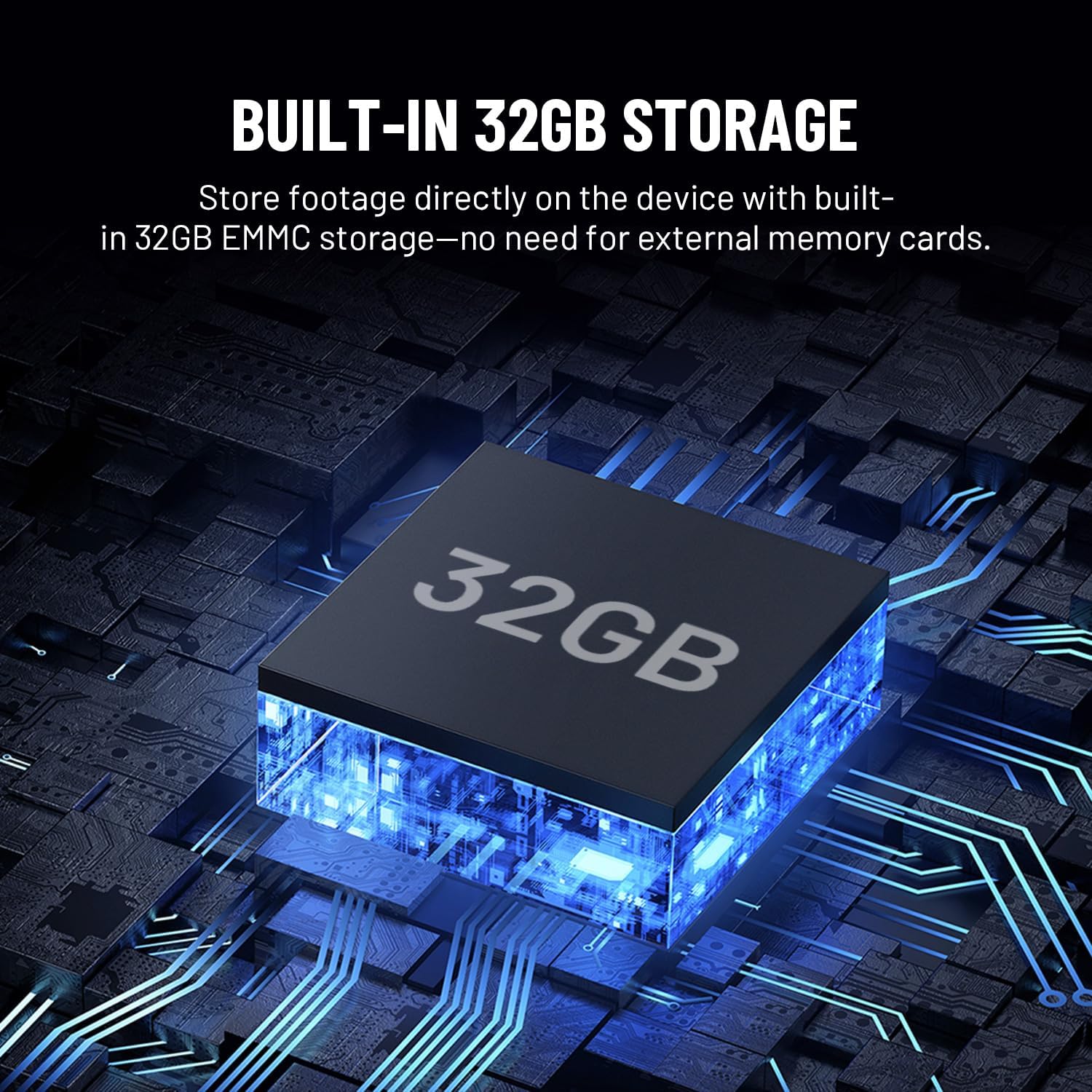
Image: Illustration showing the Havion D2 doorbell integrated into a smart home ecosystem, with a floor plan indicating connected devices like a smart lock and the doorbell.
6. Nlekọta
- Nhicha: Jiri nwayọ hichaa anya igwefoto na mgbịrịgba ọnụ ụzọ site na iji ihe dị nro, damp akwa . Zere ndị na-ehicha ihe na-ekpo ọkụ.
- Mmelite femụwe: Regularly check the Havion app for firmware updates to ensure optimal performance and access to new features.
- Nchekwa: The D2 has built-in 32GB eMMC local storage. Review and manage recordings through the Havion app.
- Nguzogide ihu igwe: The doorbell is designed to be durable and weather-resistant with an IP66 waterproof rating.

Image: The Havion D2 doorbell mounted on a wall, with water droplets indicating its weather-resistant design.
7. Nchọpụta nsogbu
| Nsogbu | Ihe nwere ike ime | Ngwọta |
|---|---|---|
| Doorbell not powering on. | No power from existing wiring; circuit breaker off. | Check circuit breaker. Ensure wires are correctly connected to the doorbell terminals. Verify existing wiring provides 8-24VAC. |
| Enweghị ike ijikọ na Wi-Fi. | Incorrect Wi-Fi password; 5GHz network selected; weak signal. | Ensure correct 2.4GHz Wi-Fi network is selected and password is accurate. Move doorbell closer to router or consider a Wi-Fi extender. |
| Ịkwụsị njikọ ugboro ugboro. | Mgbaàmà Wi-Fi adịghị ike; nnyonye anya netwọk. | Improve Wi-Fi signal strength. Ensure no other devices are causing interference. Restart router and doorbell. |
| Motion alerts are too frequent/infrequent. | Motion sensitivity settings are too high/low. | Adjust motion detection sensitivity and detection zones in the Havion app. |
| Audio ụzọ abụọ anaghị arụ ọrụ. | Microphone/speaker permissions not granted to app; network issues. | Check app permissions on your smartphone. Ensure stable internet connection. |
8. Nkọwapụta
| Njirimara | Nkọwa |
|---|---|
| Aha Nlereanya | D2 |
| Ụdị | Havion |
| Ojiji ime ime/n'èzí | N'èzí |
| Isi Iyi Ike | Corded Electric (8-24VAC) |
| Protocol Njikọta | Wi-Fi (naanị 2.4GHz) |
| Mkpebi ịse vidiyo | 5MP (3K) / 1920p |
| Nchekwa | Built-in 32GB eMMC Local Storage |
| Ngosipụta | Ihuenyo OLED 2-inch |
| Njirimara Pụrụ Iche | 2-Way Audio, AI Motion Detection, Dual Cameras, Night Vision |
| Ngwa dakọtara | Ama, Amazon Alexa, na Google Inyeaka |
| Ụdị nkwụnye | Ugwu mgbidi |
| Akụkụ ngwaahịa | 5 x 2 x 1 sentimita asatọ |
| Ibu Ibu | 1 pound |
9. Akwụkwọ ikike na nkwado
Havion provides reliable after-sales support, including a 2-year warranty. In case of product issues, a replacement will be provided in exchange for repairs.
For detailed warranty information or technical assistance, please refer to the official Havion website or contact customer support through the Havion app.
You can visit the Havion Store for more information: Havion Store on Amazon
Ask a question about this manual
Ask about setup, troubleshooting, compatibility, parts, safety, or missing instructions. Manuals+ will review the question and use this page’s manual context to help answer it.