
KTC A27Q7
KTC 27-inch MegPad A27Q7 Portable Smart Touchscreen Monitor User Manual
Comprehensive guide for setup, operation, and maintenance of your KTC MegPad A27Q7.
1. Okwu mmalite
The KTC 27-inch MegPad A27Q7 is a versatile portable touchscreen monitor designed for a wide range of uses, from entertainment to productivity. Featuring an EDLA-certified Android 14 operating system, a powerful Octa-core Qualcomm SM6115 chip, 8GB RAM, and 128GB internal storage, it offers a smooth and responsive user experience. Its full swivel rotation, long-lasting battery, and built-in camera make it an adaptable device for various environments.

Figure 1: The KTC MegPad A27Q7 in a home setting, showcasing its portability and sleek design.
2. Ihe ngwugwu
Upon unboxing your KTC MegPad A27Q7, ensure all components are present and undamaged. The package typically includes:
- KTC 27-inch Smart Mobile Screen (MegPad A27Q7)
- Base with silent universal wheels
- Telescopic rod/stand assembly
- Njikwa anya
- Batrị 2 x AAA (maka njikwa anya)
- Ihe nkwụnye ọkụ na eriri
- Phillips isi sikruuokwomoto
- Mounting screws (for base assembly)
- Ntuziaka onye ọrụ (akwụkwọ ntuziaka a)

Figure 2: All included components of the KTC MegPad A27Q7, neatly arranged for inspection.
3. Ntọala na Mgbakọ
Follow these steps to assemble your KTC MegPad A27Q7. It is recommended to perform assembly on a soft, flat surface to prevent scratches.
- Kwadebe Base ahụ: Place the Styrofoam packaging flat on the floor. Position the circular base of the stand onto the designated slot in the Styrofoam.
- Attach the Telescopic Rod: Carefully align the bottom of the telescopic rod with the connection point on the base. Push down firmly until it clicks into place, ensuring a secure connection.
- Chekwaa ntọala ahụ: Using the provided Phillips head screwdriver and screws, fasten the base to the telescopic rod from underneath. Ensure all screws are tightened securely.
- Mount the Screen: Slide the screen onto the top of the telescopic rod. Pay attention to the arrows or guides on the screen's back plate and the rod to ensure correct orientation. The screen should slide down and lock into place.
- Jikọọ eriri ọkụ: Locate the USB-C port on the back of the screen. Connect the power cable to this port.
- Wụnye batrị dị anya: Open the battery compartment on the back of the remote control and insert the two AAA batteries, observing polarity.
- Ike izizi: Plug the power adapter into a wall outlet. Press and hold the power button on the back of the screen for 3 seconds to power on the device.
- Ejikọ njikwa anya: Follow the on-screen instructions to pair your remote control with the MegPad. This usually involves pressing specific buttons on the remote simultaneously until an indicator light blinks.
Video 1: A detailed guide on unboxing and assembling the KTC MegPad A27Q7, demonstrating each step for a smooth setup process.

Ọgụgụ 3: N'azụ view of the MegPad screen, highlighting the mounting interface and connectivity options.
4. Ntuziaka ọrụ
4.1 Gbanyụọ ma ọ bụ gbanyụọ
To power on, press and hold the power button on the back of the screen for 3 seconds. To power off, press and hold the power button again, then select "Power Off" from the on-screen menu.
4.2 Touchscreen and Remote Control
The MegPad features a responsive 10-point Incell touchscreen for direct interaction. Alternatively, use the included remote control for navigation, volume adjustment, and accessing various functions. The remote also includes a "flying mouse" feature for precise cursor control.
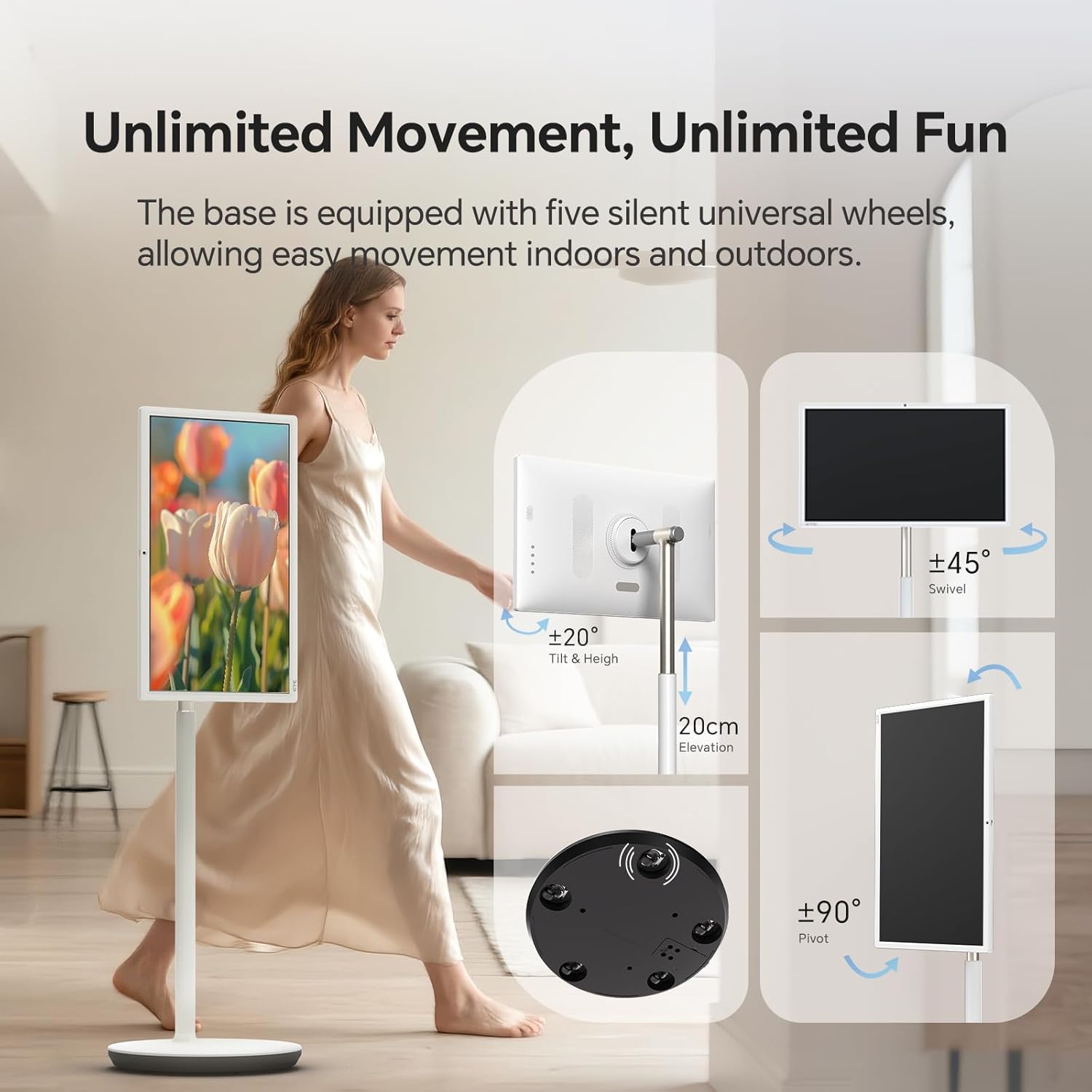
Figure 4: User interacting with the 10-point touchscreen for intuitive control.

Figure 5: The remote control provides convenient operation from a distance.
4.3 Android OS and Applications
The MegPad runs on EDLA-certified Android 14 OS, powered by a Qualcomm SM6115 Octa-core CPU with 8GB RAM and 128GB storage. This allows you to download and install a wide array of applications directly from the Google Play Store, including streaming services, social media, and productivity tools.

Figure 6: The Android 14 OS interface with access to Google Play Store applications.
4.4 Screen Adjustment
The screen offers full adjustability, allowing you to rotate, tilt, and lift it to achieve the optimal viewing angle. The base is equipped with five silent universal wheels for easy movement across different locations.

Figure 7: Multi-angle adjustment features for customized viewing.
4.5 Connectivity and Screen Mirroring
The MegPad supports Wifi5 wireless connection for internet access and content sharing. It also features a Type-C interface for easy device pairing and full-function output. Screen mirroring is supported via Apple AirPlay, Miracast, and Android DLNA, allowing you to cast content from your mobile phone, tablet, or laptop.

Figure 8: Wireless screen casting in action, displaying content from a phone to the MegPad.
4.6 Built-in Camera and Audio
An integrated camera and 4x5W speakers enable clear video calls and business meetings. The monitor also incorporates low blue light technology to reduce eye fatigue during extended use.

Figure 9: The built-in camera facilitates video conferencing and online interactions.
4.7 Battery Life and Mobility
The 9500mAh built-in battery provides 4-6 hours of continuous use, offering flexibility to enjoy content without a constant power connection. The rolling design with silent universal wheels allows for easy movement between rooms or even outdoors.

Figure 10: Enjoy extended usage with the long-lasting battery, perfect for various settings.
5. Nlekọta
To ensure the longevity and optimal performance of your KTC MegPad A27Q7, follow these maintenance guidelines:
- Na-ehicha ihuenyo: Jiri ákwà dị nro, nke na-enweghị lint nke e mere kpọmkwem maka ngwa eletrọniki. Maka ihe ndị siri ike, jiri obere ákwà dị nro.ampJiri mmiri ma ọ bụ ihe nhicha dị mma kpuchie ákwà ahụ. Zere kemịkalụ siri ike ma ọ bụ ihe ndị na-emebi emebi.
- Cleaning the Stand and Base: Wipe down the stand and base with a soft, damp cloth. Ensure no liquid enters any openings.
- Nlekọta batrị: To maximize battery life, avoid fully discharging the battery frequently. Charge the device when the battery level is low. If storing the device for an extended period, charge it to about 50-60% and store in a cool, dry place.
- Nchekwa: When not in use, store the MegPad in a clean, dry environment away from direct sunlight and extreme temperatures.
6. Nchọpụta nsogbu
If you encounter issues with your KTC MegPad A27Q7, refer to the following common troubleshooting steps:
- Ngwaọrụ anaghị agba ọkụ:
- Gbaa mbọ hụ na ejikọrọ ihe nkwụnye ọkụ na nke ọma na ma ngwaọrụ yana ebe ọ na-arụ ọrụ.
- Nyochaa na oghere ọkụ ahụ na-arụ ọrụ site na itinye na ngwaọrụ ọzọ.
- Charge the device for at least 30 minutes before attempting to power it on again.
- If the device is stuck in a boot loop (repeatedly showing the logo and turning off), try performing a hard reset by pressing and holding the power and volume buttons simultaneously for several seconds until the device restarts.
- Ihuenyo mmetụ anaghị anabata:
- Malitegharịa ngwaọrụ ahụ.
- Gbaa mbọ hụ na ihuenyo ahụ dị ọcha na enweghị irighiri ihe ma ọ bụ mmiri.
- Njikwa anya anaghị arụ ọrụ:
- Check and replace the AAA batteries in the remote control.
- Gbaa mbọ hụ na enweghị ihe mgbochi n'etiti igwe dịpụrụ adịpụ na ngwaọrụ.
- Re-pair the remote control with the MegPad by following the on-screen instructions during initial setup or in the device settings.
- Enweghị njikọ Wi-Fi:
- Gbaa mbọ hụ na rawụta Wi-Fi gị na-agbanye ma na-arụ ọrụ nke ọma.
- Lelee ma ngwaọrụ ndị ọzọ nwere ike ijikọ na otu netwọk Wi-Fi ahụ.
- Restart the MegPad and your Wi-Fi router.
- Go to "Settings" > "Network & Internet" and ensure Wi-Fi is enabled and you are connected to the correct network.
Video 2: Demonstration of a boot loop issue, where the device repeatedly shows the logo and turns off, along with a user's attempt at troubleshooting.
7. Nkọwapụta
| Njirimara | Nkọwa |
|---|---|
| Ụdị | KTC |
| Aha Nlereanya | A27Q7 |
| Nha ihuenyo | 27 sentimita asatọ |
| Mkpebi | 1920x1080 FHD 1080p |
| Ụdị ngosi | LCD |
| Ọnụego ume ọhụrụ | 60Hz |
| Ọnụọgụ ọdịiche | 4000:1 |
| Sistemụ nrụọrụ | EDLA-Certified Android 14 |
| CPU | Octa-core Qualcomm SM6115 |
| RAM | 8GB |
| Nchekwa nke ime | 128GB |
| Ike batrị | 9500mAh (4-6 hours use) |
| Njikọta | Wifi5, Bluetooth, USB Type-C |
| Ndị na-ekwu okwu | 4x5W Built-in Speakers |
| Igwefoto | Wuru n'ime |
| Atụmatụ pụrụ iche | 10-point Touch, Low Blue Light, Full Swivel Rotation, Universal Wheels |
| Ibu Ibu | 40.32 pound |
| Akụkụ ihe (D x W x H) | 38"D x 9"W x 20"H |
8. Akwụkwọ ikike na nkwado
The KTC MegPad A27Q7 comes with a Akwụkwọ ikike nke onye nrụpụta afọ 1. For any issues during installation or use, please contact KTC-Official through the Amazon platform for consultation. Our professional engineers are available to provide solutions as soon as possible.
For further assistance, please refer to the contact information provided in your purchase documentation or visit the official KTC websaịtị.
Ask a question about this manual
Ask about setup, troubleshooting, compatibility, parts, safety, or missing instructions. Manuals+ will review the question and use this page’s manual context to help answer it.