
PROVISION ISR DI-340IPS-MVF-G
Ntuziaka Onye Ọrụ Igwefoto IP PoE ISR 4MP
Model: DI-340IPS-MVF-G
1. Okwu mmalite
Thank you for choosing the PROVISION ISR 4MP IP PoE Camera. This manual provides essential information for the proper installation, operation, and maintenance of your security camera. Please read this manual thoroughly before using the product to ensure optimal performance and safety. This camera is designed for both indoor and outdoor surveillance, offering high-definition video, advanced night vision, and robust weather protection.
2. Ozi nchekwa
- Ensure the power supply meets the camera's specifications (PoE or 12V DC).
- Do not expose the camera to extreme temperatures outside its operating range (-30°C to 60°C).
- Avoid direct exposure to strong light sources, which may affect image quality.
- Anwala ịkwasa ma ọ bụ gbanwee igwefoto. Kpọtụrụ ndị ọrụ ruru eru ọrụ niile.
- Clean the camera lens with a soft, dry cloth. Avoid harsh chemicals.
3. Ihe ngwugwu
Chọpụta na ihe niile dị na ngwugwu:
- PROVISION ISR 4MP IP PoE Camera Body
- Akwụkwọ ntuziaka
4. Nhazi
4.1. Nwụnye
The PROVISION ISR 4MP IP PoE Camera is designed for ceiling mount installation. Ensure the mounting surface is strong enough to support the camera's weight.
- Họrọ ebe kwesịrị ekwesị maka mkpuchi nlekọta kacha mma.
- Use the provided mounting template (if applicable) to mark drill holes on the ceiling.
- Gwuo oghere ndị na-egosi ihe ma tinye ihe mgbochi mgbidi ma ọ bụrụ na ọ dị mkpa.
- Chekwaa ntọala igwefoto n'elu ebe a na-arịgo site na iji skru.
- Hazie igwefoto ahụ viewing angle dị ka achọrọ.

Image: Simple Installation. This image shows a person installing the camera on a ceiling, demonstrating the ease of physical setup.
4.2. Njikọta
This camera supports Power over Ethernet (PoE) for simplified installation, allowing both power and data transmission over a single Ethernet cable. Alternatively, it can be powered via a 12V DC power adapter (not included).
- Njikọ PoE: Connect an Ethernet cable from a PoE-enabled NVR or PoE switch to the camera's Ethernet port.
- Njikọ Ọkọlọtọ: Connect an Ethernet cable to the camera's Ethernet port and a 12V DC power adapter to the camera's power input.

Image: Easy Integration with PoE. This diagram illustrates how the camera integrates with an NVR system using PoE, highlighting its plug-and-play capability.
4.3. Nhazi mmalite
After physical installation and connection, configure the camera via its web interface or an NVR system.
- Ịnweta Web Ihuenyo: Use a network scanner tool to find the camera's IP address. Enter the IP address into a web browser to access the camera's login page.
- NVR Integration: Refer to your NVR's manual for instructions on adding IP cameras. The camera supports ONVIF for broad compatibility.
5. .rụ ọrụ
5.1. Atụmatụ igodo
- 4MP High Resolution: Provides clear and detailed video at 2560x1440 resolution.
- IR 40m Night Vision: Ensures clear imaging up to 40 meters in complete darkness.
- Igwe okwu arụnyere n'ime ya: Captures audio alongside video for comprehensive surveillance.
- Nchọpụta Motion AI: Utilizes advanced algorithms to accurately detect human movement and reduce false alarms.
- Mkpakọ H.265+: Efficiently compresses video to save storage space without compromising quality.
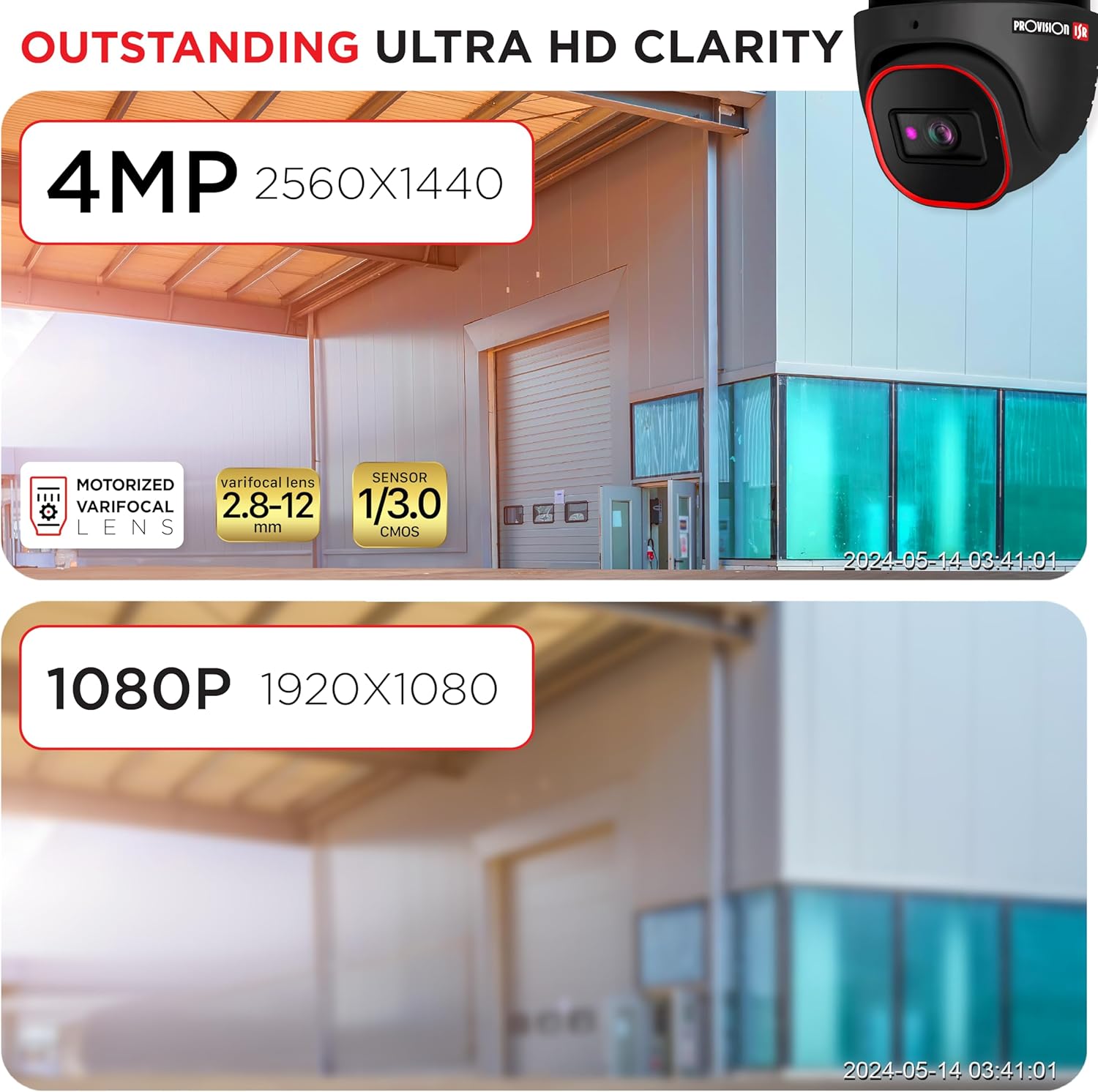
Image: Outstanding Ultra HD Clarity. This image visually compares the superior clarity of 4MP resolution (2560x1440) against 1080P (1920x1080).

Image: Built-in Microphone & Audio. This image highlights the camera's integrated microphone and audio input feature, enabling sound recording.
5.2. Nweta anya
Nweta ndụ footage and recordings remotely via mobile devices or PCs.
- Ngwa mkpanaaka: Download the official PROVISION ISR mobile app from your device's app store. Follow the in-app instructions to add and view igwefoto gị.
- PC Access: Use the IP camera web interface or dedicated VMS (Video Management Software) for comprehensive monitoring and management.

Image: Remote Access with AI-Powered Detection. This image shows a smartphone displaying multiple live camera feeds, demonstrating remote monitoring capabilities and AI detection.
5.3. Ụdị ndekọ
The camera supports various recording modes to suit your surveillance needs:
- Ndekọ akwụkwọ ntuziaka: Start and stop recording manually through the web interface or NVR.
- Ndekọ ahaziri: Set specific times or days for continuous recording.
- Line-Crossing Recording: Trigger recording when an object crosses a predefined virtual line.
- Ndekọ nchọpụta ngagharị: Record only when motion is detected, saving storage space.
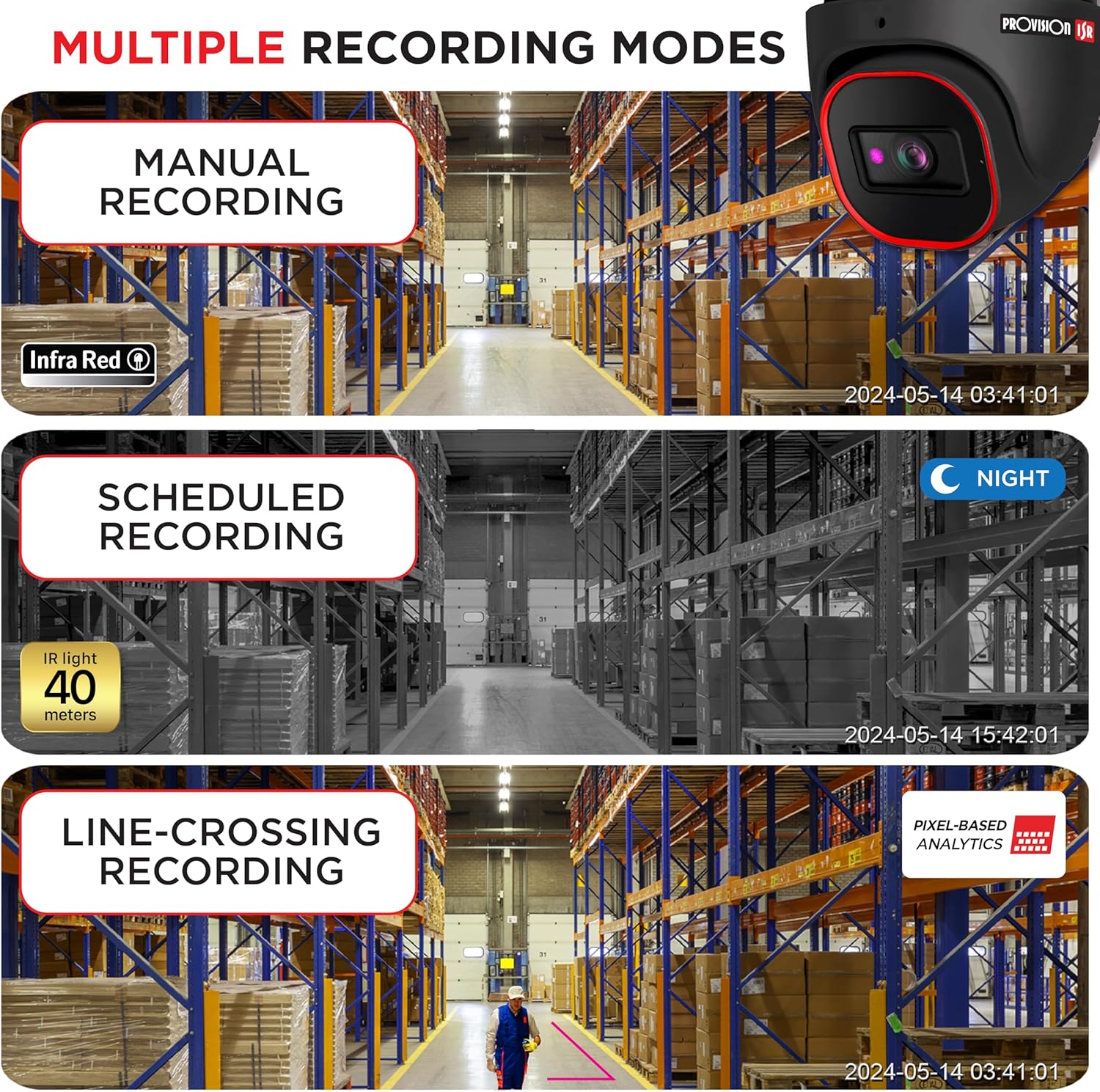
Image: Multiple Recording Modes. This image illustrates different recording options: manual, scheduled (night vision), and line-crossing triggered recording.

Image: Pixel Based Analytics. This diagram demonstrates the camera's ability to detect line crossing and sterile area intrusions using pixel-based analytics, providing real-time alerts.
6. Nlekọta
Mmezi mgbe niile na-eme ka igwefoto gị dị ogologo ndụ ma rụọ ọrụ nke ọma.
- Nhicha: Jiri nro dị nro na-ehicha oghere igwefoto na ụlọ kwa oge, damp akwa . Ejila ihe nhicha abrasive.
- Mmelite femụwe: Check the PROVISION ISR website for the latest firmware updates. Keeping your firmware updated ensures access to new features and security enhancements.
- Nchekwa gburugburu: The camera has an IP67 waterproof rating, protecting it from dust and water ingress. Ensure all cable connections are properly sealed to maintain this rating.

Image: Durable Design & Waterproof. This image highlights the camera's IP67 rating, indicating its durability and resistance to water and dust, along with its operational temperature range.
7. Nchọpụta nsogbu
Ọ bụrụ na ịnwee nsogbu na igwefoto gị, rụtụ aka na nsogbu na azịza ndị a na-ahụkarị:
| Nsogbu | Ihe nwere ike ime | Ngwọta |
|---|---|---|
| Enweghị ihe onyonyo/vidiyo ọ bụla | No power; Network cable issue; Incorrect IP address | Check power connection; Verify Ethernet cable integrity; Ensure correct IP configuration |
| Imagedị mma adịghị mma | Dirty lens; Insufficient lighting; Incorrect resolution settings | Clean the lens; Ensure adequate lighting or enable IR; Adjust resolution settings in web interface |
| Cannot access camera remotely | Network configuration; Firewall settings; Incorrect port forwarding | Verify network settings (router, port forwarding); Check firewall rules; Ensure stable internet connection |
| Nchọpụta ngagharị anaghị arụ ọrụ | Sensitivity too low; Detection area not configured; Firmware outdated | Adjust motion detection sensitivity; Configure detection zones; Update camera firmware |
8. Nkọwapụta
Detailed technical specifications for the PROVISION ISR 4MP IP PoE Camera:
| Njirimara | Nkọwapụta |
|---|---|
| Aha Nlereanya | Igwefoto nchekwa |
| Ojiji ime ime/n'èzí | N'èzí, ime ụlọ |
| Mkpebi ịse vidiyo | 4MP (2560x1440) |
| Oke ọhụụ abalị | 40 mita |
| Teknụzụ Njikọta | Ekwenyere (Ethernet) |
| Isi Iyi Ike | Corded Electric (PoE supported) |
| Ogo IP | Ihe mgbochi mmiri IP67 |
| Ụdị Ihe | Dome |
| Ụdị nkwụnye | Ugwu elu ụlọ |
| Viewna n'akuku | 94 ogo |
| Akụkụ (L x W x H) | 6.25 x 5.5 x 5.5 sentimita asatọ |
| Agba | Nwa |
| Ngwa dakọtara | Desktop, NVR, Smartphone |
| Ụdị njikwa | NVR, Android |
| UPC | 619317412736 |
| Nọmba Nlereanya ihe | DI-340IPS-MVF-G |
9. Akwụkwọ ikike na nkwado
For warranty information and technical support, please contact PROVISION ISR directly or refer to their official websaịtị. Atụmatụ nchekwa nwere ike ịdị maka mkpuchi ogologo oge.
Manufacturer: Provision ISR
Ask a question about this manual
Ask about setup, troubleshooting, compatibility, parts, safety, or missing instructions. Manuals+ will review the question and use this page’s manual context to help answer it.