
Ngwaahịa gafereview
The KanDao Meeting 360 Conference Camera is an advanced all-in-one video conferencing device designed to enhance remote meeting experiences. It captures 360-degree panoramic views at 8K resolution and outputs crisp split images at 1080P, ensuring every participant is clearly visible.
Key features include AI Smart Auto Speaker Tracking, wide compatibility with major conferencing platforms, integrated dual 10W full-duplex speakerphones, and 8 omnidirectional microphones with noise and echo cancellation. The device also prioritizes data security with a secure USB physical connection and a pop-up camera design for privacy.
Ihe ngwugwu
Your KanDao Meeting 360 package includes:
- KanDao Meeting 360 Camera Unit
- eriri USB
- Ihe nkwụnye ọkụ
- Remote Control (if applicable to model variant)
- Akwụkwọ ntuziaka (akwụkwọ a)
Melite
The KanDao Meeting 360 is designed for plug-and-play simplicity.
- Njikọ ike: Jikọọ ihe nkwụnye ike na ngwaọrụ igwefoto wee tinye ya na oghere ọkụ eletrik.
- Njikọ USB: Connect the camera unit to your computer (PC or Mac) using the provided USB cable. The device will be recognized automatically as a camera and audio device.
- Ngwa Ngwa Ngwa: Open your preferred video conferencing platform (e.g., Zoom, Google Meet, Microsoft Teams, Skype). Select "KanDao Meeting 360" as your camera, microphone, and speaker source within the software settings.
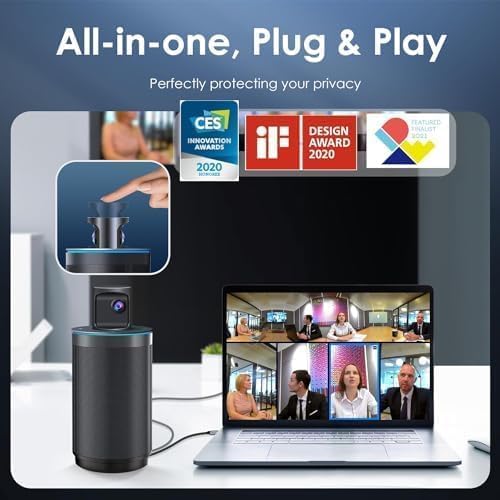
Image: The KanDao Meeting 360 camera connected via USB to a laptop, demonstrating its plug-and-play functionality for video conferencing.
Ntuziaka ọrụ
The KanDao Meeting 360 offers various intelligent features to optimize your meeting experience.
Panoramic ogo 360 View
The camera captures a full 360-degree view of the meeting room, ensuring all participants are visible. This panoramic view is then intelligently processed to present clear, split images at 1080P resolution.

Image: The KanDao Meeting 360 camera positioned in the center of a conference table, capturing a 360-degree panoramic view of participants.
AI Smart Auto Speaker Tracking
Leveraging advanced AI technology, the camera automatically detects and focuses on the active speaker. It dynamically recognizes and follows the presenter, ensuring the remote participants always see who is speaking.

Foto: Otu n'elu view of a conference table with the KanDao Meeting 360 camera, illustrating its AI auto-tracking feature focusing on the active speaker.
Multi-Conference Modes
Adapt to different meeting situations with various display modes:
- Ụkpụrụ zuru ụwa ọnụ: Shows all participants in a panoramic view.
- Ụdị ngosi: Focuses on the presenter while maintaining a smaller panoramic view.
- Discussion Mode: Highlights active speakers in individual frames.

Image: A visual representation of the KanDao Meeting 360's multi-conference modes, including Global, Presentation, and Discussion views.
Ọdịda dị elu
The device features 8 omnidirectional microphones that pick up voices up to 18 feet away, along with dual 10W full-duplex speakerphones. This setup minimizes interference noise and echo, ensuring clear sound transmission and reception.

Foto: Ihe dị n'ime view highlighting the 8-microphone array and dual 10W speakers of the KanDao Meeting 360, emphasizing its audio capabilities.
Nlekọta
To ensure optimal performance and longevity of your KanDao Meeting 360 camera:
- Jiri ákwà dị nro ma kpọọ nkụ mee ka anya igwefoto dị ọcha. Zere ihe ndị na-emebi emebi ma ọ bụ kemịkalụ siri ike.
- Chekwaa ngwaọrụ ahụ n'ebe dị jụụ, kpọrọ nkụ mgbe ọ naghị eji ya.
- Use the pop-up design to shield the camera lenses for privacy and to protect them from dust and scratches.
- Gbaa mbọ hụ na ikuku ikuku dị na gburugburu ngwaọrụ mgbe ọ na-arụ ọrụ.
Nchọpụta nsogbu
If you encounter issues with your KanDao Meeting 360, consider the following:
- Enweghị Vidiyo/Ọdịyo: Ensure the USB cable is securely connected to both the camera and your computer. Verify that the camera is selected as the input/output device in your conferencing software settings.
- Ogo vidiyo na-adịghị mma: Check your internet connection stability. Ensure the camera lenses are clean. Verify that your conferencing software is set to use 1080P output if available.
- Audio Echo/Feedback: Adjust the speaker volume. Ensure the microphones are not obstructed. Check for any conflicting audio devices on your computer.
- AI Tracking Issues: Gbaa mbọ hụ na igwefoto nwere nke doro anya view of all participants. Avoid rapid movements that might confuse the AI.
For further assistance, refer to the official KanDao support resources.
Nkọwapụta
| Njirimara | Nkọwapụta |
|---|---|
| Nọmba nlereanya | MT0308 |
| Mkpebi ịse vidiyo | 8K |
| Mkpebi mmepụta vidiyo | 1080P |
| Igwe okwu | 8 Omnidirectional |
| Audio Pick-up Range | Up to 18ft (8m diameter) |
| Ndị na-ekwu okwu | Dual 10W Full-Duplex |
| Njikọta | USB Physical Connection |
| Agba | Nwa |
| Ibu Ibu | 4.82 pound |
| UPC | 840128700938 |
Akwụkwọ ikike na nkwado
The KanDao Meeting 360 Video Conference Camera comes with a 1-year (12-month) warranty.
For technical support, firmware optimization, or any inquiries, please contact the KanDao Official Store or visit their websaịtị.
Nchekwa data: The device uses a secure USB physical connection, ensuring your privacy is protected and all conference data remains in-house owned and generated.
Vidiyo ngwaahịa ngwaahịa
Vidiyo: Ngwaahịa a kwụsịrịview of the KanDao Meeting 360 All-in-one Video Conferencing Camera, demonstrating its features and use cases in a professional setting.