
Okwu mmalite
Welcome to the VIBOX VTX-7 Gaming PC user manual. This guide provides essential information for setting up, operating, maintaining, and troubleshooting your new gaming system. Please read these instructions carefully before using your PC to ensure optimal performance and longevity.
Your VIBOX VTX-7 system is equipped with high-performance components designed for an immersive gaming experience and efficient productivity. Key features include:
- Nvidia GeForce RTX 5070 (12GB GDDR7 RAM / HDMI 2.1b / DisplayPort)
- AMD Ryzen 7 5700X Processor - 8 cores - Max speed 4.6 GHz
- 1TB SATA SSD for ultra-fast storage
- 32GB DDR4 RAM for smooth multitasking
- Pre-installed Windows 11 Home operating system
- Includes a 27-inch monitor, gaming keyboard, mouse, headset, LED mouse pad, and USB Wi-Fi 6 AX1300 + Bluetooth 5.4 adapter.
Kedu ihe dị na Igbe ahụ
Carefully unpack all items from the box. Ensure all components listed below are present:
- VIBOX VTX-7 Gaming PC Tower
- Ihe nleba anya 27-inch
- Ahụigodo egwuregwu
- Egwuregwu egwu egwu
- Igwe isi egwuregwu
- Igwe ọkụ ọkụ LED
- USB Wi-Fi 6 AX1300 and Bluetooth 5.4 Adapter
- Power Cables (for PC and Monitor)
- HDMI/DisplayPort USB
- Akwụkwọ ntuziaka (akwụkwọ a)
Ntuziaka nhazi
1. Mwepu na ntinye
Remove the PC tower and monitor from their packaging. Place the PC tower on a stable, flat surface with adequate ventilation. Avoid placing it directly on carpet or in enclosed spaces that could restrict airflow.

Image: VIBOX VTX-7 Gaming PC Tower with vibrant RGB lighting, showcasing nhazi mara mma ya na ihe ndị dị n'ime ya.
2. Njikọ Peripherals
- Nyochaa: Connect the 27-inch monitor to the graphics card (Nvidia RTX 5070) on the back of the PC using the provided HDMI or DisplayPort cable. Ensure the cable is securely fastened. Connect the monitor's power cable to an electrical outlet.
- Ahụigodo na òké: Connect the gaming keyboard and mouse to any available USB ports on the back of the PC.
- Ekweisi: Plug the headset into the appropriate audio jacks (usually green for audio out, pink for microphone in) or a USB port if it's a USB headset.
- Wi-Fi/Bluetooth Adapter: Insert the USB Wi-Fi 6 and Bluetooth 5.4 adapter into an available USB port.
- Ike: Connect the PC's power cable to the power supply unit (PSU) on the back of the PC, then plug it into a grounded electrical outlet.
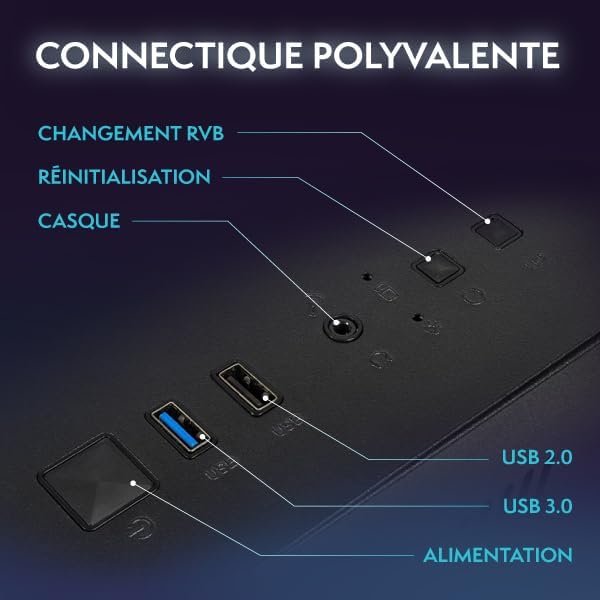
Foto: nso nso view of the VIBOX PC's rear panel, highlighting various connectivity ports including USB, HDMI, and audio jacks.
3. Gbanwee ike mbụ
Once all connections are secure, press the power button on the front of the PC tower. The system will boot up, and the monitor should display the VIBOX logo or Windows startup screen.
Ntuziaka ọrụ
1. Mbido Mbụ na Ntọala Windows
Upon the first boot, you will be guided through the Windows 11 Home setup process. Follow the on-screen prompts to:
- Họrọ mpaghara gị na nhazi ahụigodo gị.
- Connect to a network (Wi-Fi or Ethernet).
- Banye na akaụntụ Microsoft ma ọ bụ mepụta akaụntụ mpaghara.
- Set up privacy settings.
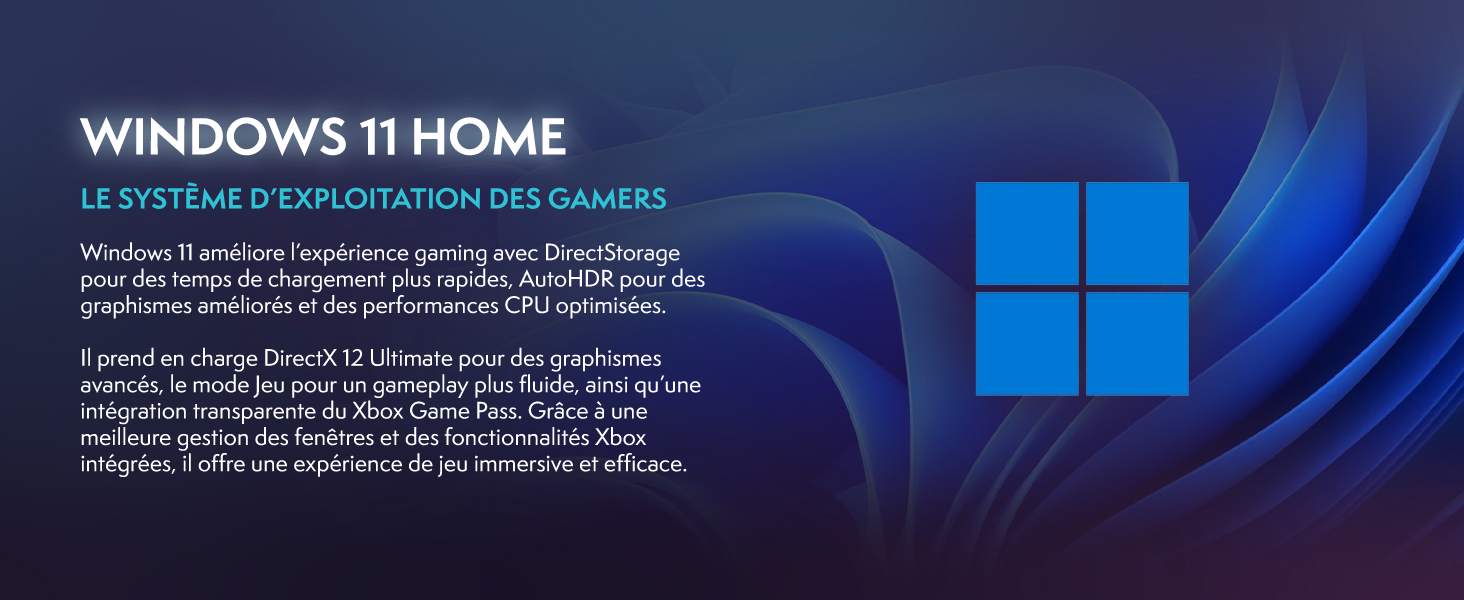
Image: Promotional image highlighting Windows 11 Home features, including faster loading times with DirectStorage and improved graphics with AutoHDR, optimized for gaming.
2. Ijikọ na Wi-Fi na Bluetooth
Your system includes a USB Wi-Fi 6 and Bluetooth 5.4 adapter. After Windows setup:
- Wi-Fi: Pịa akara ngosi netwọk dị na taskbar, họrọ netwọk Wi-Fi gị, tinye paswọọdụ, wee pịa Jikọọ.
- Bluetooth: Go to Settings > Bluetooth & devices, turn on Bluetooth, and pair with your desired devices.
3. Basic Usage Tips
- Mmelite: Regularly check for Windows updates (Settings > Windows Update) and graphics driver updates (Nvidia GeForce Experience) to ensure optimal performance and security.
- Nwụnye ngwanrọ: Install your preferred games and applications. Ensure you download software from trusted sources.
- Njikwa RGB: Your PC features RGB lighting. Refer to the specific software provided by VIBOX or component manufacturers (e.g., motherboard, GPU) to customize lighting effects.
Nlekọta
1. Nhicha
Regular cleaning helps maintain performance and extends the lifespan of your PC:
- Mputa: Jiri nwayọọ, damp cloth to wipe down the exterior of the PC case and monitor. Avoid harsh chemicals.
- Uzuzu: Periodically use compressed air to clear dust from fan vents and internal components. Ensure the PC is powered off and unplugged before doing so.
2. Sistemụ jụrụ oyi
Your VIBOX VTX-7 features an AIO 120mm liquid cooler and Hex RGB Infinity 120mm fans for efficient cooling. Ensure these components are free from dust buildup.

Image: The VIBOX AIO 120mm liquid cooler, featuring a compact design with RGB lighting on the pump head and fan, ensuring stable processor temperatures.
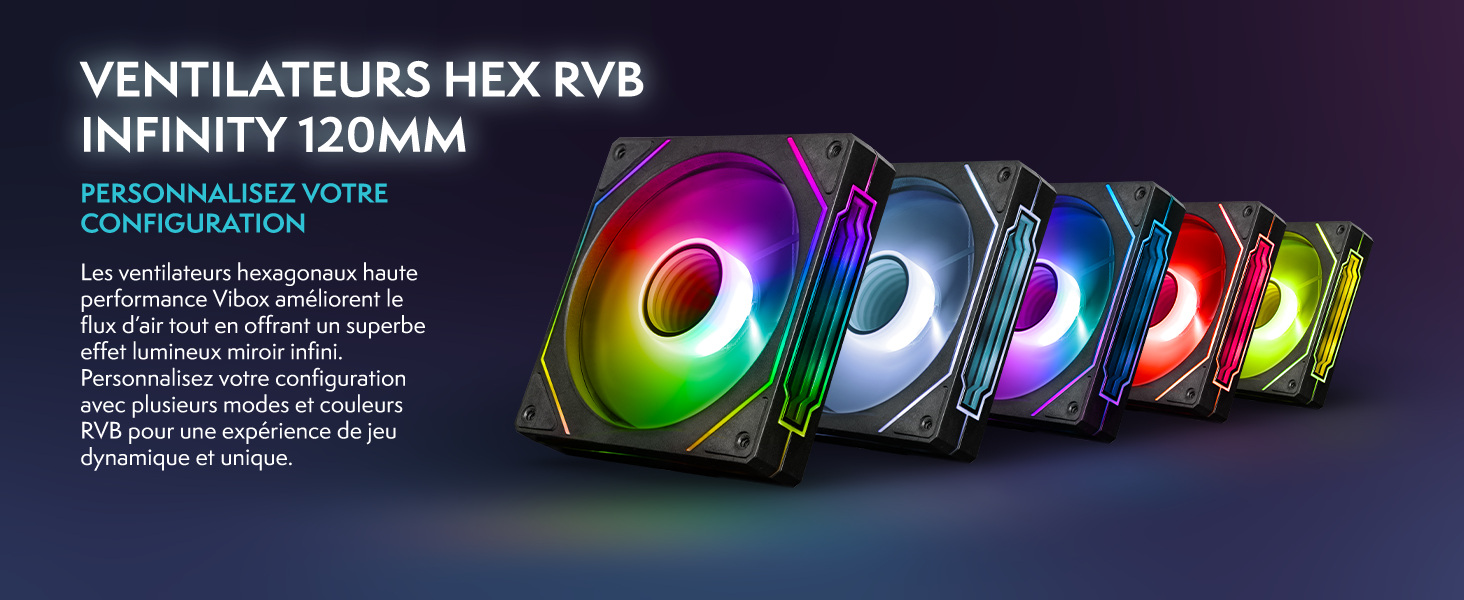
Image: A row of VIBOX Hex RGB Infinity 120mm fans, displaying various colorful lighting effects, designed to enhance airflow and customize the PC's aesthetic.
The system also utilizes an inverted airflow design for optimal thermal management.

Image: Diagram illustrating the inverted airflow design within the VIBOX PC case, showing cool air intake from the side and bottom, and hot air exhaust from the top and rear, optimizing cooling efficiency.
Nchọpụta nsogbu
1. Enweghị ike
- Ensure all power cables are securely connected to the PC, monitor, and electrical outlets.
- Check the power switch on the back of the PSU (Power Supply Unit) is in the 'ON' position.
- Jiri ngwaọrụ ọzọ nwalee oghere eletrik iji gosi na ọ na-arụ ọrụ.
2. Enweghị Ngosipụta na Nyocha
- Verify the HDMI or DisplayPort cable is firmly connected to both the PC's graphics card and the monitor.
- Ensure the monitor is powered on and set to the correct input source (HDMI/DisplayPort).
- Try a different video cable or monitor if available to isolate the issue.
3. Enweghị njikọ ịntanetị
- Check if the USB Wi-Fi adapter is properly inserted and its drivers are installed (Windows usually installs them automatically).
- Verify your Wi-Fi network is active and you have entered the correct password.
- If using an Ethernet cable, ensure it is securely connected to both the PC and your router/modem.
- Malitegharịa ekwentị rawụta/modem gị.
4. Nsogbu Arụmọrụ Sistemụ
- Ensure all drivers (especially graphics drivers) are up to date.
- Mechie ngwa ndabere na-adịghị mkpa.
- Check system temperatures using monitoring software to ensure components are not overheating.
Nkọwapụta
Detailed technical specifications for your VIBOX VTX-7 Gaming PC:
| Akụkụ | Nkọwapụta |
|---|---|
| Ụdị | VIBOX |
| Aha Nlereanya | VTX-7 |
| Sistemụ nrụọrụ | Windows 11 Ụlọ |
| Ụdị CPU | AMD Ryzen 7 5700X (8 Cores) |
| Ọsọ CPU | 3.4 GHz (Base), 4.6 GHz (Max Boost) |
| Ihe eserese eserese | Nvidia GeForce RTX 5070 |
| Graphics Card RAM | 12 GB GDDR7 |
| RAM arụnyere | 32 GB DDR4 |
| Oke RAM kacha | 128 GB |
| Ọsọ ebe nchekwa | 2666 MHz |
| Ike nchekwa | 1 TB SSD |
| Usoro jụrụ oyi | Water Cooling (AIO 120mm) |
| Njikọta | Ethernet, HDMI, USB, Wi-Fi 6, Bluetooth 5.4 |
| Mmepụta vidiyo | HDMI, DisplayPort |
| Mgbakọta ọdụ ụgbọ mmiri USB | 6 |
| Nyochaa nha | 27 sentimita asatọ |
| Max Display Resolution | 1920x1080 pikselụ |
| Akụkụ akụkụ | 42 x 28 x 43.5 cm |
| Ụdị nkwụnye ọkụ | Type C/EF – 2-pin (European/Hybrid FR-DE plug) |
| Mba onye si | France |
Ozi akwụkwọ ikike
Your VIBOX VTX-7 Gaming PC comes with a comprehensive warranty:
- Akụkụ: Afọ 2
- Ọrụ: Oge ndụ
Please retain your proof of purchase for warranty claims. The warranty covers manufacturing defects and hardware failures under normal use conditions. It does not cover damage caused by misuse, accidents, unauthorized modifications, or improper maintenance.
Nkwado
For further assistance, technical support, or warranty inquiries, please contact VIBOX Gaming directly. You can find contact information on the official VIBOX websaịtị ma ọ bụ site na onye na-ere ahịa gị.
VIBOX is committed to providing high-quality gaming PCs and excellent customer service. For more information about VIBOX products and support, visit the VIBOX Gaming Store on Amazon.