1. Okwu mmalite
This manual provides detailed instructions for the setup, operation, and maintenance of your Generic HY-500B 5MP USB Microscope Camera. Please read this manual thoroughly before using the device to ensure proper function and longevity.
Ihe ngwugwu
- 1 x 5.0MP Microscope Camera
- 1 x USB Line
- 1 x Software DISC
- 1 x 150X C-mount Lens
- 1 x Stand with LED Light
- 1 x nkwụnye ọkụ
2. Ozi nchekwa
Debe ihe nchekwa nchekwa ndị a iji gbochie mmebi ngwaọrụ ma ọ bụ imerụ onwe gị ahụ:
- Do not expose the camera or lens to direct sunlight or high temperatures.
- Zere idobe ma ọ bụ idobe ngwaọrụ ahụ na mmetụta siri ike.
- Debe ngwaọrụ ahụ na mmiri na mmiri mmiri ndị ọzọ.
- Use only the provided power adapter and USB cable.
- Do not attempt to disassemble or modify the device. Refer servicing to qualified personnel.
3. Nhazi
Follow these steps to set up your microscope camera system:
3.1 Assemble the Stand and Camera
- Wepu ihe niile na igbe ahụ.
- Attach the microscope camera unit to the stand's mounting arm. Ensure it is securely fastened.
- Screw the 150X C-mount lens onto the camera unit.
- Position the LED lights on the stand to illuminate your observation area.

Figure 1: Fully assembled HY-500B microscope camera system.
3.2 Connect to Power and Computer
- Connect the power adapter to the stand's LED lights and plug it into a power outlet.
- Connect the USB line from the microscope camera to an available USB 2.0 port on your computer.

Figure 2: Microscope camera unit connected via USB cable.
3.3 Nwụnye ngwanrọ
- Insert the provided Software DISC into your computer's optical drive.
- Follow the on-screen instructions to install the microscope camera software. If your computer does not have an optical drive, please contact customer support for alternative software download options.
- Once installed, launch the software. The camera should be automatically detected.
4. Ntuziaka ọrụ
This section details how to operate your HY-500B microscope camera for observation and image capture.
4.1 Placing the Specimen
Place the object you wish to observe directly under the microscope lens on the stand's base. Ensure it is stable and well-lit by the LED lights.
4.2 Adjusting Focus and Magnification
- In the software interface, you should see a live feed from the camera.
- Use the focus knob on the stand to adjust the distance between the lens and the specimen until the image appears clear and sharp on your computer screen.
- The 150X C-mount lens provides a fixed magnification. Further digital magnification may be available through the software.
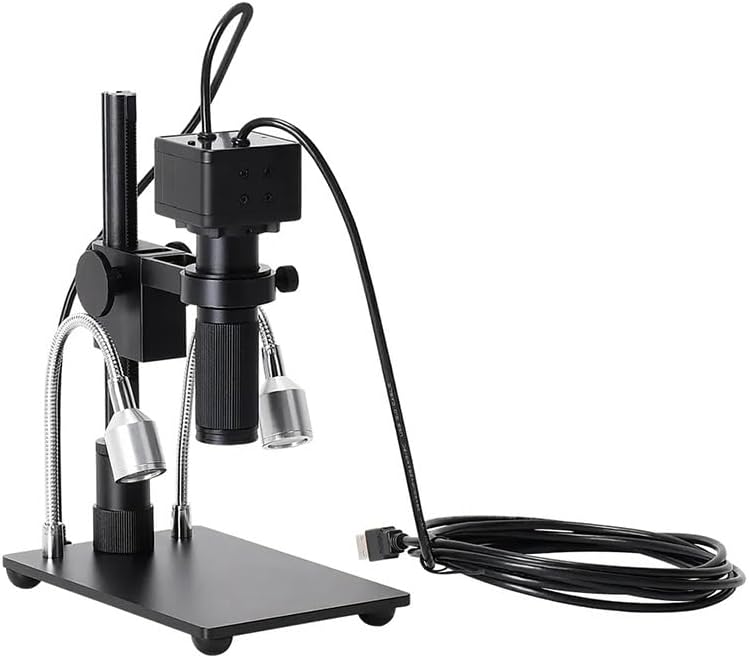
Foto 3: N'ihu view of the camera with C-mount lens attached.
4.3 Ịse Foto na Vidiyo
Refer to the specific instructions within the installed software for capturing still images and recording video footage. Typically, there are dedicated buttons or menu options for these functions.

Ọgụgụ 4: Ime view of the 5MP camera sensor.
5. Nlekọta
Proper maintenance ensures the longevity and performance of your microscope camera.
5.1 Cleaning the Lens and Camera
- Use a soft, lint-free cloth to gently wipe the exterior of the camera and stand.
- For the lens, use a specialized lens cleaning solution and a microfiber lens cloth. Avoid touching the lens surface with your fingers.
- Ejila ihe nchacha ma ọ bụ ihe mgbaze.
5.2 Nchekwa
When not in use, store the microscope camera system in a clean, dry, and dust-free environment. It is recommended to cover the lens to prevent dust accumulation.
6. Nchọpụta nsogbu
If you encounter issues with your HY-500B microscope camera, refer to the following common problems and solutions:
| Nsogbu | Ihe nwere ike ime | Ngwọta |
|---|---|---|
| Enweghị onyonyo na ihuenyo | USB cable not connected; Software not launched; Camera not selected in software. | Ensure USB cable is securely connected. Launch software. Select the HY-500B camera in the software settings. |
| Onyonyo na-agba agba | Incorrect focus; Dirty lens. | Adjust the focus knob on the stand. Clean the lens as described in Section 5.1. |
| Igwe ọkụ LED anaghị arụ ọrụ | Power adapter not connected; Faulty adapter. | Ensure the power adapter is securely connected and plugged into a working outlet. Test with another outlet if possible. |
| Software not detecting camera | Driver issue; USB port issue. | Reinstall the software and drivers from the DISC. Try a different USB port on your computer. Restart your computer. |
7. Nkọwapụta
- Ụdị: HY-500B
- Mkpebi igwefoto: 5.0 megapixels
- oghere: 150X C-mount Lens
- Ngwa ngwa mmepụta USB 2.0 (480Mb/s)
- Ogologo waya: 1.5 mita
- Spectral Azịza: 400nm ~ 1000nm
- Oke dị ike: 74 dB (Linear), 85 dB (HDR)
- Nha Pixel: 2.2µm x 2.2µm
- Ibu ihe: Approximately 1.76 pounds (800 Grams)
- Akụkụ ngwugwu: 1.18 x 0.79 x 0.39 inches (Camera unit only)
- Onye nrụpụta: N'ozuzu
8. Akwụkwọ ikike na nkwado
We are committed to providing high-quality after-sales service. If you have any questions, require assistance, or encounter any issues not covered in this manual, please do not hesitate to contact our customer support. We are available to serve you wholeheartedly.
For support, please refer to the contact information provided with your purchase or visit the manufacturer's official websaịtị.


