
1. Ngwaahịa gafereview
The eufy Omni C20 is an advanced robot vacuum and mop combo designed for comprehensive, hands-free floor cleaning. It features an all-in-one station that automates dust emptying, mop washing, and mop drying, providing convenience and efficiency for various floor types.

Figure 1: eufy Omni C20 Robot Vacuum and Mop Combo with its All-in-One Station.
Akụkụ ndị bụ isi:
- Ọdụ ọdụ niile dị n'otu: Fully automated self-emptying, auto mop washing, and room-temperature air drying. Features transparent water tanks for easy monitoring.
- Mop Master Technology: Dual rotating mops with 180 rotations per minute and 6N downward pressure for effective stain removal.
- Mmanya dị ike: 7,000 Pa suction power, combined with a rolling brush and side brush, efficiently cleans dirt, crumbs, and pet hair.
- Nhazi Ultra-Slim: At 3.35 inches tall, the robot can access hard-to-reach areas under furniture.
- Nsoro ụzọ smart: iPath Laser Navigation for efficient cleaning routes and obstacle avoidance.
- App Control & Voice Integration: Manage cleaning modes, schedules, no-go zones, and integrate with Amazon Alexa, Google Assistant, and Siri.
2. Nhazi
2.1 Unboxing na ntinye mbụ
Carefully remove all components from the packaging. Ensure all included components are present: the robot, Omni Station (with dust bag), roller brush, side brush, dust bin, 2 mop pads, and safety document.

Figure 2: The eufy Omni C20 robot and its station, ready for setup.
Place the Omni Station against a wall in an open area with at least 1.5 feet (0.5 meters) of clear space on either side and 5 feet (1.5 meters) in front. Plug the station into a power outlet.
2.2 Nkwadebe Tankị Mmiri
The Omni Station features two transparent water tanks: one for clean water and one for dirty water. Remove the clean water tank, fill it with clean water (and a recommended cleaning solution if desired), and reinsert it into the station.

Figure 3: Transparent water tanks on the Omni Station, showing water levels and indicator lights.
2.3 Ngwa nwụnye na njikọ
Download the eufy Clean app from your smartphone's app store. Follow the in-app instructions to connect your Omni C20 to your home Wi-Fi network. Note: The eufy Omni C20 supports only 2.4GHz Wi-Fi. 5GHz Wi-Fi is not supported.
3. Ntuziaka ọrụ
3.1 Cleaning Modes and Suction Levels
The eufy Clean app allows you to select various cleaning modes and customize suction power and water levels:
- Ume na Mop: Ịsachapụ ihe na ihicha ihe n'otu oge.
- Naanị oghere: For carpets or when mopping is not desired.
- Naanị kpochaa: For hard floors requiring only mopping.
Adjust suction power based on cleaning needs:
- Ụdị dị jụụ: Lower noise, suitable for light cleaning.
- Ụkpụrụ ọkọlọtọ: Balanced cleaning for everyday use.
- Ụdị Turbo: Increased suction for moderate dirt.
- Ụdị kachasị: Maximum 7,000 Pa suction for deep cleaning and stubborn debris.

Figure 4: The eufy Omni C20 demonstrating its 7,000 Pa suction power on various debris.
3.2 Ntugharị na nkewa
The Omni C20 uses iPath Laser Navigation to create a precise map of your home, enabling efficient cleaning routes. The app allows for:
- Njikwa Maapụ: View and edit floor plans.
- Nhazi nke ọtụtụ ọkwa: Store up to 3 maps for multi-floor homes.
- Nhazi ahaziri: Set specific times for cleaning.
- Custom No-Go Zones: Define areas the robot should avoid (e.g., delicate items, pet bowls).

Figure 5: The eufy Clean app displaying multi-level mapping capabilities for efficient cleaning across different floors.

Figure 6: The eufy Omni C20 navigating around a user-defined No-Go Zone.
3.3 Carpet Detection and Mop Lift
The robot automatically detects carpets and adjusts its cleaning mode. When a carpet is detected, the Omni C20 raises its mop by 0.41 inches to prevent wetting the carpet while continuing to vacuum.
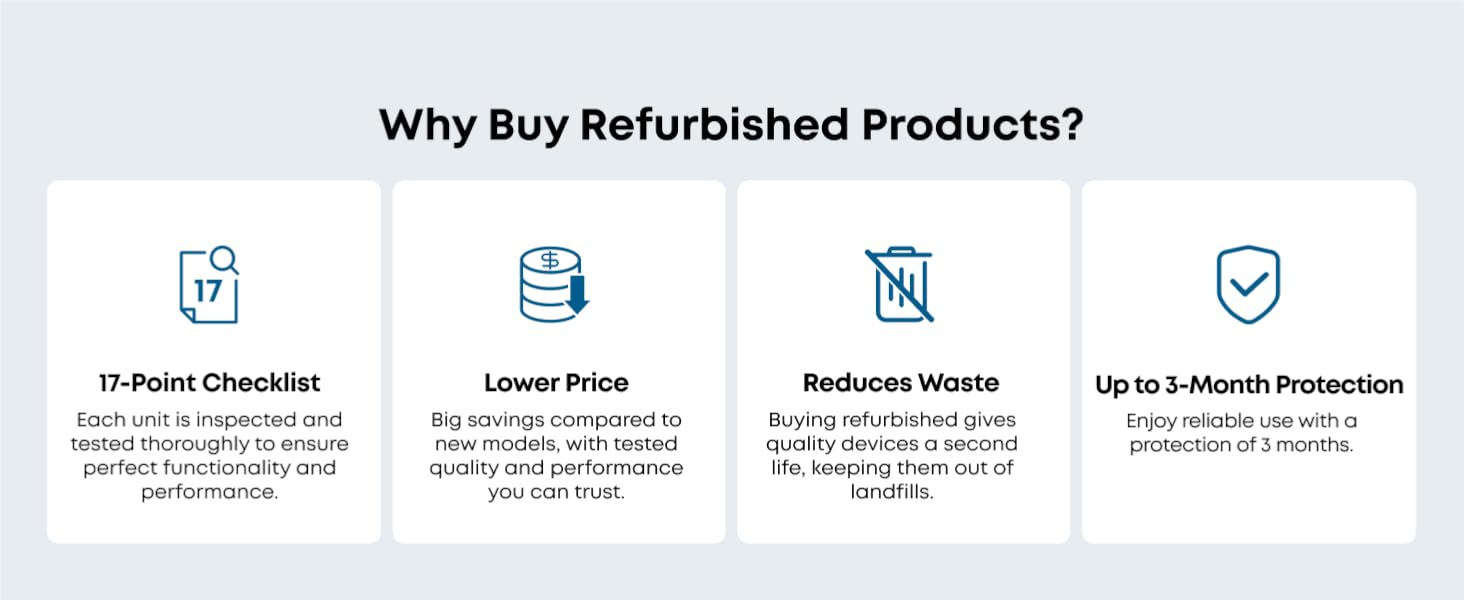
Figure 7: The Omni C20 lifting its mop pads when transitioning from hard floor to carpet.
3.4 Njikwa olu
Integrate your Omni C20 with smart home assistants like Amazon Alexa, Google Assistant, and Siri for convenient voice-activated cleaning commands.

Figure 8: Illustration of eufy Omni C20's compatibility with voice assistants for hands-free control.
4. Nlekọta
4.1 All-in-One Station Maintenance
- Auto-Emptying: The station automatically empties the robot's dustbin into a 3.1L dust bag, providing up to 60 days of hands-free dust disposal. Replace the dust bag when full.
- Ịsa ákwà nchapu akpaaka: The station washes the mop pads after each cleaning cycle. The detachable base of the station can be removed for easy cleaning.
- Ịkpọcha Mop Na-akpaghị Aka: After washing, the mops are dried with room-temperature air to prevent odors and mildew.
- Water Tank Management: Regularly refill the clean water tank and empty the dirty water tank. The transparent design and indicator lights make this process simple.

Figure 9: The Omni Station's auto-emptying function, collecting debris into a dust bag.

Figure 10: The Omni Station automatically washing the robot's mop pads.

Figure 11: The Omni Station drying the mop pads with room-temperature air.
4.2 Robot akụrụngwa nhicha
- Akpụkpọ anụ: The roller brush features a Pro-Detangle Comb to reduce hair entanglement. Periodically remove and clean the roller brush to maintain optimal performance.
- Ahịhịa akụkụ: Check and clean the side brush regularly for tangled hair or debris. Replace if worn.
- Pads mop: While the station auto-washes, occasional manual cleaning or replacement of mop pads may be necessary for heavily soiled pads.
- Ihe nzacha: The robot's filter is washable. Clean it periodically to ensure efficient suction.

Figure 12: Close-up of the robot's roller brush with detangling comb.
5. Nchọpụta nsogbu
If you encounter issues with your eufy Omni C20, refer to the following common troubleshooting tips:
- Robot Not Charging/Returning to Station: Ensure the charging pins on both the robot and the station are clean and making proper contact. Verify the station is plugged in and has sufficient clear space around it.
- Error Messages (e.g., Water Tank Error): Check both clean and dirty water tanks for proper seating and sufficient water levels. Inspect for any blockages in the water distribution system.
- Ebelata ike imi: Clean the dustbin, roller brush, side brush, and filters. Ensure the dust bag in the Omni Station is not full.
- Robot Getting Stuck Frequently: Clear the cleaning area of small objects, wires, and loose items. Define No-Go Zones in the app for problematic areas. Check for debris caught in the wheels or brushes.
- Mkpọtụ na-adịghị ahụkebe: Inspect the roller brush and side brushes for any foreign objects (e.g., hair, string) that might be causing obstruction or damage. Ensure all components are correctly installed.
- Mop Not Cleaning Effectively: Ensure mop pads are clean and properly attached. Verify the clean water tank is filled and the water level setting in the app is appropriate for the floor type.
For persistent issues, consult the eufy Clean app for specific error codes or contact eufy customer support.
6. Nkọwapụta
| Njirimara | Nkọwa |
|---|---|
| Ụdị | eufy |
| Aha Nlereanya | eufy Renewed C20 Omni |
| Nọmba nlereanya | T2280-Renewed |
| Ike imi | 7,000 Pa |
| Ogologo Robọt | 3.35 sentimita asatọ |
| Ndụ batrị | 132 nkeji |
| Ụdị batrị | Lithium ion |
| Ike akpa uzuzu | 3.1 lita |
| Usoro njikwa | App Control, Button Control, Voice Control |
| Ngwa dakọtara | Amazon Alexa, Onye enyemaka Google, Siri |
| Nkwanye elu | Hard Floor, Wood, Tile, Carpet |
| Ọkwa mkpọtụ | 56 decibel |
| Nkwado Wi-Fi | 2.4GHz naanị |
| Ngwa gụnyere | Battery, Omni Station (with Dust Bag), Robot (includes Roller Brush, Side Brush, Dust Bin, and 2 Mop Pads), Safety Document |
7. Akwụkwọ ikike & Nkwado
7.1 Akwụkwọ ikike nke onye nrụpụta
The eufy Omni C20 (Renewed) comes with a 90-day limited warranty from the manufacturer. This warranty covers defects in materials and workmanship under normal use.
7.2 Nkwado ndị ahịa
For technical assistance, warranty claims, or any questions regarding your eufy Omni C20, please contact eufy customer support through their official website or the eufy Clean app. You may also find helpful resources, FAQs, and video tutorials on the eufy support page.