
Okwu mmalite
This manual provides detailed instructions for the installation, operation, and maintenance of your ETLFUCyber Android Car Radio. This unit is designed for Ford Fiesta Mk5 models from 2002 to 2008, featuring a 9-inch touchscreen, wireless CarPlay, Android Auto, WiFi, GPS, FM RDS, and rear camera support. Please read this manual thoroughly before installation and use to ensure proper function and safety.
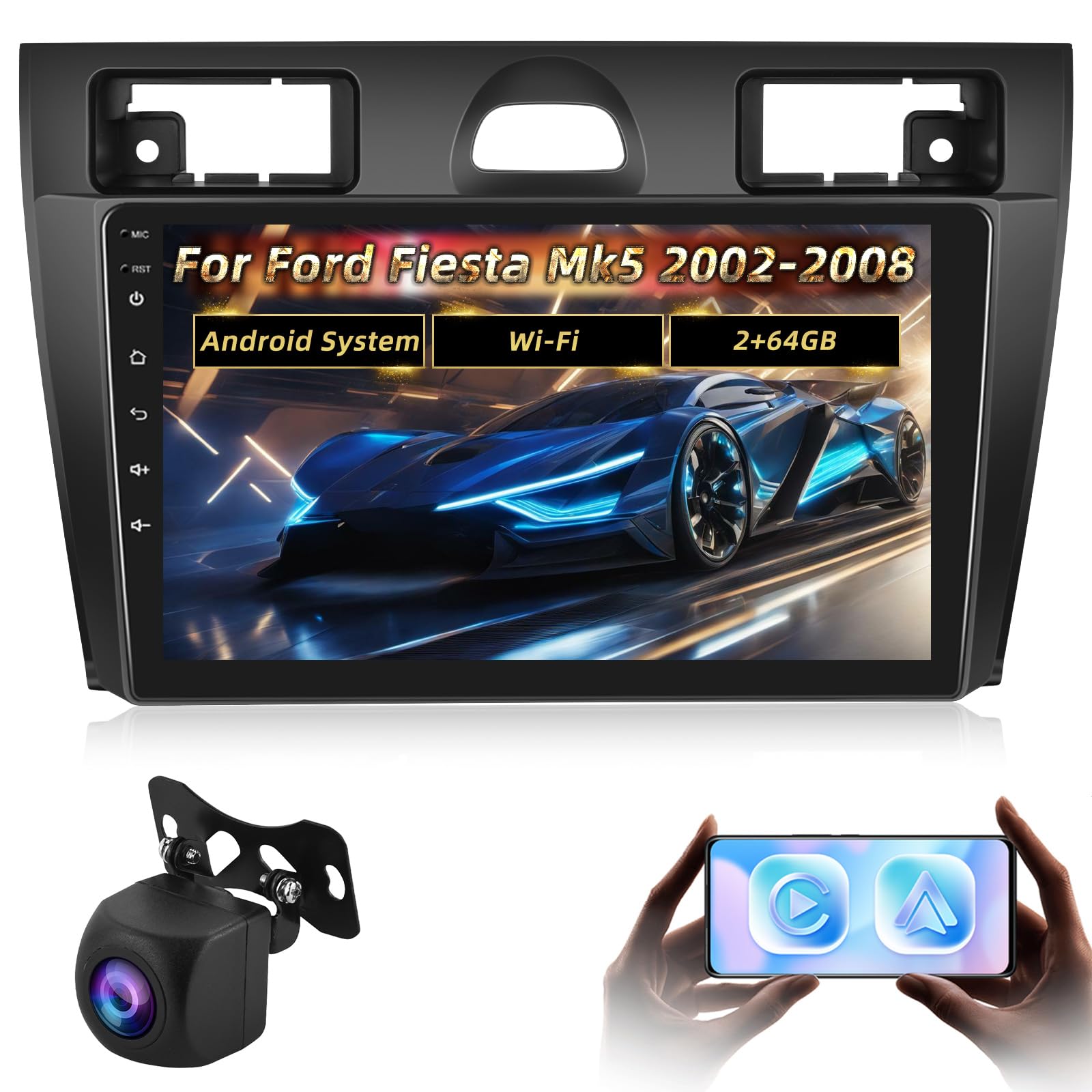
Image: Comparison of a Ford Fiesta Mk5 dashboard before and after the installation of the ETLFUCyber Android Car Radio, showing the integrated 9-inch display.
Ihe Ndakọrịta Dị Mkpa
Before proceeding with installation, please verify the structure of your vehicle's center console. If the top and bottom sections of the frame around your car's center console are a single, unseparated piece, this product is not suitable for your vehicle. This unit requires a split frame design for proper fitment.

Image: Illustration highlighting the incompatibility of the car radio with a single-piece center console frame, showing a suitable split frame on the left and an unsuitable integrated frame on the right.
Ndepụta nkwakọ ihe
Please check the contents of the package against the list below to ensure all components are present.

Image: A visual representation of the car radio unit's dimensions (273mm x 173mm x 50mm) and a grid of included accessories: Camera Input, 2* USB Cable, Original USB Cable, User Manual, GPS Antenna, RCA Cable, MIC, AHD Camera, Power Cable, and Installation Tool.
- Android Car Radio Unit (9-inch touchscreen)
- Igwe ọkụ ọkụ
- Antenna GPS
- AHD Camera (Rear View Igwefoto)
- USB RCA
- Igwe okwu (MIC)
- USB Cables (2 units)
- Original USB Cable
- USB ntinye igwefoto
- Ngwa nwụnye
- Akwụkwọ ntuziaka (akwụkwọ a)
Ntọala na nwụnye
Professional installation is recommended. Ensure the vehicle's battery is disconnected before beginning any electrical work.
Nzọụkwụ Nwụnye General
- Carefully remove the original car radio and trim panels.
- Connect the power cable, speaker wires, and other necessary cables to the new Android unit.
- Install the GPS antenna in a location with a clear view nke elu-igwe.
- Mount the new unit into the dashboard opening.
- Reconnect the vehicle's battery and test the unit.
- Reinstall trim panels.
Njikọ igwefoto ndabere
Follow these steps to connect the included AHD backup camera:
- Red Cable: Connect the positive pole of the car reversing light cable.
- Black Cable: Connect the negative pole of the car reversing light cable.
- Cables Three and Five: These two cables must be connected together and then connected to the radio. This connection is crucial for Bluetooth and WiFi signal reception.

Image: A detailed wiring diagram illustrating how to connect the backup camera, showing connections for the red cable (positive reversing light), black cable (negative reversing light), and the combined connection of cables three and five to the radio for signal integrity.
Nhazi njikwa wiilịgharị (SWC).
After installing the car radio, you need to configure the steering wheel buttons. This allows you to control the radio functions directly from your steering wheel.
- Gaa na Ntọala on the car radio.
- Gaa na Ntọala ụgbọ ala, mgbe ahụ Izugbe.
- Tinye SWC setting interface.
- Follow the on-screen instructions to learn and assign functions to your steering wheel buttons. Note that existing button assignments may be cleared, requiring a fresh setup.

Image: A visual guide to the Steering Wheel Control (SWC) setup, displaying the radio's interface for assigning functions like Power, Home, Volume, Navigation, Bluetooth, Music, and Call controls to the vehicle's steering wheel buttons.
Ntuziaka ọrụ
Wireless / Wired CarPlay and Android Auto
The radio supports both wireless and wired CarPlay and Android Auto. Once connected, you can access various smartphone functions directly on the car radio's display.
- Njikọ: Connect your iPhone via wireless CarPlay or a USB cable for wired CarPlay. For Android phones, use wireless Android Auto or a USB cable for wired Android Auto.
- Atụmatụ: Access navigation maps, GPS, email, notifications, music, phone contacts, and other applications.
- Njikwa olu: Use voice commands (e.g., "Hey Siri" for CarPlay) to control functions, allowing you to maintain focus on driving.

Image: The car radio display showing active Wireless CarPlay and Android Auto interfaces, with examples of voice commands for navigation and music playback, and various app icons like Maps, Spotify, YouTube Music, and Phone.
FM RDS Radio
The FM/RDS radio function allows you to listen to broadcasts and receive station information.
- Oke ugboro: Tune into FM stations within the standard frequency range.
- Atọrọ atọ: The unit offers 18 preset stations for quick access to your favorite channels.
- RDS Functionality: Receive additional information such as station name, program type, and traffic announcements (where available).

Image: The car radio screen showing the FM RDS radio interface with various frequency options (87.50, 90.50, 100.00, 108.00 MHz) and a visual representation of sound waves, indicating active radio playback.
Ntugharị GPS
The car radio is equipped with GPS navigation capabilities, supporting both online and offline maps.
- Online Maps: Connect to WiFi to use online navigation services.
- Maapụ ndị na-anọghị n'ịntanetị: Download maps for offline use, ensuring navigation even without an internet connection.
- izi ezi: Provides accurate positioning for reliable route guidance.

Image: The car radio display showing a GPS navigation map with a highlighted route, current vehicle position, and estimated travel time, indicating active navigation.
Bluetooth Hands-Free and Music Playback
Connect your smartphone via Bluetooth for hands-free calling and wireless music streaming.
- Oku na-anaghị aka: Make and receive calls directly from the radio interface, enhancing driving safety.
- Phonebook Download: Download your phone's contact list to the radio for easy access.
- Ngụghari egwu: Play audio from your smartphone through the car's speakers.

Image: The car radio display showing the Bluetooth interface, with a phone call in progress on one side and music playback controls on the other, demonstrating hands-free communication and audio streaming capabilities.
EQ Settings (Equalizer)
Customize your audio experience with the built-in equalizer settings.
- Nhazi ihe eserese: Adjust multiple frequency bands to fine-tune the sound output.
- Preset Effects: Choose from a variety of pre-integrated music effects to suit different genres or preferences.
Image: The car radio screen displaying the EQ (Equalizer) settings, showing a graphic representation of adjustable frequency bands and options for sound balance and DSP (Digital Signal Processor) settings.
Nlekọta
Ndozi nke ọma na-eme ka ogologo ndụ na ịrụ ọrụ kacha mma nke redio ụgbọ ala gị.
- Na-ehicha ihuenyo: Jiri ákwà dị nro, nke na-enweghị lint hichaa ihuenyo mmetụ aka ahụ nke ọma. Zere ihe nhicha ma ọ bụ ihe mgbaze.
- Mmelite ngwanrọ: Periodically check for and install software updates to ensure the system runs efficiently and has the latest features.
- Ọnọdụ gburugburu: Zere ikpughe akụkụ ahụ na oke okpomọkụ, ìhè anyanwụ kpọmkwem maka ogologo oge, ma ọ bụ oke mmiri mmiri.
Nchọpụta nsogbu
Ọ bụrụ na ị na-enwe nsogbu, rụtụ aka na nsogbu ndị a na-ahụkarị na ngwọta ndị a:
| Nsogbu | Ihe nwere ike ime | Ngwọta |
|---|---|---|
| Enweghị ike | Njikọ ike dị nro, fuse gbawara agbawa. | Check power cables and fuse. Ensure proper connection to the vehicle's power supply. |
| Enweghị ụda | Volume too low, incorrect audio source, loose speaker wires. | Mee ka olu dịkwuo elu, họrọ ebe ọdịyo kwesịrị ekwesị, lelee njikọ igwe okwu. |
| GPS anaghị arụ ọrụ | GPS antenna not properly installed or obstructed, no internet for online maps. | Gbaa mbọ hụ na antenna GPS nwere doro anya view of the sky. Check WiFi connection for online maps or download offline maps. |
| Okwu Njikọ Bluetooth | Bluetooth not enabled, device not discoverable, interference. | Ensure Bluetooth is enabled on both devices. Make the phone discoverable. Try restarting both devices. |
| Igwefoto ndabere anaghị egosipụta | Incorrect wiring, camera malfunction. | Verify all camera connections as per the "Backup Camera Connection" section. Ensure the vehicle is in reverse. |
Ọ bụrụ na nsogbu ahụ dịgidere mgbe ị nwara azịza ndị a, biko kpọtụrụ nkwado ndị ahịa.
Nkọwapụta
- Akara: ETLFUCyber
- Ụdị: ETLFUCyber_AV_RECEIVER_1
- Ngwa dakọtara: Smartphone, Mbadamba ụrọ
- Atụmatụ pụrụ iche: Wireless/Wired CarPlay & Android Auto, Offline/Online GPS, WiFi-Hotspot, Rearview Camera Support, EQ Settings
- Ụkpụrụ mmepụta ụda: Stereo
- Speaker Surround Sound Channel Configuration: 5.1
- Teknụzụ Njikọta: Bluetooth, WLAN (WiFi)
- Njikwa Type: Android
- Akụkụ ngwaahịa: 27 x 18 x 8 cm; 1.39 kg (ihe dị ka 10.7 x 7.1 x 3.1 inch; 3.06 lbs)
Akwụkwọ ikike na nkwado
We provide professional technical support and excellent customer service for this product.
- Nkwado ndị teknuzu: Two years of technical support via email.
- Oge nzaghachi: We aim to respond to all inquiries within 24 hours and provide a solution.
- Kpọtụrụ: For any questions or support needs, please contact us via email.