
1. Okwu mmalite
Thank you for choosing the HOU iPad Keyboard Case. This manual provides detailed instructions for setting up, operating, and maintaining your new keyboard case. Designed for enhanced productivity and protection, this accessory transforms your iPad into a versatile workstation.
2. Ndakọrịta
This keyboard case is designed to be compatible with specific iPad models. Please verify your iPad's model number to ensure proper fit and functionality.
How to Check Your iPad Model:
- Gaa na Ntọala na iPad gị.
- Pịa Izugbe, mgbe ahụ Ihe gbasara.
- Chọta ebe ahụ Nọmba nlereanya. It typically starts with 'A' followed by four digits (e.g., A2602).
- Alternatively, the model number is printed in tiny text on the back case of your iPad.
Ụdị iPad dakọtara:
- iPad 9th Generation 10.2 inch 2021 (Model Numbers: A2602/A2603/A2604/A2605)
- iPad 8th Generation 10.2 inch 2020 (Model Numbers: A2270/A2428/A2429/A2430)
- iPad 7th Generation 10.2 inch 2019 (Model Numbers: A2200/A2197/A2198)
- iPad Air 3 (10.5 inch)
- iPad Pro 10.5 inch 2017

3. Atụmatụ igodo
The HOU iPad Keyboard Case offers a range of features designed to enhance your iPad experience:
- Silent & Responsive Typing: Equipped with premium silicone-coated scissor switches for quiet, comfortable, and efficient typing.
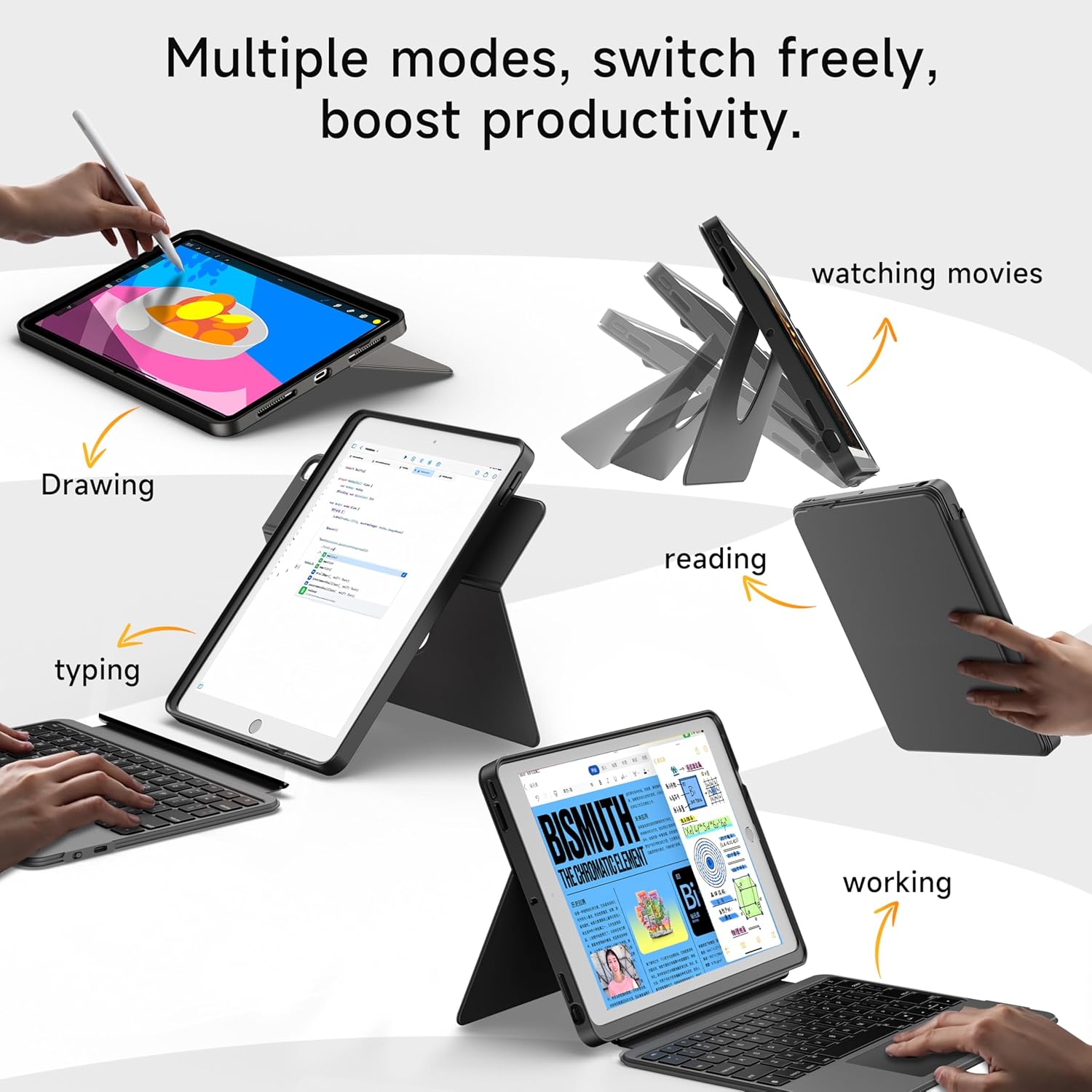
- Magnetic Detachable Design: The keyboard can be easily detached from the case, allowing for flexible use in tablet mode or laptop mode.
- 360° Rotating Stand with Adjustable Angles: Provides versatile viewing angles, supporting both portrait and landscape orientations for various activities like reading, watching, or presenting.
- 7-Color Backlit Keyboard: Features adjustable 7-color backlighting for typing in low-light conditions, with customizable brightness levels.
- Military-Grade Protection: The shockproof silicone case offers 360° protection against drops and spills.
- Secure Apple Pencil Storage: Includes an elastic strap to securely hold your Apple Pencil.
- Touchpad agbakwunyere: A large multi-touch touchpad supports iOS gestures for precise navigation.
- Ogologo ndụ batrị: The keyboard features a 500mAh battery, providing up to 50 hours of use with backlighting off, or 4-6 hours with backlighting on.

4. Nhazi ntuziaka
4.1. Ịchaji ahụigodo
Before first use, ensure the keyboard is fully charged.
- Locate the USB-C charging port on the side of the keyboard.
- Connect the provided USB-C cable to the keyboard and a compatible power adapter (not included).
- The LED indicator will turn red during charging and turn off when fully charged. A 2-hour charge provides weeks of use.

4.2. Njikọ Bluetooth
Soro usoro ndị a iji jikọọ keyboard gị na iPad gị site na Bluetooth:
- Ensure the keyboard is charged and turn it on using the power switch.
- Na iPad gị, gaa na Ntọala > Bluetooth.
- Pịa ma jide FN + CONTROL + R keys on the keyboard for 3 seconds to enter pairing mode. The Bluetooth indicator light on the keyboard will flash.
- On your iPad, select "HOU Keyboard" from the list of available devices.
- Once paired, the Bluetooth indicator light on the keyboard will turn off.
5. Ntuziaka ọrụ
5.1. Using the Keyboard
The keyboard provides a full QWERTY layout with dedicated iOS command keys for efficient workflow.
- Uzo mkpirisi: Access one-tap shortcuts for screen brightness, media playback, volume control, Lock, Home, and Emoji functions.
- Na-ede: Enjoy a comfortable and quiet typing experience for documents, emails, and more.

5.2. Na-edozi ọkụ azụ
The keyboard features 7-color backlighting with adjustable brightness.
- Gbanwee agba: Pịa FN + Light Bulb icon to cycle through the 7 available colors.
- Gbanwee ihie: Pịa FN + akụ elu or FN + akụ ala to increase or decrease backlight brightness.
5.3. Using the Touchpad
The large multi-touch touchpad supports various iOS gestures for intuitive navigation:
- Naanị otu mkpịsị aka: Click/Select.
- Two Fingers Swipe: Scroll up/down/left/right.
- Three Fingers Swipe Up: Gaa na ihuenyo ụlọ.
- Three Fingers Swipe Down: View Ebe njikwa.
- Pinch In/Out: Bubata/ pụta.
5.4. Utilizing the 360° Rotating Stand
The integrated stand allows for flexible viewnhọrọ ing:
- Ụdị ọdịdị ala: Ideal for watching videos, presentations, or typing.
- Ọnọdụ Eserese: Perfect for reading documents, browsing social media, or video calls.
- Tilt nwere ike idozi: Tilt the screen from 90° (typing) to 170° (movie nights) for optimal comfort.


6. Nlekọta
To ensure the longevity and optimal performance of your HOU iPad Keyboard Case, follow these maintenance guidelines:
- Nhicha: Jiri nwayọọ, damp ákwà iji hichaa mpụta nke igbe ahụ na ahụigodo. Zere kemịkalụ siri ike ma ọ bụ ihe ndị na-emebi ihe.
- Nchekwa: When not in use, keep the keyboard case closed to protect the screen and keyboard. Store in a cool, dry place away from extreme temperatures.
- Zere Mmiri mmiri: While the case offers some protection, avoid direct exposure to liquids to prevent damage to the electronic components.
7. Nchọpụta nsogbu
If you encounter any issues with your HOU iPad Keyboard Case, refer to the following common solutions:
- Keyboard Not Connecting via Bluetooth:
- Ensure the keyboard is fully charged and powered on.
- Turn off and on your iPad's Bluetooth, then try pairing again.
- Make sure your iPad's operating system is iOS 15.3 or later.
- Ahụigodo Anaghị aza:
- Check the keyboard's battery level. Recharge if necessary.
- Jikọọ njikọ Bluetooth.
- Ìhè azụ anaghị arụ ọrụ:
- Gbaa mbọ hụ na agbanyere ahụigodo.
- Pịa FN + Light Bulb icon to activate or change backlight settings.
- Touchpad Lag or Unresponsiveness:
- Gbaa mbọ hụ na batrị ahụigodo adịchaghị ala.
- Restart the Bluetooth connection on your iPad.
8. Nkọwapụta ngwaahịa
| Njirimara | Nkọwa |
|---|---|
| Ụdị | HOU |
| Nọmba nlereanya | B0DTKBTV4H |
| Ngwa dakọtara | iPad 9th/8th/7th Gen 10.2", iPad Air 3, iPad Pro 10.5" 2017 |
| Teknụzụ Njikọta | Bluetooth |
| Nkọwa ahụigodo | Ergonomic, Ultra-Silent Keys, X-shaped high-rebound keys |
| Atụmatụ pụrụ iche | Backlit (7-Color), Detachable Case, Hotkeys and Media Keys, Portable, Trackpad, 360° Rotating Stand, Apple Pencil Holder |
| Ike batrị | 500mAh (Lithium) |
| Ndụ batrị | Up to 50 hours (backlight off), 4-6 hours (backlight on) |
| Nchaji ọdụ ụgbọ mmiri | USB-C |
| Ihe onwunwe | Silicone (Shockproof, Military-Grade Protection) |
| Ibu Ibu | 1.34 pound (ihe dị ka 608 g) |
| Ngwa gụnyere | Keyboard, Case, USB-C Charging Cable |
9. Akwụkwọ ikike na nkwado ndị ahịa
Your HOU iPad Keyboard Case is backed by a comprehensive warranty and dedicated customer support.
- Nkwa Ndochi Afọ 1: Enjoy peace of mind with a 1-year replacement warranty covering manufacturing defects.
- Amụma nkwụghachi nke ụbọchị 30: If you are not completely satisfied with your purchase, you may return it within 30 days for a full refund.
- 24/7 Nkwado ndị ahịa: For any questions, concerns, or assistance, please contact our customer support team available 24 hours a day, 7 days a week.