
1. Okwu mmalite
This manual provides comprehensive instructions for the GTRUI 10.25-Inch Android Car Stereo. This system is designed to upgrade your vehicle's entertainment and navigation capabilities by integrating modern features like Wireless CarPlay and Android Auto, while seamlessly retaining essential original vehicle functionalities.
2. Ndakọrịta
This GTRUI car stereo is exclusively designed for the following BMW models equipped with the CIC System:
- BMW X5 E70 (2011-2013)
- BMW X6 E71 (2011-2013)
To confirm your vehicle has the CIC system, verify the presence of a 4-Pin LVDS port at the OEM screen, a 'CD' button on the iDrive controller, and a BMW 'Car Information Computer' Interface in your original menu.

Image: Comparison of the original BMW screen and the GTRUI 10.25-inch display after installation, along with key identifiers for the CIC system.

Image: Visual guide to identifying the CIC system in your BMW, highlighting the LVDS port, CD button, and interface.
3. Kedu ihe dị na Igbe ahụ
Mgbe ịmechara igbe, biko hụ na akụrụngwa ndị a dị:
- 10.25” Head Unit
- Wiring Harness Cable
- AUX Extension Cable
- eriri USB
- Akwụkwọ ntuziaka (akwụkwọ a)

Image: All components included in the GTRUI 10.25-inch Android Car Stereo package.
4. Ntọala na nwụnye
Installation of this car stereo system requires technical expertise. It is highly recommended to seek professional installation to ensure proper functionality and avoid damage to your vehicle or the product.
Nzọụkwụ Nwụnye Ọkachamara (A kwadoro nwụnye ọkachamara):
- Kwupu batrị: Before starting, disconnect the vehicle's battery to prevent electrical shorts.
- Remove Original Screen: Carefully remove the original BMW screen from the dashboard.
- Jikọọ eriri waya: Connect the provided wiring harness cable to the vehicle's existing wiring and the new head unit. Ensure all connections are secure.
- Install New Head Unit: Mount the GTRUI 10.25-inch head unit into the dashboard.
- Jikọọ batrị: Once all connections are made and the unit is secured, reconnect the vehicle's battery.
- Ọrụ nnwale: Power on the vehicle and test all functions, including the original BMW system and the new Android features.
The system is designed for perfect integration, matching the original dashboard appearance and retaining all original BMW functions.
5. Ntuziaka ọrụ
5.1 Gbanyụọ ma ọ bụ gbanyụọ
The unit powers on automatically with the vehicle's ignition. To turn off the display, use the vehicle's power controls or the dedicated button on the unit, if available.
5.2 Arụ ọrụ ihuenyo mmetụ
The 10.25-inch IPS display features a 1920x720 pixel resolution and glass-to-glass touch technology for clear visuals and responsive interaction. Navigate menus and applications by tapping, swiping, and pinching on the screen.
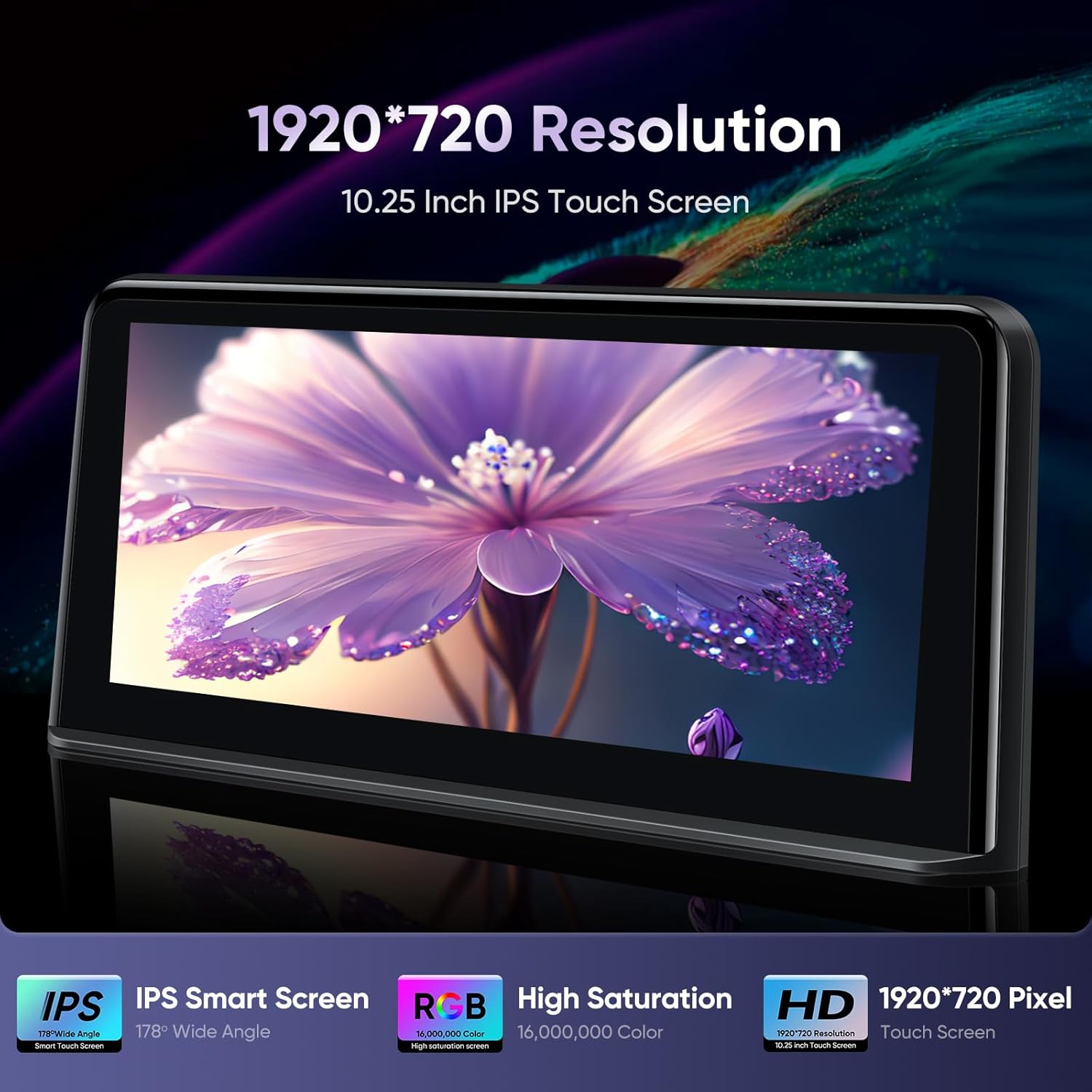
Image: The 10.25-inch IPS touch screen showcasing its high resolution and vibrant display.
5.3 CarPlay ikuku na gam akporo Auto
The system supports both Wireless CarPlay and Android Auto, allowing seamless integration with your smartphone for navigation, communication, and entertainment.
- Njikọ: Simply pair your smartphone via Bluetooth. CarPlay or Android Auto will automatically connect.
- Iwu olu: Utilize voice assistants like Siri (for CarPlay) or Google Assistant (for Android Auto) by saying "Hey Siri" or "OK Google" to get directions, make calls, send messages, and play music.
- Mara: Some smartphone models may not support wireless Android Auto connection.

Image: Apple CarPlay interface shown on the GTRUI display.

Image: Wireless CarPlay and Android Auto connectivity demonstration.

Image: Demonstrating voice command functionality with Siri and Google Assistant.

Image: Audio and video transmission via Bluetooth and WiFi, integrating with the original BMW Bluetooth.
5.4 Retained Original Functions
The GTRUI system is engineered to work in conjunction with your BMW's existing features, ensuring no loss of functionality.
- iDrive System: Full functionality of the original iDrive controller is retained.
- Original Fiber Optic Sound System: Compatibility with your vehicle's existing sound system.
- Original Radio: Access to your vehicle's factory radio.
- Ihe ọkpụkpọ CD: Continued use of the original CD player.
- Bluetooth: Original Bluetooth functionality is maintained.
- Backup Camera Display: Your factory backup camera display will function as before.
- Steering Wheel Control (SWC) Function: All original steering wheel controls remain operational.

Foto: Ofeview of original BMW functions that are fully retained after installing the GTRUI system.

iDrive System Retained

BMW AmpSistemụ lifier

Original Radio

Original Bluetooth

Backup Camera Display

Original CD Player

Ọrụ njikwa Wheel Wheel
6. Nlekọta
6.1 Nhicha ihuenyo
To clean the touch screen, use a soft, lint-free cloth. For stubborn smudges, lightly dampen the cloth with water or a screen-safe cleaning solution. Avoid harsh chemicals or abrasive materials that could damage the screen surface.
6.2 Mmelite ngwanrọ
Periodically check for available software updates to ensure optimal performance and access to the latest features. Refer to the system's settings menu for update options or contact GTRUI support for guidance.
6.3 Nlekọta n'ozuzu
Zere ikpughepụ igwe ahụ n'ebe okpomọkụ dị oke elu, ìhè anyanwụ kpọmkwem ruo ogologo oge, ma ọ bụ oke mmiri mmiri. Hụ na ikuku na-efegharị gburugburu igwe ahụ iji gbochie oke okpomọkụ.
7. Nchọpụta nsogbu
If you encounter issues with your GTRUI car stereo, refer to the following common problems and solutions:
| Nsogbu | Ihe nwere ike ime | Ngwọta |
|---|---|---|
| Enweghị ike | Loose wiring connection, blown fuse, vehicle battery issue. | Check all wiring connections. Inspect vehicle fuses. Ensure vehicle battery is charged. |
| Enweghị ụda | Volume too low, incorrect audio source selected, loose audio cables. | Increase volume. Verify correct audio input (e.g., AUX). Check audio cable connections. |
| CarPlay/Android Auto anaghị ejikọ | Bluetooth not paired, Wi-Fi interference, phone compatibility. | Ensure Bluetooth is enabled and paired. Restart phone and head unit. Check phone compatibility for wireless connection. |
| Okwu ngosi ihuenyo | Software glitch, loose display cable. | Restart the head unit. If issue persists, contact support. |
| Original Functions Not Working | Incorrect wiring, software conflict. | Double-check all wiring connections. Ensure the system is correctly configured to retain original functions. |
For issues not listed here or if the suggested solutions do not resolve the problem, please contact GTRUI customer support.
8. Nkọwapụta
| Njirimara | Nkọwa |
|---|---|
| Nha ihuenyo | 10.25 sentimita asatọ |
| Mkpebi | 1920x720 pikselụ |
| Ụdị ngosi | IPS Touch Screen, Glass to Glass |
| Njikọta | Bluetooth, USB, Wireless Android Auto, Wireless CarPlay, Wi-Fi |
| Ụdị njikwa | Android |
| Ọnọdụ mmepụta ọdịyo | Stereo |
| Ibu Ibu | 1.85 kilogram |
| Nọmba nlereanya | CIC-10.25"-Linux |
| UPC | 725414054783 |
9. Akwụkwọ ikike na nkwado
9.1 Ozi akwụkwọ ikike
This GTRUI product is covered by a Akwụkwọ ikike nke onye nrụpụta afọ 1 site na ụbọchị ịzụrụ. Akwụkwọ ikike a na-ekpuchi ntụpọ dị na ngwa na arụ ọrụ n'okpuru ojiji nkịtị. Biko dowe ihe akaebe nke ịzụrụ ihe maka akwụkwọ ikike.
9.2 Nkwado ndị ahịa
For technical assistance, warranty inquiries, or any questions regarding the operation or installation of your GTRUI 10.25-Inch Android Car Stereo, please contact GTRUI customer support via Amazon email. Our team is available to provide professional technical support.