
1. Okwu mmalite
The xTool M1 Ultra is a versatile 4-in-1 craft machine designed for laser engraving, blade cutting, inkjet printing, and pen drawing. This device offers a comprehensive solution for various crafting needs, supporting over 1000 different materials. This manual provides essential information for the safe and effective operation, setup, and maintenance of your xTool M1 Ultra.

Figure 1.1: The xTool M1 Ultra machine with its interchangeable modules and examples of crafted items.
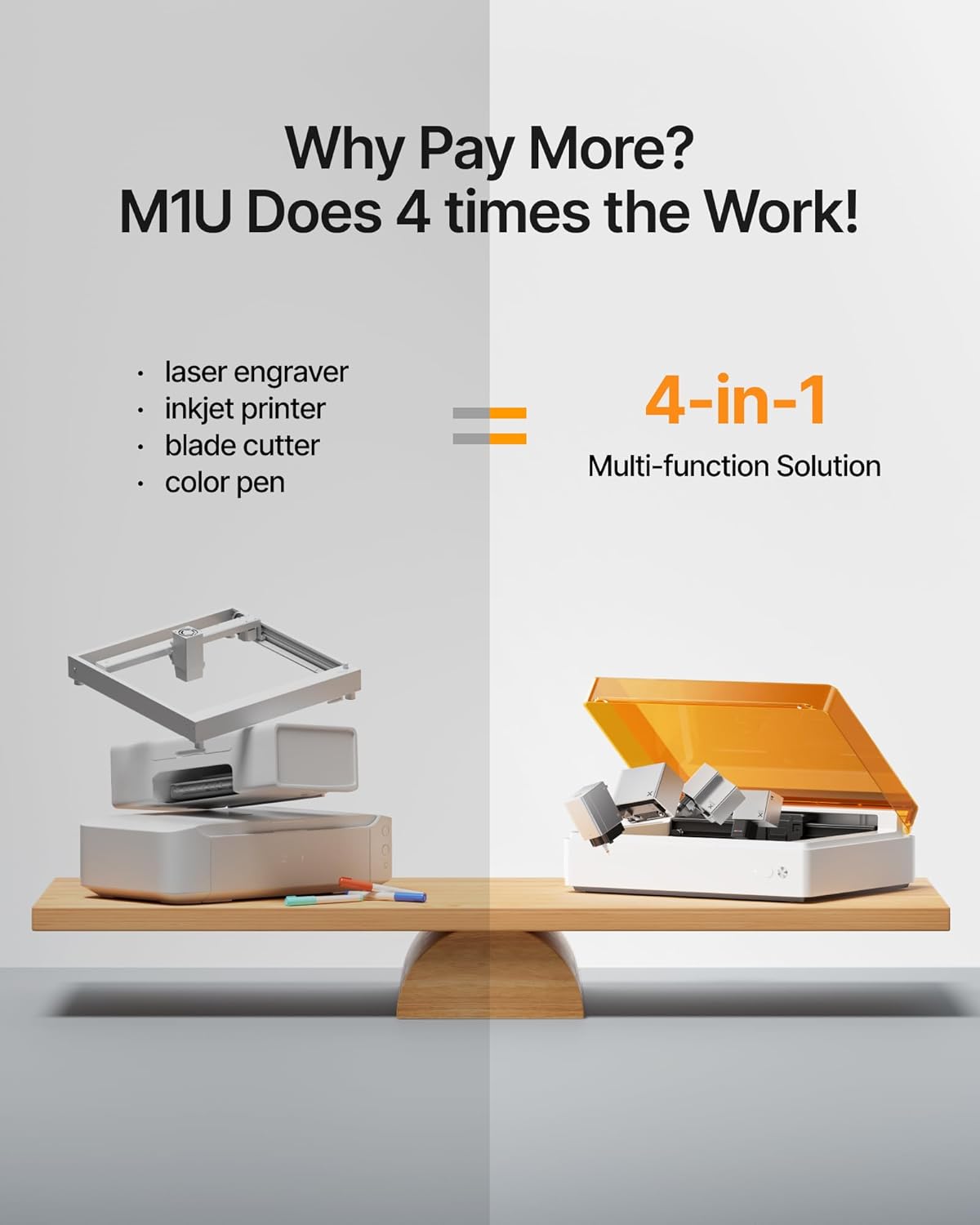
Figure 1.2: Illustration of the xTool M1 Ultra's integrated 4-in-1 capabilities: laser engraver, inkjet printer, blade cutter, and color pen.
2. Ozi nchekwa
Operating the xTool M1 Ultra requires adherence to safety guidelines to prevent injury and damage. This device is a Class I laser product. Always follow these instructions:
- Nchedo anya: Never look directly at the laser beam. The machine is designed with a protective cover; ensure it is closed during laser operation.
- Igwe ikuku: Operate the machine in a well-ventilated area. Laser engraving and cutting can produce fumes and smoke. Consider using an external smoke purifier for optimal air quality.
- Ndakọrịta ihe: Only process materials approved for laser or blade use. Certain materials can produce toxic fumes or catch fire when processed.
- Nlekọta: Ahapụla igwe n'echeghị ya mgbe ọ na-arụ ọrụ.
- Nkwụsị ihe mberede: Familiarize yourself with the location of the emergency stop button on the machine.
- Ụmụaka na anụ ụlọ: Debe ụmụaka na anụ ụlọ n'ebe igwe anaghị arụ ọrụ.
3. Nhazi
The xTool M1 Ultra is designed for quick setup. Follow these steps to prepare your machine for first use:
- Unboxing: Jiri nlezianya wepụ igwe na ngwa niile na nkwakọ ngwaahịa. Jido nkwakọ ngwaahịa maka mbugharị ma ọ bụ nchekwa n'ọdịnihu.
- Nkwanye: Place the machine on a stable, level surface in a well-ventilated area. Ensure adequate space around the machine for air circulation and access.
- Njikọ ike: Connect the power adapter to the machine and then to a suitable power outlet.
- Nwụnye modul: The machine features an Easy Swap Design for modules. Select the desired module (laser, blade, inkjet, or pen) and securely install it into the designated slot. Refer to the module-specific instructions for detailed installation.
- Nwụnye ngwanrọ: Download and install the xTool Creative Space (XCS) software on your computer or mobile device. The software is essential for controlling the machine and designing projects.
- Nhazi izizi: Follow the on-screen instructions in the XCS software for initial machine calibration, including camera calibration for snapshot preview and pinpoint positioning.

Nyocha 3.1: N'eluview of the simple 3-step workflow: Place Material, Design and Start, Done Easily.
4. Ntuziaka ọrụ
The xTool M1 Ultra offers multiple functionalities. This section outlines general operating procedures.
4.1. General Workflow
- Kwadebe ihe: Place your chosen material inside the machine's working area. Ensure it is flat and properly secured if necessary.
- Jikọọ na ngwanrọ: Open the XCS software on your computer or mobile device and connect to your xTool M1 Ultra.
- Design or Import: Create a new design or import an existing one into the XCS software.
- Ndokwa: Use the snapshot preview feature to accurately position your design on the material. Adjust as needed.
- Họrọ Ụdị ọrụ: Choose the appropriate mode (Laser Engrave, Laser Cut, Blade Cut, Inkjet Print, Pen Draw) based on your project and installed module.
- Tọọ oke: Select the material type from the preset parameters or manually adjust settings like power, speed, and passes.
- Malite ọrụ: Initiate the process from the software. The machine will begin working. Monitor the process and ensure the protective cover remains closed during laser operations.
4.2. Specific Operation Modes
The M1 Ultra supports various crafting techniques:
- Laser Cutting & Engraving: Utilizes the 10W laser for precise cutting and detailed engraving on a wide range of materials.
- Blade Cutting: Ideal for cutting softer materials like vinyl, paper, and thin fabrics.
- Inkjet Printing: Allows for color printing directly onto materials, expanding creative possibilities.
- Pen Drawing: Enables drawing and writing with various pens for custom designs.
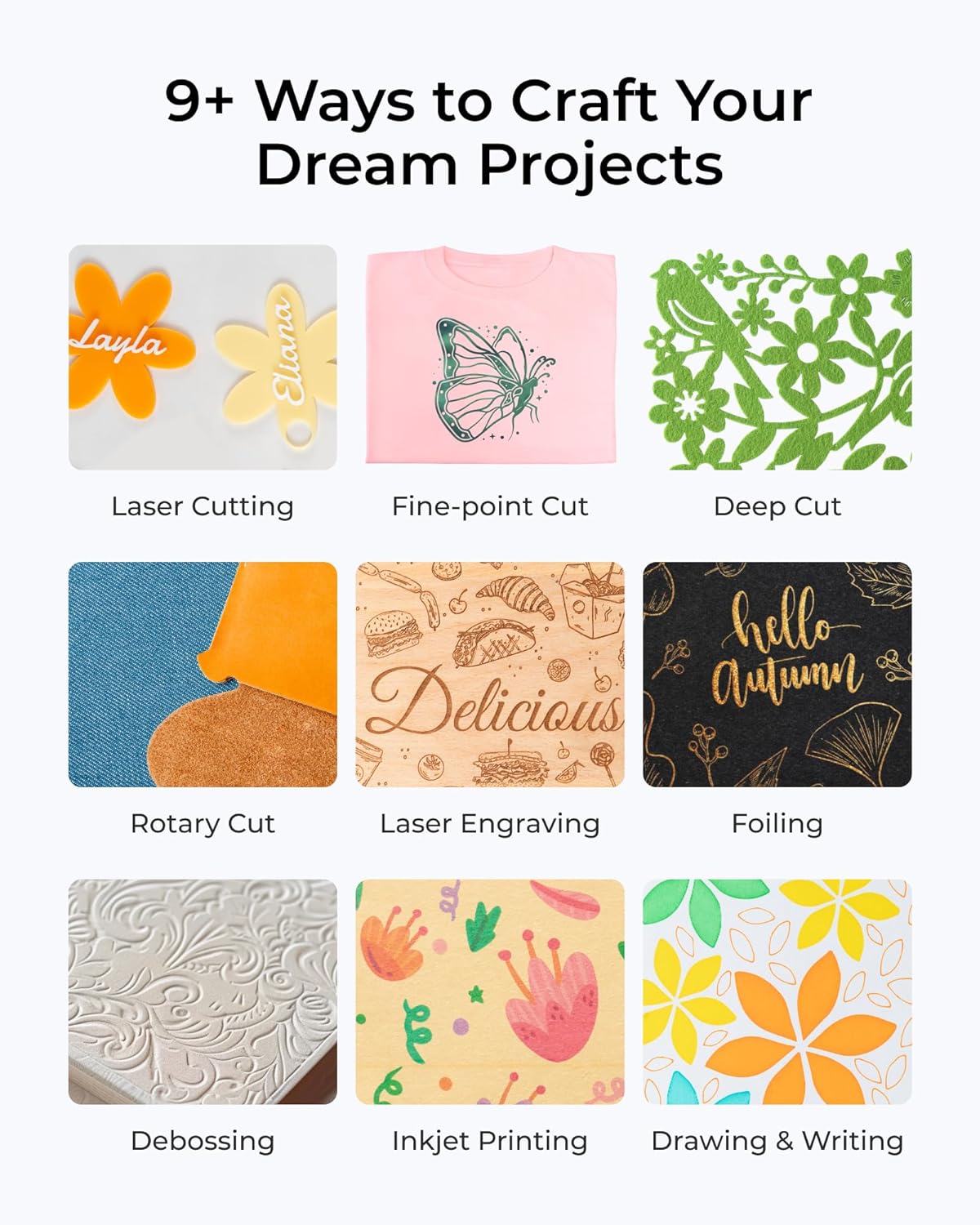
Ọgụgụ 4.1: Ọpụamples of diverse crafting methods achievable with the xTool M1 Ultra.

Figure 4.2: Illustrations of complex projects created by combining multiple functions of the M1 Ultra.
4.3. Ngwa ndakọrịta
The xTool M1 Ultra is compatible with over 1000 materials, including but not limited to:
- Wood (various types)
- Acrylic
- Akpụkpọ anụ
- Paper & Cardstock
- Vinyl
- Akpụkpọ anụ
- chere
- Rubber
- Cork
- Some metals (for engraving)
- Glass (for engraving)
- Ceramics (for engraving)

Figure 4.3: A visual representation of the wide range of materials compatible with the M1 Ultra.
4.4. Iji Ngwa
For enhanced capabilities, the M1 Ultra supports various accessories:
- Riser Base: Increases the working height, allowing for processing of thicker materials or objects.
- RA2 Pro Rotary Attachment: Enables engraving on cylindrical objects like tumblers and bottles.
- Smoke Purifier: Filters fumes and odors produced during laser operations, improving air quality.
- Enyemaka Ikuku: Directs a stream of air to the laser's focal point, improving cutting performance and reducing charring.
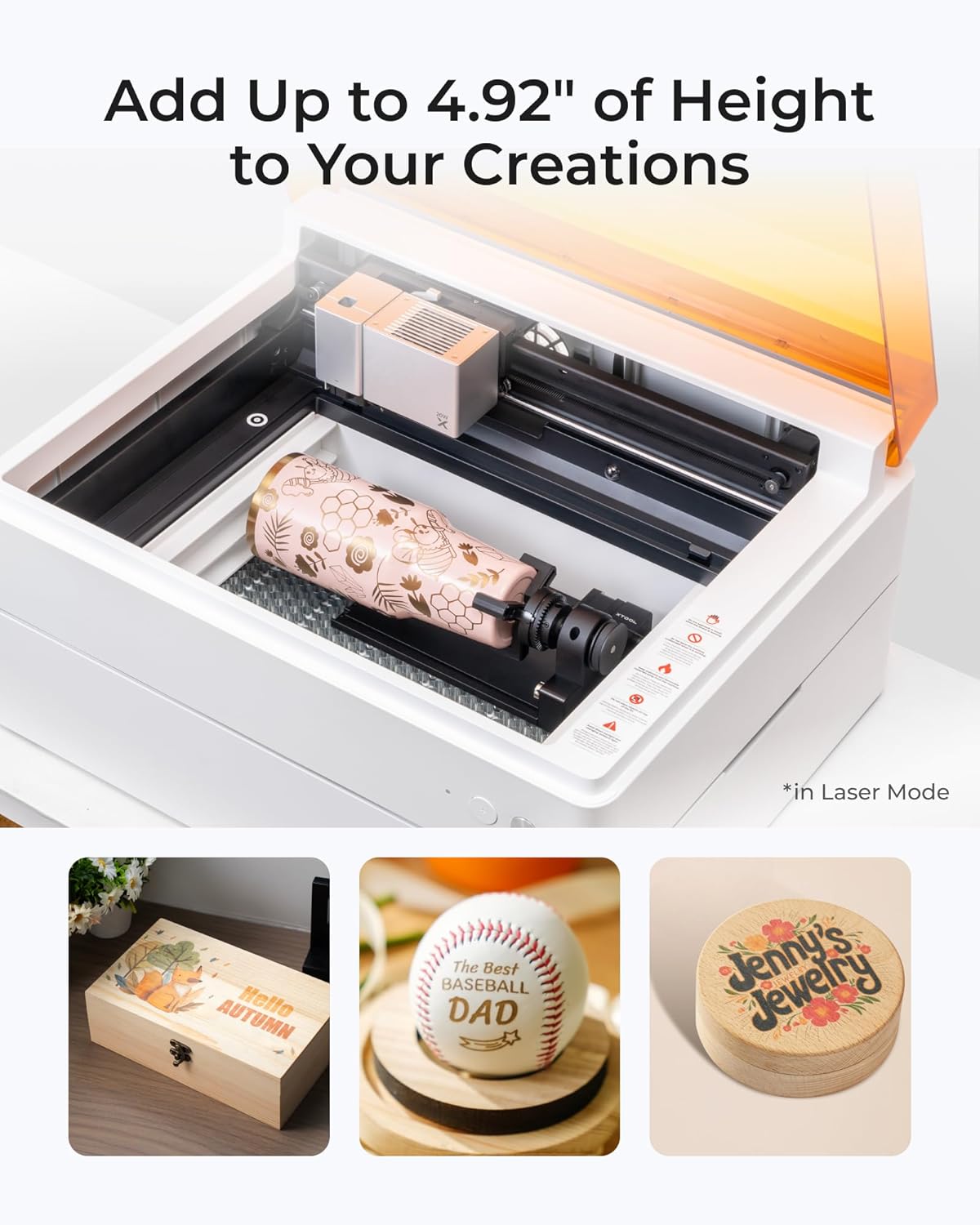
Figure 4.4: The M1 Ultra with the rotary attachment, demonstrating its ability to engrave on cylindrical and taller objects.
5. Software (xTool Creative Space - XCS)
The xTool Creative Space (XCS) software is the primary interface for controlling your M1 Ultra. It features:
- Ngwa ngwa-Enyi na Enyi: Designed for ease of use, suitable for beginners and experienced crafters.
- Foto Preview & Pinpoint Positioning: Utilizes the machine's camera for accurate material placement and design alignment.
- Artimind AI: Assists in converting text to artwork and optimizing designs.
- Preset Parameters: Offers optimized settings for over 500 materials, simplifying parameter selection.
- Extensive Tutorials: Access to a library of tutorials to guide you through various projects and techniques.

Figure 5.1: Key features of the xTool Creative Space software, including tutorials, preset parameters, easy editing, and AI drawing.
6. Nlekọta
Regular maintenance ensures the longevity and optimal performance of your xTool M1 Ultra.
- Ihicha ime ụlọ: Regularly clean the inside of the machine, especially after laser operations, to remove dust and debris. Use a soft cloth and avoid abrasive cleaners.
- Laser Lens Cleaning: Periodically inspect and clean the laser lens and protective cap. Refer to the detailed cleaning instructions in the full user manual for proper technique.
- Ndochi agụba: Replace the blade when it becomes dull or damaged to ensure clean cuts.
- Inkjet Cartridge Replacement: Replace inkjet cartridges as needed.
- Sistemu ikuku: Ensure the ventilation system is clear of obstructions. Clean the exhaust fan and ducts if necessary.
- Mmelite femụwe: Keep the machine's firmware and XCS software updated to benefit from new features and performance improvements.
7. Nchọpụta nsogbu
Akụkụ a na-ekwu maka nsogbu ndị ị nwere ike izute.
| Nsogbu | Ihe nwere ike ime | Ngwọta |
|---|---|---|
| Igwe anaghị arụ ọrụ | Power cable disconnected, faulty power adapter, power outlet issue | Check power connections, try a different outlet, contact support if issue persists. |
| Laser not firing or weak | Dirty laser lens, incorrect parameters, material not in focus | Clean the laser lens, verify material settings in XCS, ensure material is within focal range. |
| Blade cutting issues (uneven, incomplete) | Dull blade, incorrect blade depth, material not secured | Replace the blade, adjust blade depth, ensure material is firmly placed on the cutting mat. |
| Software connection problems | Bluetooth/USB issue, outdated software/firmware | Restart machine and software, check Bluetooth/USB connection, update XCS and machine firmware. |
| Ọdịmma ebipụta na-adịghị mma | Low ink, clogged nozzle, incorrect print settings | Check ink levels, perform a nozzle clean from software, adjust print quality settings. |
For more detailed troubleshooting or issues not listed here, please refer to the official xTool support resources or contact customer service.
8. Nkọwapụta
| Njirimara | Nkọwa |
|---|---|
| Ụdị | xTool |
| Nọmba nlereanya | M1 Ultra |
| Ike mmepụta laser | 10W (10000mW) |
| Klas laser | Klas I |
| Ọrụ | Laser Engraving, Blade Cutting, Inkjet Printing, Pen Drawing |
| Mpaghara Elu Na-arụ Ọrụ | 139.56 square sentimita |
| Ihe onwunwe | Plastic |
| Agba | Ọcha |
| Ụdị ọrụ | Akpaaka |
| Print Media (Inkjet) | Card stock, Labels, Paper (plain) |
| Akụkụ ngwaahịa | 19.61 x 11.91 x 24.41 sentimita asatọ |
| Ibu Ibu | 78.8 pound |
9. Nkwado na akwụkwọ ikike
For technical assistance, product inquiries, or warranty information, please refer to the official xTool website or contact xTool customer support. Details regarding warranty coverage and service options are typically provided with your product documentation or available online.