
1. Okwu mmalite
The ORGBRO Z3 Bluetooth Thermal Label Printer is a versatile and portable device designed for efficient label creation. It supports a wide range of label sizes from 0.8 to 3.15 inches, making it suitable for various applications including home organization, small business needs, and office use. This manual provides detailed instructions to help you set up, operate, and maintain your label printer.
2. Ihe ngwugwu
Biko chọpụta na agụnyere ihe niile edepụtara n'okpuru na ngwugwu gị:
- ORGBRO Z3 Label Printer
- Igwe nchaji USB
- Ntuziaka onye ọrụ
- Roll of Labels (1.97"x1.18" square labels)
- USB Flash Drive (for PC drivers)
3. Ngwaahịa gafereview
Familiarize yourself with the physical components and controls of your ORGBRO Z3 Label Printer.
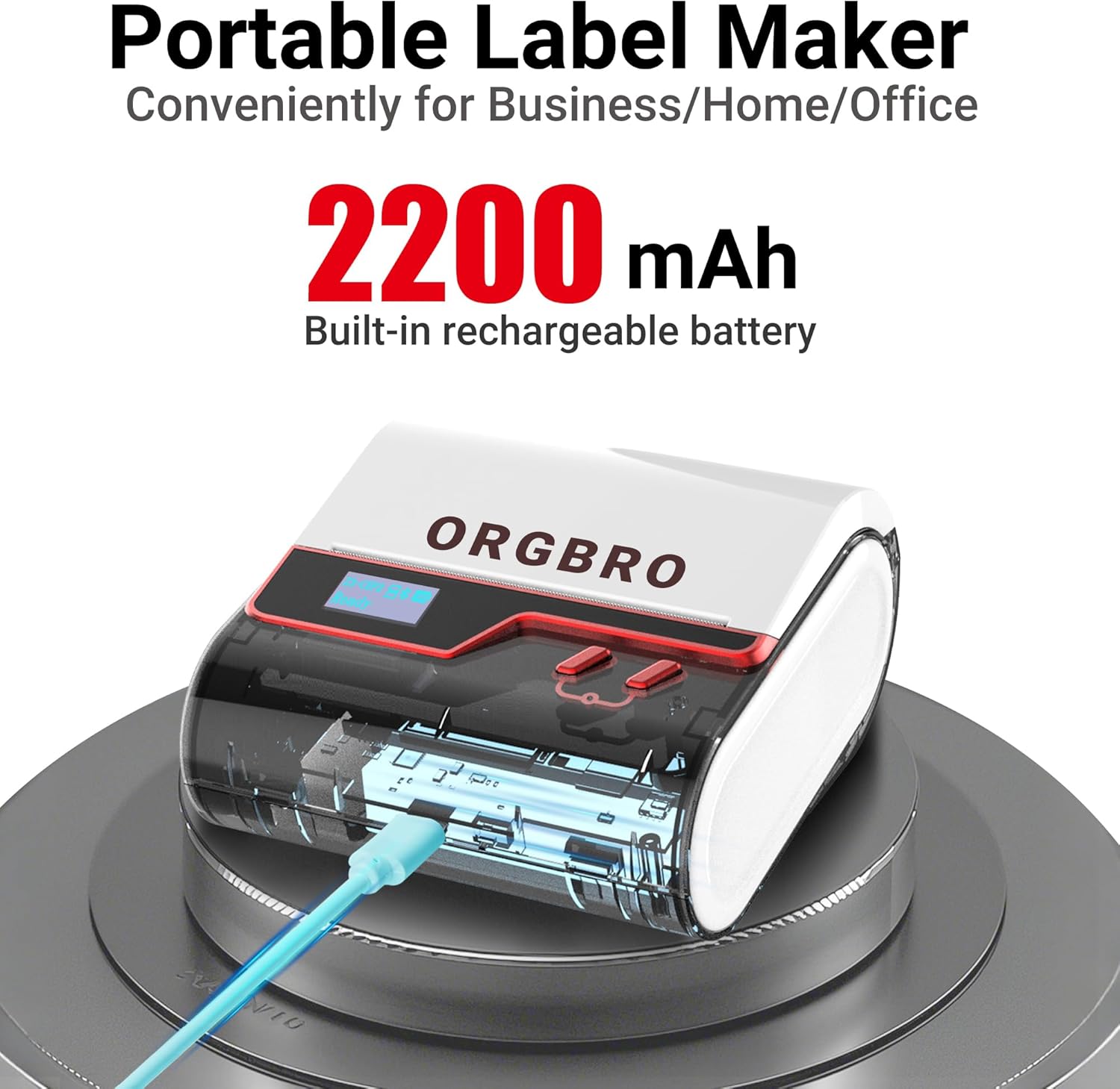
The ORGBRO Z3 Label Maker features a portable design with a built-in 2200mAh rechargeable battery, ensuring long-lasting use on the go.
The device includes a power button, an open cover button for loading labels, and a charging port. An LED screen displays essential information such as battery life, Bluetooth status, and print progress.
4. Atụmatụ igodo
- Versatile Label Compatibility: Supports labels from 0.8 to 3.15 inches wide, including square, round, transparent, and file aha.
- Mbipụta dị oke mma: Achieves crisp 203dpi resolution at speeds up to 50mm/s, ensuring clear text, graphics, and barcodes without smudging.
- Mbipụta Thermal Inkless: Utilizes thermal printing technology, eliminating the need for ink or toner cartridges.
- Batrị na-adịte aka: Equipped with a 2200mAh rechargeable battery, providing up to 4 weeks of runtime on a single charge.
- Ngwakọta Smart: Connects via Bluetooth to the free '4BarCode' app (Android/iOS) or via USB to computers (Windows/Mac/Chrome OS/Linux) for label customization.
- Akara ahaziri ahazi: The '4BarCode' app offers over 80 fonts, 150+ frames, 670+ icons, and allows importing images for personalized labels.

The ORGBRO Z3 supports a wide range of label paper widths, from 0.78 to 3.15 inches, accommodating various label styles for diverse applications.

Experience fast and clear printing with the ORGBRO Z3, capable of producing up to 52 labels per minute with a crisp 203 DPI resolution.

The ORGBRO Z3 is ideal for various business applications, including creating shipping labels, product labels, QR codes, and clothing tags.

Organize your home efficiently with the ORGBRO Z3, perfect for labeling kitchen canisters, storage bins, and other household items.
5. Ntuziaka Nhazi
5.1. Ịchaji ngwaọrụ
Before first use, fully charge the ORGBRO Z3 Label Printer using the provided USB cable. Connect the cable to the charging port on the device and a compatible USB power source. The LED screen will indicate charging status.
5.2. Ịbugo aha
- Press the open cover button on the side of the printer to open the top cover.
- Insert the roll of thermal labels into the compartment, ensuring the printing side faces upwards and the label edge is aligned with the print head.
- Mechie mkpuchi elu ahụ nke ọma ruo mgbe ọ pịnyere aka n'ebe ọ dị.
5.3. Ntinye na Njikọ Ngwa
The ORGBRO Z3 can be connected via Bluetooth to your smartphone or via USB to your computer.
5.3.1. Smartphone Connection (Bluetooth)
- Download the free '4BarCode' app from your device's app store (available for Android and iOS).
- Gbaa mbọ hụ na agbanyere Bluetooth na ekwentị gị.
- Power on the ORGBRO Z3 Label Printer.
- Open the '4BarCode' app and follow the on-screen instructions to connect to your printer via Bluetooth. The printer's name (e.g., Z3-XXXX) should appear in the app's device list.
5.3.2. Computer Connection (USB)
- Connect the ORGBRO Z3 Label Printer to your computer using the provided USB cable.
- Install the necessary drivers from the included USB flash drive or download them from the official ORGBRO websaịtị.
- Follow the installation prompts to complete the driver setup.

The ORGBRO Z3 supports seamless connection to both phones (Android/iOS via Bluetooth) and computers (Windows/Mac/Chrome OS/Linux via USB).
6. Ntuziaka ọrụ
Once connected, you can start creating and printing labels.
6.1. Creating Labels (Using '4BarCode' App)
- Open the '4BarCode' app on your smartphone.
- Select 'Create' to start a new label project.
- Choose your desired label size and orientation.
- Use the app's tools to add text, icons, images, barcodes, or QR codes. You can customize fonts, sizes, and styles.
- Arrange elements on the label canvas as needed.
6.2. Akara Ebipụta
- After designing your label, tap the 'Print' button in the app.
- Review the print preview to ensure the layout is correct.
- Adjust printing density or number of copies if necessary.
- Confirm the print command. The label will be printed from the device.
- Gently tear off the printed label along the serrated edge.

The '4BarCode' app provides multiple labels and templates, along with extensive customization options including over 80 fonts, 150+ frames, and 670+ icons.
7. Nkọwapụta
| Njirimara | Nkọwa |
|---|---|
| Mgbasa ozi bipute | Akwụkwọ ọkụ |
| Oke ntinye akwụkwọ ikike | Ibé akwụkwọ 230 |
| Oke oyiri ọsọ (oji na ọcha) | 2 ppm |
| Mkpebi Mbipụta kacha | 203 dpi |
| Sheet Size (Included) | 1.97 sentimita asatọ (obosara) |
| Ogo mgbasa ozi kacha | 3.15 sentimita asatọ (obosara) |
| Mbipụta nwere akụkụ abụọ | Mba (dị mfe) |
| Ngwaọrụ Akụrụngwa | USB |
| Teknụzụ Njikọta | Bluetooth, USB |
| Njirimara Pụrụ Iche | Enwere ike ibugharị |
| Mmepụta ngwa nbipute | Monochrome |
| Ibu Ibu | 1.21 pound (0.55 Kilogram) |
| Akụkụ ngwaahịa | 4.42 x 4.42 x 2.41 sentimita asatọ |
| Batrị | 1 AA batteries required (included) - 2200mAh rechargeable |
8. Nlekọta
- Nhicha: Regularly clean the print head with a soft, lint-free cloth moistened with isopropyl alcohol. Ensure the device is powered off before cleaning.
- Nchekwa: Chekwaa ngwa nbipute ahụ n'ebe dị jụụ, kpọrọ nkụ pụọ na ìhè anyanwụ kpọmkwem na oke okpomọkụ.
- Nlekọta batrị: Ka ịgbatị ndụ batrị ogologo, zere ịchaji batrị ugboro ugboro. Na-anya ngwaọrụ mgbe niile, ọbụlagodi na ọ naghị eji ya ogologo oge.
- Akwụkwọ mpịakọta: Use only high-quality thermal label rolls compatible with the ORGBRO Z3 to ensure optimal print quality and prevent damage to the print head.
9. Nchọpụta nsogbu
- Igwe Mbipụta Anaghị ejikọta:
- Ensure the printer is powered on and fully charged.
- Verify Bluetooth is enabled on your device and the '4BarCode' app has permission to use it.
- For USB connection, ensure drivers are correctly installed and the cable is securely connected.
- Try restarting both the printer and your connecting device.
- Ọdịmma Mbipụta na-adịghị mma:
- Check if the label roll is inserted correctly with the printing side facing up.
- Hichaa isi mbipụta dịka akọwara na ngalaba mmezi.
- Adjust the printing density settings in the '4BarCode' app.
- Ensure you are using compatible thermal labels.
- Akara ndị anaghị enye nri nke ọma:
- Ensure the label roll is properly seated and not jammed.
- Check for any obstructions in the label path.
- Verify the label width is within the supported range (0.8-3.15 inches).
10. Akwụkwọ ikike na nkwado
ORGBRO products are designed for reliability and performance. For warranty information, technical support, or service inquiries, please refer to the contact details provided in your product packaging or visit the official ORGBRO websaịtị. Debe nnata nzụta gị dị ka ihe akaebe nke ịzụrụ maka nkwupụta ikike.