
1. Okwu mmalite
Daalụ maka ịzụrụasing the Sharp 4T-C65FL6EX 65-inch 4K Frameless Smart TV. This manual provides essential information for the safe and efficient use of your new television. Please read these instructions thoroughly before operating the TV and retain them for future reference.
Ozi nchekwa dị mkpa
Always follow basic safety precautions when using this product to reduce the risk of fire, electric shock, and injury. Do not expose the TV to rain or moisture. Do not open the cabinet; refer all servicing to qualified personnel. Ensure proper ventilation and avoid placing the TV near heat sources.
2. Ngwaahịa gafereview
The Sharp 4T-C65FL6EX is a 65-inch 4K UHD Smart LED TV designed to deliver an immersive viewing experience. It features a frameless design, Google TV operating system, and a built-in digital receiver.
Atụmatụ igodo
- 65-inch 4K UHD Display: Enjoy stunning visuals with a resolution of 3840 x 2160 pixels.
- Nhazi enweghị ntụpọ: Na-eme ka oghere ihuenyo dịkwuo elu maka nnukwu ihe view.
- Google TV Operating System: Access a wide range of apps, movies, and shows.
- Built-in Digital Receiver: Supports DVB-S/S2/T/T2/C broadcast types.
- Dolby Atmos & DTS Studio Sound: Delivers rich, immersive audio.
- Dolby Vision & HDR10: Enhanced contrast and color for compatible content.
- Chromecast agbakwunyere: Easily cast content from your mobile devices.
- Far-field Voice Control & Google Assistant: Control your TV with voice commands.
- Njikọta: Wi-Fi, Bluetooth v5.1, 3 HDMI 2.0 ports, 2 USB ports, LAN.
Ihe ngwugwu
- Sharp 4T-C65FL6EX 65-inch 4K Smart TV
- Njikwa anya
- Igwe ọkụ ọkụ
- Ihe nkwụnye TV (2 iberibe)
- Kpọsara maka nkwụnye nkwụnye
- Akwụkwọ ntuziaka (akwụkwọ a)

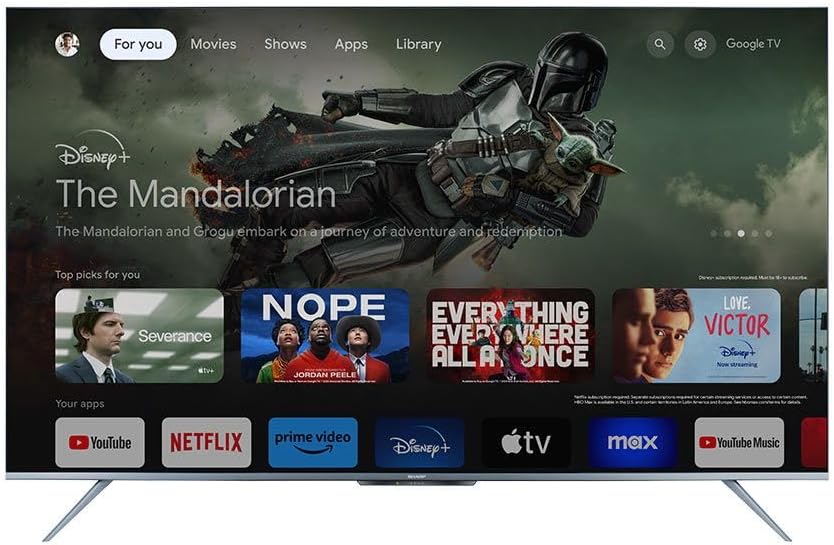
Foto 2.1: N'ihu view of the Sharp 4T-C65FL6EX Smart TV.
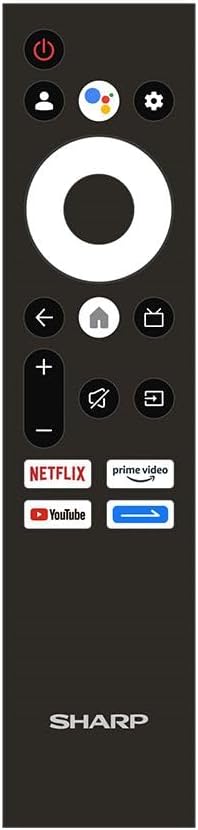
Figure 2.2: The included remote control for the Sharp Smart TV.
3. Nhazi
3.1 Mwepu na ntinye
- Carefully remove the TV from its packaging. It is recommended to have two people for this.
- Place the TV on a stable, flat surface or prepare for wall mounting. Ensure adequate space around the TV for ventilation.
3.2 Nwụnye guzoro
Ọ bụrụ na ị naghị etinye TV n'elu mgbidi, tinye ihe nkwụnye ahụ:
- Lay the TV screen-down on a soft, clean cloth to prevent scratches.
- Kwado ibe nkwụnye ọ bụla na oghere kwekọrọ na ala TV.
- Chekwaa ihe nkwụnye ahụ site na iji skru ndị enyere. Gbaa mbọ hụ na agbachiela ha nke ọma.
3.3 Mgbidi mgbidi (nhọrọ)
This TV is compatible with VESA standard wall mounts. Consult a professional for wall mounting to ensure proper installation and safety. Remove the stand before wall mounting.
3.4 Ngwa jikọọ
Jikọọ ngwaọrụ mpụga gị na TV site na iji ọdụ ụgbọ mmiri kwesịrị ekwesị:
- HDMI: For Blu-ray players, game consoles, cable/satellite boxes. The TV has 3 HDMI 2.0 ports.
- USB: For USB drives to play media (video, photos, music). The TV has 2 USB ports.
- Antenna/Satellite (RF Input): Connect your antenna or satellite dish cable to the RF input for digital broadcasting.
- LAN: Maka njikọ ịntanetị ejikọrọ.
Ọgụgụ 3.1: N'azụ view of the TV illustrating various input/output ports.
3.5 Ike On na Ntọala Oge Mbụ
- Jikọọ eriri ọkụ na TV wee banye na nkwụnye ọkụ.
- Pịa bọtịnụ ike na njikwa anya ma ọ bụ na TV.
- Follow the on-screen instructions to complete the initial setup, which includes selecting language, connecting to Wi-Fi, and signing in with your Google account.
4. Ntuziaka ọrụ
4.1 Ọrụ njikwa anya
The remote control allows you to navigate the TV's features. Key buttons include:
- Bọtịnụ ike: Gbanyụọ ma ọ bụ gbanyụọ TV.
- bọtịnụ enyemaka Google: Na-eme ka njikwa olu rụọ ọrụ.
- Pad Nsoroụzọ (Okirikiri): Moves through menus and selects items.
- Bọtịnụ ụlọ: Na-alaghachi na ihuenyo ụlọ Google TV.
- Bọtịnụ azụ: Na-alaghachi na ihuenyo gara aga.
- Elu elu/ala: Na-edozi olu.
- Oghere bọtịnụ: Mebie ma ọ bụ mebie ụda olu.
- Bọtịnụ ntinye: Na-ahọrọ isi mmalite ntinye (HDMI, AV, wdg).
- Ngwa mkpirisi bọtịnụ: Direct access to Netflix, Prime Video, YouTube.
4.2 Google TV Interface
The Google TV interface organizes your content from various streaming services and apps into one personalized screen. You can browse recommendations, access your library, and discover new content.
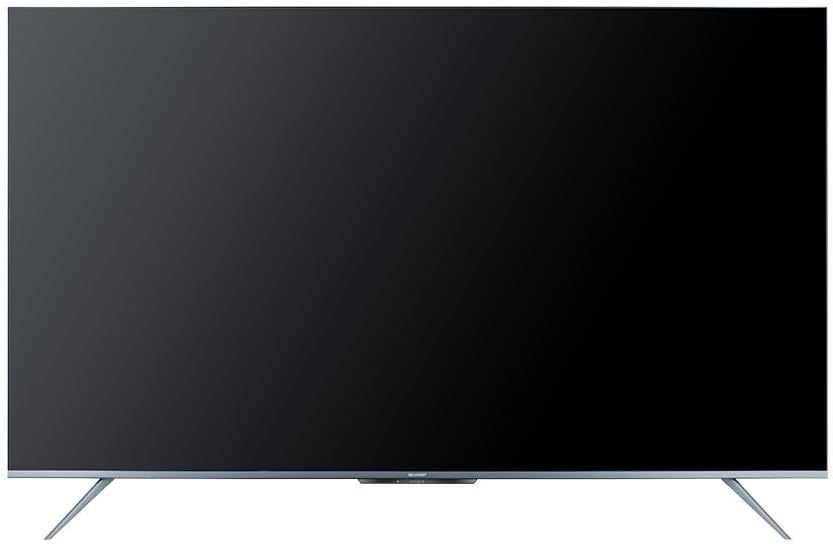
Figure 4.1: The Google TV home screen interface.
4.3 Iji Smart Atụmatụ
- Ngwa gụgharia: Navigate to the 'Apps' section or use the dedicated remote buttons to launch Netflix, Prime Video, YouTube, and other installed applications.
- Ọchụchọ olu: Press the Google Assistant button on your remote and speak into the microphone to search for content, control playback, or ask questions.
- Chromecast arụnyere: Use the Chromecast feature to cast videos, photos, and music from your compatible smartphone, tablet, or computer directly to the TV.
- Web Ihe nchọgharị: Access the internet using the built-in web ihe nchọgharị.
- Ụlọ ahịa Google Play: Download and install additional apps and games from the Google Play Store.
4.4 Nhọrọ Isi mmalite ntinye
To switch between connected devices (e.g., HDMI 1, HDMI 2, TV tuner), press the Ntinye button on your remote control and select the desired source from the on-screen menu.
5. Nlekọta
5.1 Ihicha TV
- Ihuenyo: Jiri nwayọ hichaa ihuenyo ahụ site na iji akwa dị nro na-enweghị lint. Maka akara isi ike, jiri ihe ngwọta na-ehicha ihuenyo emebere maka TV, tinye ya na akwa ákwà, ọ bụghị ozugbo na ihuenyo.
- Kabinet: Wipe the TV cabinet with a soft, dry cloth. Do not use abrasive cleaners, waxes, or solvents.
- Wepụ TV mgbe niile na ebe ọkụ tupu ihicha ya.
5.2 Mmelite ngwanrọ
Your Sharp Smart TV may receive software updates periodically to improve performance and add new features. Ensure your TV is connected to the internet to receive these updates. You can usually check for updates in the TV's settings menu.
6. Nchọpụta nsogbu
Tupu ịkpọtụrụ nkwado ndị ahịa, nwaa azịza ndị a maka okwu nkịtị:
| Nsogbu | Ngwọta enwere ike |
|---|---|
| Enweghị ike | Check if the power cable is securely connected to the TV and the power outlet. Ensure the outlet is working. Try pressing the power button on the TV itself. |
| Enweghị foto, mana ụda dị | Ensure the correct input source is selected. Check HDMI or other video cables for secure connections. |
| Enweghị ụda, mana foto dị | Check the volume level and ensure the TV is not muted. Verify audio cable connections if using external speakers. Check audio output settings in the TV menu. |
| Njikwa anya anaghị arụ ọrụ | Dochie batrị ndị dị na njikwa anya. Gbaa mbọ hụ na onweghị ihe mgbochi n'etiti ime ime na ihe mmetụta IR nke TV. |
| Enweghị ike ijikọ na Wi-Fi | Ensure your Wi-Fi router is on and working. Re-enter the Wi-Fi password carefully. Try restarting your router and the TV. |
| Atụmatụ smart anaghị adị nwayọ ma ọ bụ anaghị azaghachi | Restart the TV. Ensure a stable internet connection. Close unused applications running in the background. |
7. Nkọwapụta
| Njirimara | Nkọwa |
|---|---|
| Nọmba nlereanya | 4T-C65FL6EX |
| Nha ihuenyo | 65 sentimita asatọ |
| Ngosipụta teknụzụ | Ikanam |
| Mkpebi | 3840 x 2160 (4K UHD) |
| Akụkụ akụkụ | 16:9 |
| Viewna n'akuku | ogo 178 |
| Ọnụego ume ọhụrụ | 60 Hz |
| Sistemụ nrụọrụ | Google TV |
| Ebe nchekwa | 32 GB |
| Ụdị mgbasa ozi | Digital (DVB-S/S2/T/T2/C) |
| Teknụzụ ọdịyo | Dolby Atmos, DTS Studio Sound |
| Teknụzụ vidiyo | HLG, Dolby Vision, HDR10 |
| Njikọta | Wi-Fi, Bluetooth v5.1 |
| ọdụ ụgbọ mmiri HDMI | 3 (HDMI 2.0) |
| ọdụ ụgbọ mmiri USB | 2 |
| Ọdụ LAN | 1 |
| Ike mmepụta ọdịyo | 12 watts x 2 |
| Oriri Ike (Arụ ọrụ) | 200 Watt |
| Oriri Ike (Njikere) | <0.5 watts |
| Dimensions (W x H x D) without Stand | 1447.7 x 837 x 81.3 mm |
| Dimensions (W x H x D) with Stand | 1447.7 x 922.6 x 280.2 mm |
| Nha ịbụ | 17.9 n'arọ |
| Mba onye si | Egypt |
8. Akwụkwọ ikike na nkwado
8.1 Akwụkwọ ikike ngwaahịa
This Sharp 4T-C65FL6EX Smart TV comes with a 3-year full free warranty. Please retain your proof of purchase for warranty claims. The warranty covers manufacturing defects and malfunctions under normal use conditions. It typically does not cover damage caused by misuse, accidents, unauthorized repairs, or natural disasters.
8.2 Nkwado ndị ahịa
For technical assistance, service requests, or further inquiries regarding your Sharp TV, please contact Sharp customer support. Refer to the warranty card or Sharp's official websaịtị maka nkọwa kọntaktị kpọmkwem na mpaghara gị.