
Okwu mmalite
The FIRSTNUM M4 4G LTE Mobile Hotspot provides portable and secure Wi-Fi connectivity for up to 10 devices. This device is designed for seamless internet access in various locations, including the U.S. and Mexico, without requiring a physical SIM card or long-term contracts. It features a built-in ESIM and a 3000mAh rechargeable battery for extended use.
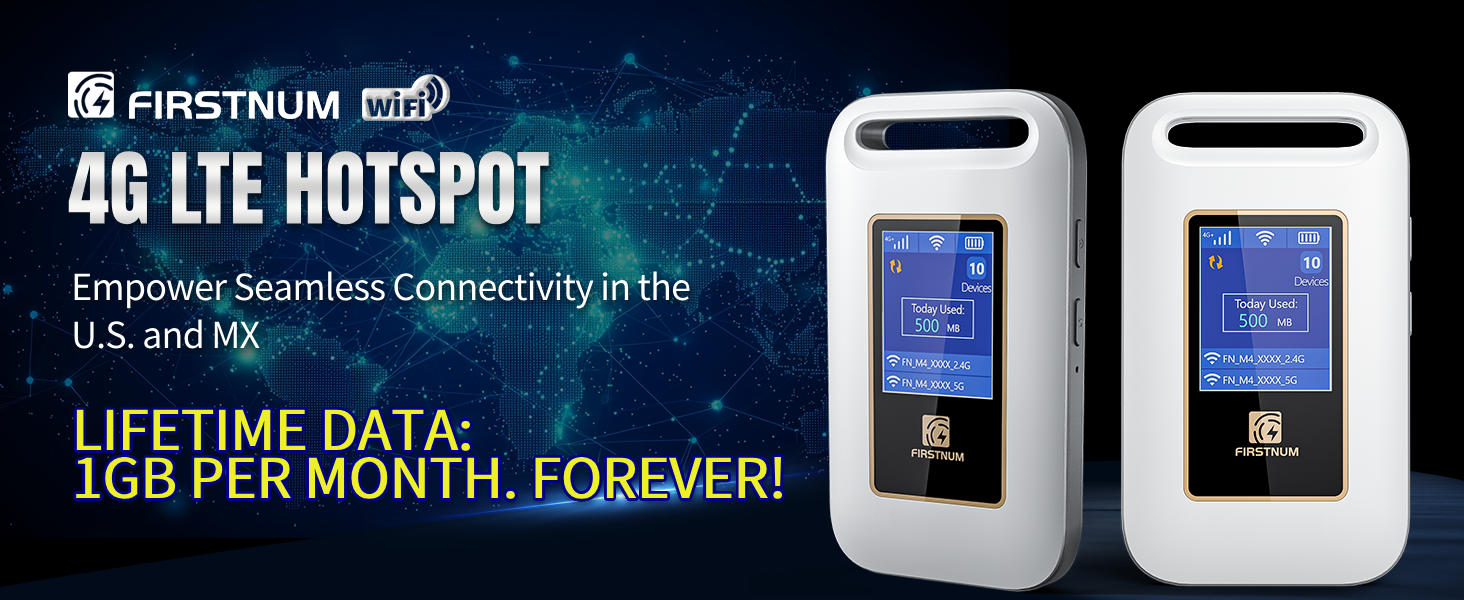
Image: FIRSTNUM M4 4G LTE Mobile Hotspot highlighting key features such as Wi-Fi 6, 4G LTE Internet, no SIM card requirement, secure and private Wi-Fi, connectivity for up to 10 devices, and 8 hours of battery use.
Melite
Ntọlite ngwaọrụ izizi
- Wụnye batrị: Open the back cover of the M4 hotspot and insert the provided Lithium Ion battery. Ensure it is seated correctly.
- Ike Na: Press and hold the power button located on the side of the device until the screen illuminates.
- Retrieve Wi-Fi Information: Once the device is powered on, press the WPS button. The screen will display the Wi-Fi Name (SSID) and Wi-Fi Password (Key).
- Jikọọ na Wi-Fi: On your smartphone, tablet, or computer, navigate to your Wi-Fi settings. Select the Wi-Fi Name displayed on the M4 hotspot's screen and enter the corresponding Wi-Fi Password.
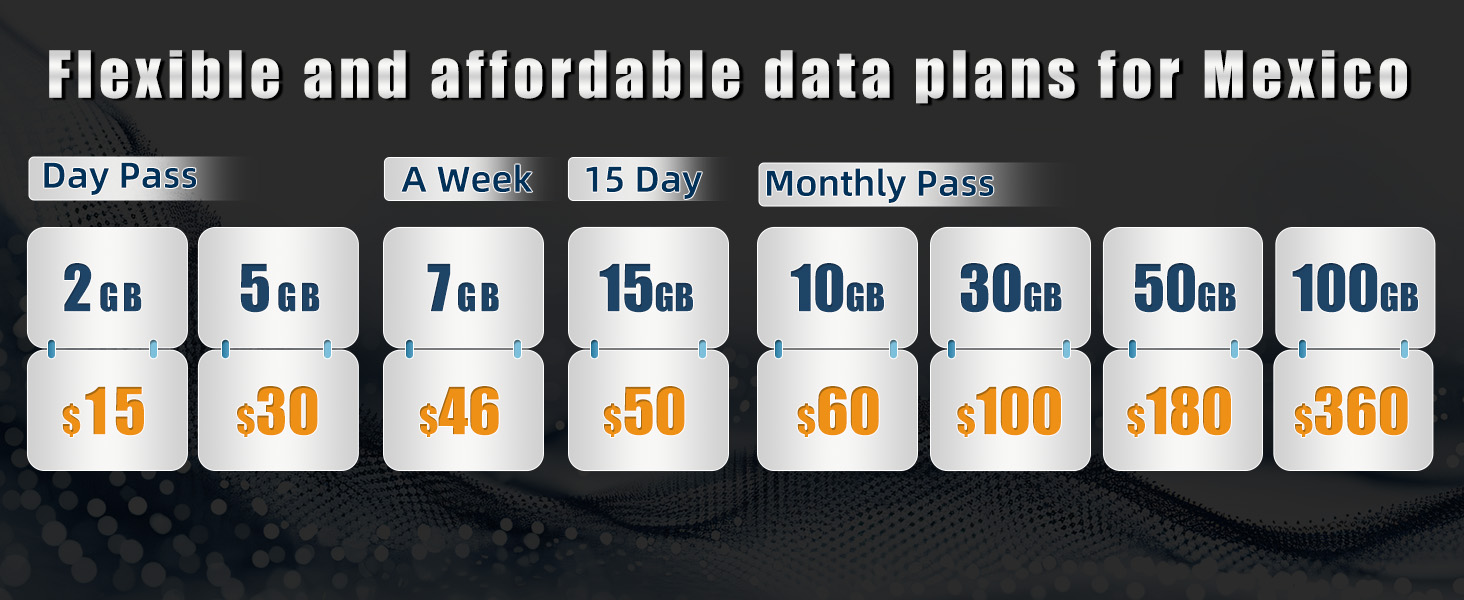
Image: Visual guide for installing the battery, powering on the device, retrieving Wi-Fi credentials, and connecting a smartphone to the hotspot.
Ịchaji ngwaọrụ
The FIRSTNUM M4 features a 3000mAh rechargeable battery. Use the provided Type-C charging cable to charge the device. A full charge provides up to 6 hours of non-stop internet usage.
- Connect the Type-C end of the charging cable to the M4 hotspot's charging port.
- Connect the USB-A end of the charging cable to a compatible USB power adapter (not included) or a computer's USB port.
- The battery icon on the device screen will indicate charging status.
Ntuziaka ọrụ
Ngwa jikọọ
The FIRSTNUM M4 can connect up to 10 devices simultaneously. Follow the Wi-Fi connection steps outlined in the "Initial Device Setup" section for each device you wish to connect.
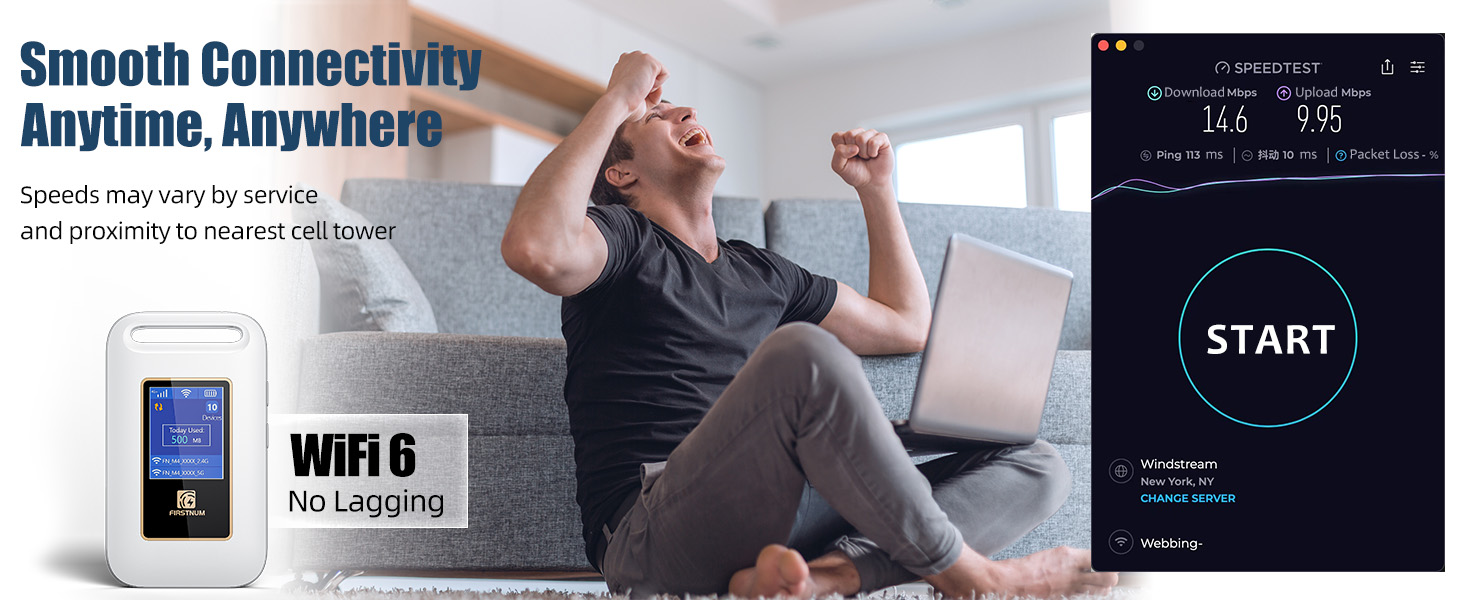
Image: Multiple users connected to a mobile hotspot, illustrating the device's capability to support up to 10 simultaneous connections.
Data Plans and Recharge
The M4 hotspot operates without a SIM card and offers flexible, pay-as-you-go data plans. It includes an exclusive Lifetime Data plan providing 1GB of free US data monthly. Additional data packages are available for purchase.
- Nyochaa koodu QR: Open your smartphone camera and point it at the QR code found on the device's label or screen. Click the link that appears.
- Select Data Plan: Na webpage, scroll down to select your country (US or MX) and desired data plan (Day, Week, or Month packages).
- Ịzụta zuru oke: Enter your personal and payment information, then click "Next" to finalize the data plan purchase.
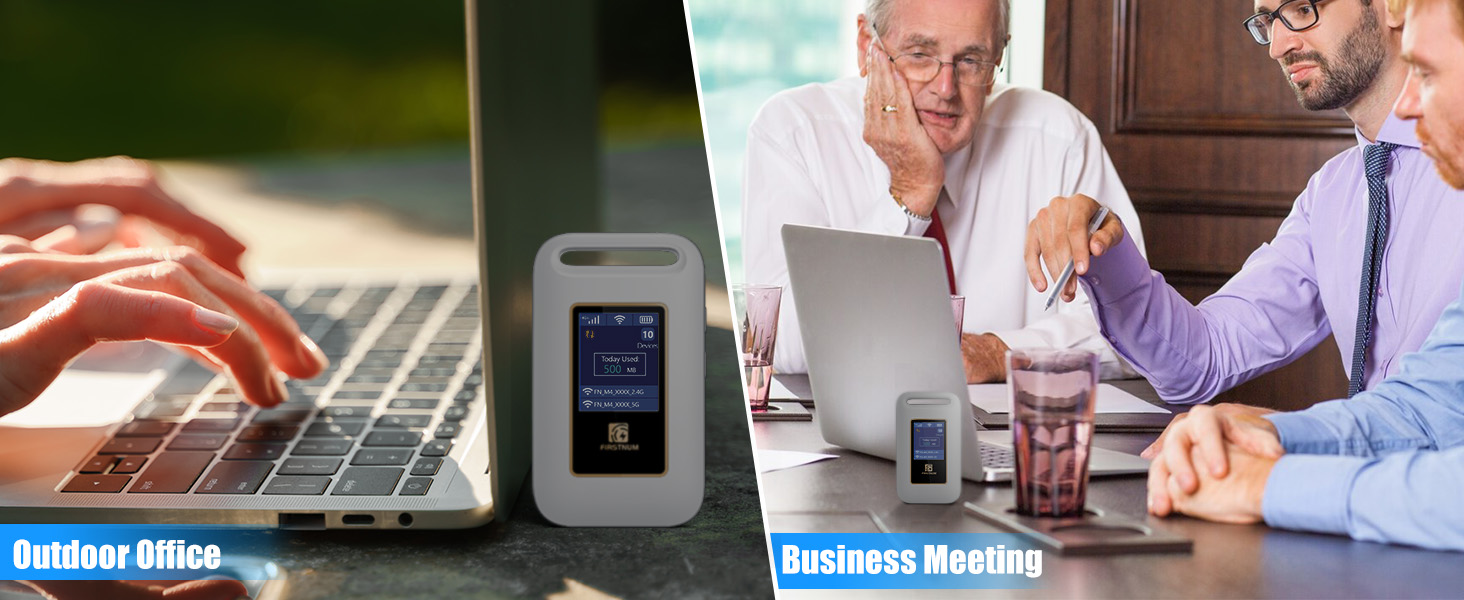
Image: Visual guide for purchasing additional data plans by scanning a QR code and selecting options via a mobile interface.
The device supports major carriers across the U.S. (T-MOBILE, VERIZON, AT&T) and Mexico (Telmex, America Movil), intelligently switching to the strongest 4G network available.
Nlekọta
- Nhicha: Jiri akwa dị nro dị nro hichaa ngwaọrụ ahụ. Zere ndị na-ehicha mmiri mmiri ma ọ bụ ihe abrasive.
- Nchekwa: Store the hotspot in a cool, dry place away from direct sunlight and extreme temperatures.
- Nlekọta batrị: To prolong battery life, avoid fully discharging the device frequently. Charge it regularly, even if not in active use, to maintain battery health.
- Mmelite femụwe: Periodically check the official FIRSTNUM website or the associated mobile application for any available firmware updates to ensure optimal performance and security.
Nchọpụta nsogbu
Ịlele Ike Mgbaama
To ensure optimal performance, verify the signal strength on your M4 hotspot. The screen displays signal bars at the top-right corner.
- Strongest Signal: All signal bars are filled.
- Mgbaàmà siri ike: Most signal bars are filled.
- Medium Signal: Half of the signal bars are filled.
- Akara ngosi adịghị ike: One or two signal bars are filled.
- Enweghị akara: No signal bars are filled, often indicated by a cross.
If the device shows a weak or no signal, move to an area with better network coverage.

Image: Visual guide on how to check signal strength on the hotspot device and interpret the signal indicators.
No Network Connection (with Normal Signal)
If your device shows a normal signal but you cannot access the internet, follow these steps:
- Confirm Signal: Ensure the signal strength is normal on the hotspot screen.
- Check Data Balance: Scan the QR code (as described in "Data Plans and Recharge") to go to the data top-up page and ensure you have remaining data.
- Tọgharịa ngwaọrụ: While the hotspot is turned on, use a pin to press and hold the reset button.
- Malitegharịa: Wait 15 minutes, then long-press the power button to restart the device.

Image: Step-by-step guide for resolving network connection issues when the device indicates a normal signal.
Nkọwapụta
| Nọmba nlereanya | Firstnum M4 |
| Teknụzụ Njikọta | LTE, USB, Wi-Fi |
| Ikuku Communication Standard | 802.11ac, 802.11ax, 802.11b, 802.11g, 802.11n |
| Klaasị ugboro ugboro | Abụọ-Band |
| Njirimara Pụrụ Iche | Internet Security, LED Indicator |
| Batrị | 1 Lithium Ion battery (included), 3000mAh capacity |
| Ibu Ibu | 5.6 ounces |
| Akụkụ ngwugwu | 5.12 x 3.31 x 1.85 sentimita asatọ |
| Ngwa dakọtara | Njikwa Egwuregwu, Kọmputa nkeonwe, Televishọn Smart, Ama Ama, Mbadamba |
| Ngwa gụnyere | Charging cable, Firstnum M4, User Manual |
Akwụkwọ ikike na nkwado
For warranty information and technical support, please refer to the documentation included in your product package or visit the official FIRSTNUM website. Contact details for customer service are typically provided in the user manual or on the manufacturer's support page.