
Okwu mmalite
The Omezizy 247 WiFi Thermal Label Printer is designed for efficient and reliable label printing for various applications, including shipping, barcode, and mailing labels. This printer offers both wireless (Wi-Fi) and wired (USB) connectivity, making it compatible with a wide range of operating systems and devices. Its advanced thermal technology ensures fast, high-resolution printing without the need for ink or toner.
Ihe ngwugwu
Biko chọpụta na etinyere ihe niile edepụtara n'okpuru na ngwugwu gị. Ọ bụrụ na ihe ọ bụla na-efu ma ọ bụ mebie, biko kpọtụrụ nkwado ndị ahịa.
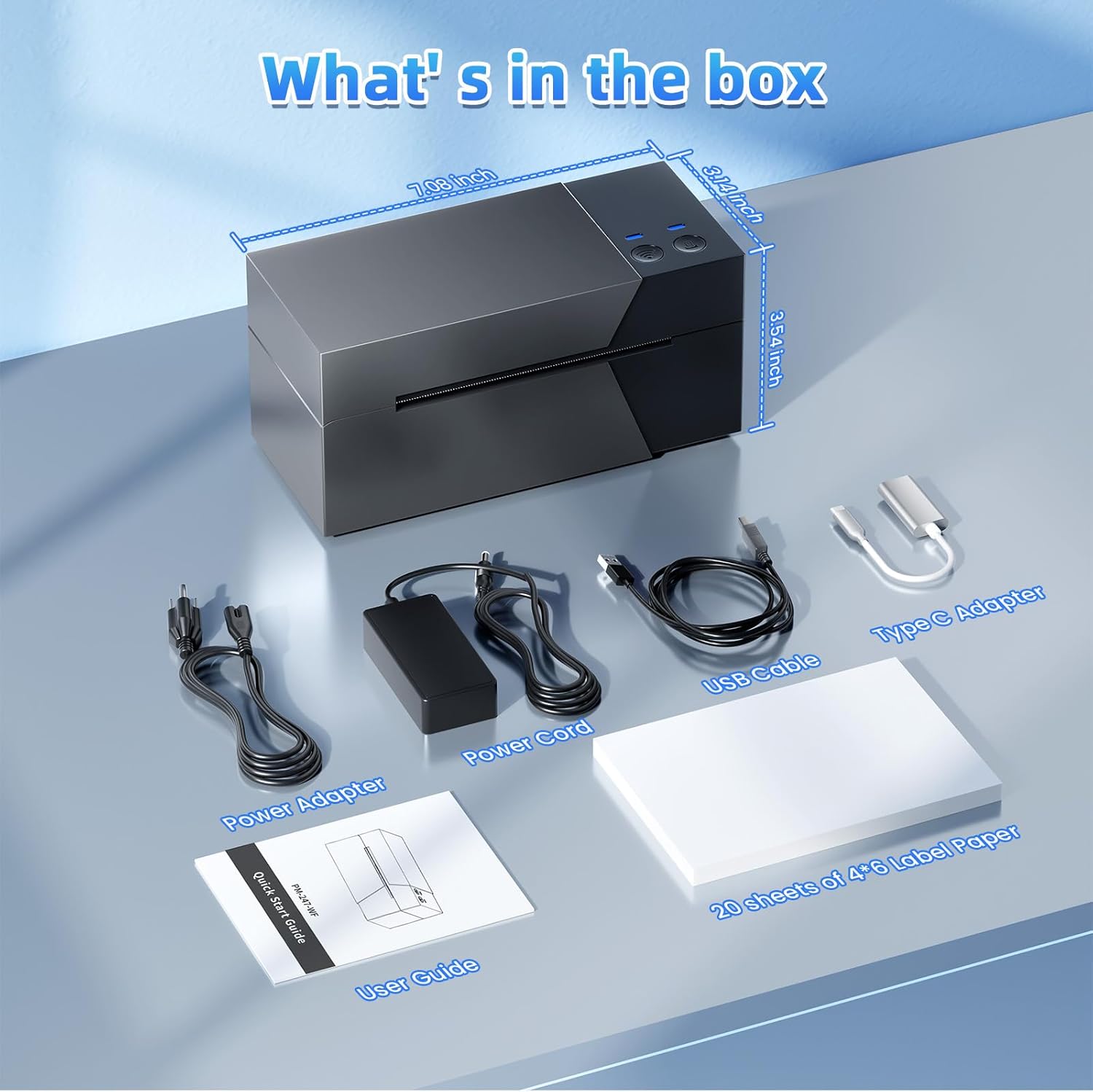
Image: The package contents, including the Omezizy 247 WiFi Thermal Label Printer, power adapter, power cord, USB cable, Type-C converter, user guide, and a starter pack of 4x6 label paper.
- Omezizy 247 WiFi Thermal Label Printer
- Ihe nkwụnye ọkụ
- Ụdọ ọkụ
- eriri USB
- Type-C Converter
- Ntuziaka onye ọrụ
- 20 sheets of 4x6 Label Paper
Ihe karịrị anụ ahụview
Familiarize yourself with the main components of your Omezizy thermal label printer.
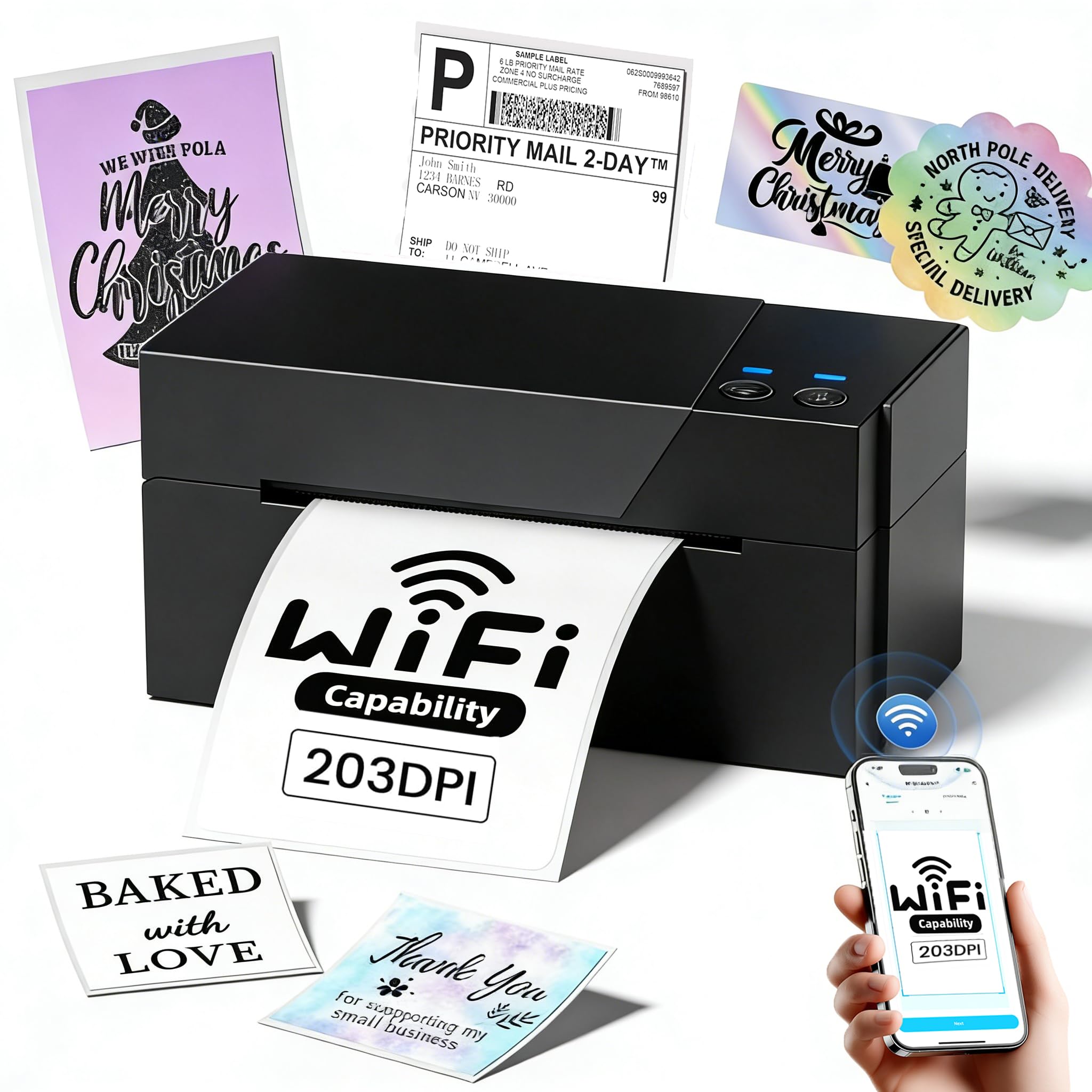
Foto: N'ihu view of the Omezizy 247 WiFi Thermal Label Printer.
Akụkụ nbipute
- Akụkụ ngwaahịa: 18.3D x 8.8W x 8.9H centimita
- Ibu ihe: 1360 grams
Ntọlite mbụ
1. Ijikọ Ike
- Jikọọ ihe nkwụnye ike ahụ na ọdụ ọkụ nke ngwa nbipute ahụ.
- Tinye eriri ọkụ n'ime oghere mgbidi.
- Pịa bọtịnụ ike ka ịgbanwuo ngwa nbipute.
2. Ịbugo aha
The printer supports label widths from 1 to 4.6 inches.

Image: Illustration of loading labels into the printer, demonstrating support for various label widths from 1 to 4.6 inches.
- Mepee mkpuchi elu nke ngwa nbipute.
- Adjust the label guides to match the width of your labels.
- Insert the labels, ensuring the print side is facing up and the labels feed smoothly into the printer mechanism.
- Close the top cover. The printer will automatically detect and calibrate the label size.
Njikọta
Njikọ Wi-Fi
The Omezizy 247WF printer supports stable 5GHz Wi-Fi for wireless printing from multiple devices.

Image: Multiple devices (smartphone, laptop, tablet) wirelessly connected to the Omezizy printer via Wi-Fi.
- Ensure your printer is powered on and within range of your Wi-Fi network.
- Download the dedicated Omezizy printing application from your device's app store (Android/iOS) or install the driver for Mac/Windows/Linux from the official websaịtị.
- Follow the in-app or driver instructions to connect the printer to your Wi-Fi network. This typically involves selecting the printer from a list of available devices and entering your Wi-Fi password.
- Once connected, the printer's Wi-Fi indicator light will confirm the connection.
Njikọ USB
For direct connection to a computer, use the provided USB cable.

Image: The printer connected to a laptop via USB, demonstrating dual connectivity options.
- Connect one end of the USB cable to the printer and the other end to your computer.
- If prompted, install the printer drivers. Drivers are available on the official Omezizy website or included on a setup disk (if provided).
- Your computer should recognize the printer as a connected device.
Ntuziaka ọrụ
Using the Mobile App (Wi-Fi)
The Omezizy app provides a user-friendly interface for printing from your smartphone or tablet.

Image: The Omezizy mobile application interface, showcasing its multi-functional capabilities for label design and printing.
- Open the Omezizy app on your device.
- Ensure the printer is connected to the same Wi-Fi network as your device.
- Select the document or image you wish to print. The app supports various functions including text recognition, file printing, custom barcode generation, and image identification.
- Adjust print settings such as label size and orientation within the app.
- Tap the print button to send the job to the printer.
Printing from Computer (USB/Wi-Fi)
The printer is compatible with major shipping platforms and operating systems.

Image: Compatibility with various shipping and e-commerce platforms.
- Open the document or label file na kọmputa gị.
- Go to 'File' > 'Print' or use the print shortcut (Ctrl+P for Windows, Command+P for Mac).
- Select the Omezizy 247 WiFi Thermal Label Printer from the list of available printers.
- Ensure the correct label size (e.g., 4x6 inches) is selected in the print settings.
- Pịa 'Bipụta'.
Nlekọta
Na-ehicha Isi Mbipụta
Regular cleaning of the print head ensures optimal print quality and extends the printer's lifespan.
- Gbanyụọ ngwa nbipute wee wepụ eriri ọkụ.
- Mepee mkpuchi elu iji nweta isi mbipụta.
- Gently wipe the print head with an alcohol swab or a lint-free cloth lightly dampetinyere ya na mmanya isopropyl.
- Allow the print head to dry completely before closing the cover and turning the printer back on.
Nlekọta izugbe
- Keep the printer in a clean, dust-free environment.
- Avoid exposing the printer to direct sunlight or extreme temperatures.
- Use only high-quality thermal labels to prevent damage to the print head.
Nchọpụta nsogbu
This section addresses common issues you might encounter with your Omezizy thermal label printer.
Enweghị ike
- Ensure the power cord is securely connected to both the printer and the wall outlet.
- Nyochaa na oghere ọkụ ahụ na-arụ ọrụ site na itinye na ngwaọrụ ọzọ.
Ọdịmma Mbipụta adịghị mma
- Hichaa isi mbipụta dịka akọwara na ngalaba mmezi.
- Hụ na ị na-eji akara ọkụ dị elu.
- Check print density settings in your printer preferences or app.
Labels Not Feeding Correctly
- Verify that labels are loaded correctly with the print side up.
- Adjust the label guides to fit the label width snugly but without excessive pressure.
- Ensure there are no obstructions in the label path.
Cannot Connect via Wi-Fi
- Confirm the printer and your device are connected to the same Wi-Fi network.
- Malitegharịa ekwentị ma ngwa nbipute yana rawụta Wi-Fi gị.
- Ensure the Omezizy app or drivers are up to date.
Nkọwa nka nka
| Njirimara | Nkọwapụta |
|---|---|
| Aha Nlereanya | PM-247 WIFI Thermal Label Printer 4x6 |
| Teknụzụ Njikọta | USB, Wi-Fi (5GHz) |
| Teknụzụ obibi akwụkwọ | Thermal |
| Monochrome kacha bipụta ọsọ | 72 labels per minute (ppm) |
| Mkpebi | 203 DPI (ntụpọ kwa inch) |
| Obosara akara akara akwadoro | 1" - 4.6" (25.4 - 117mm) |
| Ogo mgbasa ozi kacha | 4 x6 inch |
| Akụkụ ngwaahịa (D x W x H) | 18.3D x 8.8W x 8.9H centimita |
| Ibu Ibu | 1360 grams |
| Ndakọrịta sistemụ arụmọrụ | Android, iOS, Mac, Windows, Linux |
| Njirimara Pụrụ Iche | Enwere ike ibugharị |
Ozi akwụkwọ ikike
For detailed warranty information, please refer to the warranty card included in your product packaging or visit the official Omezizy websaịtị. Debe nnata nzụta gị dị ka ihe akaebe nke ịzụrụ ihe maka akwụkwọ ikike ọ bụla.
Nkwado ndị ahịa
If you encounter any issues or have questions regarding your Omezizy 247 WiFi Thermal Label Printer, please contact our professional support team:
- Nkwado ekwentị: Available Monday-Friday, 9:00 AM - 5:00 PM EST.
- Nkwado email: Available for general inquiries and technical assistance.
- Mkparịta ụka dị ndụ: Available Monday-Friday, 7:30 PM - 4:30 AM EST.
- Remote Desktop Support: Available when needed for complex issues.
Please refer to the contact information provided in your user guide or on the official Omezizy websaịtị maka nkọwa kọntaktị akọwapụtara.