
1. Okwu mmalite
The Audizio Avola is a comprehensive audio system designed to provide a wide range of listening options. It integrates Internet Radio, DAB+, FM radio, a CD player, and Bluetooth connectivity into a single, elegant unit. This manual will guide you through the setup, operation, and maintenance of your Avola system, ensuring you can fully utilize its features for an optimal audio experience.
2. Ntuziaka nchekwa
- Ịnye ọkụ: Jiri naanị ihe nkwụnye ike enyere. Hụ na vol ahụ dị.tage dakọtara ihe achọrọ nke mpaghara gị.
- Mmiri na mmiri: Do not expose the unit to rain, moisture, or liquids. Avoid placing objects filled with liquids, such as vases, on the unit.
- Igwe ikuku: Hụ na ikuku zuru oke dị n'akụkụ ngwaọrụ ahụ. Ekpuchila oghere ikuku.
- Isi mmalite ọkụ: Keep the unit away from heat sources such as radiators, heat registers, stoves, or other apparatus that produce heat.
- Nhicha: Disconnect the unit from the power supply before cleaning. Use a soft, dry cloth. Do not use liquid cleaners or aerosol cleaners.
- Ije ozi: Anwala ijere unit ahụ n'onwe gị. Tụtụ aka n'aka ndị ọrụ ruru eru.
- Ihe ọkpụkpọ CD: Do not insert foreign objects into the CD tray. Handle CDs by their edges to avoid scratches.
3. Ihe ngwugwu
Chọpụta na ihe niile dị na nkwakọ ngwaahịa:
- 1x Audizio Avola Internet Radio
- 1x njikwa anya
- 1x nkwụnye ọkụ
- 1x User Manual (Quick Start Guide)

Image: Audizio Avola unit shown with its remote control and power adapter.
4. Ngwaahịa gafereview
4.1 Ogwe ihu

Foto: N'ihu view of the Audizio Avola with the CD tray closed.
The front panel features the main display, control buttons, a CD tray, and input ports.
- Ngosipụta: Color display for navigation and information.
- bọtịnụ njikwa: MENU, INFO, REC/DEL, PRESET/REPEAT, STANDBY, I/R, Play/Pause, Stop, Skip/Fast Forward/Rewind.
- Tray CD: Maka itinye CD ọdịyo.
- TUNE/SELECT Knob: Rotate to navigate menus, press to select.
- Mpịakọta olu: Na-emezi ọkwa mmepụta ọdịyo.
- Ọdụ ụgbọ mmiri USB: Maka ijikọ ngwaọrụ nchekwa USB.
- Oghere kaadị SD: For inserting SD memory cards.
- Ntinye AUX: 3.5mm jack for external audio sources.
- Jack ekweisi: Jakị 3.5mm maka ige ntị nkeonwe.

Image: Close-up of the Audizio Avola front panel showing USB, SD, AUX, and headphone ports.
4.2 Ogwe azụ
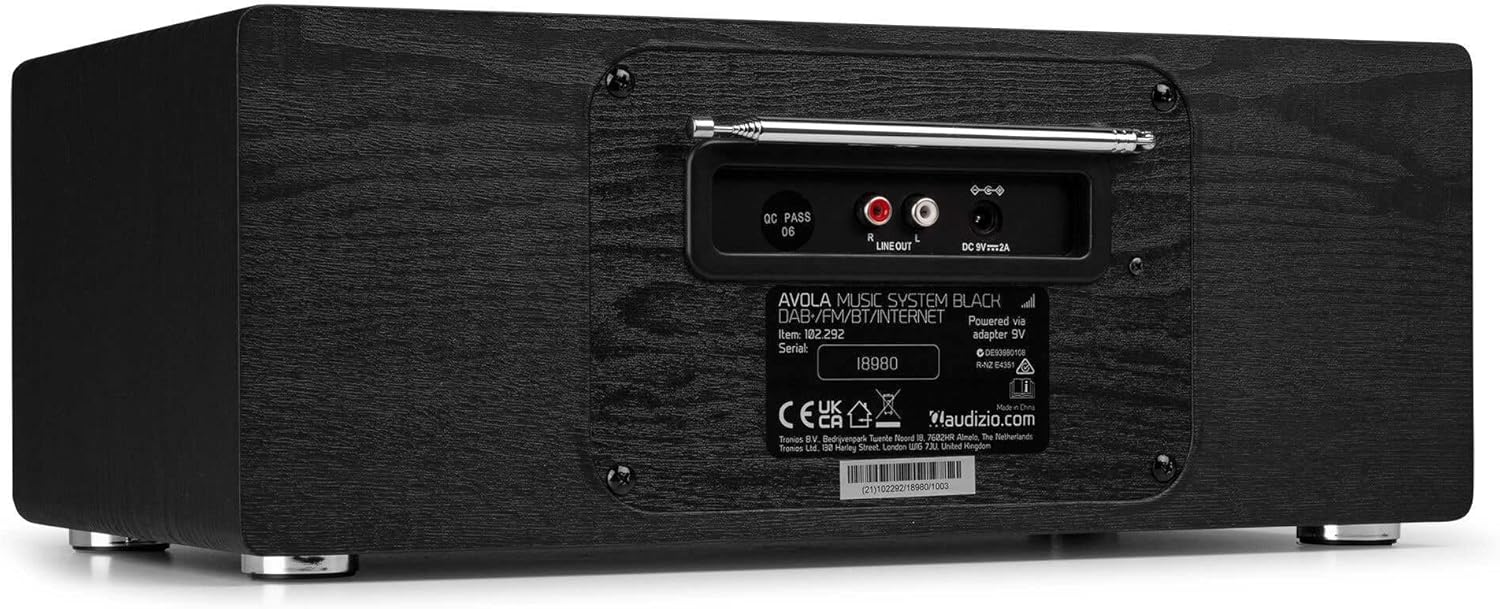
Foto: N'azụ view of the Audizio Avola, highlighting the antenna and connection ports.
The rear panel houses essential connections:
- Antenna telescopic: For DAB+ and FM radio reception. Extend fully for best signal.
- LINE OUT (RCA): Maka ijikọ na mpụga amplifiers ma ọ bụ ọkà okwu.
- DC 9V 2A Power Input: Maka ijikọ nkwụnye ọkụ.
5. Nhazi
5.1 Njikọ ike
- Connect the power adapter to the DC 9V 2A input on the rear of the Avola unit.
- Tinye nkwụnye ọkụ n'ime oghere mgbidi dabara adaba.
- The unit will enter standby mode. Press the STANDBY button on the unit or remote control to power on.
5.2 Ntọala antenna
For optimal DAB+ and FM radio reception, fully extend the telescopic antenna located on the rear panel. Adjust its position for the best signal quality.
5.3 Initial Setup (WLAN Connection)
To access Internet Radio features, the Avola must be connected to a Wi-Fi network.
- Upon first power-on, the unit may prompt you to set up the network connection. If not, press MENU, navigate to 'System Settings' and then 'Network'.
- Select 'Wi-Fi Network' and choose 'Scan' to find available networks.
- Họrọ netwọk Wi-Fi gị na listi ahụ.
- Enter your Wi-Fi password using the TUNE/SELECT knob to navigate characters and press to confirm each character.
- Once connected, the display will show a Wi-Fi icon.
6. Ụdị arụ ọrụ
6.1 Redio ịntanetị
Access thousands of radio stations worldwide via your Wi-Fi connection.
- Press the MENU button and select 'Internet Radio'.
- I nwere ike ịchọgharị ọdụ site na ebe, ụdị, ma ọ bụ chọọ ọdụ ụfọdụ.
- Use the TUNE/SELECT knob to navigate and select.
- To save a station as a preset, press and hold the PRESET/REPEAT button until the preset menu appears, then select a preset number.

Image: The Audizio Avola display showing the Internet Radio interface.
6.2 DAB + Redio
Digital Audio Broadcasting Plus offers high-quality digital radio.
- Press the MENU button and select 'DAB Radio'.
- The unit will automatically scan for available DAB+ stations.
- Use the TUNE/SELECT knob to browse and select stations.
- Save presets as described for Internet Radio.
Igwe redio FM 6.3
Listen to traditional analog FM radio broadcasts.
- Press the MENU button and select 'FM Radio'.
- Use the TUNE/SELECT knob to manually tune or press and hold to auto-scan for stations.
- Save presets as described for Internet Radio.
6.4 CD ọkpụkpọ
Play your favorite audio CDs.
- Press the MENU button and select 'CD Player'.
- Press the 'Open' button next to the CD tray to open it.
- Carefully place an audio CD onto the tray with the label side facing up.
- Press the 'Open' button again to close the tray. The unit will begin playing the CD automatically.
- Use the Play/Pause, Stop, and Skip buttons for playback control.
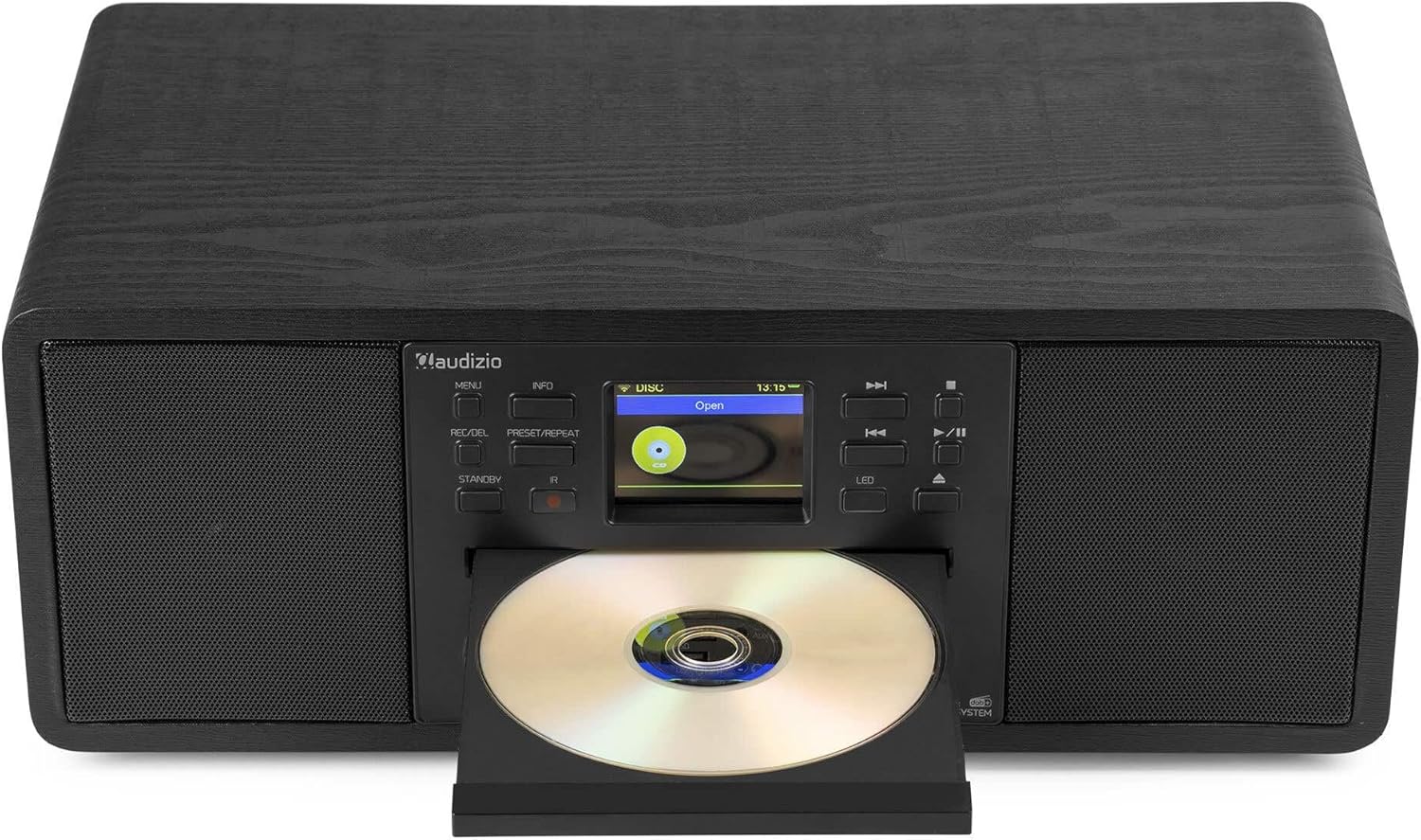
Image: The Audizio Avola with its CD tray open, ready for disc insertion.
6.5 Njikọ Bluetooth
Jiri ekwentị gị, mbadamba gị, ma ọ bụ ngwaọrụ ndị ọzọ Bluetooth na-agagharị n'igwe okwu.
- Press the MENU button and select 'Bluetooth'.
- The Avola will enter pairing mode and become discoverable.
- On your Bluetooth device, search for 'Audizio Avola' in the Bluetooth settings and select it to pair.
- Once connected, the display will show 'BT Connected'. You can now play audio from your device through the Avola.

Image: The Audizio Avola display indicating a successful Bluetooth connection.
6.6 Igwe ọkpụkpọ USB/SD
Kpọọ ọdịyo files from USB drives or SD cards.
- Insert a USB drive into the USB port or an SD card into the SD card slot on the front panel.
- Press the MENU button and select 'USB' or 'SD' (the unit may automatically switch to the correct mode).
- Gaa n'ihu na nke gị files and folders using the TUNE/SELECT knob.
- Press the TUNE/SELECT knob to play a selected track.
7. Nlekọta
- Na-ehicha Ngalaba: Use a soft, dry, lint-free cloth to clean the exterior of the unit. Do not use abrasive cleaners, waxes, or solvents.
- CD Lens Cleaning: If CD playback becomes erratic, use a commercially available CD lens cleaner disc to clean the laser lens.
- Nchekwa: If storing the unit for an extended period, disconnect it from the power supply and store it in a cool, dry place.
8. Nchọpụta nsogbu
| Nsogbu | Ihe nwere ike ime | Ngwọta |
|---|---|---|
| Enweghị ike | Ejikọghị ihe nkwụnye ọkụ ma ọ bụ ụzọ adịghị mma. | Lelee njikọ ike. Nwaa ebe ọzọ. |
| Enweghị ụda | Olu dị oke ala, agbanyere ogbi, ma ọ bụ họrọ isi mmalite na-ezighi ezi. | Increase volume. Check if mute is active. Ensure correct input source is selected. |
| Internet Radio not connecting | Incorrect Wi-Fi password, weak signal, or network issue. | Re-enter Wi-Fi password. Move unit closer to router. Check router status. |
| DAB+/FM reception poor | Antenna anaghị agbatị ma ọ bụ ebe mgbaàmà adịghị mma. | Gbatịa ma gbanwee antenna telescopic ahụ nke ọma. Gbalịa ịgbanwe ọnọdụ ya. |
| CD anaghị egwu | CD inserted incorrectly, dirty/scratched CD, or unsupported format. | Ensure CD is inserted label-side up. Clean or replace CD. Verify CD format (supports CD-DA, MP3). |
| Bluetooth anaghị ejikọta | Device not in pairing mode, or Avola not discoverable. | Ensure both devices are in pairing mode. Check Bluetooth settings on your device. |
9. Nkọwapụta
| Njirimara | Nkọwapụta |
|---|---|
| Aha Nlereanya | Avola |
| Nọmba ihe | 102.292 |
| Akụkụ (LxWxH) | 45.8 x 25.8 x 19.7 cm |
| Ibu | 4 n'arọ |
| Ntinye ike | 220 Volt (via power adapter) |
| Speaker Output Power (Max) | 60 Watt |
| Ọnọdụ mmepụta ọdịyo | Stereo |
| Ụdị ọdịyo akwadoro | CD-DA, MP3 |
| Teknụzụ Njikọta | WLAN, Bluetooth, AUX, RCA |
| Ngwa dakọtara | MP3 Player, PC, Smartphone, Tablet |
| Agba | Nwa |
10. Akwụkwọ ikike na nkwado
Audizio products are designed and manufactured to the highest standards. In the unlikely event of a problem with your product, please contact your retailer for assistance. Keep your proof of purchase for warranty claims. For further support or inquiries, please refer to the official Audizio websaịtị ma ọ bụ kpọtụrụ ndị ahịa ha ọrụ.