
Okwu mmalite
This manual provides essential information for the safe and efficient operation of your SCULPFUN S9 PRO 10W Laser Engraver. The S9 PRO features 10W laser beam shaping technology, offering a 0.06mm ultra-fine laser focus for strong cutting penetration and precision. It is capable of cutting materials such as 15mm thick wood and 10mm acrylic, and engraving ceramics and stainless steel. Please read this manual thoroughly before use to ensure proper setup, operation, and maintenance.

Ozi nchekwa
Operating a laser engraver involves potential hazards. Adhere to all safety guidelines to prevent injury or damage.
- Nchedo anya: Always wear appropriate laser safety glasses when operating the machine. The integrated laser filter on the S9 PRO blocks 98% of ultraviolet light, allowing observation without additional safety glasses for bystanders, but direct laser exposure should always be avoided.
- Ike mgba ọkụ: The machine is equipped with a secure power switch. Always turn off the machine when not in use or during maintenance.
- Ebe echekwara Utilize the fastening holes on the four feet and frame structure to secure the machine and data cables, preventing accidental movement.
- Nchedo elu: Use the provided A4-sized steel pad to protect your work surface from laser damage.
- Igwe ikuku: Ensure adequate ventilation in your workspace to dissipate fumes produced during engraving and cutting.
- Ngwa ndị na-ere ọkụ: Do not engrave or cut highly flammable materials without proper precautions.
- Ụmụaka na anụ ụlọ: Keep children and pets away from the operating area. The laser point can attract attention, but direct exposure is dangerous.

Ihe ngwugwu
Chọpụta na akụrụngwa niile dị mgbe ị na-ebupụ:
- 1 x SCULPFUN S9 Pro 10 W Laser Engraver
- A4-sized steel pad
- Ihe nkwụnye ọkụ
- eriri USB
- Ngwa mgbakọ
- Akwụkwọ ntuziaka (akwụkwọ a)
Ntuziaka nhazi
1. Mgbakọ
The SCULPFUN S9 PRO features a fast assembly design, allowing for installation typically within 10 to 20 minutes. Follow the steps below:
- Nzọụkwụ 1: Assemble the main frame components.
- Nzọụkwụ 2: Attach the X-axis and laser module to the frame.
- Nzọụkwụ 3: Jikọọ eriri niile dị mkpa.
- Mechaa: Ensure all connections are secure and the frame is stable.
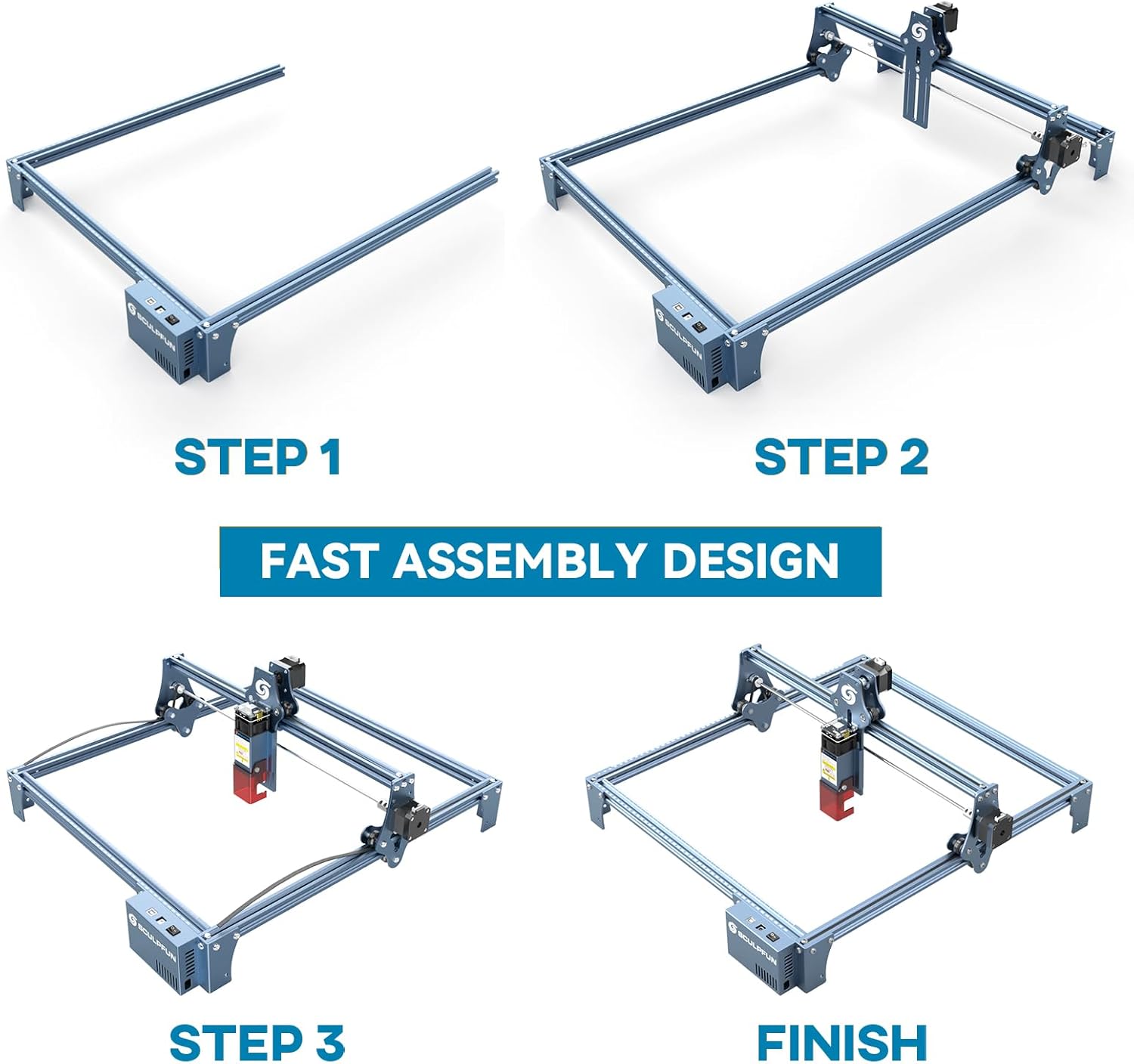
The full-metal structure enhances robustness and engraving accuracy. The X and Y axes include precise scale lines, forming a rectangular measuring ruler for quick object sizing.


2. Ndozi anya
The S9 PRO features a quick fixed-focus design. The laser combines a fixed-focus lens with a sliding design for easy adjustment.
- Place the laser module over your material.
- Move the laser module up or down until the focus is achieved.
- Tighten the screws to secure the laser module in place.

Ntuziaka ọrụ
1. Ngwa ndakọrịta
The SCULPFUN S9 PRO is compatible with various advanced engraving software:
- LaserGRBL (Windows)
- LightBurn (Windows, macOS, Linux)
- Benbox
- GrblController
- LiteFire
It supports engraving in PWM mode and various file formats including JPG, PNG, DXF, SVG, AI, G-code, NC, and BMP.

2. Material Capabilities
The 10W laser module provides strong cutting and engraving capabilities across a wide range of materials:
- Ịcha: Up to 15mm thick wood, 10mm black acrylic.
- Ihe osise: Wood, leather, ceramics, stainless steel, aluminum oxide, PCB board, paper, cardboard, dark stone, and more.


3. General Operation Workflow
- Nhazi: Create or import your design using compatible software (e.g., LightBurn, LaserGRBL).
- Ndokwa ihe: Place your material on the work surface, ensuring it is flat and secure. Use the integrated rulers for precise positioning.
- Ndozi anya: Adjust the laser focus as described in the Setup section.
- Ntọala ngwanrọ: Configure laser power, speed, and passes in your chosen software according to the material and desired effect. Refer to software documentation for detailed settings.
- Malite ọrụ: Malite usoro ịkpụ ihe ma ọ bụ ịkpụ ihe site na ngwanrọ ahụ. Na-enyocha igwe ahụ mgbe ị na-arụ ọrụ.
- Mmecha: Once the process is complete, turn off the machine and carefully remove your finished piece.
Nlekọta
Regular maintenance ensures optimal performance and extends the lifespan of your SCULPFUN S9 PRO.
- Hichaa Lens Laser: Periodically clean the laser lens with a soft, lint-free cloth and lens cleaning solution to maintain laser precision.
- Clean the Work Area: Remove debris and dust from the engraving area after each use to prevent interference with machine movement.
- Lelee eriri na okporo ígwè: Check the drive belts for tension and wear. Keep the guide rails clean and lubricated if necessary to ensure smooth movement of the laser module.
- Mmelite femụwe: Check the official SCULPFUN website for any available firmware updates to ensure your machine has the latest features and improvements.
Nchọpụta nsogbu
Akụkụ a na-ekwu maka nsogbu ndị ị nwere ike izute.
- Ọ naghị agba ọkụ site na laser:
- Check if the power cable is securely connected and the power switch is on.
- Verify that the USB cable is connected to your computer and the machine.
- Ensure the software is correctly configured and sending commands.
- Check the laser module connection.
- Ọdịmma ihe osise/ịkpụcha adịghị mma:
- Re-check the laser focus. An incorrect focus is a common cause of poor quality.
- Adjust laser power and speed settings in your software. Different materials require different settings.
- Ensure the material is flat and securely placed.
- Clean the laser lens if it appears dirty.
- Machine Not Moving Correctly:
- Check for any obstructions on the rails or belts.
- Ensure belts are properly tensioned and not slipping.
- Verify that all cables are securely connected.
- Restart the software and the machine.
- Nsogbu Njikọ Ngwanrọ:
- Ensure the correct COM port is selected in your software.
- Try restarting your computer and the engraver.
- Reinstall the software or drivers if necessary.
For persistent issues, refer to the SCULPFUN support websaịtị ma ọ bụ kpọtụrụ ndị ahịa.
Nkọwapụta
| Ụdị | SCULPFUN |
| Nọmba nlereanya | S9PRO10W-ELE |
| Ike Laser | 10W (Diode Laser) |
| Nleba anya laser | 0.06mm (Ultrafine) |
| Ihe osise ziri ezi | 0.01mm |
| Mpaghara ihe osise | 400 x 410 mm |
| Isi Iyi Ike | AC |
| Akụkụ ngwugwu | 61.79 x 38.4 x 13.4 cm |
| Ibu ngwugwu | 4.95 n'arọ |
| Ngwa gụnyere | 1 x SCULPFUN S9 Pro 10 W laser engraver |
| Ngwa ndakọrịta | LaserGRBL, LightBurn, Benbox, GrblController, LiteFire |
| OS akwadoro | Windows, macOS, Linux |
| Akwadoro File Ụdị | JPG, PNG, DXF, SVG, AI, G-code, NC, BMP |
Akwụkwọ ikike na nkwado
For warranty information, technical support, or service inquiries, please contact SCULPFUN customer support through their official websaịtị ma ọ bụ onye na-ere ahịa ebe a zụrụ ngwaahịa ahụ. Debe nnata nzụta gị ka ihe akaebe nke ịzụrụ.
Onye nrụpụta: SCULPFUN
Ụbọchị mbụ enwere: Nọvemba 29, 2024