
Okwu mmalite
This manual provides detailed instructions for the safe and efficient operation of your Phomemo M836-B Portable Thermal Printer. The M836-B is an inkless, wireless thermal printer designed for portability and convenience, supporting various paper sizes including US Letter and A4. Please read this manual thoroughly before using the printer to ensure optimal performance and longevity.
Ngwaahịa gafereview
Atụmatụ igodo
- Mbipụta Thermal Inkless: Utilizes thermal technology, eliminating the need for ink cartridges or ribbons.
- Ikuku Njikọ: Supports Bluetooth for seamless connection with iOS and Android devices.
- Njikọ USB: Compatible with Windows, macOS, ChromeOS, and Linux via USB Type-C.
- Mkpebi dị elu: Offers a print resolution of 300 DPI for clear text and graphics.
- Enwere ike ibugharị: Compact and lightweight, ideal for travel and on-the-go printing.
- Multi-Size Paper Support: Accommodates various thermal paper sizes, including US Letter (8.5'' x 11'') and A4.
- Mmepụta monochrome: Prints in black and white.

Image: The Phomemo M836-B printer demonstrating its inkless thermal printing capability, highlighting no mess from ink.

Foto: Ofeview of the Phomemo M836-B's key features, including wireless connectivity, inkless operation, 2600mAh battery capacity, and 300 DPI resolution.
Ihe ngwugwu
Chọpụta na ihe niile dị na ngwugwu:
- Phomemo M836-B Portable Thermal Printer
- Thermal Paper (as specified in the box)
- USB Type-C USB
- Akwụkwọ ntuziaka (akwụkwọ a)
Ntuziaka nhazi
1. Ịchaji ngwa nbipute
- Connect the provided USB Type-C cable to the printer's charging port.
- Jikọọ nsọtụ nke ọzọ nke eriri USB na ihe nkwụnye ọkụ USB dakọtara (anaghị etinye ya) ma ọ bụ ọdụ ụgbọ USB nke kọmputa.
- The indicator light will show charging status. Charge the printer fully before first use.
2. Mpempe akwụkwọ
The Phomemo M836-B supports both thermal paper rolls and sheet-fed thermal paper.
- Mepee mkpuchi nke mpempe akwụkwọ.
- For roll paper: Insert the thermal paper roll into the designated slot, ensuring the printing side faces upwards. Gently pull a small length of paper out.
- For sheet-fed paper: Insert the thermal paper sheet into the input slot, ensuring it is straight and aligned.
- Close the paper compartment cover securely.

Image: Illustration of how to load different types of thermal paper (roll and sheet) into the Phomemo M836-B printer, showing the paper selection mechanism.
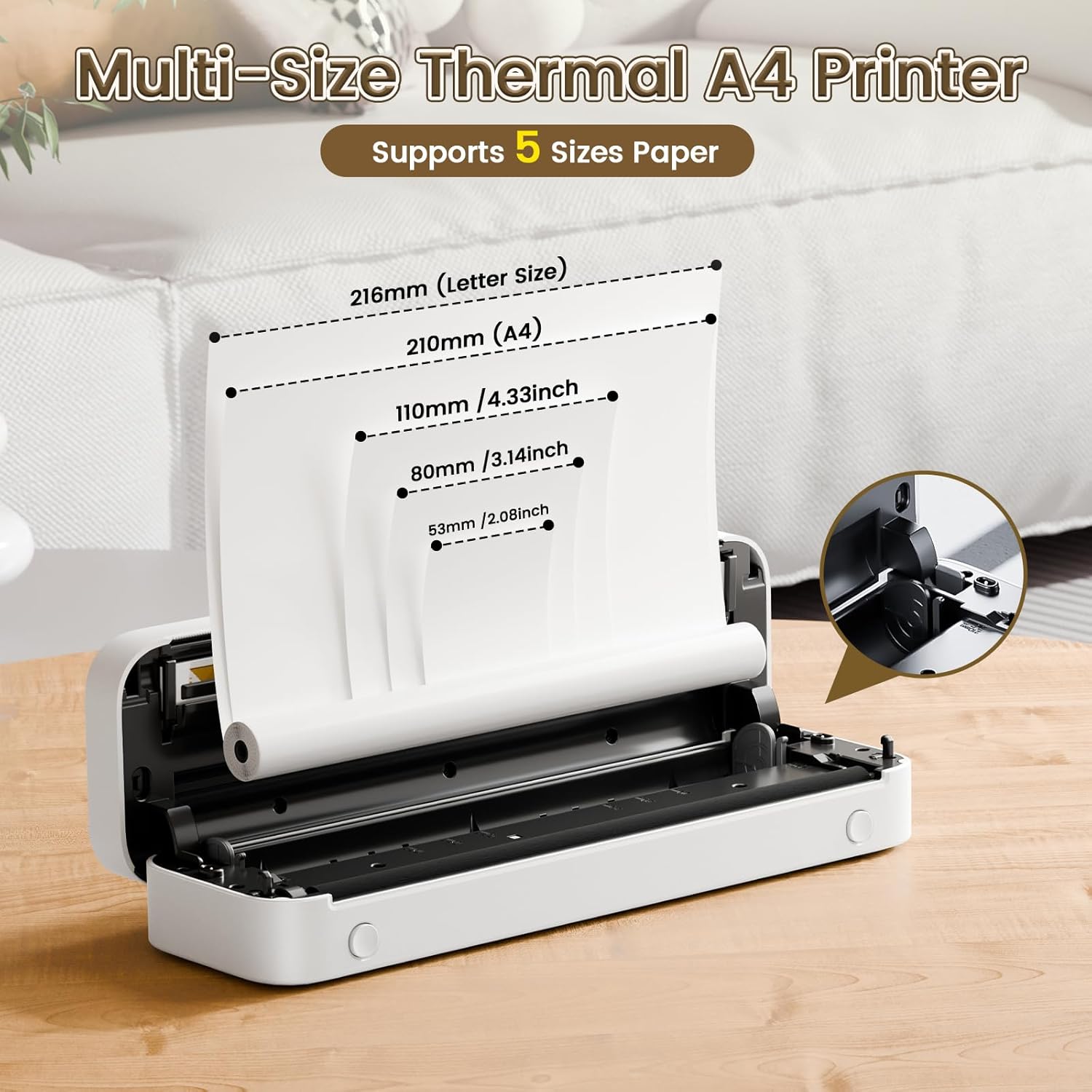
Image: The Phomemo M836-B printer demonstrating support for multiple paper sizes, including US Letter (216mm) and A4 (210mm).
3. Ijikọ ngwaọrụ
Ngwa nbipute na-akwado ma njikọ Bluetooth na USB.
Bluetooth Connection (for iOS/Android)
- Download the official Phomemo app from your device's app store.
- Turn on the printer by pressing and holding the power button.
- Kwado Bluetooth na ekwentị mkpanaaka gị.
- Open the Phomemo app, search for the printer (M836-B), and pair with it.
- Soro mkpali na ihuenyo ọ bụla iji mezue usoro njikọta.
USB Connection (for Windows/macOS/ChromeOS/Linux)
- Gbaa mbọ hụ na agbanyere ngwa nbipute.
- Connect the printer to your computer using the provided USB Type-C cable.
- Visit the official Phomemo websaịtị (www.phomemo.com) to download and install the appropriate drivers for your operating system.
- Once drivers are installed, the printer should be recognized by your computer.

Image: Diagram illustrating the two types of connections supported by the Phomemo M836-B: Bluetooth for Android, iOS, and iPad, and USB for Windows, macOS, ChromeOS, and Linux.
Ntuziaka ọrụ
Printing from Mobile Devices
- Ensure your printer is charged, loaded with paper, and connected via Bluetooth to your mobile device.
- Mepee ngwa Phomemo.
- Select the document or image you wish to print from within the app.
- Adjust print settings (e.g., paper size, density) as needed.
- Tap the print button to initiate printing.
Printing from Computers
- Ensure your printer is charged, loaded with paper, and connected via USB to your computer with drivers installed.
- Mepee akwụkwọ ma ọ bụ file Ị chọrọ ibipụta na kọmputa gị.
- Go to "File" > "Print" (or use the shortcut Ctrl+P/Cmd+P).
- Select the Phomemo M836-B from the list of available printers.
- Adjust print preferences (e.g., paper size, orientation) as required.
- Pịa "Bipụta".
Paper Handling Tips
- Always use high-quality thermal paper for best results.
- Ensure the paper is loaded correctly with the printable side facing the print head.
- Avoid exposing thermal paper to direct sunlight or high temperatures, as this can degrade print quality over time.
- Manually tear off printed documents carefully after printing, as the printer does not have an automatic cutter.
Nlekọta
Na-ehicha ihe nbipute
- Gbanyụọ ngwa nbipute wee kwupu ya na isi iyi ike.
- Jiri akwa dị nro na-enweghị ntụpọ dampA na-eji mmanya isopropyl hichaa isi ihe e ji ebi akwụkwọ ahụ nke ọma. Hapụ ya ka ọ kpọọ nkụ kpamkpam tupu e jiri ya.
- Clean the exterior of the printer with a soft, dry cloth. Do not use abrasive cleaners or solvents.
Nchekwa
- Chekwaa ngwa nbipute ahụ n'ebe dị jụụ, kpọrọ nkụ pụọ na ìhè anyanwụ kpọmkwem na oke okpomọkụ.
- If storing for an extended period, ensure the printer is fully charged to maintain battery health.
- Keep thermal paper in its original packaging in a dark, cool place to prevent premature fading.
Nchọpụta nsogbu
If you encounter issues with your Phomemo M836-B printer, refer to the following common problems and solutions:
Printer Not Turning On
- Lelee batrị: Ensure the printer is sufficiently charged. Connect it to a power source and try again.
- Bọtịnụ ike: Press and hold the power button for a few seconds to ensure it's properly activated.
Connectivity Issues (Bluetooth/USB)
- Bluetooth:
- Ensure Bluetooth is enabled on your device and the printer is within range.
- Unpair and re-pair the printer in your device's Bluetooth settings.
- Restart both the printer and your mobile device.
- USB:
- Verify the USB cable is securely connected to both the printer and the computer.
- Ensure the correct printer drivers are installed on your computer. Reinstall if necessary.
- Gbalịa ọdụ ụgbọ mmiri ma ọ bụ eriri USB dị iche.
Poor Print Quality (Blurry, Faded, Streaks)
- Isi Mbipụta dị ọcha: Follow the cleaning instructions in the Maintenance section.
- Paper Quality/Type: Ensure you are using high-quality thermal paper and that it is loaded correctly.
- Bipute njupụta: Adjust print density settings in the Phomemo app or printer driver.
- Paper Storage: Thermal paper exposed to heat or light can degrade. Try a fresh roll of paper.
Mpempe akwụkwọ
- Turn Off Printer: Immediately turn off the printer.
- Wepu akwụkwọ: Gently pull out any jammed paper. Do not force it, as this can damage the printer.
- Bugharịa: Ensure paper is loaded correctly and not wrinkled or bent before restarting.
Nkọwa nka nka
| Njirimara | Nkọwapụta |
|---|---|
| Ụdị | Phomemo |
| Aha Nlereanya | M836-B |
| Teknụzụ Njikọta | Bluetooth, USB Ụdị C |
| Teknụzụ obibi akwụkwọ | Thermal |
| Mmepụta ngwa nbipute | Monochrome |
| Mkpebi Mbipụta kacha | 300 DPI |
| Ọsọ mbipụta kacha (Monochrome) | 1.5 ibe kwa nkeji |
| Ngwa dakọtara | Android Devices, Mac, Windows, iPhone, iPad |
| Ogo mgbasa ozi kacha | 8.5 x 11 inch (Akwụkwọ ozi US) |
| Paper Size Support | US Letter, A4 |
| Printing Media Type | Akwụkwọ ọkụ |
| Ibu Ibu | 1.53 pound (ihe dị ka 694g) |
| Akụkụ ngwaahịa (D x W x H) | 7.8D x 26.4W x 4.5H centimita |
| Usoro njikwa | Ngwa |
| Mba onye si | China |
Akwụkwọ ikike na nkwado
Specific warranty details for the Phomemo M836-B Portable Thermal Printer are not provided within this document. For information regarding warranty coverage, technical support, or service, please refer to the warranty card included with your product or contact Phomemo customer service directly through their official websaịtị ma ọ bụ ozi kọntaktị enyere na nkwakọ ngwaahịa gị.
Official Phomemo Websaịtị: www.phomemo.com