
1. Ngwaahịa gafereview
The Morpheus 360 Sanctuary ANC Wireless UC Headset is designed for professional communication and audio playback. It features Active Noise Canceling (ANC), a noise-canceling boom microphone, and Bluetooth connectivity with an included USB dongle for unified communication platforms.
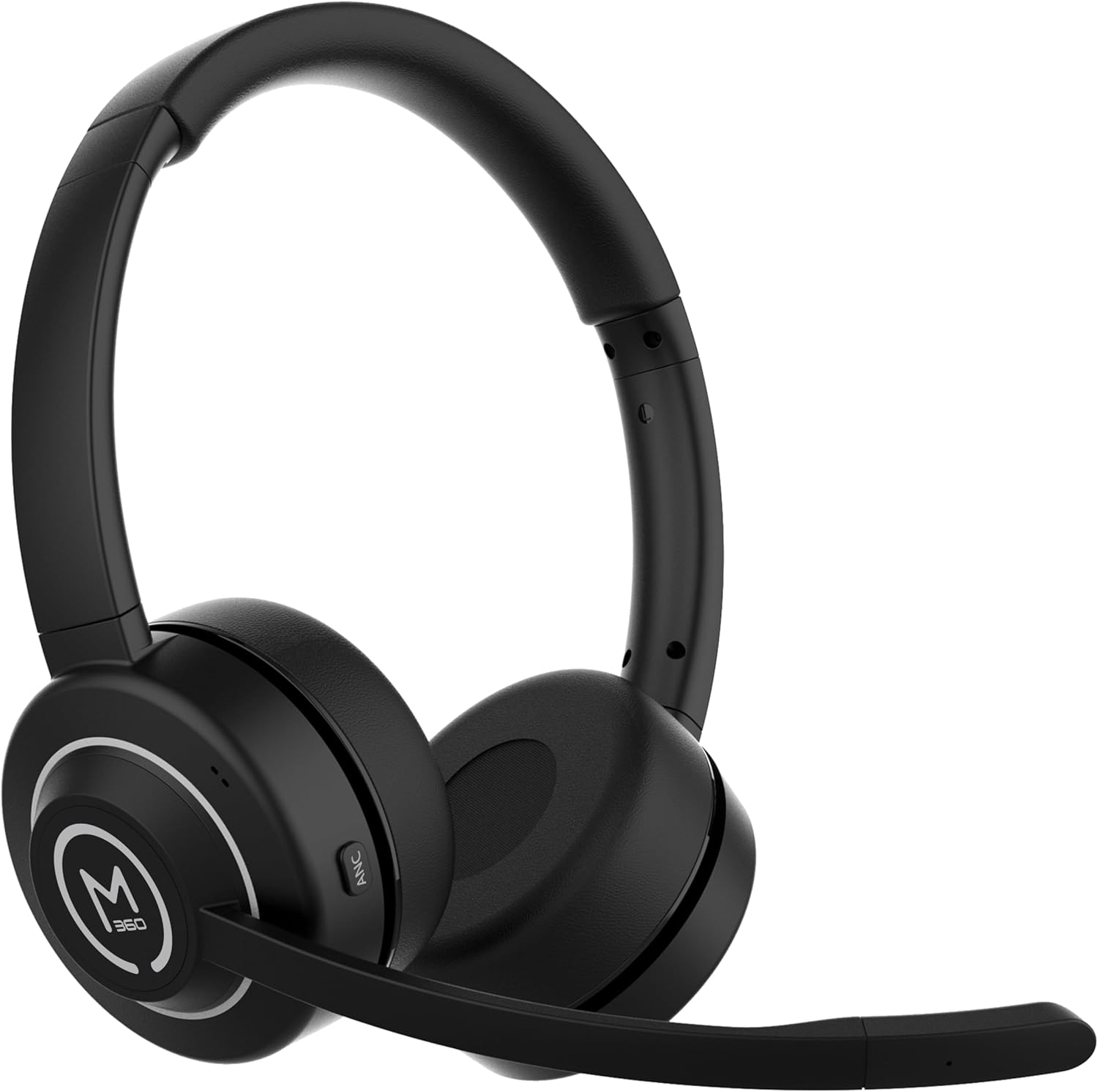
Foto 1.1: N'ihu view of the Morpheus 360 Sanctuary ANC Wireless UC Headset.
2. Kedu ihe dị na Igbe ahụ
- Morpheus 360 Sanctuary ANC Wireless UC Headset
- USB Bluetooth Dongle
- Nkwụ ụgwọ chajị
- USB-C eriri USB

Image 2.1: The dedicated charging stand for the headset.
3. Nhazi
3.1 Ịchaji ekweisi
- Jikọọ eriri chaja USB-C na ebe a na-etinye chaja na isi iyi ike.
- Place the headset onto the charging stand, ensuring proper alignment. The headset will begin charging.
- Chajị zuru oke na-enye ihe dị ka awa iri nke ndụ batrị.
Mara: The headset cannot be used while it is charging on the stand.
3.2 Ijikọta na ngwaọrụ
The headset can be paired via Bluetooth or using the included USB dongle.
Njikọ Bluetooth:
- Gbaa mbọ hụ na agbanyụrụ ekweisi.
- Pịa ma jide bọtịnụ ike ruo mgbe ihe ngosi LED na-egbukepụ egbukepụ na-acha anụnụ anụnụ na ọbara ọbara, na-egosi ụdị njikọta.
- On your device (smartphone, tablet), go to Bluetooth settings and select "Morpheus 360 Sanctuary" from the list of available devices.
- Ozugbo ejikọtara ya, ihe ngosi LED ga-egosi ìhè na-acha anụnụ anụnụ siri ike.
USB Dongle Pairing (for PC/Mac):
- Plug the USB Bluetooth dongle into an available USB port on your computer.
- Power on the headset. It should automatically connect to the dongle. The LED on the dongle will indicate a successful connection.
- Ensure the headset is selected as the audio input and output device in your computer's sound settings.
Ịkpachara anya: Handle the USB dongle with care. Repeated insertion and removal, or improper handling, may cause the dongle to separate.
3.3 Yi ekweisi
- Dozie eriri isi ka ọ dabara nke ọma n'elu isi gị.
- Position the earcups so they sit gently on your ears. The eco-leather ear cushions are designed for comfort.
- Adjust the flexible boom microphone to be near your mouth for optimal voice pickup.

Foto 3.1: Akụkụ view of the headset highlighting the boom microphone and control buttons.
4. Na-arụ ọrụ ekweisi
4.1 Gbanyụọ ma ọ bụ gbanyụọ
- Ike Na: Pịa ma jide bọtịnụ ike maka sekọnd 3.
- Gbanyụọ: Pịa ma jide bọtịnụ ike maka sekọnd 5.
4.2 Active Noise Canceling (ANC)
The ANC feature detects and reduces background noise by up to 20dB, helping you focus. This is effective against consistent low-frequency sounds like office chatter or keyboard noise.
- Mee ka ANC rụọ ọrụ: Press the ANC button located on the earcup.
- Gbanyụọ ANC: Press the ANC button again.
4.3 Ụdị nghọta
Transparency Mode allows you to hear your surroundings without removing the headset, useful for quick conversations or awareness.
- Activate/Deactivate Transparency Mode: Refer to the specific button on your headset (often shared with ANC or a dedicated button).
4.4 Njikwa oku
- Azịza/Kwụsị Oku: Pịa bọtịnụ Multi-function ozugbo.
- Jụ oku: Pịa ma jide bọtịnụ ọtụtụ ọrụ maka sekọnd iri na abụọ.
- Mechie/Kwụsịnụ Igwe okwu: Use the dedicated mute button on the boom microphone or earcup.
The noise-canceling boom microphone uses specialized technology to filter out background noise from your voice during calls.
4.5 Nghaghachi egwu
- Gwuo/kwụsịtụ: Pịa bọtịnụ Multi-function ozugbo.
- Track na-esote: Press and hold the Volume Up button.
- Gara aga Track: Pịa ma jide bọtịnụ ụda ala.
4.6 Njikwa olu
- Dịkwuo Mpịakọta: Pịa bọtịnụ olu elu.
- Belata Mpịakọta: Pịa bọtịnụ ụda ala.
5. Nlekọta
5.1 Nhicha
- Wipe the headset and ear cushions with a soft, dry, lint-free cloth.
- Ejila kemịkalụ siri ike, ihe mgbaze, ma ọ bụ ncha siri ike.
- Zere ịbanye mmiri n'ime oghere ọ bụla.
5.2 Nchekwa
- Chekwaa ekweisi n'ebe dị jụụ, kpọrọ nkụ na-adịghị na ìhè anyanwụ kpọmkwem na oke okpomọkụ.
- When not in use, placing the headset on its charging stand can help keep it organized and ready for use.
5.3 Nlekọta batrị
- Iji mee ka batrị dị ogologo, zere ịgbapụ isi ekweisi ahụ mgbe niile.
- Charge the headset regularly, even if not used for extended periods.
6. Nchọpụta nsogbu
6.1 Okwu Njikọta
- Headset not pairing: Ensure the headset is in pairing mode (flashing blue/red LED). Check your device's Bluetooth settings.
- USB Dongle not connecting: Ensure the dongle is fully inserted into the USB port. Try a different USB port. Re-pair the headset if necessary.
- Njikọ na-adịte aka: Ensure no major obstructions are between the headset and your device/dongle. Move closer to the connected device.
6.2 Okwu ọdịyo
- Enweghị ụda: Check volume levels on both the headset and your connected device. Ensure the headset is selected as the audio output device.
- Igwe okwu anaghị arụ ọrụ: Ensure the microphone is not muted. Check that the headset is selected as the audio input device in your computer's sound settings.
6.3 Active Noise Canceling (ANC) Performance
- ANC is most effective against consistent low-frequency sounds. It may not completely block out human speech or sudden loud noises.
- Ensure the earcups are properly seated on your ears for optimal ANC performance.
6.4 USB Dongle Durability
Some users have reported the USB dongle separating. To prevent this, handle the dongle gently when inserting or removing it from USB ports or the charging stand. Avoid pulling it out by the plastic casing alone.
6.5 Battery Alerts
The headset may issue 'Charge headset' warnings when the battery level is around 30%. This is normal behavior to prompt early recharging.
7. Nkọwapụta
| Nọmba nlereanya | HS6750ANC |
| Ụdị | Morpheus 360 |
| Agba | Nwa |
| Ihe onwunwe | Faux Leather, Plastic, Stainless Steel |
| Ndụ batrị | Ruo awa iri abụọ |
| Ịkagbu ụzụ na-arụ ọrụ | Up to 20dB reduction |
| Igwe okwu | Noise Canceling Boom Microphone |
| Njikọta | Bluetooth, USB Dongle |
| UPC | 856816008590 |
8. Akwụkwọ ikike Ozi
The Morpheus 360 Sanctuary ANC Wireless UC Headset (Model HS6750ANC) comes with a Akụkụ 1 afọ na ọrụ warranty from the date of purchase. Please retain your proof of purchase for warranty claims.
9. Nkwado
For further assistance, technical support, or warranty inquiries, please refer to the official Morpheus 360 webma ọ bụ kpọtụrụ ngalaba ọrụ ndị ahịa ha. Enwere ike ịchọta ozi kọntaktị na ngwugwu ngwaahịa ahụ ma ọ bụ ọnụnọ nke akara ahụ n'ịntanetị.