
1. Okwu mmalite
This manual provides instructions for the SENGBIRCH Keyboard Case, designed to enhance the functionality and protection of your iPad mini. Please read this manual carefully before use.
1.1 ndakọrịta
This keyboard case is exclusively compatible with the following iPad mini models:
- iPad mini 7th Generation 2024 (A17 Pro): Models A2993, A2995, A2996
- iPad mini 6th Generation 2021 8.3-inch: Models A2567, A2568, A2569
To confirm your iPad model number, check the back of your tablet. This case is not compatible with any other iPad models.
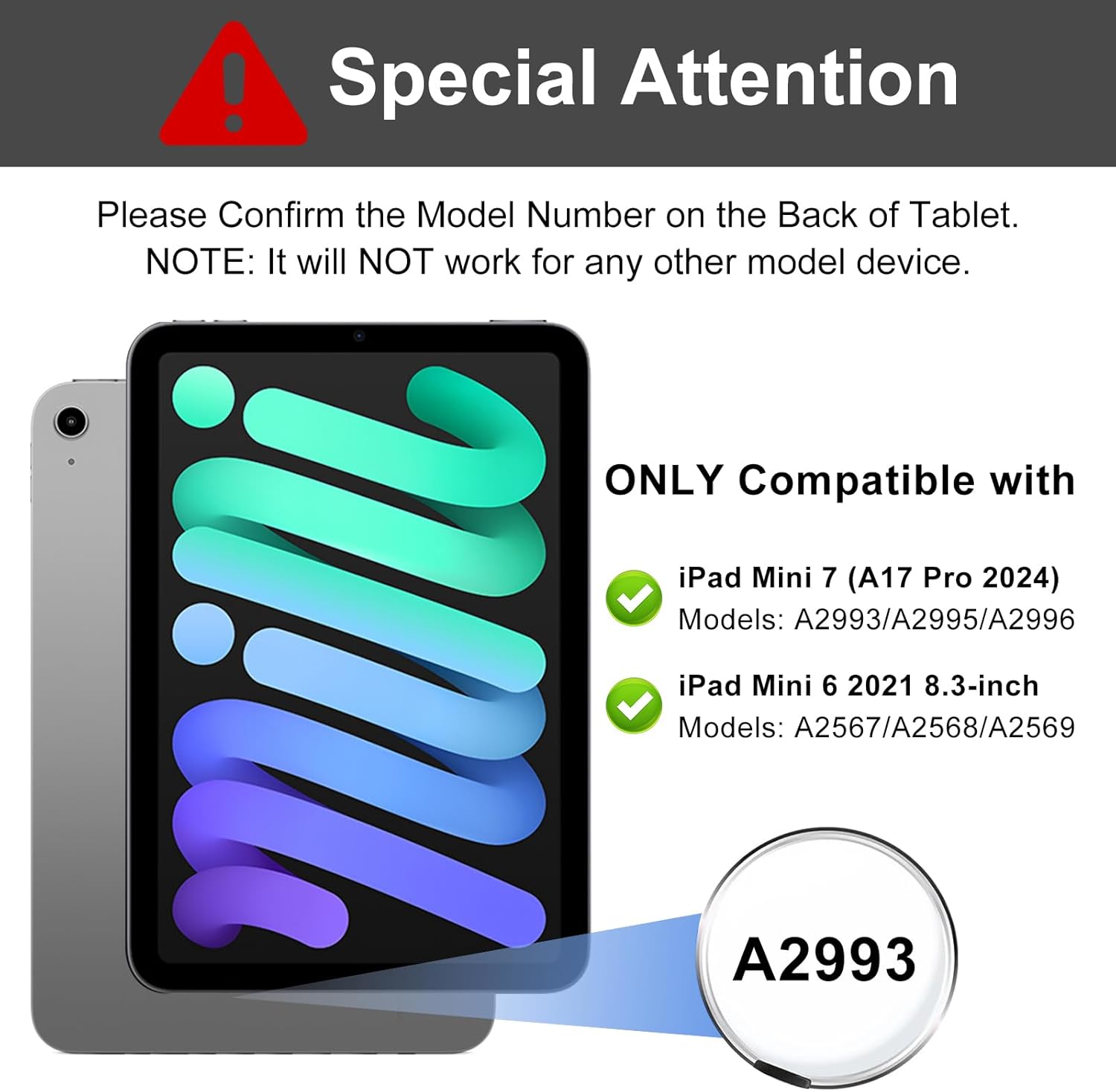
Image: Compatibility details for iPad mini 7th and 6th generation, highlighting model numbers.
Ihe ngwugwu 1.2
Ngwungwu ahụ gụnyere:
- 1 x Case for iPad mini 7th/6th Generation
- 1 x Bluetooth Keyboard for iPad mini 7th/6th Generation
- 1 x eriri USB
- Akwụkwọ ntuziaka onye ọrụ 1 x (akwụkwọ a)
Note: iPad mini tablet and Apple Pencil are not included.
2. Nhazi
2.1 Ịchaji ahụigodo
Before initial use, fully charge the keyboard. Connect the provided USB charging cable to the keyboard's charging port and a USB power adapter (not included). The charging indicator light will illuminate during charging and turn off when fully charged.
- Oge Nchaji: Ihe dịka awa 2
- Working Time: Up to 90 hours on a full charge

Image: Keyboard charging port and battery life indicators.
2.2 Njikọ Bluetooth
Follow these steps to connect your keyboard to your iPad mini:
- Gbaa mbọ hụ na agbagoro ahụigodo.
- Turn on the keyboard by sliding the power switch to the "ON" position. The indicator light will flash.
- Pịa "Connect" bọtịnụ dị na ahụigodo ahụ. Ọkụ ihe ngosi Bluetooth ga-amalite ịcha ọkụ, nke na-egosi na ọ nọ n'ọnọdụ njikọta.
- On your iPad mini, go to Ntọala > Bluetooth.
- Gbanye Bluetooth. iPad gị ga-achọ ngwaọrụ dị.
- Chọta "Bluetooth Keyboard" (or similar name) in the "Other Devices" list and tap it to connect.
- Once paired, the Bluetooth indicator light on the keyboard will stop blinking and remain solid for a moment, then turn off. The iPad will show "Connected" next to the keyboard name.
The keyboard will automatically connect to your iPad mini when turned on, provided Bluetooth is enabled on your iPad and the keyboard was previously paired.

Image: Keyboard layout highlighting power and connect buttons, demonstrating multi-device compatibility.
3. Ntuziaka ọrụ
3.1 Detachable Keyboard Functionality
The keyboard is magnetically attached to the case, allowing it to be easily detached for separate use or when you only need the protective case. The strong magnetic adsorption ensures stability when the keyboard is in place.
3.2 Built-in Pen Holder
The case features a dedicated slot for your Apple Pencil. This slot supports wireless charging for compatible Apple Pencils, ensuring your pencil is always ready for use and securely stored.

Image: Apple Pencil stored and wirelessly charging in the case's pen holder.
3.3 Enwere ike idozi Viewna akụkụ
The case is designed with three anti-slip grooves, allowing you to adjust your iPad mini to optimal viewing angles for various activities such as typing, watching videos, or reading. The available angles are approximately 130°, 120°, and 110°.

Image: Different viewing angles provided by the case's anti-slip grooves.

Image: User enjoying media with the iPad mini in the case, set at a comfortable viewakụkụ n'akuku.
3.4 Igodo ụzọ mkpirisi
The keyboard includes various shortcut keys for quick access to common functions. Refer to the keyboard layout for specific key functions. The keyboard is compatible with Android, Windows, and iOS systems. To switch between systems, press Fn + Q (Android), Fn + W (Windows), or Fn + E (iOS).
The case also supports automatic wake-up/sleep functionality when the cover is opened or closed.
4. Nlekọta
To ensure the longevity and optimal performance of your keyboard case, follow these maintenance guidelines:
- Nhicha: Jiri nwayọọ, damp cloth to wipe the exterior of the case and keyboard. Avoid harsh chemicals or abrasive cleaners.
- Nchekwa: When not in use for extended periods, store the keyboard case in a cool, dry place. Ensure the keyboard is turned off to conserve battery life.
- Nchedo: Avoid exposing the case and keyboard to extreme temperatures, direct sunlight, or liquids.
5. Nchọpụta nsogbu
If you encounter issues with your SENGBIRCH Keyboard Case, refer to the following common solutions:
- Ahụigodo anaghị ejikọ site na Bluetooth:
- Gbaa mbọ hụ na agbanyere ma gbanye ahụigodo.
- Make sure Bluetooth is enabled on your iPad mini.
- Chefuo ngwaọrụ ahụ na ntọala Bluetooth nke iPad gị wee gbalịa ijikọ ọzọ.
- Restart both your iPad mini and the keyboard.
- Igodo anaghị aza:
- Check if the keyboard is properly connected via Bluetooth.
- Ensure the keyboard battery is not low. Charge if necessary.
- Malitegharịa ahụigodo na iPad.
- iPad not waking/sleeping automatically:
- Ensure the iPad is correctly seated in the case.
- Check iPad settings for "Lock/Unlock" or "Cover Lock" features and ensure they are enabled.
6. Nkọwapụta
| Njirimara | Nkọwa |
|---|---|
| Ụdị | SENGBIRCH |
| Ngwa dakọtara | iPad mini 7th Gen (A2993/A2995/A2996), iPad mini 6th Gen (A2567/A2568/A2569) |
| Teknụzụ Njikọta | Bluetooth |
| Nkọwa ahụigodo | Detachable / Wireless Bluetooth / Magnetic / Shortcut Keys |
| Atụmatụ pụrụ iche | Detachable Keyboard, Full Coverage, Hotkeys and Media Keys, Scratch Resistant, Slim and Lightweight, Built-in Pen Holder (supports wireless charging) |
| Ihe onwunwe | Acrylonitrile Butadiene Styrene, Polyurethane (PU), Thermoplastic Polyurethane (TPU) |
| Battery Life (Work Time) | Ruo awa iri abụọ |
| Oge Nchaji | Ihe dị ka awa 2 |
7. Akwụkwọ ikike na nkwado
SENGBIRCH is committed to providing quality products and customer satisfaction. If you have any questions, concerns, or require assistance with your keyboard case, please do not hesitate to contact us.
Please refer to your purchase documentation or the seller's contact information for specific warranty details and customer service channels.