
1. Okwu mmalite
This manual provides detailed instructions for the setup, operation, maintenance, and troubleshooting of your Omezizy D450BT Bluetooth Shipping Label Printer. Please read this manual thoroughly before using the printer to ensure proper function and longevity of the device. Keep this manual for future reference.
2. Ihe ngwugwu
Chọpụta na ihe niile dị na ngwugwu:
- Omezizy D450BT Thermal Label Printer
- Ihe nkwụnye ọkụ
- eriri USB
- Ntuziaka mmalite ngwa ngwa
- Sample Thermal Labels (e.g., 500Pcs 2x2 Roll Transparent Thermal Labels)

Image: Contents of the Omezizy D450BT printer package, including the printer, cables, and a roll of labels.
3. Ngwaahịa gafereview
The Omezizy D450BT is a compact thermal label printer designed for efficiency. It features a built-in label compartment and supports both roll and fanfold labels.

Foto: Ime view of the D450BT printer showing the label compartment, adjustable baffle, and guide rail for label loading.
Akụkụ ndị bụ isi:
- Nhazi kọmpat: Space-saving dimensions of approximately 7.2 x 6.3 x 5.3 inches.
- Dual Label Loading: Supports internal roll paper (up to 250 4x6 labels) and external fanfold labels.
- Ikuku Njikọ: Bluetooth for Android, iOS, Windows, macOS, Linux, and ChromeOS.
- Njikọ ikuku: USB connection compatible with all major computer systems.
- Mkpebi dị elu: 203 DPI for clear print quality.
- Mbipụta ngwa ngwa: Up to 72 labels per minute.
4. Nhazi
4.1. Ịbugo aha
- Mepee mkpuchi elu nke ngwa nbipute.
- Adjust the movable baffle and guide rail to match the width of your labels.
- For roll labels, place the roll into the internal compartment. Ensure the labels feed smoothly through the output slot.
- For fanfold labels, feed them from the rear input slot.
- Close the top cover. The printer will automatically detect and calibrate the label size.

Image: Illustration demonstrating the process of loading both roll and fanfold thermal labels into the D450BT printer.
4.2. Njikọ ike
Connect the power adapter to the printer's power port and then plug it into a power outlet. Turn on the printer using the power button.
4.3. Driver Installation (for USB Connection)
For Windows, macOS, Linux, or ChromeOS, connect the printer to your computer using the provided USB cable. Drivers can typically be found on the Omezizy support website or included on a USB drive with the product. Follow the on-screen instructions for installation.
4.4. Bluetooth Pairing (for Wireless Connection)
The D450BT supports Bluetooth connectivity for various operating systems.
- Maka Ngwaọrụ Mkpanaka (Android/iOS):
- Gbaa mbọ hụ na agbanyere Bluetooth na ngwaọrụ mkpanaka gị.
- Download and install the official Omezizy printing application (refer to section 4.5).
- Open the app and follow the in-app instructions to search for and connect to the "D450BT" printer.
- For Computers (Windows/macOS/Linux/ChromeOS):
- Gbaa mbọ hụ na agbanyere Bluetooth na kọmputa gị.
- Go to your computer's Bluetooth settings and search for available devices.
- Select "D450BT" from the list and pair the device.
- Install the necessary printer drivers as described in section 4.3.

Image: The D450BT printer demonstrating both Bluetooth and USB connectivity options across various operating systems.
4.5. Mobile Application Installation
For convenient mobile printing, download the official Omezizy app from your device's app store.
Once installed, open the app, connect to your D450BT printer via Bluetooth, and you can import PDFs or other label formats for printing.

Image: Visual guide for using the mobile application to print labels via Bluetooth, including app download links and printing steps.
5. Ntuziaka ọrụ
5.1. Printing from Computer
- Ensure the printer is connected via USB or Bluetooth and drivers are installed.
- Open the document or label file you wish to print (e.g., PDF, shipping label from a platform).
- Go to "Print" (usually File > Print or Ctrl+P/Cmd+P).
- Select "Omezizy D450BT" as your printer.
- Adjust print settings such as paper size (e.g., 4x6 inches), orientation, and print quality as needed.
- Pịa "Bipụta".
5.2. Printing from Mobile Application
- Ensure the printer is powered on and connected to your mobile device via Bluetooth through the Omezizy app.
- Within the app, select the file or image you want to print.
- Adjust print settings such as label size, number of copies, and print quality.
- Initiate the print command from the app.
5.3. Label Calibration
The printer typically calibrates automatically when labels are loaded. If labels are misaligned or printing incorrectly, perform a manual calibration:
- Ensure labels are properly loaded.
- Gbanyụọ ngwa nbipute.
- Press and hold the feed button while turning on the printer. Release the button when the printer starts feeding labels. The printer will detect the label gaps and calibrate.
5.4. Supported Label Types
The D450BT printer supports thermal labels with widths ranging from 1 inch to 4.6 inches. This includes common sizes like 4x6 inch shipping labels, 2x2 inch round labels, and various other sizes for barcodes, product labels, and more.

Foto: Examples of different label types and sizes that can be printed with the D450BT thermal label printer.
For specific label types and designs, you may find resources like njikọ a helpful for inspiration or templates.
6. Nlekọta
6.1. Na-ehicha isi mbipụta
Regular cleaning of the print head ensures optimal print quality and extends the printer's lifespan. Clean the print head if print quality degrades or after every few rolls of labels.
- Gbanyụọ ngwa nbipute wee wepụ eriri ọkụ.
- Mepee mkpuchi elu.
- Wait a few minutes for the print head to cool down if the printer has been recently used.
- Gently wipe the print head surface with an alcohol swab or a soft, lint-free cloth lightly dampened with isopropyl alcohol. Do not use water or abrasive materials.
- Allow the print head to dry completely before closing the cover and powering on the printer.
6.2. Nlekọta n'ozuzu
- Keep the printer in a clean, dust-free environment.
- Avoid exposing the printer to direct sunlight, high temperatures, or high humidity.
- Use only high-quality thermal labels to prevent damage to the print head.
- Do not attempt to disassemble the printer yourself. Contact support for repairs.
7. Nchọpụta nsogbu
| Nsogbu | Ihe nwere ike ime | Ngwọta |
|---|---|---|
| Ngwa nbipute anaghị agba ọkụ | Power cable loose; power outlet faulty; power adapter issue. | Check power connections; try a different outlet; contact support if adapter is faulty. |
| Enweghị mmepụta mbipụta | No labels loaded; labels loaded incorrectly; printer not connected; driver issue. | Load labels correctly; check USB/Bluetooth connection; reinstall drivers. |
| Poor print quality (faded, lines) | Print head dirty; low-quality labels; incorrect print settings. | Clean print head (Section 6.1); use recommended thermal labels; adjust print density in software. |
| Labels skipping or misaligning | Labels loaded incorrectly; sensor dirty; calibration needed. | Reload labels, ensuring they are straight; clean sensor; perform manual calibration (Section 5.3). |
| Nsogbu njikọ Bluetooth | Bluetooth off; device not paired; interference. | Ensure Bluetooth is on; re-pair device; move closer to printer; restart devices. |
8. Nkọwapụta
| Njirimara | Nkọwa |
|---|---|
| Aha Nlereanya | D450BT |
| Ụdị | Ozizi |
| Teknụzụ obibi akwụkwọ | Thermal |
| Teknụzụ Njikọta | Bluetooth, USB |
| Mmepụta ngwa nbipute | Monochrome (Thermal printers print in black) |
| Mkpebi mbipụta ojii na ọcha kacha | 203 DPI |
| Ogo mgbasa ozi kacha | 4 inches (supports 1 to 4.6 inches width) |
| Oke ntinye akwụkwọ ikike | 250 (for 4x6 inch roll labels) |
| Mbipụta nwere akụkụ abụọ | Mba (dị mfe) |
| Ngwa gụnyere | Printer, Power Adapter, USB Cable, Sample Labels |
| Akụkụ (Ihe dị ka) | 7.2 x 6.3 x 5.3 sentimita asatọ |
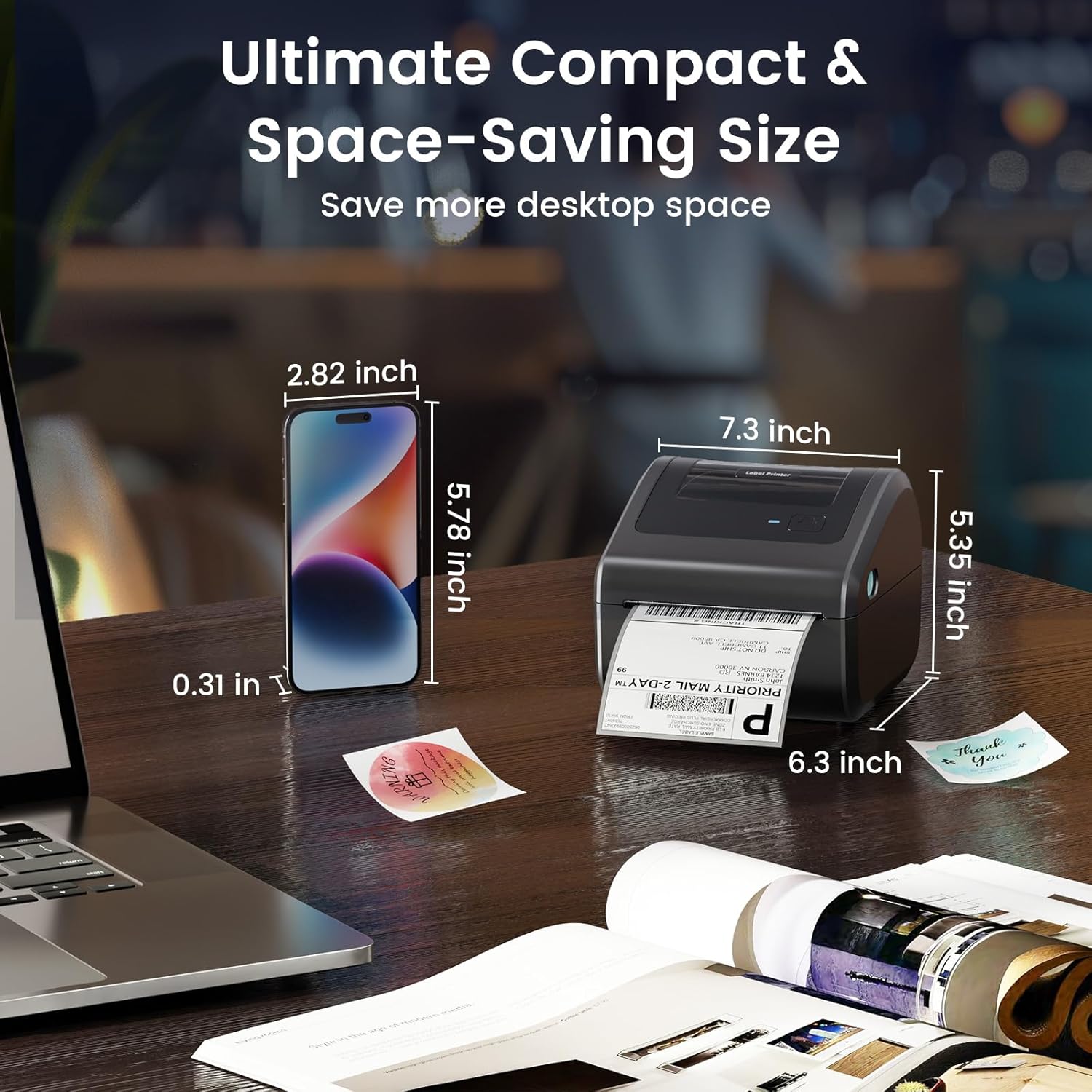
Image: Visual representation of the D450BT printer's compact size and dimensions.
9. Akwụkwọ ikike na nkwado
The Omezizy D450BT printer comes with a limited warranty. For specific warranty terms and conditions, please refer to the documentation included with your product or visit the official Omezizy websaịtị.
For technical support, troubleshooting assistance, or warranty claims, please contact Omezizy customer service through their official channels. Contact information can typically be found on the Omezizy websaịtị ma ọ bụ na ntuziaka mmalite ngwa ngwa ngwaahịa gị.
Omezizy Store Link: Visit the Omezizy Store on Amazon