
1. Okwu mmalite
This manual provides detailed instructions for the HOU Keyboard Case designed for the iPad Pro 13-inch M5/M4 models. Please read this manual carefully before use to ensure proper operation and to maximize the product's lifespan.
1.1 ndakọrịta
This keyboard case is specifically designed for the iPad Pro 13-inch M5/M4 (2025 models). Compatible iPad models include: A2925, A2926, A3007.
Important: This case is NOT compatible with iPad Air 13 (M2) 2024 (models A2898, A2899, A2900) or iPad Pro 12.9-inch (2017-2022) (6th/5th/4th/3rd/2nd/1st generation).
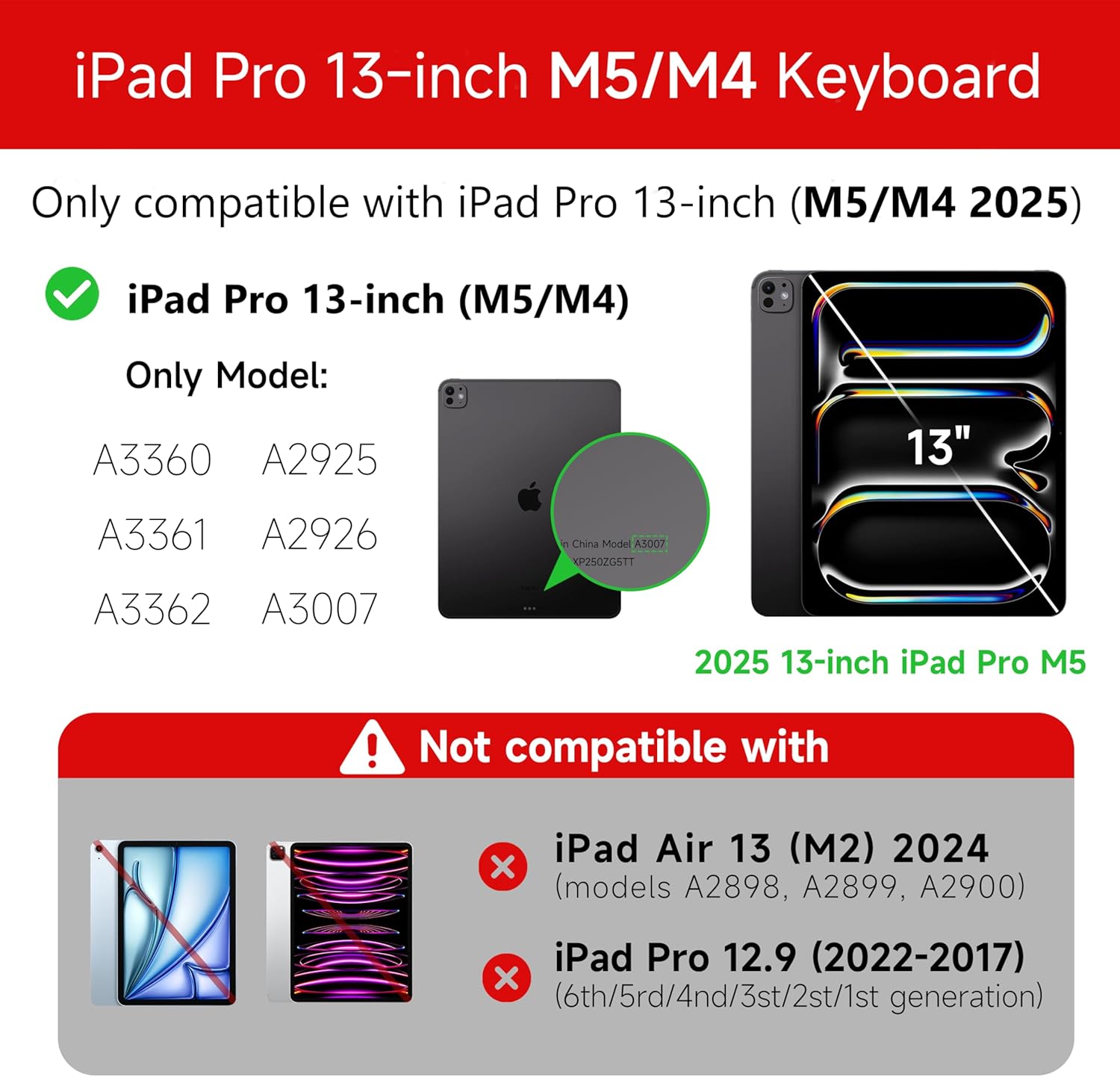
Figure 1: Compatibility details for the HOU iPad Pro 13-inch Keyboard Case.
2. Nhazi
2.1 Ịchaji ahụigodo
Before initial use, fully charge the keyboard. Connect the provided USB-C cable to the charging port on the keyboard and to a power source. The charging indicator light will show the charging status.
- Nchaji ọdụ ụgbọ mmiri: Ụdị-C
- Oge nchaji: Approximately <2 hours
- Ike batrị: 500mAh
2.2 Attaching Your iPad Pro
The keyboard case features a magnetic design for secure attachment. Align your iPad Pro 13-inch with the magnetic back panel of the case. The strong magnets will securely hold your iPad in place, providing stability.

Figure 2: Magnetic attachment for secure iPad placement.
2.3 Njikọ Bluetooth
To connect the keyboard to your iPad Pro via Bluetooth:
- Gbaa mbọ hụ na agbanyere na agbanyere ahụigodo.
- Na iPad gị, gaa na Ntọala > Bluetooth and turn Bluetooth on.
- Na ahụigodo, pịa ma jide Fn + Control + R for 3 seconds until the indicator light flashes, indicating pairing mode.
- On your iPad, select the keyboard from the list of available devices (e.g., "HOU Keyboard").
- Once connected, the indicator light on the keyboard will stop flashing.
After the initial connection, the keyboard should automatically reconnect to your iPad when both devices are powered on and Bluetooth is enabled.
3. Ntuziaka ọrụ
3.1 Enwere ike idozi Viewna akụkụ
The keyboard case features a floating design that allows for angle adjustment up to 135 degrees. The keyboard base opens at a 45-degree angle, providing enhanced stability for various viewing and typing positions.
Figure 3: Adjustable viewing angle up to 135 degrees.
Ọrụ ọkụ azụ 3.2
The keyboard features an adaptive backlight with 7 different colors and 3 adjustable brightness levels. This allows for comfortable typing in various lighting conditions, including low-light environments.

Figure 4: Keyboard backlight in use for typing at night.
3.3 Trackpad nke nwere ọtụtụ mmetụ aka
The integrated multi-touch trackpad supports full-area press and various swipe gestures, transforming your iPad into a laptop-like experience. It provides responsive controls for scrolling, dragging, input, and media control.
Adjusting Trackpad Sensitivity: You can adjust the trackpad sensitivity directly from your iPad's settings to match your personal preference.
- Gaa na Ntọala na iPad gị.
- Gaa na Nnweta.
- Find and adjust Mmetụta nsuso.

Figure 5: Multi-touch trackpad functionality and sensitivity adjustment.
3.4 Igodo ụzọ mkpirisi
The keyboard includes a series of shortcut keys to boost productivity. Refer to the keyboard layout for specific functions.
4. Nlekọta
The exterior of the keyboard case is made from a semi-silicone material, which is wear-resistant and designed to resist fingerprints and stains, making it easy to clean.
- To clean, gently wipe the surface with a soft, damp akwa .
- Zere iji kemịkalụ siri ike ma ọ bụ ihe abrasive, n'ihi na ndị a nwere ike imebi njedebe.
- Ensure the charging port and keys are free from dust and debris.
5. Nchọpụta nsogbu
5.1 Ahụigodo anaghị ejikọta site na Bluetooth
- Gbaa mbọ hụ na agbachara ahụigodo nke ọma.
- Make sure Bluetooth is enabled on your iPad.
- Re-enter pairing mode on the keyboard by pressing and holding Fn + Control + R maka 3 sekọnd.
- Forget the device in your iPad's Bluetooth settings and attempt to pair again.
- Malitegharịa ma iPad gị na keyboard gị.
5.2 Trackpad Lag or Unresponsiveness
- This can sometimes occur due to Bluetooth connectivity. Try turning the keyboard off and then back on.
- Ensure there are no obstructions between the keyboard and the iPad that might interfere with the Bluetooth signal.
- Check for any available iPadOS updates, as software improvements can sometimes resolve connectivity issues.
5.3 Ọkụ azụ anaghị arụ ọrụ
- Gbaa mbọ hụ na ahụigodo nwere ụgwọ batrị zuru oke.
- Check the keyboard's function keys for backlight control (usually a dedicated key or Fn combination).
6. Nkọwapụta
| Njirimara | Nkọwa |
|---|---|
| Ụdị | HOU |
| Ngwa dakọtara | 2025 (M4/M5) iPad Pro 13-inch (A2925/A2926/A3007) |
| Teknụzụ Njikọta | Bluetooth 5.2 |
| Nkọwa ahụigodo | Multi-functional with Trackpad |
| Akwadoro ojiji | Nkeonwe |
| Atụmatụ pụrụ iche | Trackpad, Backlit, Hot Keys & Media Keys, Rechargeable, Lightweight |
| Agba | Ọcha |
| Agba ọkụ azụ | Agba 7 RGB |
| Akụkụ ngwaahịa (L x W x H) | 32 x 24.2 x 2.7 cm |
| Ihe onwunwe | Aluminum, Metal, ABS, Polyurethane (PU), Semi-silicone |
| Ibu Ibu | 1.1 kilogram |
| Isi Iyi Ike | Akwanyere batrị |
| Ike batrị | ~ 500mAh |
| Na-arụ ọrụ ugbu a | <10mA |
| Oge Njikere | ≥ 30 ụbọchị |
| Ogologo ọrụ | ≤10m |
7. Nkwado
For any questions or further assistance, please contact the seller directly through your Amazon account:
- Banye na akaụntụ Amazon gị.
- Go to "Order History".
- Locate your order for the HOU iPad Pro 13-inch Keyboard Case.
- Click on "Contact Seller".