
1. Okwu mmalite
The Ulefone Armor PAD 4 Ultra is a rugged 5G tablet PC designed for durability and high performance in challenging environments. It features a 10.36-inch 2K FHD+ display, a powerful MediaTek Dimensity 6300 processor, and a large 11800mAh battery. This manual provides essential information for setting up, operating, maintaining, and troubleshooting your device.

Image: The Ulefone Armor PAD 4 Ultra tablet showcasing its rugged design in an outdoor environment.
Key features include IP68/IP69K and MIL-STD-810H certifications for water, dust, and drop resistance, a 50MP rear camera, a 32MP front camera, and a versatile 1100 lumens LED light. The tablet runs on Android 14 and offers up to 16GB RAM and 256GB internal storage, expandable up to 2TB.
2. Ntuziaka Nhazi
Ihe ngwugwu 2.1
Tupu ịmalite, hụ na ihe niile dị na ngwugwu:
- Ulefone Armor PAD 4 Ultra Tablet PC
- Ihe nkwụnye ọkụ
- USB-C USB
- Ngwaọrụ SIM Ejector
- Akwụkwọ ntuziaka (akwụkwọ a)
2.2 Inserting SIM/SD Card
- Locate the SIM/SD card tray on the side of the tablet.
- Jiri ngwaọrụ ejector SIM enyere ka imepe traị.
- Carefully place your Nano SIM card(s) and/or SD card into the designated slots. The tablet supports dual Nano SIM cards or one Nano SIM card and one SD card.
- Jiri nwayọọ pịa tray ahụ n'ime mbadamba ahụ ruo mgbe ọ pịrị aka n'ebe ọ nọ.

Foto: N'ihu view of the Ulefone Armor PAD 4 Ultra tablet, showing its display and rugged frame.
2.3 Initial Charging and Power On
- Connect the USB-C cable to the tablet's charging port and the power adapter.
- Plug the power adapter into a wall outlet. Allow the tablet to charge for at least 30 minutes before initial use, or until the battery indicator shows sufficient charge. The 11800mAh battery supports 33W fast charging.
- Press and hold the Power button (usually located on the side) until the Ulefone logo appears on the screen.
- Soro mkpali na ihuenyo iji mechaa nhazi mbụ, gụnyere nhọrọ asụsụ, njikọ Wi-Fi, na nhazi akaụntụ Google.
2.4 Njikọ netwọkụ
The tablet supports 5G LTE dual SIM connectivity. Ensure your SIM card is active and your mobile data plan is configured. For Wi-Fi, navigate to Ntọala> Netwọk & ịntanetị> Wi-Fi to connect to an available network.
3. Ntuziaka ọrụ
3.1 Basic Navigation (Android 14)
The Ulefone Armor PAD 4 Ultra runs on Android 14. Navigate using gestures or the traditional three-button navigation bar (Back, Home, Recents). Swipe up from the bottom for the app drawer, swipe down from the top for notifications and quick settings.

Image: The tablet displaying the Android 14 interface, with an HDMI connection to an external display for presentations.
3.2 Ojiji igwefoto
The tablet is equipped with a 50MP rear camera and a 32MP front camera. Open the Camera app to capture photos and videos. Tap to focus, pinch to zoom, and use the on-screen controls for various modes and settings.

Foto: nkọwa zuru ezu view of the tablet's rear camera module, highlighting the 50MP sensor and the powerful LED light.
3.3 Versatile LED Light
The tablet features a powerful 1100 lumens LED light. This can be activated via a dedicated custom key or through the exclusive app. It functions as a flashlight, headlight, or portable campìhè.
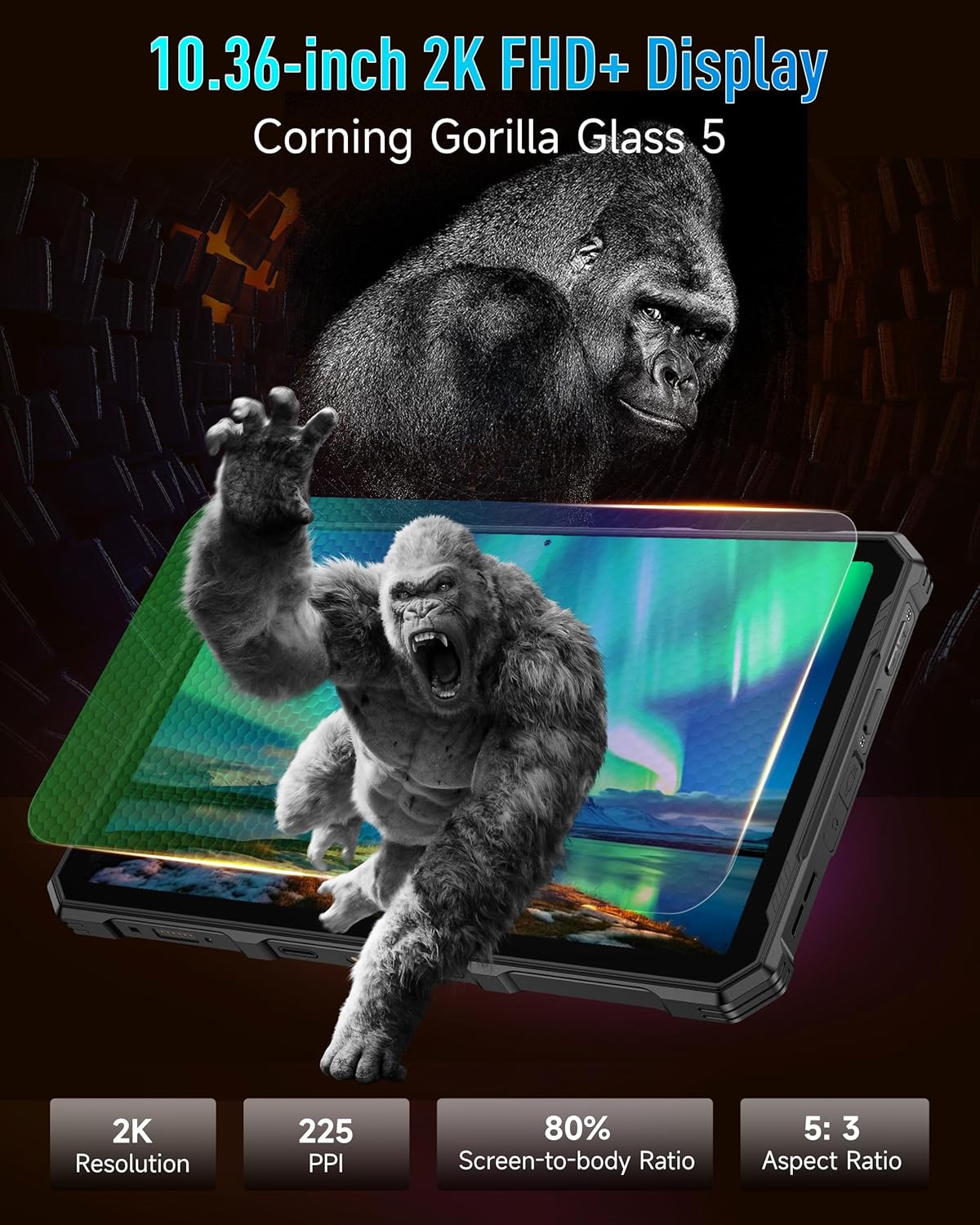
Image: The Ulefone Armor PAD 4 Ultra tablet illuminating a camping tent with its powerful LED light.
3.4 Custom Key Functionality
The tablet includes a customizable physical key. This key can be configured for single click, double click, or long press actions to quickly access specific functions or applications, such as activating the LED light or launching the camera.
3.5 Gloves Mode
For use in cold weather or industrial environments, activate Gloves Mode in Settings > Smart Assistant > Gloves Mode. This enhances touch sensitivity, allowing the screen to respond to gloved hands.
3.6 Face Unlock and Fingerprint ID
Enhance security and convenience by setting up Face Unlock or Fingerprint ID. Go to Ntọala > Nche & nzuzo > Ịkpọghee ngwaọrụ to configure these options.
3.7 Multi-use Digital Toolbox
The tablet comes with a suite of pre-installed tools in the Digital Toolbox, including a compass, sound meter, protractor, and more. These tools are designed to assist in various outdoor and professional tasks.

Image: A construction worker utilizing the Ulefone Armor PAD 4 Ultra tablet's digital toolbox for various measurements and utilities.
3.8 Headset-free FM Radio
Enjoy FM radio without needing to connect headphones. Simply open the FM Radio app and tune into your favorite stations.
3.9 Ọdụ HDMI
The tablet features an HDMI port for connecting to external displays, such as monitors or projectors. This allows for screen mirroring or extended display functionality, useful for presentations or media consumption.
4. Nlekọta
4.1 Na-ehicha ngwaọrụ gị
Due to its rugged design, the Armor PAD 4 Ultra can be cleaned with water and mild soap. Ensure all port covers are securely closed before exposing the device to water. Wipe with a soft, lint-free cloth. Avoid using harsh chemicals or abrasive materials.
4.2 Nlekọta batrị
Ka ịgbatị ndụ batrị:
- Zere oke okpomọkụ.
- Jiri chaja na eriri mbụ maka chaja kacha mma.
- Akwụsịla batrị kpamkpam ugboro ugboro.
- If storing the device for an extended period, charge it to about 50% and power it off.
4.3 Mmelite ngwanrọ
Lelee ma wụnye mmelite ngwanrọ mgbe niile iji hụ na arụmọrụ kacha mma, nchekwa na ịnweta njirimara ọhụrụ. Gaa na Ntọala> Sistemu> Mmelite sistemụ.
4.4 Ruggedness Features
The tablet is IP68/IP69K and MIL-STD-810H certified, meaning it is resistant to water, dust, and drops. While designed to be durable, avoid intentionally subjecting it to extreme conditions beyond its specifications. Ensure all port covers are sealed to maintain water and dust resistance.

Image: The Ulefone Armor PAD 4 Ultra tablet submerged in water, covered in dust, and dropped, demonstrating its IP68/IP69K and MIL-STD-810H certifications.
5. Nchọpụta nsogbu
5.1 Ngwaọrụ anaghị agba ọkụ
- Ensure the battery is charged. Connect the tablet to its charger and wait a few minutes before attempting to power it on.
- Pịa ma jide bọtịnụ Ike maka opekata mpe sekọnd 10-15 iji malitegharịa ma ọ bụ gbanyụọ ya.
5.2 Okwu Njikọta netwọkụ
- Wi-Fi: Check if Wi-Fi is enabled in Settings. Restart your router. Forget the network and reconnect.
- Data mkpanaka: Ensure your SIM card is correctly inserted and activated. Check your data plan status with your carrier. Restart the tablet.
5.3 Ihuenyo anaghị anabata
- Malitegharịa ngwaọrụ ahụ site na ijide bọtịnụ Ike.
- If the screen is frozen, perform a forced restart.
5.4 Ngwa ndị na-akụda ma ọ bụ na-ajụ oyi
- Hichapụ ebe nchekwa na data nke ngwa nwere nsogbu (Ntọala > Ngwa > [Aha Ngwa] > Nchekwa na ebe nchekwa).
- Wepu ma tinyegharịa ngwa ahụ.
- Gbaa mbọ hụ na ngwanrọ mbadamba gị emechiela.
5.5 nrụpụta nrụpụta
If issues persist, a factory reset may be necessary. This will erase all data on your tablet, so back up important information first. Go to Ntọala> Sistemu> Nhọrọ Tọgharia> Hichapụ data niile (ntọgharị ụlọ ọrụ).
6. Nkọwapụta
| Njirimara | Nkọwa |
|---|---|
| Ụdị | Ulefone |
| Nọmba nlereanya | Ulefone Armor Pad 4 Ultra |
| Nha ihuenyo | 10.36 sentimita asatọ |
| Mkpebi obodo | 2000x1200 pixels (2K FHD+) |
| Akụkụ akụkụ | 5:3 |
| Nhazi | MediaTek Dimensity 6300 (2400 MHz) |
| RAM | Up to 16GB (8GB physical + 8GB virtual) |
| Nchekwa nke ime | 256GB (2TB Expandable) |
| Sistemụ nrụọrụ | Android 14 |
| Igwefoto azụ | 50MP |
| Igwefoto ihu | 32MP |
| Ike batrị | 11800mAh |
| Ịchaji | Nchaji ngwa ngwa 33W |
| Obi mgbawa | IP68/IP69K, MIL-STD-810H Certified |
| Njikọta | 5G LTE, Wi-Fi (2.4G/5G), Bluetooth 5.2, NFC, GPS |
| Atụmatụ pụrụ iche | 1100 Lumens LED Light, Custom Key, Gloves Mode, HDMI Port, Multi-use Digital Toolbox |
| Ibu Ibu | 16 ounces |
7. Akwụkwọ ikike na nkwado
7.1 Ozi akwụkwọ ikike
The Ulefone Armor PAD 4 Ultra comes with a Akwụkwọ ikike zuru ụwa ọnụ nke afọ 2. This warranty covers manufacturing defects and malfunctions under normal use. Please retain your proof of purchase for warranty claims. The warranty does not cover damage caused by misuse, accidents, unauthorized repairs, or normal wear and tear.
7.2 Nkwado ndị ahịa
For technical assistance, warranty claims, or any other inquiries, please contact Ulefone customer support. Refer to the official Ulefone websaịtị ma ọ bụ akwụkwọ ịzụrụ ihe gị maka ozi kọntaktị kachasị ọhụrụ.
Your satisfaction is a priority. Should you encounter any technical issues, the dedicated support team is available to assist you.