
Divoom Pixoo-64 + Tiivoo-2 Cream
Divoom Pixoo-64 & Tiivoo-2 User Manual
Your Guide to Pixel Art and Retro Sound
Okwu mmalite
Welcome to the world of Divoom! This manual provides detailed instructions for setting up, operating, and maintaining your Divoom Pixoo-64 LED Panel Display Frame and Divoom Tiivoo-2 Pixel Art Mini TV Retro Bluetooth Speaker. These devices are designed to bring creativity, information, and entertainment into your daily life through innovative pixel art technology and high-quality audio.
For full functionality and customization, please download the official Divoom App, available on both iOS and Android devices. The app is essential for controlling and personalizing many features of both the Pixoo-64 and Tiivoo-2.
Ntuziaka nhazi
Divoom Pixoo-64 Setup
- Njikọ ike: Connect the Pixoo-64 to a power source using the provided USB cable and power adapter. The device will power on automatically.
- Nbudata ngwa: Download the Divoom App from your smartphone's app store (search for "Divoom").
- Ngwakọta ngwaọrụ: Open the Divoom App, create an account or log in. Follow the on-screen instructions to add your Pixoo-64. Ensure your phone's Bluetooth and Wi-Fi are enabled. The app will guide you through connecting the Pixoo-64 to your Wi-Fi network.
- Nhazi izizi: Once connected, you can begin customizing your Pixoo-64 display, setting up Wi-Fi information counters, or uploading pixel art.
Divoom Tiivoo-2 Setup
- Ịchaji: Before first use, fully charge the Tiivoo-2 using the provided USB cable. The charging indicator will show its status.
- Ike Na: Press and hold the power button to turn on the Tiivoo-2.
- Njikọ Bluetooth: On your smartphone, enable Bluetooth and search for "Divoom Tiivoo-2" in the list of available devices. Select it to pair. A confirmation sound will indicate successful pairing.
- Njikọ ngwa: For advanced features and customization, open the Divoom App and add the Tiivoo-2 following the in-app instructions.
- Igwe Redio: Extend the antenna for better reception. Use the physical controls or the Divoom App to scan for and select FM radio stations.
Ntuziaka ọrụ
Divoom Pixoo-64 Operation
The Pixoo-64 is a versatile LED display frame controlled primarily through the Divoom App. Explore its various functions:
- Pixel Art Creation & Display: Use the Divoom App to create your own pixel art designs or download from the extensive online gallery. Upload them to your Pixoo-64 for display.
- Information Counter: Configure the Pixoo-64 to display real-time information such as social media followers (e.g., Twitch, YouTube), game KDA results, financial data, and more. This feature requires a stable Wi-Fi connection.
- Digital Photo Frame: Display your favorite photos as pixel art on the Pixoo-64. The app allows for easy photo conversion and upload.
- Clock & Weather Display: Utilize various dynamic clock dials and real-time weather updates.
- Messages & Reminders: Send text messages or set reminders to appear on the Pixoo-64 display.


Divoom Tiivoo-2 Operation
The Tiivoo-2 offers a blend of retro aesthetics and modern functionality:
- Ọkà okwu Bluetooth: Connect your smartphone or other Bluetooth-enabled devices to stream audio wirelessly.
- Igwe Redio: Tune into your favorite FM radio stations using the built-in tuner.
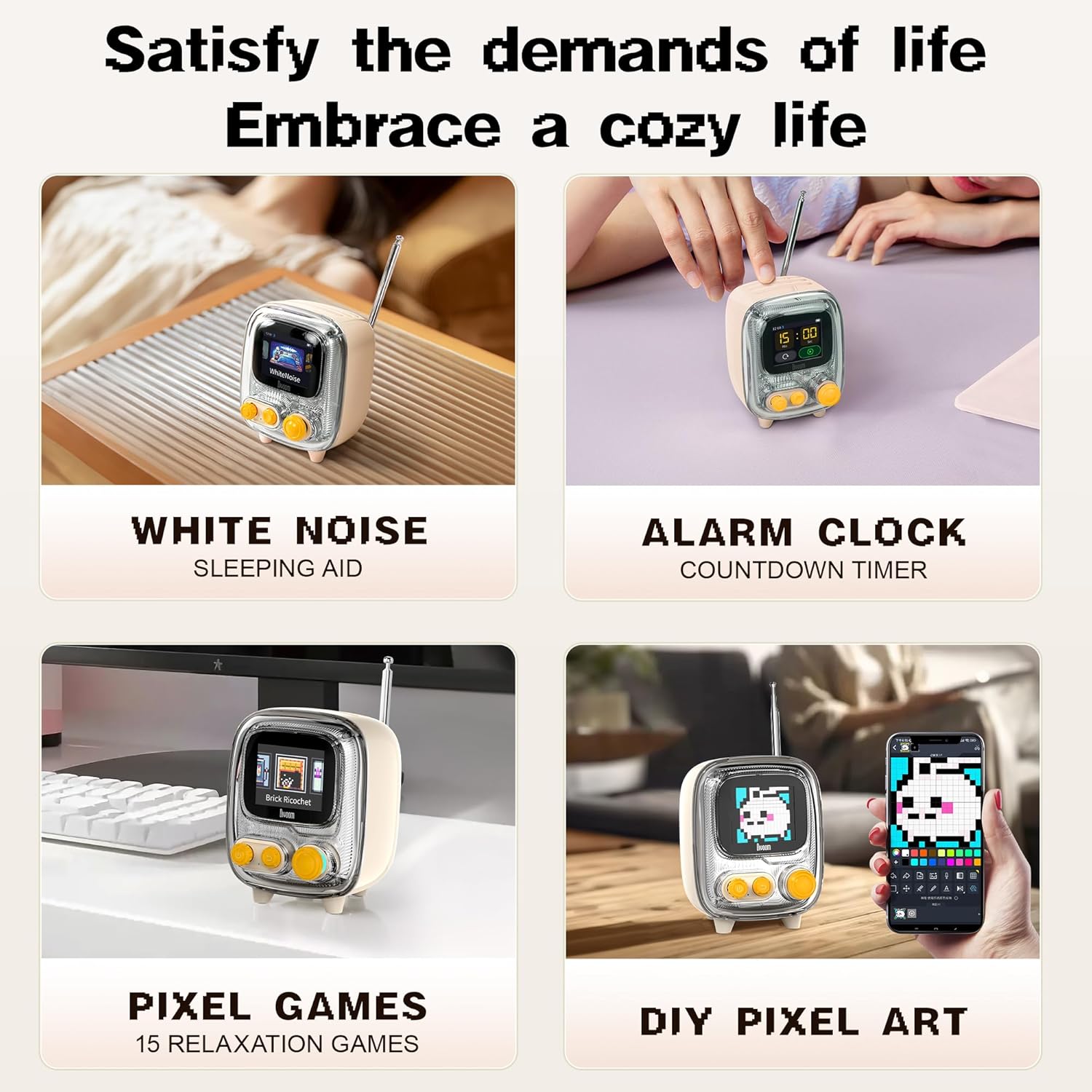
- Pixel Art Display: The small screen on the Tiivoo-2 can display pixel art, animations, and dynamic clock faces, customizable via the Divoom App.
- Pomodoro Timer & Alarm Clock: Utilize the integrated timer for productivity sessions or set alarms.
- White Noise & Sleep Aid: Access a variety of white noise sounds to aid relaxation and sleep.
- Retro Games: Enjoy a selection of classic pixel games directly on the Tiivoo-2 screen.
- Photo Album Casting: Cast photos from your phone to the Tiivoo-2's screen for a unique display.



Nlekọta
- Nhicha: Use a soft, dry, lint-free cloth to gently wipe the surfaces of both devices. Avoid using abrasive cleaners, solvents, or spray cleaners directly on the devices.
- Nchekwa: When not in use for extended periods, store the devices in a cool, dry place away from direct sunlight and extreme temperatures.
- Battery Care (Tiivoo-2): To prolong battery life, avoid fully discharging the Tiivoo-2 frequently. Charge it regularly, even if not in constant use.
- Mmelite ngwanrọ: Periodically check the Divoom App for firmware updates for both devices to ensure optimal performance and access to new features.
Nchọpụta nsogbu
If you encounter issues with your Divoom Pixoo-64 or Tiivoo-2, please refer to the following common solutions:
- Ngwaọrụ anaghị agba ọkụ: Ensure the power cable is securely connected and the power outlet is functional. For Tiivoo-2, ensure it is charged.
- Cannot Connect to App/Bluetooth: Make sure Bluetooth is enabled on your phone. Restart both the device and your phone. For Pixoo-64 Wi-Fi connection, ensure your Wi-Fi network is active and you have entered the correct password. Try resetting the device (refer to app for specific reset instructions).
- Display Issues (Pixoo-64): If the display is frozen or showing incorrect pixels, try restarting the device. Ensure the app is updated to the latest version.
- No Sound (Tiivoo-2): Check the volume levels on both the Tiivoo-2 and your connected device. Ensure Bluetooth is properly connected.
- Poor FM Radio Reception (Tiivoo-2): Extend the antenna fully and try repositioning the speaker for better signal.
For more detailed troubleshooting or persistent issues, please consult the Divoom App's help section or visit the official Divoom support websaịtị.
Nkọwapụta
| Njirimara | Nkọwa |
|---|---|
| Ụdị | Divoom |
| Nlereanya | Pixoo-64 + Tiivoo-2 Cream |
| Agba | Agba aja aja |
| Ụdị ngosi | Dijitalụ |
| Njirimara Pụrụ Iche | Oti mkpu |
| Isi Iyi Ike | Battery Powered (Tiivoo-2), Electrical (Pixoo-64) |
| Ojiji ime ime/n'èzí | Ime ụlọ |
| Frame Material (Pixoo-64) | Osisi, igwe |
| Batrị gụnyere | Mba |
| Ụdị nkwụnye | N'elu tebụl |
| Elekere mkpu | Ee |
| Ụdị ọrụ | Eletriki |
Akwụkwọ ikike na nkwado
Divoom products are designed for quality and durability. For information regarding warranty coverage, please refer to the specific warranty terms provided at the time of purchase or visit the official Divoom websaịtị.
For technical support, product inquiries, or assistance with any issues not covered in this manual, please contact Divoom customer service. You can typically find contact information on the Divoom official website or within the Divoom App's support section.
Akụrụngwa dị n'ịntanetị:
- Gaa leta Divoom Store on Amazon maka ozi ngwaahịa na mmelite.
- Check the Divoom App for FAQs, tutorials, and community support.
Ask a question about this manual
Ask about setup, troubleshooting, compatibility, parts, safety, or missing instructions. Manuals+ will review the question and use this page’s manual context to help answer it.