
H3C H3C Magic NX15-UK
Akwụkwọ ntuziaka onye ọrụ H3C Magic NX15 AX1500 Dual Band Gigabit Wi-Fi 6 Router
Model: H3C Magic NX15-UK
1. Okwu mmalite
The H3C Magic NX15 is a high-performance Gigabit Wi-Fi 6 router designed to provide a fast and reliable internet experience. Featuring a vertical design, full gigabit network ports, and Wi-Fi 6 (802.11ax) technology on the 5GHz band, it ensures high-speed connectivity. Equipped with four high-gain external antennas and EasyMesh compatibility, it offers wide and flexible network signal coverage. Enhanced security is provided through WPA3 encryption. This manual provides essential information for setting up, operating, and maintaining your H3C Magic NX15 router.
2. Ihe ngwugwu
Biko lelee ihe dị n'ime ngwugwu ahụ nke ọma. Ọ bụrụ na ihe ọ bụla efuo ma ọ bụ mebie, biko kpọtụrụ onye na-ere ahịa gị.
- H3C Magic NX15 AX1500 Dual Band Gigabit Wi-Fi 6 Router
- Ihe nkwụnye ọkụ
- eriri Ethernet
- Quick Installation Guide (this manual)
3. Ngwaahịa gafereview
Familiarize yourself with the components and interfaces of your H3C Magic NX15 router.
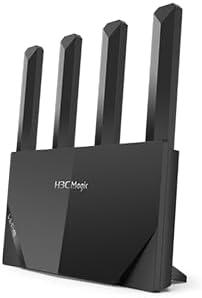
Foto 3.1: N'ihu view of the H3C Magic NX15 router, showcasing its vertical design and four external antennas.
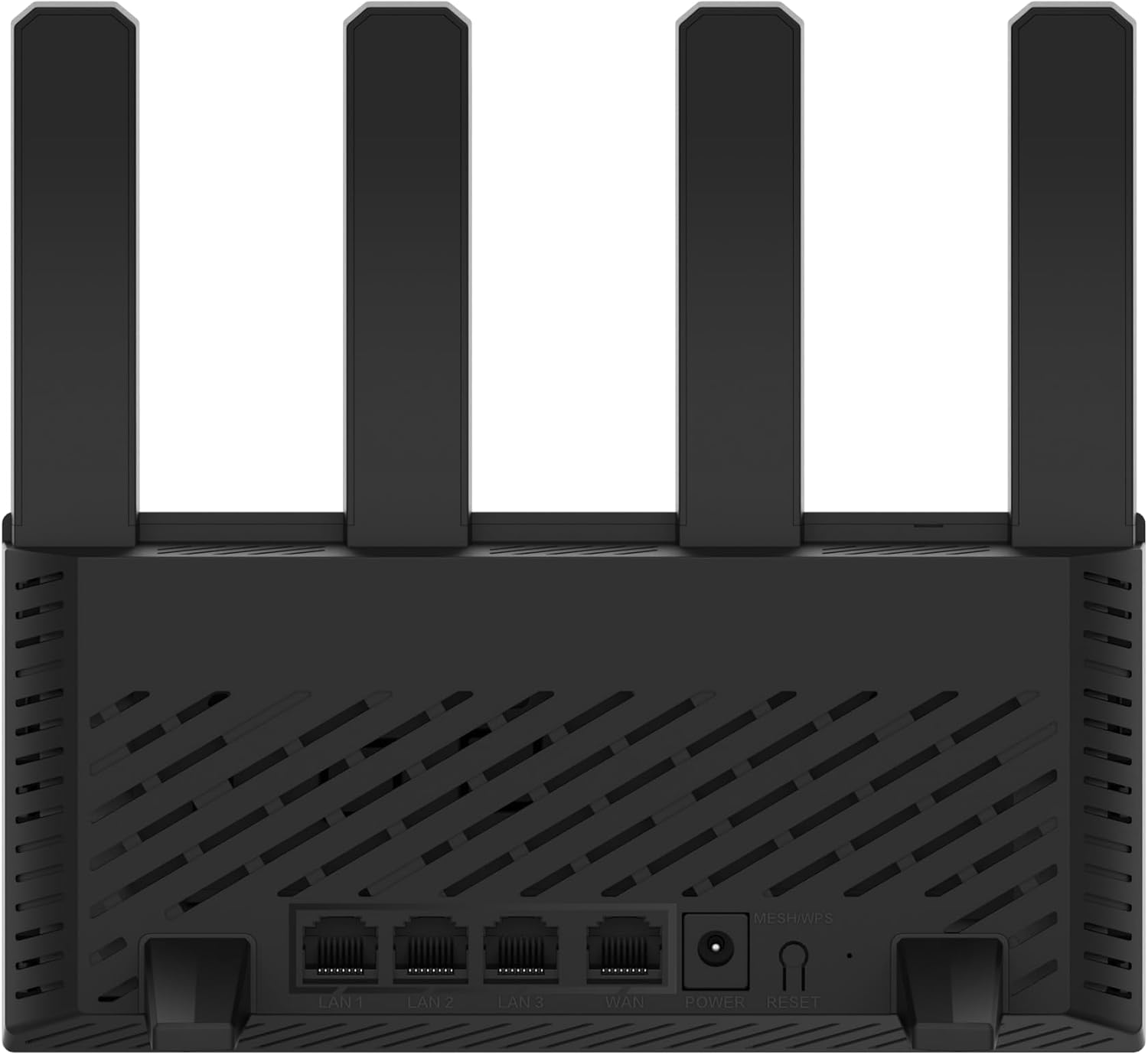
Foto 3.2: N'azụ view of the H3C Magic NX15 router, displaying the LAN ports, WAN port, power input, and Reset/WPS button.

Foto 3.3: N'elu view of the H3C Magic NX15 router, highlighting the ventilation design for heat dissipation.

Foto 3.4: Akụkụ view of the H3C Magic NX15 router, showing the sleek profile and additional ventilation slots.
Port and Button Descriptions:
- Port WAN: Connects to your modem or internet service provider's (ISP) network.
- Ọdụ ụgbọ mmiri LAN (LAN1, LAN2, LAN3): Connect to wired devices such as computers, gaming consoles, or smart TVs.
- Ike Port: Jikọọ na nkwụnye ọkụ gụnyere.
- Tọgharia/bọtịnụ WPS:
- Press briefly to activate WPS (Wi-Fi Protected Setup) for easy connection of compatible devices.
- Press and hold for approximately 5-10 seconds to restore the router to factory default settings.
- Mpi: Four high-gain external antennas for optimal Wi-Fi signal coverage.
4. Ntuziaka Nhazi
Follow these steps to set up your H3C Magic NX15 router for the first time.
- Wepụ router: Jiri nlezianya wepụ rawụta na ngwa niile na nkwakọ ngwaahịa.
- Debe router: Place the router in a central location in your home or office, away from obstructions and sources of interference (e.g., microwaves, cordless phones). Ensure good ventilation.
- Jikọọ na Ike: Connect the included power adapter to the router's power port and then plug the adapter into a power outlet. Wait for the router to power on and its indicator lights to stabilize.
- Jikọọ na modem: Connect one end of the provided Ethernet cable to the WAN port on your H3C Magic NX15 router and the other end to your modem's LAN port.
- Jikọọ Ngwaọrụ (Nhọrọ): For wired connections, connect an Ethernet cable from one of the router's LAN ports to your computer or other network device.
- Jikọọ na Wi-Fi:
- Na kọmputa gị ma ọ bụ ngwaọrụ mkpanaaka, chọọ netwọk Wi-Fi dị.
- Select the Wi-Fi network name (SSID) printed on the label at the bottom of your router.
- Enter the Wi-Fi password (also printed on the router's label) when prompted.
- Nweta ibe njikwa rawụta:
- Mepee a web ihe nchọgharị (dịka, Chrome, Firefox, Edge).
- Pịnye adreesị IP nke ndabara (na-abụkarị
192.168.1.1orh3cmagic.com) into the address bar and press Enter. Refer to the router's label for the exact address. - Follow the on-screen instructions to complete the initial setup, including setting a new administrator password and configuring your internet connection type (e.g., PPPoE, DHCP, Static IP).
5. Ntuziaka ọrụ
This section details the key features and how to operate your H3C Magic NX15 router.
5.1 Dual-Band Wi-Fi Operation
The H3C Magic NX15 supports dual-band Wi-Fi (2.4GHz and 5GHz) for optimal performance. It features intelligent band steering, which automatically directs your devices to the best available band (2.4GHz for wider coverage, 5GHz for higher speeds) without manual selection.
- 2.4GHz band: Provides wider coverage and better penetration through walls, suitable for general browsing and devices further from the router.
- 5GHz band: Offers higher speeds and lower latency, ideal for streaming 4K video, online gaming, and high-bandwidth applications, typically for devices closer to the router.
5.2 Intelligent Management via Mobile App
Manage your router conveniently using the dedicated H3C mobile application. The app allows for easy network settings configuration, network speed optimization, and various other operations.
- Budata ngwa: Chọọ maka the "H3C Magic" app in your device's app store (Google Play Store for Android or Apple App Store for iOS).
- Wụnye wee malite: Wụnye ngwa ahụ wee mepee ya.
- Banye: Use your router's administrator credentials to log in to the app.
- Jikwaa Ntọala: Site na ngwa a, ị nwere ike:
- Change Wi-Fi names and passwords.
- Nyochaa ngwaọrụ ejikọrọ.
- Hazie njikwa ndị nne na nna.
- Configure guest Wi-Fi networks.
- Optimize network performance.
5.3 EasyMesh for Whole-Home Wi-Fi
The H3C Magic NX15 supports EasyMesh technology, allowing you to expand your Wi-Fi coverage by adding additional compatible H3C mesh units. This creates a seamless whole-home Wi-Fi network, eliminating dead zones in large or complex house types.
- Refer to the EasyMesh setup guide provided with your additional mesh units for detailed instructions on expanding your network.
- Ensure all mesh units are compatible with the EasyMesh standard.
5.4 Atụmatụ nchekwa netwọkụ
The router includes multiple functions to enhance your private network's security:
- WPA3 nzuzo: Provides the latest and strongest Wi-Fi security protocol.
- Access Allowlist/Denylist: Control which devices can connect to your network based on their MAC addresses.
- Wi-Fi ndị ọbịa: Mepụta netwọk Wi-Fi dị iche maka ndị ọbịa, na-echekwa netwọk gị bụ isi na nkeonwe.
- Njikwa Nne na Nna: Manage internet access times and block inappropriate content for specific devices.
These security features can be configured via the router's web management interface or the H3C mobile app.
6. Nlekọta
Proper maintenance ensures the longevity and optimal performance of your H3C Magic NX15 router.
- Nkwanye: Keep the router in a well-ventilated area, away from direct sunlight, heat sources, and moisture. The stereoscopic heat dissipation design with a large metal heat sink helps maintain stable operation.
- Nhicha: Regularly dust the router's exterior and ventilation slots with a soft, dry cloth. Do not use liquid cleaners or aerosols.
- Mmelite femụwe: Lelee ma wụnye mmelite firmware site na rawụta kwa oge web management interface or the mobile app. Firmware updates often include performance improvements, new features, and security patches.
- Na-amalitegharị: Ọ bụrụ na ị na-enwe nsogbu netwọkụ, gbalịa ịmalitegharịa rawụta ahụ site na ịpụpụ ihe nkwụnye ike ahụ ruo sekọnd iri wee tinyeghachi ya.
- Nchekwa: Na-agbanwe mgbe niile okwuntughe Wi-Fi gị na paswọọdụ onye nchịkwa rawụta ka ọ bụrụ ngwakọta siri ike, pụrụ iche.
7. Nchọpụta nsogbu
Akụkụ a na-eleba anya n'okwu ndị nkịtị ị nwere ike izute ma nye azịza ya.
| Nsogbu | Ihe nwere ike ime | Ngwọta |
|---|---|---|
| Enweghị ohere ịntanetị |
|
|
| Wi-Fi Signal Weak or Unstable |
|
|
| Enweghị ike ịnweta ibe njikwa rawụta |
|
|
| Forgot Router Administrator Password | Okwuntughe furu efu | Press and hold the Reset/WPS button on the router for 5-10 seconds to restore factory default settings. You will then need to reconfigure the router. |
8. Nkọwapụta
Detailed technical specifications for the H3C Magic NX15 router.
| Njirimara | Nkọwa |
|---|---|
| Aha Nlereanya | H3C Magic NX15 |
| Nọmba Nlereanya ihe | H3C Magic NX15-UK |
| Ụdị | H3C |
| Ikuku Standard | 802.11ax (Wi-Fi 6) |
| Klaasị ugboro ugboro | Dual-band (2.4GHz & 5GHz) |
| Antenna | 4 High-Gain External Antennas |
| ọdụ ụgbọ mmiri | Gigabit WAN, Gigabit LAN (x3) |
| Atụmatụ pụrụ iche | Access Point Mode, EasyMesh, WPA3 Security, Parental Control, Guest Wi-Fi, App Management |
| Akụkụ (Ngwugwu) | 21 x 19.4 x 6.3 cm |
| Ibu (Ngwugwu) | 500 g |
| Onye nrụpụta | H3C |
| Mba onye si | China |
| Ụbọchị mbụ dị | Ọgọstụ 24, 2024 |
9. Akwụkwọ ikike na nkwado
The H3C Magic NX15 router comes with a standard manufacturer's warranty. For specific warranty terms and conditions, please refer to the warranty card included in your product packaging or visit the official H3C websaịtị.
Nkwado ndị teknuzu:
If you encounter any issues or have questions regarding your H3C Magic NX15 router, please contact H3C technical support.
- Nkwado n'ịntanetị: Visit the official H3C support websaịtị maka FAQ, ntuziaka nchọpụta nsogbu, na nbudata ọkwọ ụgbọala/firmware.
- Ozi mkpọtụrụ: Refer to the H3C website or your product documentation for regional contact numbers and email support.
Please have your product model number (H3C Magic NX15-UK) and serial number ready when contacting support.
Ask a question about this manual
Ask about setup, troubleshooting, compatibility, parts, safety, or missing instructions. Manuals+ will review the question and use this page’s manual context to help answer it.