
1. Okwu mmalite
The LEOBOG HI75C Pro is a 75% TKL mechanical wireless keyboard designed for versatility and performance. It features an aluminum alloy case, tri-mode connectivity (Bluetooth 5.0, 2.4GHz wireless, and USB-C wired), RGB backlighting, a multi-functional knob, and hot-swappable switches. This manual provides detailed instructions for setting up, operating, and maintaining your keyboard.

Figure 1: LEOBOG HI75C Pro Mechanical Wireless Keyboard Overview
2. Ihe ngwugwu
Chọpụta na ihe niile dị na ngwugwu gị:
- LEOBOG HI75C Pro Mechanical Wireless Keyboard
- Onye na-adọkpụ igodo
- eriri USB (ụdị-C)
- Replace Switch (Spare Switches)
3. Akụrụngwa Ngwaahịa
The LEOBOG HI75C Pro keyboard incorporates several advanced features for an enhanced user experience:
- Aluminium Alloy Cover: Provides superior heat dissipation, robustness, and durability. Features an exquisite powder coating process for a luxurious feel and fingerprint resistance.
- Nhazi Gasket: Significantly reduces cavity noise and improves typing sound for a satisfying low-noise experience.
- Njikọ 3-Ụdị: Supports Bluetooth 5.0, 2.4GHz wireless, and USB wired connections, allowing connection to up to five devices simultaneously.
- Nhazi 75%: An 81-key layout that balances concise design with full functionality, saving desk space.
- RGB Backlight: Features 16.8 million RGB lighting colors with 17 lighting effects and 10 music rhythm modes.
- Dual-Mode Knob: A multi-functional knob for precise control over volume (office mode) and lighting brightness (game mode).
- High Speed Response: Equipped with an advanced gaming keyboard chip for a response speed of up to 2.8ms.
- Mgbanwe na-ekpo ọkụ nwere ike ịgbanwe: Na-enye ohere maka mgbanwe dị mfe na-enweghị ịgbado ọkụ.
- Batrị 4000mAh: Provides extended usage time, approximately one month without backlighting.

Figure 2: Key features of the LEOBOG HI75C Pro keyboard.

Figure 3: Diagram illustrating the multi-layered gasket structure for sound dampna -abata.

Figure 4: Ergonomic keycap height design for comfortable typing.
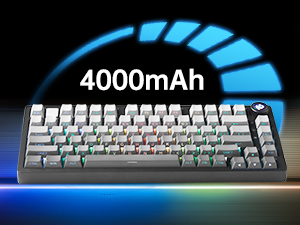
Figure 5: The keyboard is equipped with a 4000mAh battery.
4. Ntọala na Njikọta
The LEOBOG HI75C Pro offers three connection modes: wired, 2.4GHz wireless, and Bluetooth. Use the switch on the side of the keyboard to select your desired mode.
4.1 Njikọ wired
- Ensure the mode switch on the side of the keyboard is set to the wired (USB-C) position.
- Connect the provided USB-C cable to the keyboard and to an available USB port on your computer.
- A ga-amata ahụigodo na-akpaghị aka ma dịrị njikere maka ojiji.
Njikọ ikuku 4.2 2.4GHz
- Ensure the mode switch on the side of the keyboard is set to the 2.4GHz wireless position.
- Tinye eriri USB 2.4GHz n'ọdụ ụgbọ mmiri dị na kọmputa gị.
- Ahụigodo kwesịrị jikọọ na akpaghị aka. Ọ bụrụ na ọ bụghị, pịa FN + ~ ibido njikọta.
Njikọ Bluetooth 5.0 4.3
- Ensure the mode switch on the side of the keyboard is set to the Bluetooth position.
- On your device (PC, Mac, Android, iOS), enable Bluetooth and search for new devices.
- Pịa ma jide FN + 1, FN + 2, ma ọ bụ FN + 3 for 3-5 seconds to enter pairing mode for BT1, BT2, or BT3 respectively. The indicator light will flash.
- Select "LEOBOG HI75C Pro" from the list of available Bluetooth devices on your device.
- Once connected, the indicator light will stop flashing. You can switch between paired Bluetooth devices using FN + 1/2/3.

Figure 6: The keyboard supports Type-C wired, 2.4GHz wireless, and Bluetooth connections.
Video 1: Official LEOBOG overview of the HI75C Pro Mechanical Gaming Keyboard, showcasing nhazi na atụmatụ ya.
5. Ọrụ
5.1 Ntughari RGB
The keyboard features extensive RGB backlighting with 17 preset lighting effects. Additionally, it offers 10 music rhythm RGB lighting modes that synchronize with audio output. You can adjust lighting effects and brightness using the multi-functional knob or dedicated key combinations. To turn off the lights, use the knob in game mode.
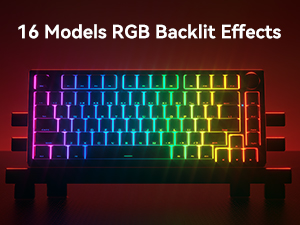
Figure 7: The keyboard offers 16 models of RGB backlit effects.
5.2 Dual-Mode Knob Control
The multi-functional knob allows for quick adjustments based on the selected mode:
- Ụdị mgbanwe: Press and hold the knob to toggle between Office Mode and Game Mode.
- Ụdị ụlọ ọrụ: When the indicator light is continuously on, the keyboard is in office mode. Rotate the knob to adjust the system volume.
- Ụdị egwuregwu: When the indicator light is breathing, the keyboard is in game mode. Rotate the knob to adjust the lighting brightness.

Figure 8: The multi-functional knob for volume and lighting control.
5.3 Mgbanwe ọkụ-Swappable
The LEOBOG HI75C Pro supports hot-swappable 3-pin/5-pin mechanical switches, allowing you to easily change switches without soldering. This feature enables customization of typing feel and sound.

Figure 9: The keyboard features hot-swappable switches for customization.
6. Nlekọta
6.1 Nhicha
Iji nọgide na-arụ ọrụ na ọdịdị dị mma, na-ehicha ahụigodo gị mgbe niile:
- Kwụpụ kiiboodu site na isi mmalite ike niile tupu ihicha.
- Jiri akwa dị nro na-enweghị ntụpọ dampened with water or a mild cleaning solution to wipe the keycaps and case.
- Maka nhicha miri emi, jiri ihe ndọpụta mkpuchi igodo enyere iji wepụ mkpuchi igodo ma jiri ikuku ma ọ bụ obere ahịhịa hichaa n'okpuru ya.
- Ensure the keyboard is completely dry before reconnecting.
6.2 Mgbanwe igodo na mgbanwe
Nhazi a na-agbanwe agbanwe na-enye ohere maka mgbanwe dị mfe nke igodo igodo na swiitị:
- Use the provided keycap puller to gently remove keycaps.
- Use a switch puller (not included, but often comes with replacement switches) to carefully remove switches. Grip the switch firmly and pull straight up.
- Align the pins of the new switch with the holes on the PCB and press down gently until it clicks into place. Ensure pins are not bent.
- Place the desired keycap onto the new switch stem.
7. Nchọpụta nsogbu
7.1 Okwu Njikọta
- Enweghị njikọ: Ensure the mode switch on the side of the keyboard is set correctly for wired, 2.4GHz, or Bluetooth.
- 2.4GHz Disconnection: Re-plug the USB receiver. Try pairing again by pressing FN + ~.
- Ịkwụsị Bluetooth: Ensure Bluetooth is enabled on your device. Re-enter pairing mode on the keyboard (FN + 1/2/3) and re-select the keyboard on your device.
- Ntinye aka: Move the keyboard closer to the receiver/device or away from other wireless devices that might cause interference.
7.2 Software and Firmware
For advanced customization, macro programming, and firmware updates, please visit the official LEOBOG website or authorized distributors' websites. Ensure you download the correct software/firmware version specifically for the LEOBOG HI75C Pro model to avoid compatibility issues.
Ọkụ 7.3 RGB anaghị arụ ọrụ
- Check if the keyboard is in Game Mode, where the knob controls brightness. Rotate the knob to increase brightness.
- Ensure the battery is sufficiently charged if using wireless mode.
- If using software, verify that lighting effects are enabled and configured correctly.
8. Nkọwapụta
| Njirimara | Nkọwa |
|---|---|
| Nọmba nlereanya | HI75C PRO |
| Akụkụ ngwaahịa | 12.97 x 5.35 x 1.74 sentimita asatọ |
| Ibu Ibu | 3.41 pound |
| Teknụzụ Njikọta | Bluetooth, USB-C, 2.4GHz Wireless |
| Nkọwa ahụigodo | Mechanical |
| Ngwa dakọtara | Egwuregwu egwuregwu, Laptọọpụ, PC, Smartphone, Mbadamba ụrọ |
| Atụmatụ pụrụ iche | Customizable Display Keys, Ergonomic, Hot-Swappable, Hotkeys and Media Keys, Programmable Keys |
| Ahụigodo azụ azụ | RGB |
| Batrị | 1 A battery required (included), 4000mAh |
9. Akwụkwọ ikike na nkwado
LEOBOG provides a 2-afọ akwụkwọ ikike for the HI75C Pro Mechanical Wireless Keyboard, covering manufacturing defects from the date of purchase. For warranty claims, technical assistance, or product inquiries, please contact LEOBOG customer support through their official websaịtị ma ọ bụ onye na-ere ahịa ebe a zụrụ ngwaahịa ahụ.

Figure 10: LEOBOG customer service is available for support.