
Okwu mmalite
This manual provides comprehensive instructions for the setup, operation, maintenance, and troubleshooting of your BPXX D463B Bluetooth Thermal Label Printer. Please read this manual thoroughly before using the printer to ensure proper function and longevity of the device.
Ozi nchekwa
- Use only the original power adapter provided with the printer.
- Ewepụla ihe nbipute na mmiri ma ọ bụ oke iru mmiri.
- Zere itinye igwe nbipute ahụ n'ebe anwụ na-acha kpọmkwem ma ọ bụ nso ebe okpomọkụ dị.
- Keep the printer away from dust and debris to prevent internal damage.
- Agbalịla ịkwatu ma ọ bụ rụzie igwe nbipute ahụ n'onwe gị. Kpọtụrụ ndị ọrụ nkwado maka enyemaka.
- Ensure proper ventilation around the printer during operation.
Ihe ngwugwu
Nyochaa na etinyere ihe niile edepụtara n'okpuru na ngwugwu gị:
- BPXX D463B USB & Bluetooth Printer
- eriri USB
- Ihe nkwụnye ọkụ
- Ụdọ ọkụ
- U Disk (USB flash drive with drivers and guide)
- OTG nkwụnye
- Labels (sample roll)
- Ntuziaka mmalite ngwa ngwa

Image: Contents of the BPXX D463B Thermal Label Printer package.
Ngwaahịa gafereview
The BPXX D463B is a compact and efficient thermal label printer designed for various labeling needs, including shipping labels, product labels, and more. It features both Bluetooth and USB connectivity for versatile use across different operating systems.

Foto: N'ihu view of the BPXX D463B Thermal Label Printer in operation.
Akụkụ ndị bụ isi:
- Mbipụta dị oke mma: 203dpi resolution for clear images, text, and barcodes.
- Njikọta abụọ: Supports Bluetooth for iOS, Android, and Windows, and USB for Windows, Mac OS, Linux, and ChromeOS.
- Ndakọrịta sara mbara: Works with major e-commerce and shipping platforms like Amazon, Shopify, eBay, UPS, USPS, FedEx, and more.
- Ọsọ ibipụta ngwa ngwa: Up to 152mm/s (72 sheets of 4x6 labels per minute).
- Nchọpụta akara akpaaka: Automatically identifies label size for ease of use.
- Isi mbipụta na-adịgide adịgide: Features an aluminum alloy print head with smart temperature control for prolonged service life.
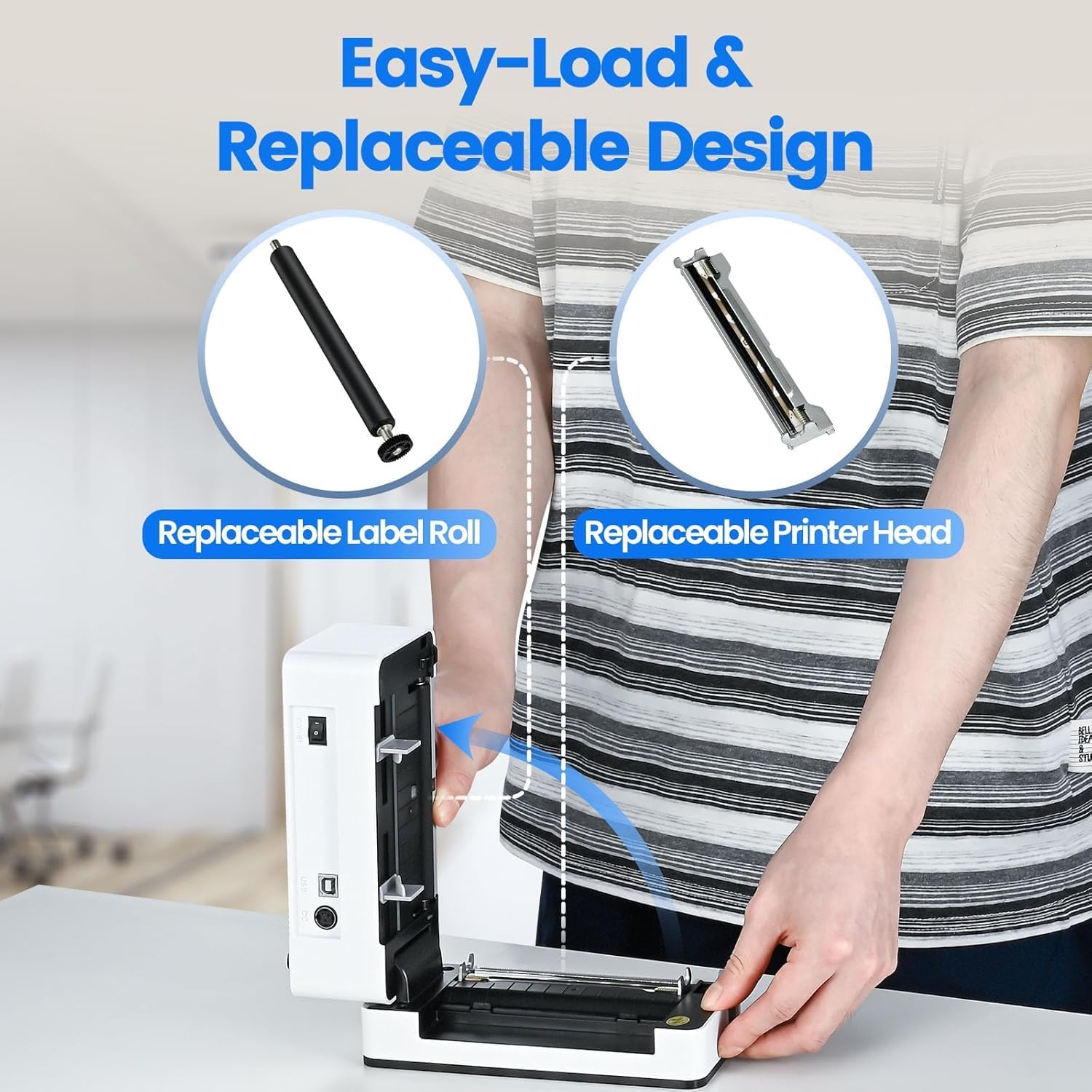
Image: The printer's aluminum alloy print head, designed for durability and extended service life.
Melite
1. Ịbugo aha
- Mepee mkpuchi elu nke ngwa nbipute.
- Insert the thermal labels into the label compartment, ensuring the printable side is facing up.
- Adjust the label guides to fit the width of your labels snugly.
- Close the top cover. The printer will automatically detect the label size and feed a few labels to calibrate.

Image: Illustration of the easy-load label mechanism.
2. Ijikọ na ngwaọrụ gị
The D463B printer offers both Bluetooth and USB connectivity.

Image: Connectivity options for the BPXX D463B printer.
Bluetooth Connection (iOS, Android, Windows):
- Ensure the printer is powered on. The indicator light should be blue.
- Download the "4Barcode" APP from your device's app store (iOS/Android) or install the driver for Windows from the provided U Disk.
- Kwado Bluetooth na ekwentị mkpanaaka ma ọ bụ kọmputa gị.
- Open the "4Barcode" APP or the printer driver software.
- Chọọ maka available Bluetooth devices and select "D463B" or a similar name.
- Pair the device. Once paired, you can begin printing wirelessly.
USB Connection (Windows, Mac OS, Linux, ChromeOS):
- Connect one end of the USB cable to the printer and the other end to your computer.
- Insert the provided U Disk into your computer.
- Follow the instructions on the U Disk to install the appropriate printer drivers for your operating system. A detailed installation guide video is included on the U Disk.
- Once drivers are installed, the printer will be recognized by your computer and ready for use.
Na-arụ ọrụ na ngwa nbipute
Usoro obibi akwụkwọ
After successful setup and connection, you can print labels from various applications and platforms.

Image: Demonstrating the printer's high-speed and high-definition printing capabilities.
- Open the document or label file you wish to print (e.g., a shipping label PDF).
- Select the print option within your application.
- Choose the "BPXX D463B" printer from the list of available printers.
- Ensure the correct label size is selected in the print settings (e.g., 4x6 inches). The printer supports various label sizes up to 4.1 inches in width.
- Confirm print settings and initiate printing.

Image: The printer's maximum 4.1-inch label width capability and auto-detection feature.
Ndakọrịta Platform
The BPXX D463B is compatible with a wide range of e-commerce and shipping platforms, streamlining your workflow:
- Amazon
- Shopify
- eBay
- Shopee
- UPS
- USPS
- Shippo
- FedEx
- Etsy
- Ụgbọ mmiri
- PayPal
- Na ọtụtụ ndị ọzọ.

Image: The printer's compatibility with major e-commerce and shipping platforms.
Nlekọta
Na-ehicha ihe nbipute
Regular cleaning ensures optimal print quality and extends the life of your printer.
- Turn off the printer and unplug it from the power source before cleaning.
- Jiri akwa dị nro na nke enweghị mmiri ọkụ dampened with isopropyl alcohol to clean the print head. Allow it to dry completely before use.
- Wipe down the exterior of the printer with a dry, soft cloth.
- Remove any dust or label debris from the label compartment.
Dochie akụrụngwa
The BPXX D463B is designed for easy replacement of key components to maximize its lifespan.
Image: Easy-load and replaceable design for label roll and printer head.
Replacing the Label Roll:
Follow the "Loading Labels" instructions in the Setup section to replace an empty label roll.
Replacing the Printer Head:
While the aluminum alloy print head is designed for durability, it is replaceable if needed. Refer to the detailed instructions provided on the U Disk or contact customer support for guidance on replacing the print head.
Nchọpụta nsogbu
| Nsogbu | Ihe nwere ike ime | Ngwọta |
|---|---|---|
| Printer not powering on. | Ejikọghị eriri ọkụ; okwu mgbapụta ike. | Gbaa mbọ hụ na ejikọrọ eriri ọkụ na nchekwa. Gbalịa nweta ike dị iche. |
| Enweghị ike ijikọ site na Bluetooth. | Bluetooth not enabled; incorrect app/driver; printer not discoverable. | Ensure Bluetooth is on. Use the "4Barcode" APP. Restart printer and device. |
| Poor print quality (faded, unclear). | Print head dirty; incorrect label type; low-quality labels. | Clean the print head. Ensure you are using thermal labels. Try new labels. |
| Akara ndị na-anaghị eri nri nke ọma. | Labels improperly loaded; label guides not adjusted. | Reload labels, ensuring they are straight and guides are snug. |
| Printer not recognized by computer (USB). | Drivers not installed; faulty USB cable/port. | Install drivers from the U Disk. Try a different USB cable or port. |
Nkọwapụta
| Njirimara | Nkọwa |
|---|---|
| Aha Nlereanya | D463B |
| Teknụzụ obibi akwụkwọ | Thermal |
| Teknụzụ Njikọta | Bluetooth, USB |
| Mkpebi Mbipụta | 203 DPI (ntụpọ kwa inch) |
| Ọsọ mbipụta kacha (Monochrome) | 152mm/s (72 sheets 4x6 labels/min) |
| Max Label Width | 4.1 sentimita asatọ |
| Compatible Label Sizes | 4"x6", 3"x2", 3"x1", 2"x1", 2-5/16" x 4" inches |
| Ngwa dakọtara | Laptops, PCs, Tablets, Smartphones |
| OS akwadoro | iOS, Android, Windows, Mac OS, Linux, ChromeOS |
| Akụkụ ngwaahịa | 3.35"D x 3.35"W x 7.28"H |
| Ibu Ibu | 3.12 pound |
| Isi Iyi Ike | Ihe nkwụnye AC (gụnyere) |

Image: The compact size of the BPXX D463B printer.
Akwụkwọ ikike
The BPXX D463B Thermal Label Printer comes with a akwụkwọ ikike otu afọ from the date of purchase. This warranty covers manufacturing defects and malfunctions under normal use. It does not cover damage caused by misuse, accidents, unauthorized repairs, or natural disasters.
Biko dowe ihe akaebe nke ịzụrụ ihe maka akwụkwọ ikike.
Nkwado ndị ahịa
For any questions, technical assistance, or warranty claims, please contact BPXX customer support through the following channels:
- Email: Refer to the contact information provided in your product packaging or on the official BPXX websaịtị.
- Nkwado n'ịntanetị: Visit the BPXX official websaịtị maka FAQs, ndị ọkwọ ụgbọala, na akụrụngwa nkwado.
When contacting support, please have your printer model (D463B) and purchase information ready.