
Ngwaahịa gafereview
The TP-Link Archer MR505 is a 4G+ Cat6 AC1200 Wireless Dual Band Gigabit Router designed to provide reliable internet connectivity. This router supports dual-band Wi-Fi (2.4 GHz and 5 GHz) and features Gigabit Ethernet ports for high-speed wired connections. It is compatible with 4G+ Cat6 networks, offering mobile broadband access.

Foto 1: N'ihu view of the Archer MR505 router.
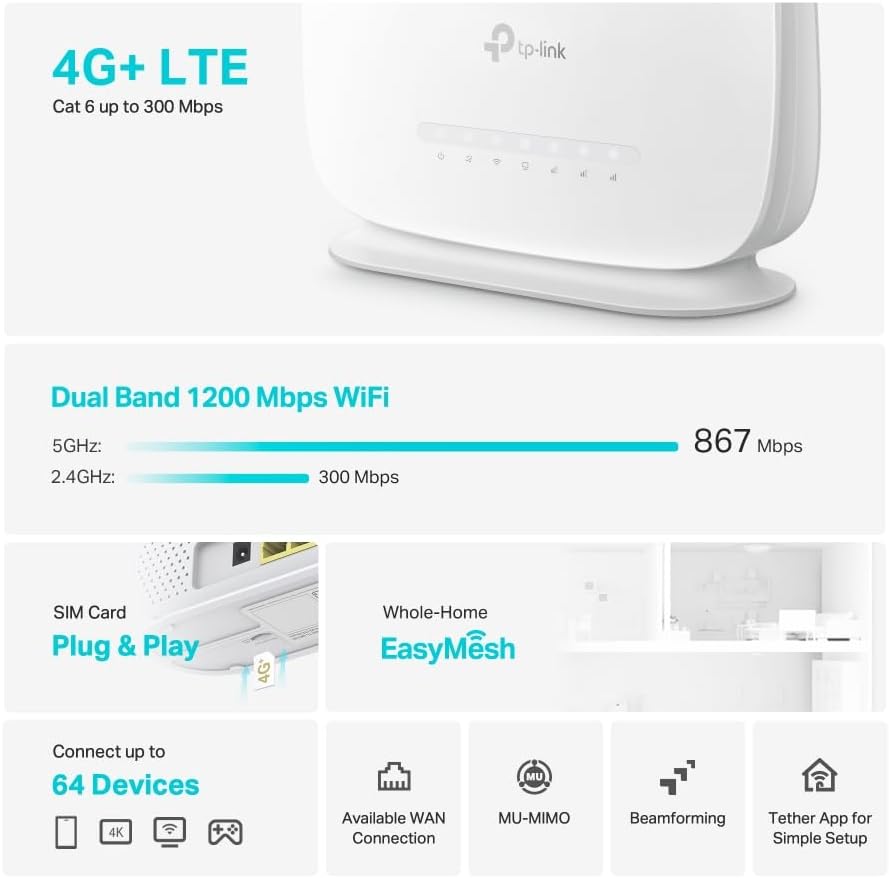
Foto 2: Akụkụ view of the Archer MR505 router.
Ihe ngwugwu
Chọpụta na ihe niile dị na ngwugwu gị:
- TP-Link Archer MR505 Router
- Ihe nkwụnye ọkụ
- Ntuziaka nwụnye ngwa ngwa
- RJ45 Ethernet USB

Figure 3: Key features and components of the Archer MR505.
Ntuziaka nhazi
Follow these steps to set up your Archer MR505 router:
- Fanye SIM kaadị: Locate the SIM card slot on the router. Insert your 4G/LTE SIM card into the slot until it clicks into place. Ensure the SIM card is a normal data SIM for optimal compatibility. Some data-only SIM cards may require specific configurations or may not be fully compatible.
- Njikọ Ike: Connect the provided power adapter to the router's power port and then plug it into a power outlet. The router will power on automatically.
- Chere maka mbido: Allow a few minutes for the router to boot up and establish a connection to the 4G/LTE network. The LED indicators on the front panel will show the connection status.
- Njikọ Wi-Fi izizi:
- Find the default Wi-Fi network name (SSID) and password printed on the label at the bottom of the router.
- Connect your computer or mobile device to this Wi-Fi network.
- Nweta njikwa rawụta:
- Mepee a web ihe nchọgharị wee tinye adreesị nchịkwa nke ndabara (dịka ọmụmaatụ, http://tplinkwifi.net or http://192.168.1.1).
- Log in using the default username and password (usually admin/admin or specified on the label).
- Hazie ntọala netwọkụ: Follow the on-screen Quick Setup wizard to configure your internet connection, change the Wi-Fi network name (SSID), and set a strong, unique password for both your Wi-Fi and router management interface.
- Tether App Setup (Optional): Download the TP-Link Tether app from your device's app store. The app provides an intuitive way to manage your router settings from your smartphone or tablet.
- External Antenna (Optional): If using external antennas (not included), connect them to the designated ports on the back of the router. You may need to manually enable external antenna usage through the router's web interface ma ọ bụ ngwa Tether.
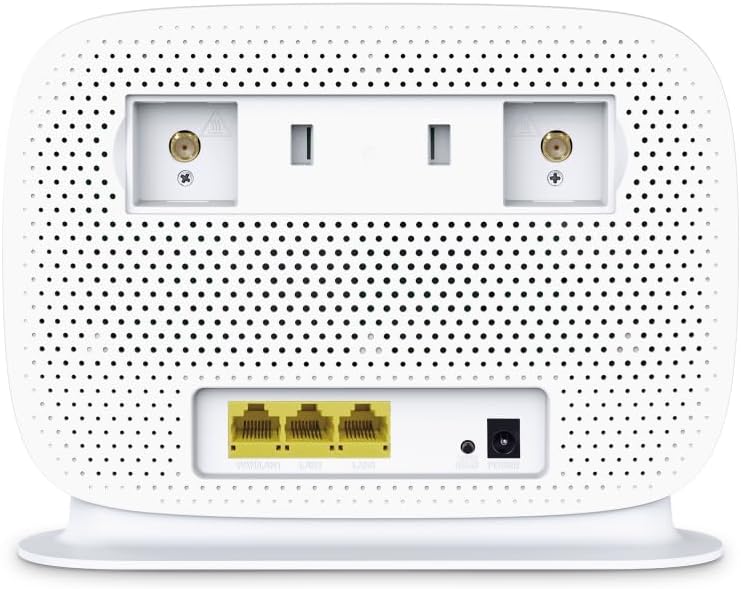
Figure 4: Rear panel of the Archer MR505 with ports and SIM slot.

Figure 5: Archer MR505 in various usage scenarios.
Ntuziaka ọrụ
The Archer MR505 provides robust wireless and wired connectivity:
- Wi-Fi nwere eriri abụọ: The router operates on both 2.4 GHz and 5 GHz bands, offering speeds up to 300 Mbps and 867 Mbps respectively, for a total of AC1200 Wi-Fi.
- 4G+ Cat6 Connectivity: Enjoy mobile broadband speeds up to 300 Mbps download and 300 Mbps upload (maximum upstream data transfer rate).
- Ọdụ ụgbọ mmiri Gigabit Ethernet: Four Gigabit LAN ports (1000 Mbps) are available for high-speed wired connections to devices like computers, gaming consoles, or smart TVs. One port can also function as a WAN port for traditional broadband connections.
- Ike ngwaọrụ: The router can support connectivity for up to 64 devices simultaneously.
- Njikọ Smart: This feature automatically assigns devices to the best available Wi-Fi band (2.4 GHz or 5 GHz) for optimized performance.
- Ndakọrịta EasyMesh: The Archer MR505 is compatible with TP-Link EasyMesh, allowing you to create a seamless whole-home mesh Wi-Fi network by adding compatible range extenders.
- Teknụzụ dị elu: Features like MU-MIMO and Beamforming enhance Wi-Fi efficiency and range, especially for multiple connected devices.
- Nchekwa: The router supports WPA3 encryption for enhanced network security.

Figure 6: Versatile connectivity and speed capabilities.

Figure 7: Whole-Home EasyMesh integration.
Nlekọta
To ensure optimal performance and security of your router:
- Mmelite femụwe: Na-elele mgbe niile ma wụnye mmelite firmware ọhụrụ sitere na onye ọrụ TP-Link website or via the Tether app. Firmware updates often include security patches and performance improvements.
- Okwuntughe echekwara Use strong, unique passwords for your Wi-Fi network and router management interface. Change them periodically.
- Ndobe anụ ahụ: Place the router in a central location, away from obstructions and sources of interference (e.g., microwaves, cordless phones) to maximize Wi-Fi coverage.
- Nhicha: Keep the router clean and free from dust. Ensure ventilation holes are not blocked.
- Malitegharịa oge: Restarting the router occasionally can help resolve minor network issues and improve performance.
Nchọpụta nsogbu
If you encounter issues with your Archer MR505 router, consider the following:
- No Internet Connection via 4G/LTE:
- Ensure your SIM card is correctly inserted and activated.
- Verify that your SIM card is a normal data SIM. Some data-only SIM cards may require specific APN settings or might not be fully compatible. Contact your mobile service provider for details.
- Check the 4G/LTE signal strength indicated by the router's LEDs. If the signal is weak, try repositioning the router or consider using external antennas (if supported and configured).
- Malitegharịa ekwentị rawụta na ngwaọrụ gị ejikọrọ.
- Okwu njikọ Wi-Fi:
- Ensure your device is within the router's Wi-Fi range.
- Hụ na ị na-eji paswọọdụ Wi-Fi ziri ezi.
- If a device frequently connects and disconnects, try restarting that specific device.
- Lelee maka ndabichi sitere na ngwaọrụ eletrọnịkị ndị ọzọ.
- Ọsọ ịntanetị dị nwayọ:
- Check your 4G/LTE signal strength. Weak signal can significantly reduce speed.
- Hụ na ngwa ma ọ bụ ngwaọrụ ndị ọzọ anaghị eri oke bandwidth.
- If using Wi-Fi, try connecting to the 5 GHz band for faster speeds, if your device supports it.
- Mee ule ọsọ iji gosi ọsọ ọsọ ị na-enweta.
- Enweghị ike ịnweta ibe njikwa rawụta:
- Gbaa mbọ hụ na ejikọrọ ngwaọrụ gị na netwọkụ rawụta (ma site na Wi-Fi ma ọ bụ eriri Ethernet).
- Verify you are entering the correct management address (e.g., http://tplinkwifi.net).
- Gbalịa ikpochapụ cache ihe nchọgharị gị ma ọ bụ jiri ihe nchọgharị dị iche.
Nkọwapụta
| Ụdị | TP-njikọ |
| Aha Nlereanya | Onye na-agba ụta MR505 |
| Ikuku Standard | 802.11ac (Wi-Fi 5) |
| Klaasị ugboro ugboro | Dual-band (2.4 GHz na 5 GHz) |
| Ọnụego data Wi-Fi | Up to 300 Mbps (2.4 GHz), Up to 867 Mbps (5 GHz) - AC1200 Total |
| 4G+ Cat6 Speed | Up to 300 Mbps Download, Up to 300 Mbps Upload |
| ọdụ ụgbọ mmiri Ethernet | 4 x Gigabit LAN Ports (1000 Mbps), 1 x WAN/LAN Port |
| Ụdị antenna | Internal (External antenna support available) |
| Usoro nchekwa | WPA3 |
| Usoro njikwa | App (TP-Link Tether) |
| Ngwa dakọtara | Laptop, Personal Computer, Smart Television, Smartphone, Tablet |
| Ntinye ike | 12 volts |
| Ibu Ibu | 0.93 kilogram |
| Ngwa gụnyere | Archer MR505, Power Adapter, Quick Installation Guide, RJ45 Ethernet Cable |
Akwụkwọ ikike na nkwado
Maka ozi gbasara akwụkwọ ikike, biko lee kaadị akwụkwọ ikike dị na ngwaahịa gị ma ọ bụ gaa na TP-Link gọọmentị. website for your region. Support resources, including FAQs, firmware downloads, and contact information, are available on the TP-Link support website and through the TP-Link Tether app.
Official TP-Link Websaịtị: https://www.tp-link.com
Ngwa Tether TP-Link: Available on iOS App Store and Google Play Store.