
1. Okwu mmalite
Thank you for choosing the PUTRIMS K12 Google TV Projector. This manual provides essential information for the safe and efficient use of your new projector. Please read it thoroughly before operation and keep it for future reference.

Figure 1.1: PUTRIMS K12 Projector
2. Ozi nchekwa
- Elela anya ozugbo na oghere projector mgbe lamp dị na.
- Gbaa mbọ hụ na ikuku ikuku dị mma iji gbochie ikpo oke ọkụ.
- Debe ihe ngosi ahụ ka ọ ghara ịnọ na mmiri ma ọ bụ ihe ndị ọzọ dị n'ime ya.
- Jiri naanị ihe nkwụnye ọkụ enyere.
- Zere idobe ihe nrụpụta n'elu ebe anaghị akwụsi ike.
- Agbalịla ịkwatu ma ọ bụ rụzie ihe onyonyo ahụ n'onwe gị. Kpọtụrụ ndị ọrụ nkwado maka enyemaka.
3. Ihe ngwugwu
Chọpụta na ihe niile dị na ngwugwu gị:
- PUTRIMS K12 Projector
- Njikwa anya
- Ụdọ ọkụ
- HDMI USB
- Ihe mkpuchi oghere projector
- Akwụkwọ ntuziaka (akwụkwọ a)
4. Ngwaahịa gafereview
The PUTRIMS K12 projector is designed for a versatile home theater and business experience. It features a sleek design with essential ports for connectivity.
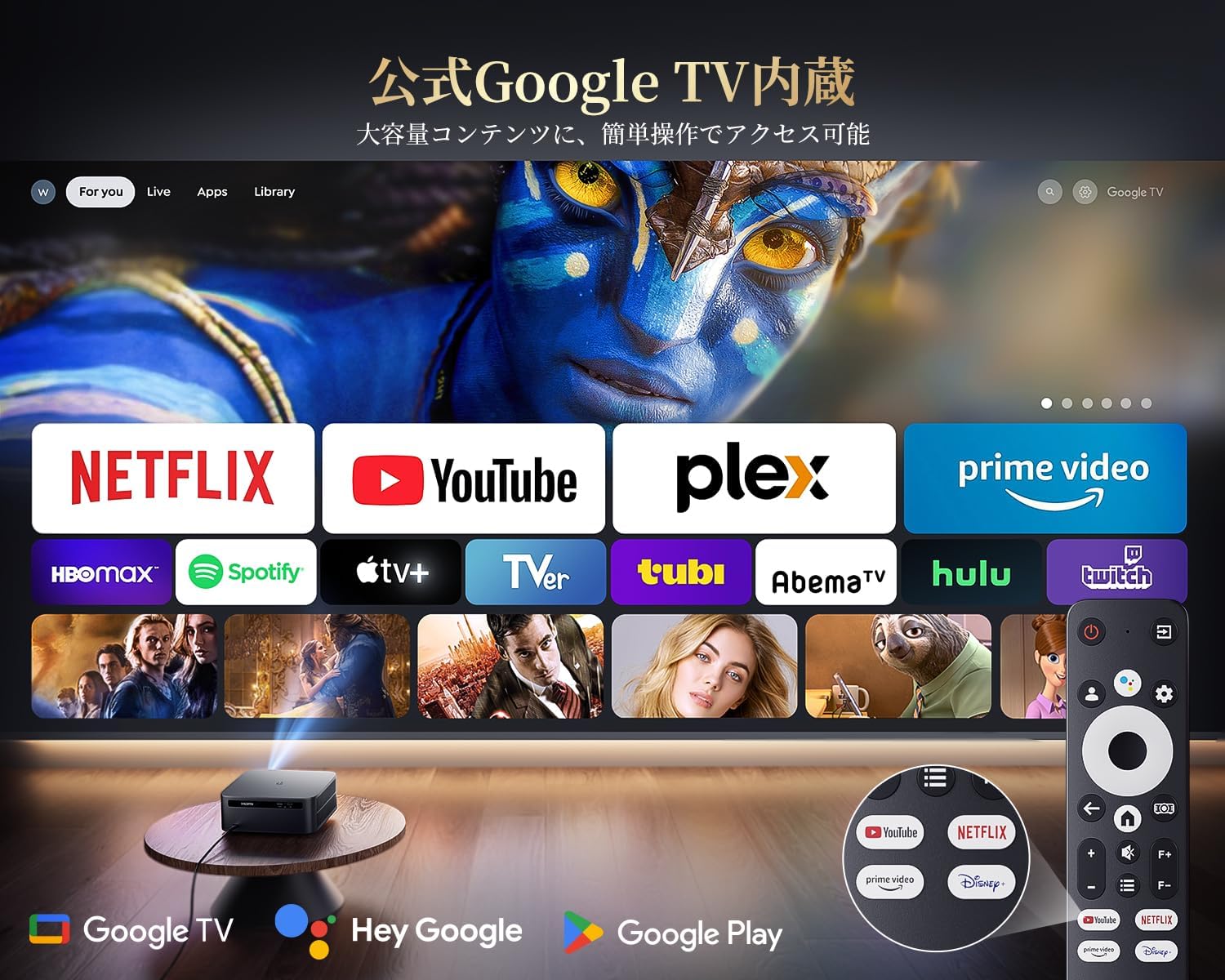
Foto 4.1: N'ihu view of the K12 Projector, showing the lens and auto-focus sensors.

Ọgụgụ 4.2: N'azụ view of the K12 Projector, highlighting HDMI, USB, and audio ports.
Video 4.1: General product overview and feature demonstration of the PUTRIMS K12 projector.
5. Nhazi
5.1 Nhazi anụ ahụ
The K12 projector offers flexible installation options to suit various environments:
- Ndokwa tebụl: Debe ihe ngosi ahụ n'elu ebe kwụsiri ike ma dị larịị.
- Ịgbago Tripod: Use the M5 screw hole on the bottom to attach a tripod.
- Ịkwanye elu ụlọ: Securely mount the projector to the ceiling using a compatible mount.
- Ịkwanye mgbidi: Attach the projector to a wall using a suitable bracket.

Figure 5.1: Diverse installation methods for the K12 Projector.
5.2 Ike mbido
- Jikọọ eriri ọkụ na ihe nrụpụta na igwe ọkụ.
- Pịa bọtịnụ ike dị na projector ma ọ bụ remote control ka ịgbanwuo ya.
- The projector will automatically perform auto-focus and keystone correction.
5.3 Njikọ netwọkụ (WiFi)
To access online streaming services and updates, connect your projector to a WiFi network:
- Gaa na menu 'Ntọala' dị na projector.
- Họrọ 'Netwọk' maọbụ 'Ntọala WiFi'.
- Turn on WiFi and select your desired network from the list.
- Tinye paswọọdụ ma ọ bụrụ kpaliri wee jikọọ.
5.4 Njikọ Bluetooth
Connect external Bluetooth speakers or headphones for enhanced audio:
- Go to 'Settings' and select 'Bluetooth'.
- Turn on Bluetooth and put your external device into pairing mode.
- Họrọ ngwaọrụ gị site na ndepụta iji jikọọ.
5.5 Ngosipụta ihuenyo
Share content from your mobile devices or computer wirelessly:
- For iOS devices (Airplay): Ensure your iOS device and the projector are connected to the same WiFi network. Open the 'iOS Cast' interface on the projector. On your iOS device, open Control Center, tap 'Screen Mirroring', and select 'K12-xxxx' from the list.
- For Android/Windows devices (Miracast): Ensure your device and the projector are connected to the same WiFi network. Open the 'Miracast' interface on the projector. On your Android/Windows device, enable screen mirroring/cast feature and select 'K12-xxxx' to connect.
6. Ntuziaka ọrụ
6.1 Atụmatụ Google TV
The PUTRIMS K12 comes with official Google TV, providing access to a vast library of content and applications.
- Ngwa gụgharia: Directly access Netflix, Disney+, YouTube, Prime Video, Hulu, and many more with a single click.
- Ụlọ ahịa Google Play: Download and install over 10,000 applications and games.
- Mmelite oge niile: The projector receives periodic updates to enhance security and stability.

Figure 6.1: Google TV interface with popular streaming applications.
6.2 Njikwa olu
Utilize the Google Voice Assistant for convenient control of your projector and content.
- Press the voice control button on your remote.
- Speak commands such as "Open Netflix," "Play One Piece," "Tell me the weather," or "Increase volume."

Figure 6.2: Using the Google Voice Assistant with the remote control.
6.3 Ndozi onyonyo
The K12 projector features advanced image adjustment capabilities for optimal viewing.
- Lekwasịrị anya na akpaaka: The projector automatically adjusts the focus for a clear image upon startup or movement.
- Ndozi isi okwu na akpaaka: It automatically corrects horizontal and vertical trapezoidal distortions, ensuring a perfectly rectangular image even from an angle.
- Ọrụ mbugharị: Adjust the screen size from 50% to 100% without moving the projector.
- Akụkụ akụkụ: Supports 4:3 and 16:9 aspect ratios.
- Icha ọkụ & ọdịiche: Customize brightness and contrast settings to your preference.

Foto 6.3: Ndozi akpaka na ntọala igodo na-arụ ọrụ.

Figure 6.4: Projection distances and corresponding screen sizes (100", 120", 150").
6.4 Ijikọ ngwaọrụ mpụga
The K12 projector offers multiple connectivity options for various devices:
- HDMI AKA: Connect to soundbars, laptops, gaming consoles (Switch, PS5), or DVD players.
- USB: Play media directly from USB memory sticks.
- 3.5mm ọdụ ụgbọ mmiri: Jikọọ na sistemụ ọdịyo mpụga.

Figure 6.5: Seamless connection with various external devices.
7. Nlekọta
7.1 nhicha oghere
To maintain optimal image quality, regularly clean the projector lens.
- Gbaa mbọ hụ na agbanyụrụ igwe nrụpụta ahụ wee wepụ ya.
- Gently wipe the lens with a soft, lint-free cloth or a cotton swab.
- For stubborn smudges, use a lens cleaning solution specifically designed for optical surfaces.
- Avoid using abrasive materials or harsh chemicals that could damage the lens.
8. Nchọpụta nsogbu
Nke a bụ ngwọta maka nsogbu nkịtị ị nwere ike ihu:
- No image/signal: Check all cable connections (HDMI, power). Ensure the correct input source is selected on the projector.
- Onyonyo na-agba agba: The projector features auto-focus. If the image remains blurry, ensure the lens is clean and there are no obstructions.
- Image not rectangular: The projector has auto-keystone correction. If issues persist, ensure the projector is placed on a stable surface and try repositioning it.
- Enweghị ụda: Check volume settings on both the projector and connected devices. Ensure external speakers are properly connected via Bluetooth or audio cable. If using HDMI ARC, verify the connection and settings.
- WiFi/Bluetooth connection issues: Ensure the projector and your device are within range of the router/device. Restart both the projector and the router/device.
- App crashes or malfunctions (for unofficial Android TV versions): The PUTRIMS K12 has an official Google TV license, which ensures stability. If you experience issues, ensure your system is updated.
Maka enyemaka ọzọ, biko lee ngalaba Akwụkwọ ikike na Nkwado.
9. Nkọwapụta
| Njirimara | Nkọwa |
|---|---|
| Ụdị | PUTRIMS |
| Nlereanya | K12 |
| Icha ọkụ | 1500 ANSI Oghere |
| Mkpebi | 1080P FHD (4K Support) |
| Sistemụ nrụọrụ | Official Google TV |
| Njikwa olu | Onye enyemaka olu Google |
| Lekwasị anya | Omnidirectional Auto Focus |
| Keystone Ndozi | Horizontal & Vertical Auto Keystone Correction |
| Bugharịa | 50%-100% |
| Ogo ihuenyo kacha | 300 sentimita asatọ |
| WiFi | WiFi 6 |
| Bluetooth | Bluetooth 5.3 |
| Mmepụta ọdịyo | 20W HIFI Speaker, 3.5mm Audio Jack |
| Ntinye ọdụ ụgbọ mmiri | HDMI ARC, USB |
| Akụkụ | 40.5 x 30.2 x 17 cm |
| Ibu | 3.31 n'arọ |
10. Akwụkwọ ikike na nkwado
PUTRIMS is committed to providing excellent customer service. Your K12 projector comes with comprehensive support:
- Ọrụ mgbe-ahịa gasịrị: 24 hours a day, 365 days a year.
- Nkwado ndị teknuzu: Professional technical assistance is available.
- Akwụkwọ ikike: Free exchange or 100% refund guarantee for initial defects or natural failures under normal use.
If you have any questions or require assistance, please contact PUTRIMS customer support via the official email address provided in your product packaging or on the official websaịtị.