
1. Okwu mmalite
This manual provides detailed instructions for the safe and effective use of your iCarsoft LR V3.0 Bidirectional OBD2 Scanner. The device is designed for comprehensive vehicle diagnostics, offering full system scanning, bidirectional control, reset services, and battery testing for Land Rover and Jaguar vehicles. Please read this manual thoroughly before operating the device.
2. Ngwaahịa gafereview
The iCarsoft LR V3.0 is an advanced diagnostic tool equipped with a range of features to assist in vehicle maintenance and troubleshooting. It supports full system diagnosis for over 270 systems, powerful bidirectional control, and more than 38 reset services. The device also includes full OBD2 functions, one-key automatic diagnostics, and Auto VIN identification.

Image: The iCarsoft LR V3.0 scanner, showcasing its capabilities for Land Rover and Jaguar owners, including full system diagnosis and various reset services.
2.1 Atụmatụ
- Nchọpụta Sistemụ zuru oke: Accesses and scans over 270 vehicle systems for fault codes.
- Bidirectional Control: Performs active tests to command vehicle components.
- Reset Services: Offers 38+ maintenance reset functions, including Oil Reset, EPB Reset, SAS Reset, and Battery Registration.
- Ọrụ OBD2 zuru oke: Supports all 10 OBD2 test modes for comprehensive engine diagnostics.
- One-key Automatic Diagnostics: Simplifies the diagnostic process.
- VIN akpaaka: Na-achọpụta ozi ụgbọala na akpaghị aka.
- Live Data Graphing: Displays 118 graphic live data streams for real-time monitoring.
- Nnwale batrị: Evaluates battery health and starting performance.
- Nkwado ọtụtụ asụsụ: Operates in 15 different languages.
- Mmelite Ndụ n'efu: Ensures the software remains current.
- Lifetime Free Hardware Repair: Provides long-term support for the device.
Ihe ngwugwu 2.2
Upon unboxing, verify that all items are present:

Image: The iCarsoft LR V3.0 package contents, showing the main scanner unit, cables, storage, and documentation.
- iCarsoft LR V3.0 Car Scanner
- Main OBD2 Cable
- PC Connecting Cable
- TF Card (pre-installed in the scanner)
- Onye na-agụ kaadị
- Akwụkwọ ntuziaka onye ọrụ
- Ebu Nylon
3. Nhazi
Follow these steps to prepare your iCarsoft LR V3.0 scanner for first use.
3.1 Initial Device Power-Up
- Connect the main OBD2 cable to the scanner's diagnostic port.
- Locate the OBD2 port in your vehicle (typically under the dashboard on the driver's side).
- Plug the OBD2 connector into the vehicle's OBD2 port. The scanner will power on automatically using the vehicle's electrical system.
3.2 Language and Unit Settings
After powering on, navigate to the 'Settings' menu to configure the device:
- Select 'Language' to choose your preferred operating language from the 15 available options.
- Adjust 'Unit of Measure' for data display (e.g., Celsius/Fahrenheit, PSI/Bar).
- Configure 'Buzzer' and 'Log' settings as desired.
3.3 Mmelite ngwanrọ
The iCarsoft LR V3.0 offers lifetime free updates. Regularly updating the software ensures access to the latest vehicle models, diagnostic functions, and bug fixes.
- Connect the scanner to a computer using the provided PC connecting cable.
- Visit the official iCarsoft websaịtị (www.icarsoft.us) to download the update tool and latest software packages.
- Follow the on-screen instructions of the update tool to install the new software onto your scanner's TF card.
3.4 Vehicle Compatibility Check
Before performing diagnostics, it is recommended to verify your vehicle's compatibility with the iCarsoft LR V3.0 scanner and its specific functions. This can be done via the official iCarsoft websaịtị.

Image: Instructions for checking vehicle compatibility on the iCarsoft official websaịtị.
- Navigate to the compatibility section on the iCarsoft official websaịtị.
- Enter your vehicle's brand, model, and year to check the supported functions.
- Alternatively, search for 'iCarsoft LR V3.0' and review the detailed compatibility list for Land Rover and Jaguar models.
4. Ntuziaka ọrụ
This section outlines the primary functions and how to use them.
4.1 Nchoputa Sistemụ zuru oke
The scanner can perform an in-depth diagnosis of all available electronic control units (ECUs) in your vehicle.
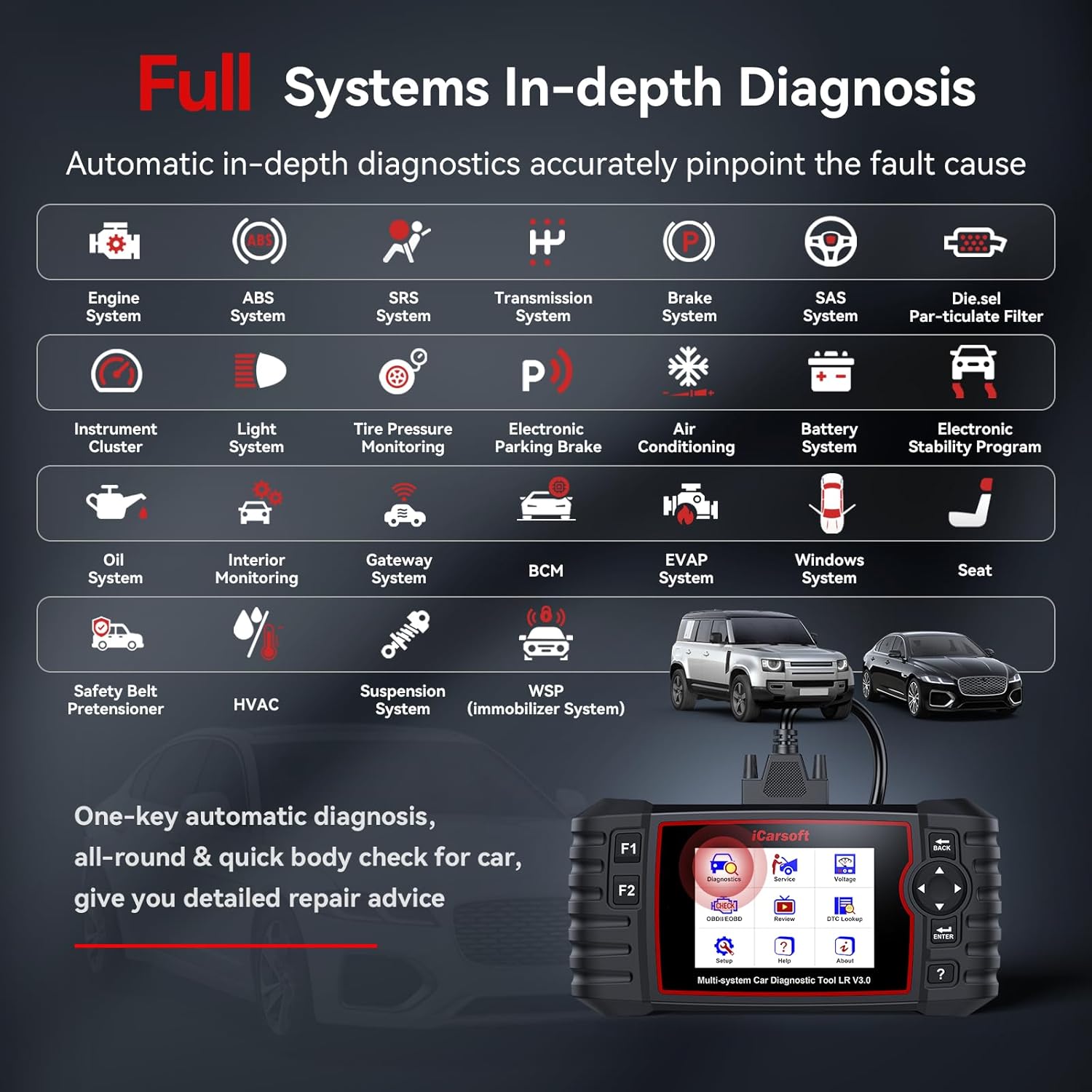
Image: Visual representation of the full system in-depth diagnosis capability, covering numerous vehicle modules.
- Site na isi menu, họrọ 'Nchọpụta'.
- Choose your vehicle make (Land Rover or Jaguar).
- Select 'Auto Scan' or manually select the system you wish to diagnose (e.g., Engine, ABS, Airbag, Transmission).
- The scanner will read fault codes (DTCs) and display their descriptions.
- Ị nwere ike mgbe ahụ view freeze frame data or clear the fault codes after repairs are made.
4.2 Njikwa Bidirectional (Ule Ndị Na-arụ Ọrụ)
Bidirectional control allows the scanner to send commands to vehicle components and monitor their operation, aiding in faster troubleshooting.

Image: The scanner performing bidirectional tests, demonstrating its ability to send commands and receive feedback from vehicle systems.
- From the 'Diagnosis' menu, select 'Active Test' or 'Bidirectional Control'.
- Choose the specific component or system you wish to test (e.g., Injector Test, Fuel Pump Test, Cooling Fan Test, Door Lock Test, Window Test).
- Follow the on-screen prompts to activate the component and observe its response.
4.3 Ọrụ Ntọgharị
The LR V3.0 offers numerous reset functions to perform maintenance and calibration tasks after component replacement or service.

Image: The scanner's menu showing a comprehensive list of reset services available for vehicle maintenance.
Commonly used reset functions include:
- Ntọgharị mmanụ
- Electronic Parking Brake (EPB) Reset
- Steering Angle Sensor (SAS) Reset
- Battery Registration
- ABS ọbara
- Throttle Position Sensor (ETC) Reset
- Diesel Particulate Filter (DPF) Mweghachi
- Tire Pressure Monitoring System (TPMS) Reset
Professional special functions include Powertrain configuration reset, Suspension height calibration, Rain sensor calibration, Active damping control module calibration, and various key services.
- From the main menu, select 'Service'.
- Choose the desired reset function from the list.
- Follow the on-screen instructions to complete the procedure. Ensure all safety precautions are observed.
4.4 Nnwale batrị
The battery test function assesses the vehicle's battery health and starting capabilities.

Image: The scanner's battery test interface, displaying voltage readings and judgment standards.
- From the main menu, select 'Battery Test'.
- Soro ntuziaka ndị a iji mee nnwale ahụ. Ihe nyocha ahụ ga-egosi volta batrị ahụ.tage and a judgment of its condition (e.g., Too Low, Low, Normal, Too High).
- Refer to the on-screen guidance for interpreting results and potential actions.
4.5 Nhazi Data Dị Ndụ
Monitor real-time sensor data in a graphical format to identify performance issues or verify repairs.

Image: Live data graphing feature, showing real-time vehicle parameters for analysis.
- After a diagnosis, select 'Live Data' or 'Data Stream'.
- Choose the parameters you wish to monitor.
- Select 'Graph' to view the data graphically. This can help identify intermittent issues or abnormal sensor readings.
4.6 Ndekọ Data na Mkpọghachi
The scanner allows you to record live data sessions for later review na nyocha.
- During a live data session, select the 'Record' option.
- Maka review recorded data, navigate to 'Diagnostic History' or 'Data Playback' from the main menu.
4.7 Print and Share
Diagnostic reports can be printed or shared for documentation or further consultation.
- Connect the scanner to a computer with the PC connecting cable.
- Use the iCarsoft PC software to retrieve and print diagnostic reports.
5. Nlekọta
Proper maintenance ensures the longevity and optimal performance of your iCarsoft LR V3.0 scanner.
5.1 Na-ehicha ngwaọrụ
- Jiri nwayọọ, damp cloth to clean the scanner's screen and casing.
- Zere iji ihe nchacha abrasive ma ọ bụ ihe mgbaze nwere ike imebi ngwaọrụ ahụ.
- Ensure the device is powered off and disconnected from any power source before cleaning.
5.2 Nchekwa
- Store the scanner in its provided nylon carry case when not in use to protect it from dust, moisture, and physical damage.
- Debe ngwaọrụ ahụ n'ebe dị jụụ ma kpọọ nkụ, ebe anwụ na-anaghị apụta kpọmkwem na oke okpomọkụ.
5.3 Mmezi Ngwanrọ
Regularly update the scanner's software as described in Section 3.3 to ensure it has the latest vehicle data and diagnostic capabilities.
6. Nchọpụta nsogbu
Akụkụ a na-ekwu maka nsogbu ndị ị nwere ike izute.
6.1 Ngwaọrụ anaghị agba ọkụ
- Ensure the OBD2 cable is securely connected to both the scanner and the vehicle's OBD2 port.
- Check the vehicle's battery. The scanner draws power from the vehicle.
- Verify the vehicle's ignition is in the 'ON' position (engine off or running, depending on the test).
6.2 Njehie Nkwurịta Okwu
- Confirm the OBD2 cable is not damaged and is properly connected.
- Gbaa mbọ hụ na mgbanye ụgbọ ala agbanyere.
- Verify that the scanner's software is up to date.
- Check vehicle compatibility on the iCarsoft official website (refer to Section 3.4).
6.3 Inaccurate or Missing Data
- Ensure the correct vehicle model and year are selected in the scanner's menu.
- Perform a software update to ensure the latest diagnostic protocols are installed.
- Some functions may not be supported on all vehicle models or ECUs due to differences in protocols. Consult the compatibility list on the official websaịtị.
6.4 Device Freezes or Responds Slowly
- Restart the scanner by disconnecting and reconnecting it from the vehicle.
- Ensure the TF card is properly inserted and not corrupted.
- Mee nkwalite ngwanrọ.
7. Nkọwapụta
| Njirimara | Nkọwapụta |
|---|---|
| Nọmba nlereanya | Land Rover V3.0 |
| Akụkụ (L x W x H) | 26.19 x 19.1 x 6.71 cm (10.31 x 7.52 x 2.64 inch) |
| Ibu | 789.25 grams (1.74 pound) |
| Isi Iyi Ike | Vehicle OBD2 port (Electrical cable) |
| Nchekwa nke ime | 16GB (kaadị TF) |
| Asụsụ akwadoro | 15 |
| UPC / GTIN | 850030851727 |
8. Akwụkwọ ikike na nkwado
iCarsoft is committed to providing high-quality products and customer service.
8.1 Ozi akwụkwọ ikike
- The iCarsoft LR V3.0 scanner comes with a 1-year hardware warranty.
- Lifetime Free Hardware Repair is provided for the device.
8.2 Mmelite ngwanrọ
- Nwee obi ụtọ Mmelite ngwanrọ n'efu nke ndụ to keep your scanner's diagnostic capabilities current with new vehicle models and functions.
8.3 Nkwado nka na ụzụ
- iCarsoft offers 24/7 quick response from professional engineers for any technical inquiries or support needs.
- Maka nkwado, biko kpọtụrụ: sales@icarsoft.us